Category: AI & Tech Tutorials

Practical how-to guides for AI apps, consumer technology and safe drone use.

  • Android Has a Quick Lockdown Option—Useful When You Need to Secure It

    Android Has a Quick Lockdown Option—Useful When You Need to Secure It

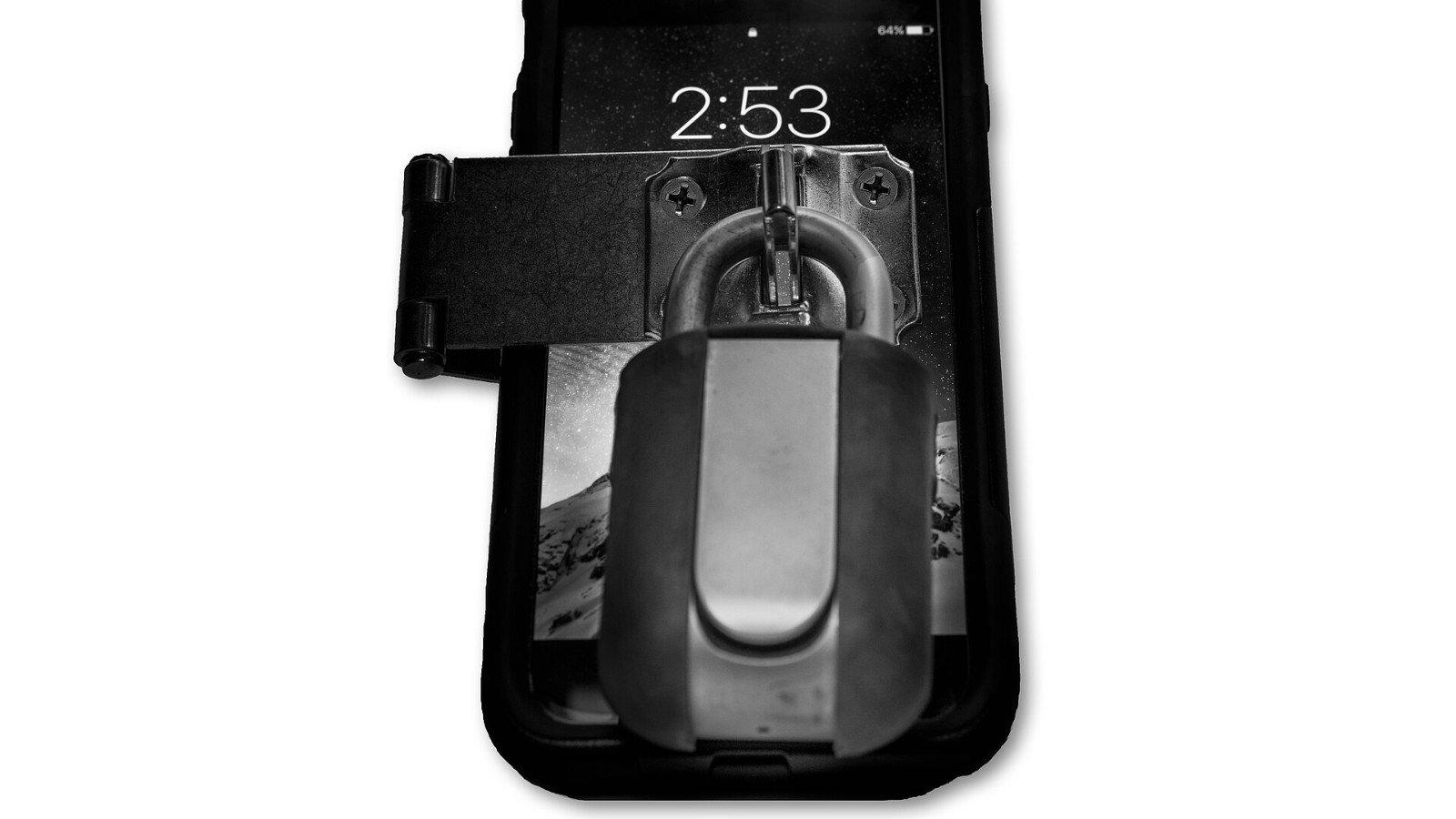
    Android’s Extend Unlock can keep a phone unlocked in chosen situations, such as near a trusted device or place. That is convenient—but sometimes you want the phone to require your PIN, pattern or password right away. On supported devices, the Lockdown option gives you a quick way to pause those trusted-unlock behaviors.

    How to use Lockdown

    Google’s instructions say that, when Extend Unlock is active, press the Power and Volume up buttons together, then tap Lockdown. Your exact buttons and settings path can vary by Android version and manufacturer. Once you use Lockdown, it remains in effect until you unlock the phone; if you want it again later, turn it on again when needed.

    Look for Settings → Security & privacy → More security & privacy → Extend Unlock on supported phones. Search Settings for “Extend Unlock” if the menus differ. You must already have a screen lock configured.

    Know the convenience trade-off

    Extend Unlock can leave a phone unlocked for up to four hours at a time, and trusted-place boundaries are estimates. Google warns that location signals can be copied or manipulated, and a trusted Bluetooth device can be imitated. If you carry your phone through a crowded place or lend it to someone, the device may remain accessible longer than you expect.

    Use a strong screen lock, choose trusted devices carefully and disable trusted places or on-body detection if the convenience is not worth the risk. Lockdown is a fast response, not a replacement for setting a secure PIN and keeping the phone in your possession.

    Try it once at home: find the setting, confirm the button combination for your model and see how the phone behaves before relying on it in a hurry.

    Official guide

    Google Android Help: Choose when your Android phone can stay unlocked

    Official guide

    Google Android Help: Choose when your Android phone can stay unlocked

    Featured image: U.S. Air Force image by Tech. Sgt. David Salanitri via Wikimedia Commons, Public domain. Image source and license.
  • Windows Snipping Tool Can Record a Screen Clip—No Extra App Needed

    Windows Snipping Tool Can Record a Screen Clip—No Extra App Needed

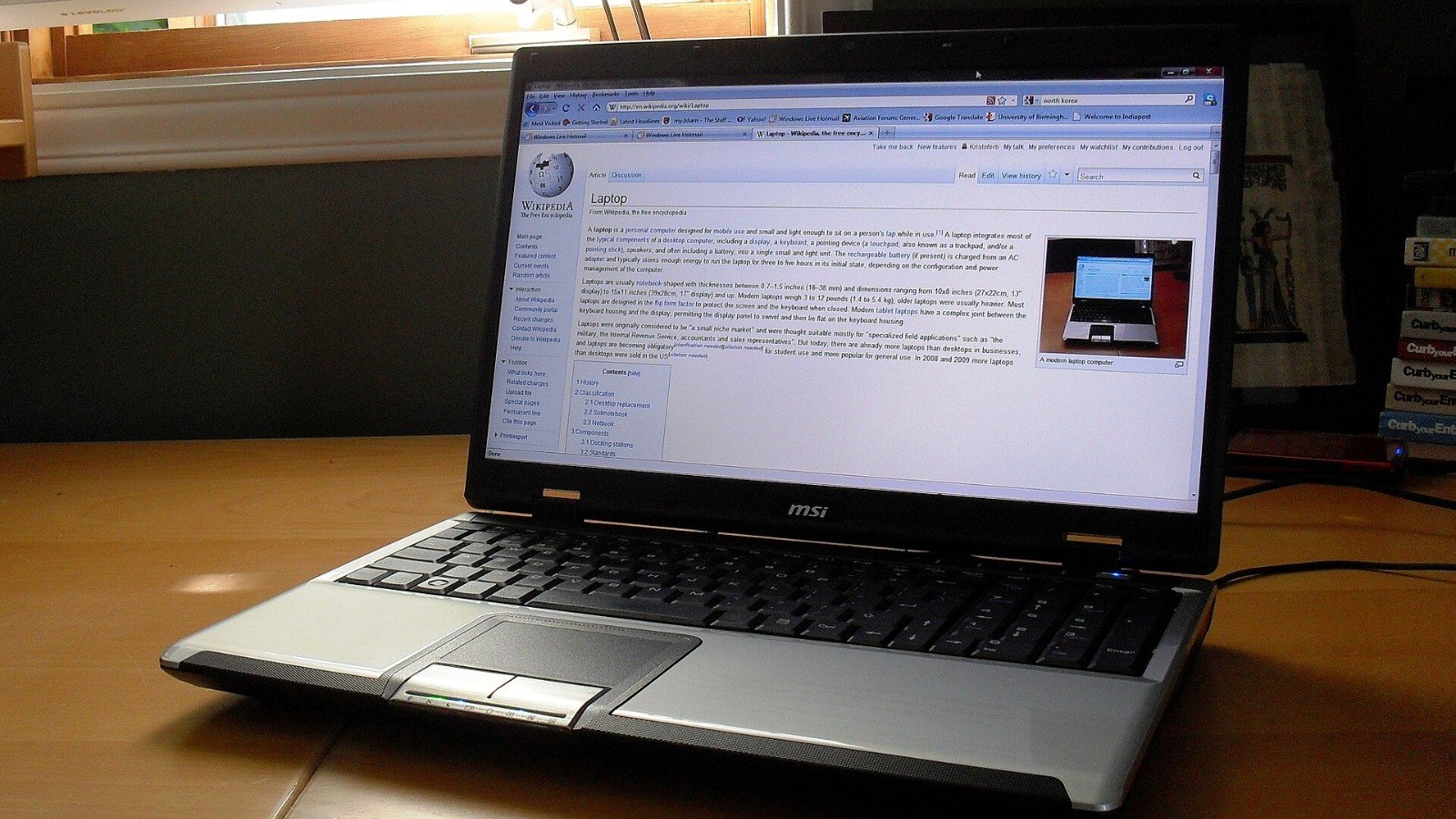
    Need to show a colleague where a setting lives or demonstrate a short software bug? Windows Snipping Tool can capture a video clip of a selected rectangular area, so you may not need to install a separate screen recorder for a quick walkthrough.

    Record only the part of the screen you need

    Open Snipping Tool from Start and choose its video-recording option. Select New, drag around the area to capture and start recording. When finished, stop the recording, review the clip and save it. Microsoft’s help page lists video snips alongside freeform, rectangular, window and full-screen captures.

    Keep the selection tight: a smaller region is easier to follow and less likely to expose unrelated tabs or notifications. If you are demonstrating a menu, move the cursor deliberately and pause long enough for viewers to read the labels.

    Protect what appears in the recording

    Close private chats, hide one-time codes and turn off notification previews before recording. A screen clip may reveal account names, files or internal dashboards even when the tutorial is about something else. Review the exported file before sharing it, and check that the selected app permits recording of its content.

    Recording features and menus can vary by Windows version. If you do not see the video option, update Snipping Tool through the supported update channel or use your organization-approved recorder. On Copilot+ PCs, Snipping Tool also has additional screenshot features, but those are separate from ordinary video snipping.

    Best use: record a short, focused walkthrough, trim unnecessary seconds, then watch the file once as a viewer before posting or sending it.

    Official guide

    Microsoft: Use Snipping Tool to capture screenshots

    Official guide

    Microsoft: Use Snipping Tool to capture screenshots

    Featured image: Kristoferb at English Wikipedia via Wikimedia Commons, CC BY-SA 4.0. Image source and license.

  • Download a Google Maps Area Before You Travel—Then Check What Offline Mode Cannot Do

    Download a Google Maps Area Before You Travel—Then Check What Offline Mode Cannot Do

    Mobile data can disappear in a tunnel, on a rural road or while roaming. Google Maps lets you download an area in advance so driving navigation can still work when a connection is weak or unavailable—provided the entire route sits inside the saved map.

    Save the area while you are online

    In Google Maps, search for the destination or region, open its place card or map options and choose the offline-map download control. Adjust the rectangle to include the route, nearby roads and places where you might need to turn around, then download over Wi-Fi if the area is large. The exact menu can vary by app version and region.

    Open Offline maps in your profile menu to check the saved area, update it or download it again. Google says maps can expire and should be updated; when an area is near expiry and the phone is on Wi-Fi, the app may try to refresh it automatically.

    Know the offline limits

    Google says offline driving directions work only when the whole route is within the downloaded area. Transit, bicycle and walking directions are unavailable offline. For driving, you also lose live traffic and alternate routes. Some countries or regions do not allow offline downloads because of licensing, language or address-format restrictions.

    Do not make offline maps your only navigation plan for a remote or safety-critical trip. Download the area before departure, confirm that it appears in your offline list and bring a charger or backup power. Keep a paper map or another navigation option where conditions call for it.

    Quick test: switch off mobile data briefly before leaving and confirm Maps can still open the saved area. Restore connectivity afterward for current traffic and updates.

    Official guide

    Google Maps Help: Download areas and navigate offline

    Official guide

    Google Maps Help: Download areas and navigate offline

    Featured image: Maurizio Pesce from Milan, Italia via Wikimedia Commons, CC BY 2.0. Image source and license.

  • Before You Clear Chrome Data, Check These Boxes—One Can Sign You Out

    Before You Clear Chrome Data, Check These Boxes—One Can Sign You Out

    Chrome’s “clear browsing data” button can solve some problems, but selecting everything without checking the boxes can create new ones. Cookies may sign you out of websites, site data can reset preferences, and saved passwords are a separate category you should leave unchecked if your goal is only to clear a cache.

    Choose the smallest cleanup that solves the problem

    Open Chrome’s Delete browsing data dialog and choose a time range. Review each selected category before confirming:

    • Cached images and files: removes stored copies of page resources. Sites may load more slowly once while they download again.
    • Cookies and site data: can sign you out and remove saved site preferences.
    • Browsing history: removes visited addresses; if history sync is enabled, Google says it can also be removed from synced devices.
    • Saved passwords and autofill: separate options—do not select them unless you intentionally want that information removed.

    Chrome on Android warns that deleting data saved to your Google Account can affect other devices where you are signed in. Search history and other Google account activity are managed separately from Chrome browsing history.

    Use the right fix

    If one website is broken, clear that site’s data rather than wiping every site’s cookies. If you are passing the device to someone else, sign out and follow the account/provider’s full handoff guidance; clearing browser history alone may not remove synced account activity.

    Bottom line: select a time range and only the data type you need. If you do not want to re-enter account credentials, leave cookies and saved passwords alone unless you understand the consequences.

    Official guide

    Google Chrome Help: Delete browsing data in Chrome

    Official guide

    Google Chrome Help: Delete browsing data in Chrome

    Featured image: Junaruga via Wikimedia Commons, CC0. Image source and license.

  • Chrome Memory Saver Can Keep Your Laptop Snappy—Without Closing Every Tab

    Chrome Memory Saver Can Keep Your Laptop Snappy—Without Closing Every Tab

    If your laptop slows down every time your browser fills with tabs, Chrome has a built-in Memory Saver. It deactivates some tabs you are not currently using, then reloads them when you return. That can free resources for active pages, but it is not the same as deleting or permanently closing your tabs.

    Turn it on and pick a level

    On desktop Chrome, open Settings → Performance and switch on Memory Saver. Google lists Moderate, Balanced and Maximum levels. Balanced is the recommended setting; Maximum deactivates inactive tabs sooner, while Moderate waits longer.

    If a page should remain active, add its site under Always keep these sites active. This can help with web apps you rely on, but do not add every site automatically: doing so reduces the benefit of tab deactivation. Chrome may already keep tabs active during things such as audio/video, screen sharing, active downloads, notifications or partially completed forms.

    Know what will happen when you return

    An inactive tab may reload, which can interrupt a live dashboard or discard unsaved state in a poorly designed site. Save important work before leaving it. Memory Saver is a performance setting, not a fix for every slow computer; extensions, too many active tabs or limited hardware can still matter.

    Google says Chrome performance personalization is not available on Android or iOS. If you do not see the control on mobile, that is expected—this is a desktop setting.

    Quick setup: start with Balanced, keep only essential sites active, and test your most-used web apps before raising the deactivation level.

    Official guide

    Google Chrome Help: Personalize Chrome performance

    Official guide

    Google Chrome Help: Personalize Chrome performance

    Featured image: Yuri Samoilov via Wikimedia Commons, CC BY 3.0. Image source and license.

  • A Drone Under 250 Grams Is Not Automatically Legal Everywhere

    A Drone Under 250 Grams Is Not Automatically Legal Everywhere

    A sub-250-gram drone can be easier to carry, but the number on the box is not a universal “fly anywhere” pass. Registration and operating requirements depend on where you fly, whether the flight is recreational and what the aircraft is doing.

    What the threshold means in the U.S.

    The FAA says a drone weighing 0.55 pounds (250 grams) or less does not need registration when flown under the limited recreational exception. That exception is narrow: other operations, including Part 107 work, have separate rules. Recreational flyers still need to pass TRUST, follow airspace limits and fly within visual line of sight. Remote ID may apply to aircraft that are registered or required to be registered.

    Europe uses a broader framework

    EASA’s open category is divided into A1, A2 and A3 subcategories, each with conditions. The category, aircraft class label, operation and pilot requirements all matter. Operator registration may also be required depending on the drone and operation. A weight alone does not tell you which rules apply.

    These examples are not a complete comparison of national law. Countries outside the U.S. and EU have their own requirements, and parks, airports or temporary notices can impose additional limits. Check the current aviation-authority rules for your exact location and intended use before flying.

    Bottom line: use weight as one input, not a legal conclusion. Confirm operation category, registration, training, airspace, Remote ID where applicable and local land rules before launch.

    Official sources

    FAA: How to register your drone

    EASA: Open category for low-risk drone operations

    Featured image: Arto häkkilä via Wikimedia Commons, CC BY-SA 4.0. Image source and license.

  • Flying a Drone for Fun in the U.S.? The Free TRUST Test Is Part of the Checklist

    Flying a Drone for Fun in the U.S.? The Free TRUST Test Is Part of the Checklist

    Buying a small camera drone is not the whole preflight checklist. In the United States, the FAA says recreational flyers must pass the Recreational UAS Safety Test, or TRUST, and provide proof of completion if asked. The test is free through FAA-approved administrators and is designed to teach basic safety and regulatory information.

    Complete TRUST and keep the certificate

    Choose an FAA-approved TRUST test administrator, complete the online test and save or print the certificate. The FAA says questions can be corrected before a completion certificate is issued. Test administrators do not keep a record of your certificate, so save a copy somewhere you can access it while flying.

    Check registration separately

    TRUST is not drone registration. FAA registration rules depend on the operation and aircraft: a drone at or below 250 grams flown only under the recreational exception is generally exempt from registration, while other recreational aircraft that meet the registration threshold must be registered. Part 107 operations have their own registration requirements. Remote ID rules can also apply to drones that are required to be registered or are registered.

    Because these conditions matter, verify your aircraft weight, how you will use it and the current FAA rules before the first flight. A tiny drone is not automatically exempt from every safety rule, airspace restriction or local property rule.

    U.S.-specific note: TRUST is an FAA requirement for recreational operations in the United States. Other countries have their own pilot training, registration and operating rules; use your local aviation authority’s guidance.

    Bottom line: pass TRUST, keep proof, check registration/Remote ID requirements, then check airspace and weather. Those steps are more important than finding a “secret” drone setting.

    Official sources

    FAA: The Recreational UAS Safety Test (TRUST)

    Featured image: Raimond Spekking via Wikimedia Commons, CC BY-SA 4.0. Image source and license.

  • Before You Fly a Drone in the U.S., Check This Airspace Map

    Before You Fly a Drone in the U.S., Check This Airspace Map

    A park that looks empty can still sit under controlled airspace, a temporary flight restriction or another limit. In the United States, the FAA’s B4UFLY page lists approved desktop and mobile service providers that help recreational flyers check airspace information before a flight.

    Check the exact takeoff location

    Open an FAA-approved B4UFLY provider, search the planned launch point and review the map layers and notices shown for that location. The FAA says these services can display controlled and special-use airspace, airports, national parks, military training routes and temporary restrictions. Check again close to flight time because conditions and restrictions can change.

    B4UFLY is a situational-awareness resource—not a general permission slip. Some controlled-airspace operations require prior authorization through LAANC or another approved process. Follow the provider’s directions and FAA requirements, and do not launch if you are unsure whether authorization is needed.

    Keep the rest of the safety check

    Confirm you can keep the drone in visual line of sight, avoid other aircraft, respect people and property, and comply with local park or land-manager rules. The FAA requirements differ for recreational and non-recreational operations. If you are flying for work or another non-recreational purpose, do not assume recreational guidance applies.

    Important: B4UFLY applies to U.S. airspace information. If you are outside the United States, consult your national aviation authority and local restrictions instead of relying on an American map.

    Quick habit: check the location, check current notices, confirm any needed authorization, then reassess the weather and visibility before powering up.

    Official sources

    FAA: B4UFLY airspace awareness services

    Featured image: Dietmar Rabich via Wikimedia Commons, CC BY-SA 4.0. Image source and license.

  • DJI Neo Says 18 Minutes of Flight—Here’s What That Number Actually Means

    DJI Neo Says 18 Minutes of Flight—Here’s What That Number Actually Means

    “Up to 18 minutes” sounds like a flight plan. It is not. DJI lists the Neo’s maximum flight time as approximately 18 minutes, or approximately 17 minutes with propeller guards, but its own footnote explains the conditions: controlled, windless-equivalent testing, a steady 2 m/s flight and battery use down to a forced landing.

    Why your real session will be shorter

    Wind, repeated acceleration, cold or hot weather, firmware, battery condition and the way you fly all affect usable time. DJI explicitly says actual results may vary with environment, usage and firmware. A test that ends at forced landing is a poor target for a real outing: you need margin to return, avoid obstacles and land safely.

    Before each flight, check the battery and aircraft warnings, plan the landing point, and set a return threshold that leaves a conservative reserve. Do not start a distant shot just because the spec sheet shows a long maximum. If conditions worsen, land early rather than trying to capture one more clip.

    Separate flight time from flight distance

    DJI also publishes a maximum distance measured under a different controlled test. It is not a recommended operational range. Radio interference, local rules, visual-line-of-sight requirements and the control method can make a much shorter range appropriate or mandatory.

    Practical takeaway: Use manufacturer test numbers to compare products, then plan real flights with a safety buffer. Check the current specs and manual for your firmware and configuration; never plan to land only when the battery is empty.

    Official sources

    DJI: Neo specifications and test conditions

    Featured image: NAN LIU via Wikimedia Commons, CC BY-SA 2.0. Image source and license.

  • DJI Neo Phone Control Has a Short Range—Know the Limit Before You Launch

    DJI Neo Phone Control Has a Short Range—Know the Limit Before You Launch

    The DJI Neo can be flown using the DJI Fly app, but phone control is not the same as a full remote controller. DJI’s FAQ says the app’s virtual joysticks are for fine-tuning position and returning the aircraft, and that app control is limited to a maximum height of 30 metres and distance of 50 metres. Treat that as a product limit—not a target to push against.

    Keep the drone visible and the route clear

    Before takeoff, choose an open area where you can see the aircraft, understand its path and land safely. DJI says the Neo does not support obstacle avoidance, so do not assume it will detect a tree, wire, window or person in front of it. A follow mode or automatic shot still needs a responsible pilot watching the aircraft.

    Learn the control interface in a calm, legal location. Check battery, GPS and app warnings, and leave enough reserve to return and land. If the connection or visibility becomes uncertain, stop the shot and use the manufacturer’s return procedure; do not fly beyond the manual’s limits or local law.

    Check local requirements, not just app prompts

    Phone apps and built-in geofencing do not replace national airspace rules, permits or privacy laws. Check where recreational flight is allowed before launching, and follow any local restrictions on people, protected areas or filming. The Neo’s light weight does not automatically exempt every operation or jurisdiction.

    Bottom line: A 50-metre app limit is not a promise of safe connectivity at that distance. Keep visual contact, stay inside local rules and choose a shorter flight whenever the environment is busy or uncertain.

    Official sources

    DJI: Neo FAQ and control methods

    Featured image: NAN LIU via Wikimedia Commons, CC BY-SA 2.0. Image source and license.