Category: AI & Tech Tutorials

Practical how-to guides for AI apps, consumer technology and safe drone use.

  • Windows Activation: Do You Need a Product Key or a Digital License?

    Windows Activation: Do You Need a Product Key or a Digital License?

    Looking for a Windows product key? First check whether your PC uses one at all. Microsoft explains that Windows 10 and Windows 11 can activate with either a 25-character product key or a digital license, which does not require you to type a key.

    Check activation status first

    Open Settings > System > Activation to see whether Windows is activated and which activation information is available. A free upgrade from an eligible previous Windows version commonly uses a digital license. A new PC may have its key preinstalled, included with the packaging or printed on a Certificate of Authenticity. If Windows came from an authorized retailer, the key may be in the box or purchase confirmation, depending on how it was bought.

    Microsoft says a digital copy purchased from its online store can be associated with the confirmation email and Microsoft account order history. A Microsoft Store Pro upgrade may provide a digital license instead of a product key. Keep the purchase record and the account used to buy the license; reinstalling Windows does not make a missing key appear.

    Avoid risky “key finder” downloads

    Do not paste your Windows key into a public forum or an unfamiliar key-checking website. Be cautious of third-party utilities promising to recover or validate licenses; use Windows Settings, Microsoft account records, your retailer or your PC manufacturer. A key printed on an unofficial sticker may not prove that a license is valid for your installation.

    If the Activation page reports a problem after a hardware change or reinstall, use Microsoft’s activation troubleshooter and check that the installed edition matches your license. A product key and a digital license are different activation paths, so identify yours before buying a replacement key.

    For an exact location based on how Windows was acquired, Microsoft’s support guide lists the common purchase scenarios.

    Featured image credit: I G on Wikimedia Commons — CC BY 2.0 (license).

    Official references

  • Gemini Can Look Back at Past Chats—Here’s How to Ask About Them

    Gemini Can Look Back at Past Chats—Here’s How to Ask About Them

    Trying to find a detail from an earlier Gemini conversation? Google’s help page describes asking Gemini about past chats by topic or timeframe, or asking it to reference those conversations before responding. It can save a manual scroll through recent threads when the feature is available to your account.

    Ask with a useful clue

    Give Gemini a specific subject or time range, such as “Summarize what we discussed about the solar system” or “What gift did we choose for the classmate’s birthday?” A precise question is easier to search than a vague “What did I say before?” You can also explicitly ask it to refer to a previous chat before answering.

    After Gemini responds, look below the answer in Sources and related content. Google’s documentation says a Previous chats label may appear when Gemini referenced earlier conversations. The company also notes that it may occasionally display that label incorrectly, so treat it as a clue and check the original chat when accuracy matters.

    Know the account and deletion limits

    Availability can depend on your account and settings. Google’s help page distinguishes personal accounts from work or school accounts, where a Workspace administrator may control activity settings. If the feature does not work, check the account you are signed into and the Gemini activity controls rather than assuming your conversations disappeared.

    Deleting a chat from pinned and recent chats also deletes associated content created in that conversation and related Gemini Apps Activity, according to Google. Before deleting a thread, save any document or information you still need.

    Past-chat references can help retrieve context, but Gemini can summarize inaccurately. For a decision, date or commitment that matters, open the cited original conversation and verify the details yourself.

    Featured image credit: Rawpixel.com on Wikimedia Commons — CC0 (license).

    Official references

  • Sharing a NotebookLM Link? Chat View Does Not Hide Every Source

    Sharing a NotebookLM Link? Chat View Does Not Hide Every Source

    Before you share a NotebookLM link, check more than the chat screen. Google says a public notebook can be shared with anyone who has a Google Account, and viewers may still be able to access sources and artifacts. The Chat View link hides those materials from the default view, but it does not completely revoke access to the underlying notebook contents.

    Review the notebook before making it public

    Open the Share panel and check the access setting. Google’s documented public-sharing flow changes access to Anyone with a link; only owners and editors can generate the public link or manage access. Consider whether every source, generated artifact and detail in the notebook is appropriate for the people who may receive the link. Do not treat a hidden source list as confidential storage.

    Google’s help page notes that public notebook visitors need a Google Account. They can interact with a public notebook and view content shared by its owners or editors. Some kinds of notebooks, including those with artifacts created from Play Books ebooks, cannot be shared publicly.

    Turn off access when you are done

    To stop public access, open the notebook’s Share panel and set Notebook Access back to Restricted. The help page says a link will stop working when a notebook is deleted or made private. Review who can edit as well as who can view; changes made by owners and editors can appear in the shared notebook.

    If you need to show a summary but not expose source documents, create a separate, sanitized notebook or share a standalone export that contains only approved material. Test the link from an account that is not an owner before sending it widely.

    The practical rule is simple: publish a notebook only if you are comfortable with viewers potentially reaching its sources, even when you share the chat-focused URL.

    Featured image credit: Evan-Amos on Wikimedia Commons — CC BY-SA 3.0 (license).

    Official references

  • NotebookLM Sources: Make Answers Focus on the Files You Actually Chose

    NotebookLM Sources: Make Answers Focus on the Files You Actually Chose

    A notebook with a pile of PDFs, webpages and documents can produce a broad answer when you wanted one precise comparison. NotebookLM lets you control the source set and ask a narrower question using the names of the sources you want it to focus on.

    Start with a deliberate source list

    Open a notebook and choose Add sources. Select the files or web sources that belong in that project instead of importing everything by default. If you bring in Google Drive files, the help documentation says supported sources can sync with changes to the original document. Check which version appears in the notebook before relying on a recently edited file.

    When several sources are selected, mention their names in your prompt. For example, ask for the differences between two named reports rather than simply saying “compare these.” Google’s source guide explains that a focused question and source names help NotebookLM narrow its response.

    Check the evidence behind the answer

    NotebookLM can generate summaries and answer questions from sources, but it can still misunderstand context or omit an important caveat. Open the citations or source references attached to the answer and confirm the original passage supports the claim. For high-stakes research, verify numbers, dates and quotations directly in the document.

    Also make sure you have permission to import the material. A source in Drive may be available only when you have at least view access, and access can change if the owner removes it or deletes the file. Do not upload confidential work documents unless your account and organization’s rules allow it.

    A clean source list does not guarantee a perfect answer, but it makes the notebook easier to reason about: fewer unrelated files, clearer questions and a faster path back to the evidence.

    Featured image credit: Bruce Turner from AustinTX on Wikimedia Commons — CC BY 2.0 (license).

    Official references

  • Mac Screenshot Trick: Capture One Window or Choose Where Files Go

    Mac Screenshot Trick: Capture One Window or Choose Where Files Go

    Mac screenshots do not have to land in the same place every time. Press Shift + Command + 5 to open the Screenshot controls, where you can capture the entire screen, a selected window or a portion—and choose where the result is saved.

    Open the controls and pick a capture

    The on-screen toolbar includes options for capturing all displays, a window or a selected area. Choose the capture type, then follow the prompt. For a quick full-screen capture, Shift + Command + 3 saves a screenshot. Shift + Command + 4 lets you drag around a section; press the Space bar after that shortcut to switch to capturing a window.

    Change the save location

    In the Shift-Command-5 toolbar, open Options and choose a different save location. This is the control to check if screenshots keep appearing on the desktop or if you want them collected in a specific folder. The same menu provides a timer and other capture options. If a thumbnail appears in the corner after a capture, click it to mark up or crop the image before it is saved.

    Capture only what you need

    Use the selected-area option for a chart or dialog rather than sharing the whole screen. Before sending a screenshot, check for notifications, account names or private information visible elsewhere on the desktop. Screenshot shortcuts can vary with keyboard settings, but Apple’s built-in Screenshot app is available from the keyboard controls on current macOS versions.

    For a one-off capture, the shortcuts are quick. For a cleaner workflow, Shift-Command-5 gives you a visible set of choices and makes it easier to change where files go.

    Featured image credit: Ransome1 on Wikimedia Commons — CC BY 4.0 (license).

    Official references

  • Your iPhone Can Copy Text From a Photo—Here’s the Fastest Way

    Your iPhone Can Copy Text From a Photo—Here’s the Fastest Way

    A sign, receipt or whiteboard photo can contain text you need to reuse. Apple’s Live Text can select recognized words in a photo, video or supported image so you can copy them instead of typing everything by hand.

    Copy words from a saved photo

    Open a photo in Photos and touch and hold a word. Drag the selection handles to adjust the text, then tap Copy. To select all recognized text, use Select All when it appears, then paste into Notes, Messages or another app. For a video, pause on the frame containing the words before selecting them.

    Use the camera for text in front of you

    In the Camera app, point the phone at the text and tap the Live Text button when it appears. You can also use the camera inside supported apps such as Notes or Reminders. If Live Text is unavailable, Apple says you can check Settings > General > Language & Region and turn on Live Text for supported languages.

    Apple lists iPhone XS, iPhone XR and later with iOS 15 or later for Live Text; recognizing text in video requires iOS 16 or later. Language support and accuracy can vary, especially with handwriting, glare, small print or a tilted image.

    Review before you reuse

    Optical text recognition can misread characters that look alike, such as 0 and O, or 1 and l. Check addresses, serial numbers, dates and account details against the original before pasting or submitting them. Avoid pointing the camera at private documents unless you are comfortable with the app you are using.

    Live Text is a time-saver for everyday copying, but one careful proofread can prevent a wrong digit from turning a quick capture into a bigger problem.

    Featured image credit: Bill/ MpegMan on Wikimedia Commons — CC BY-SA 3.0 (license).

    Official references

  • Lift a Person or Pet Out of an iPhone Photo—No Extra App Needed

    Lift a Person or Pet Out of an iPhone Photo—No Extra App Needed

    Need to share just the dog, person or object in a picture? On supported iPhones, you can lift a subject from its background with a long press—no third-party cutout app required. The feature works in Photos and some other apps, but it is not a full photo editor.

    Try the built-in cutout

    Open a photo in the Photos app, or view an image in an app such as Messages or Safari. Touch and hold the main subject. If iOS recognizes it, a bright outline appears. Release to see options such as Copy, Add Sticker or Share. You can paste or send the isolated subject in a compatible app, or save it as a sticker for Messages.

    Apple says photo cutouts are available on iPhone XS, iPhone XR and later with iOS 16 or later. If the outline does not appear, check your device and software version, then try a photo where the subject is clearly separated from the background. Busy edges, low contrast or an unusual subject can make recognition less reliable.

    Know what it cannot do

    This is a quick way to copy or share an isolated subject; it does not create a complete retouched image or let you paste the cutout onto another photo in the Photos app. The destination app controls how the copied subject looks and whether it keeps a transparent background.

    For a clean result, choose a sharp original with a visible outline and check the cutout before sending it. If you need precise masking, hair refinement or a composite on a new background, use a dedicated editor instead.

    The built-in gesture is a fast way to make a sticker or share a subject, but it is best thought of as a convenient shortcut—not a replacement for detailed editing.

    Featured image credit: Håkan Dahlström from Malmö, Sweden on Wikimedia Commons — CC BY 2.0 (license).
    Official references

  • Chrome Can Translate a Whole Page—or Just the Lines You Select

    Chrome Can Translate a Whole Page—or Just the Lines You Select

    Found a page in a language you do not read? Chrome can translate a whole webpage, and on desktop it can also translate only a selected passage. That second option is handy when you want to check one paragraph without changing the rest of the page.

    Translate the complete page

    Open the page in Chrome and look for the Translate icon near the address bar. Choose it and select the language you want. You can also right-click the page and choose Translate to a listed language. If the translation does not appear, refresh the page and try again. Chrome’s translation controls and available languages can vary by device and settings.

    Translate only a section

    On a computer, highlight the text you want to understand, right-click the selection and choose Translate selection to your preferred language. Chrome opens a translation for that passage, which can be easier to compare with the original than replacing the entire webpage.

    Check critical information against the original

    Machine translation is a useful aid, not a guarantee that every idiom, technical term or legal phrase is correct. For travel directions, medical information, contracts, safety instructions or financial details, verify key wording with a trusted source or a fluent speaker. Page layouts and dynamically loaded text may also not translate exactly as expected.

    If Chrome does not offer the language you want, check the browser’s language and translation preferences. Google also documents a separate way to translate websites through Google Translate. Avoid copying sensitive account or workplace material into an unfamiliar translation service.

    For casual reading, translating a selection can be the quickest way to decode a sentence. For important decisions, treat the output as a starting point and confirm the meaning.

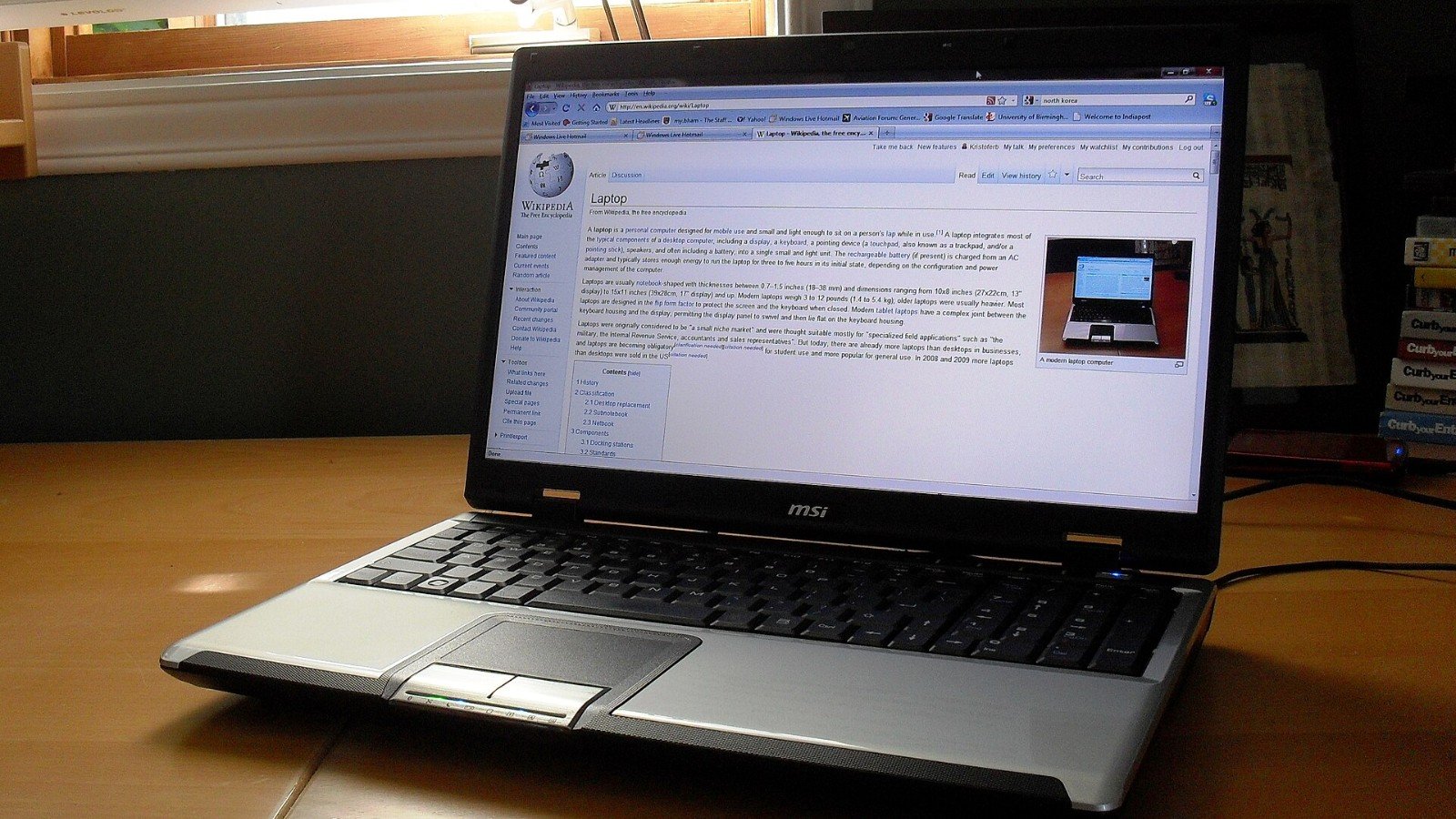
    Featured image credit: Kristoferb at English Wikipedia on Wikimedia Commons — CC BY-SA 4.0 (license).

    Official references

  • Chrome’s Keyboard Shortcuts That Rescue a Tab-Crowded Browser

    Chrome’s Keyboard Shortcuts That Rescue a Tab-Crowded Browser

    When a browser has too many tabs, the fastest fix may already be under your fingers. Chrome’s built-in keyboard shortcuts can open a tab, jump to the address bar, switch between pages and recover the one you just closed—no extension required.

    Start with the tab controls

    • Ctrl + T: open a new tab.
    • Ctrl + W: close the current tab.
    • Ctrl + Tab or Ctrl + Page Down: move to the next tab.
    • Ctrl + Shift + Tab or Ctrl + Page Up: move to the previous tab.
    • Ctrl + 1 through Ctrl + 8: jump to a numbered tab; Ctrl + 9 jumps to the last one.
    • Ctrl + Shift + T: reopen recently closed tabs.

    These listed combinations are for Windows and Linux. On a Mac, the corresponding shortcuts commonly use Command instead of Ctrl; consult Google’s current Mac shortcut list for exact behavior.

    Get to the page you need

    Ctrl + L focuses the address bar so you can type a URL or search without clicking it. Alt + Left Arrow returns to the previous page in the current tab, and Alt + Right Arrow moves forward again. Press F11 on Windows or Linux to toggle full-screen mode if you need more room for a page.

    Make the shortcuts stick

    Pick the two shortcuts that solve your most common frustration and use them for a day. For example, Ctrl+L plus Ctrl+Shift+T covers navigation and accidental closures. A shortcut is not a substitute for saving a form or bookmarking a page, and browser behavior can vary with operating system settings or extensions.

    Chrome’s shortcut page includes separate combinations for Mac, Linux and Windows. If you use a different keyboard layout or accessibility setting, verify the current list rather than assuming every key sequence is universal.

    Featured image credit: Judgefloro on Wikimedia Commons — Public domain.

    Official references

  • Closed a Chrome Tab by Mistake? Bring It Back with Ctrl+Shift+T

    Closed a Chrome Tab by Mistake? Bring It Back with Ctrl+Shift+T

    Closed the wrong tab? In Chrome on Windows or Linux, press Ctrl + Shift + T to reopen the most recently closed tab. Press it again to work backward through recently closed tabs. On a Mac, use Command + Shift + T.

    Restore the tab without digging through history

    The shortcut is especially useful when a tab was closed by accident or when you close a window and realize one page still mattered. It restores tabs in the order Chrome closed them, so repeated presses can bring back more than one. If the browser was restarted or the page is not in the recent list, open Chrome’s History menu and look for the page there; a tab that was opened in a private Incognito window is not something to rely on restoring from ordinary history.

    Keep the rest of your browser moving

    A few neighboring shortcuts make tab recovery easier to remember: Ctrl + T opens a new tab; Ctrl + L moves the cursor to the address bar; Ctrl + W closes the current tab; and Ctrl + Tab moves to the next tab. On Mac, use Command for the corresponding shortcuts.

    On Windows and Linux, Ctrl + 1 through Ctrl + 8 jumps to a numbered tab, while Ctrl + 9 jumps to the last tab. Shortcut behavior can vary by operating system, and the Mac keyboard uses different keys, so check Google’s current list if a combination does not match.

    When it will not work

    If the tab was never open in the current Chrome session, or it was a private session, the shortcut may not bring it back. Use history for pages you intentionally visited, or bookmark important work before closing a large session.

    It is a small keystroke that can save a search and a few minutes of backtracking—without installing an extension.

    Featured image credit: Wilson Afonso from Sydney, Australia on Wikimedia Commons — CC BY 2.0 (license).
    Official references