
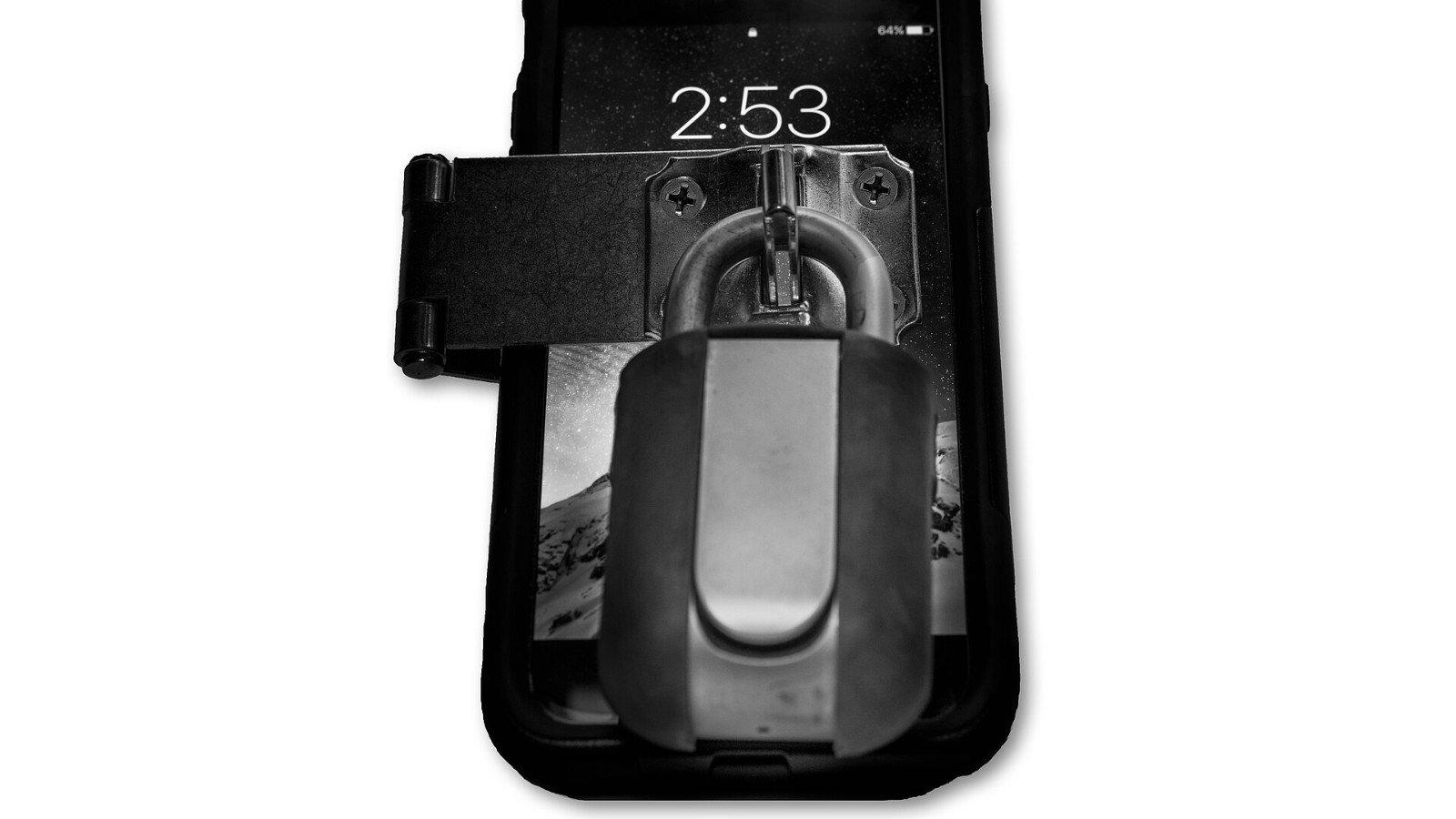
Android’s Extend Unlock can keep a phone unlocked in chosen situations, such as near a trusted device or place. That is convenient—but sometimes you want the phone to require your PIN, pattern or password right away. On supported devices, the Lockdown option gives you a quick way to pause those trusted-unlock behaviors.
How to use Lockdown
Google’s instructions say that, when Extend Unlock is active, press the Power and Volume up buttons together, then tap Lockdown. Your exact buttons and settings path can vary by Android version and manufacturer. Once you use Lockdown, it remains in effect until you unlock the phone; if you want it again later, turn it on again when needed.
Look for Settings → Security & privacy → More security & privacy → Extend Unlock on supported phones. Search Settings for “Extend Unlock” if the menus differ. You must already have a screen lock configured.
Know the convenience trade-off
Extend Unlock can leave a phone unlocked for up to four hours at a time, and trusted-place boundaries are estimates. Google warns that location signals can be copied or manipulated, and a trusted Bluetooth device can be imitated. If you carry your phone through a crowded place or lend it to someone, the device may remain accessible longer than you expect.
Use a strong screen lock, choose trusted devices carefully and disable trusted places or on-body detection if the convenience is not worth the risk. Lockdown is a fast response, not a replacement for setting a secure PIN and keeping the phone in your possession.
Try it once at home: find the setting, confirm the button combination for your model and see how the phone behaves before relying on it in a hurry.
Official guide
Google Android Help: Choose when your Android phone can stay unlocked
Official guide
Google Android Help: Choose when your Android phone can stay unlocked
Featured image: U.S. Air Force image by Tech. Sgt. David Salanitri via Wikimedia Commons, Public domain. Image source and license.
Leave a Reply