
Plug an Android phone into a Windows PC and see nothing but a charging icon? That does not necessarily mean the cable or phone is broken. Android often defaults to charging; you may need to unlock the phone and change its USB mode to transfer files.
Switch from charging to file transfer
- Unlock the Android phone and connect it to the computer with a USB cable.
- Swipe down and tap the notification that says the device is charging via USB.
- Under Use USB for, choose File Transfer.
- Use the file window that opens on Windows to copy files between the phone and PC.
- When finished, eject the device in Windows before unplugging it.
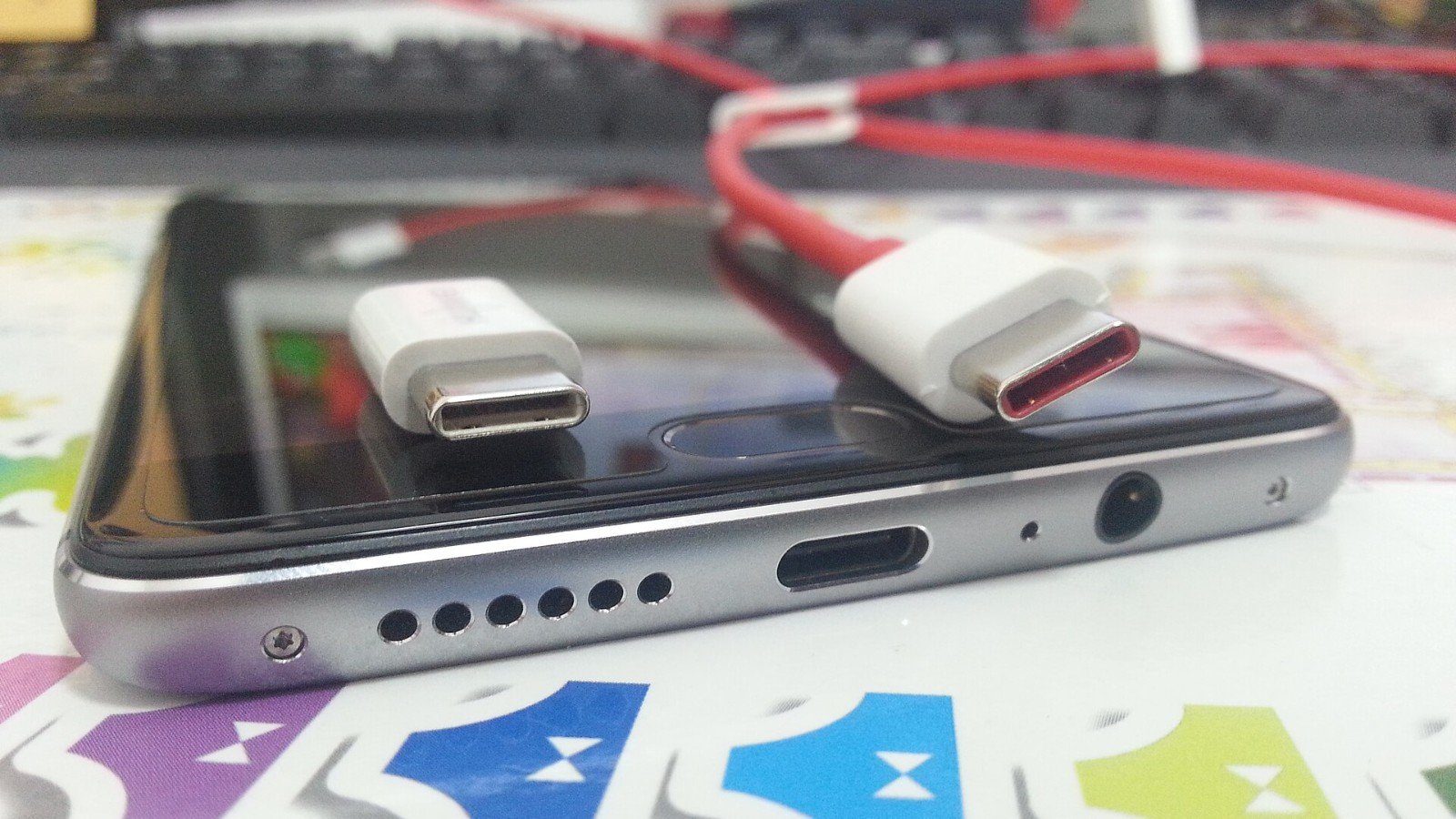
Use a cable that supports data, not only charging. Google specifically notes that some USB cables cannot transfer files. If no notification appears, try unlocking and reconnecting the phone, another data-capable cable, or another USB port.
If Windows still does not see the phone
Restart both devices, check that the phone is unlocked, and confirm File Transfer is selected again after reconnecting. Google recommends trying another cable or testing the phone and computer ports with another device. Update Android if an update is available. Menu labels and behavior can differ by manufacturer.
File Transfer provides access to files exposed by the phone; it is not a complete phone backup. Copy only what you need, and keep a separate backup for important photos and documents. For nearby wireless transfers to Windows, Android also supports Quick Share, but this wired method is useful when you want a direct connection.
The easily missed step is that USB connection and USB file transfer are different modes. Choose the latter explicitly before troubleshooting a PC that looks like it is ignoring your phone.
Featured image credit: Porsche 911GT2 on Wikimedia Commons — CC BY-SA 4.0 (license).
Leave a Reply