
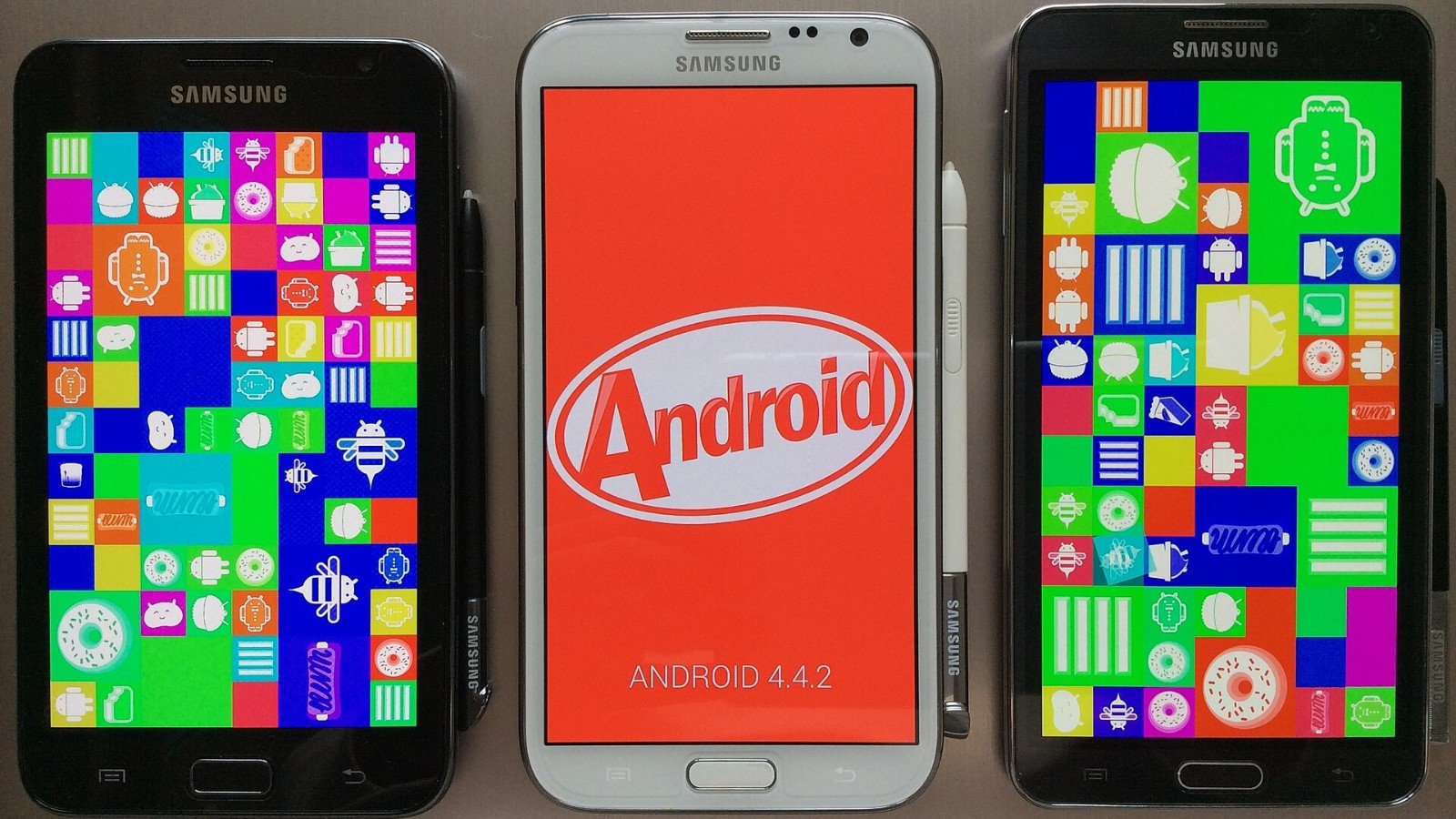
Need to save a long recipe, settings list or message thread? On many Android phones, a regular screenshot only captures what is on screen. The built-in Capture more option can extend the capture down a scrollable page, without stitching images together yourself.
Use Capture more
Open the page you want to save and press Power + Volume down at the same time. When the preview appears, tap Capture more, then adjust the crop guides to include the portion of the page you need. Save or share the finished screenshot from the preview.
Google says scrolling screenshots work on Android 12 and later on most screens that allow scrolling. If Capture more is missing, the screen may not support the feature, the phone may use a manufacturer-specific flow, or Android may be older. Check the phone maker’s support page for model-specific steps.
Check the capture before sharing
Long screenshots can include more than you intended. Review the full image for private messages, account details, addresses or one-time codes before sending it. Crop the result if only a section is relevant. A screenshot is a picture, so text inside it may not be searchable or selectable like text in a document.
Keep it readable
Use the crop handles to include just the useful content. Capturing an entire endless feed can make the saved image difficult to read and may expose unrelated personal details. If you need to preserve a webpage for reference, a browser’s print or save option may produce a more readable document.
The feature is a small but useful Android trick: one capture can replace a stack of overlapping screenshots—when the app and screen support scrolling capture.
Featured image credit: Pangkakit on Wikimedia Commons — CC BY 2.5 (license).
Leave a Reply