
Tag: GRUB bootloader

  • How Linux Boots? Master Linux Booting Process (2026)

    Learn How Linux Boots process step by step, from power on to login. Beginner-friendly explanation with clear stages and real examples.

    If you’ve ever wondered what happens when you press the power button on a Linux machine, you’re not alone. The Linux booting process can seem mysterious at first, but once you break it down, it’s a fascinating journey from firmware to a fully running operating system. understand how Linux boots, embedded Linux booting, Arch Linux booting, and more.

    What is the Linux Booting Process?

    At its core, the Linux booting process is the sequence of events that happens from the moment you switch on your computer until the Linux OS is fully loaded and ready to use. It involves several stages, including BIOS initialization, loading the bootloader, starting the kernel, and launching startup applications.

    Think of it like preparing for a road trip. First, you check the car (BIOS), then you start the engine (bootloader), the engine runs and powers the car (kernel), and finally, you hit the road (startup applications).

    Embedded Linux Booting Process

    Embedded systems, like a Raspberry Pi, IoT devices, or automotive controllers, use embedded Linux. The embedded Linux booting process is slightly different because it’s tailored for small devices with limited resources.

    Here’s the simplified flow:

    1. Power-On Reset – The microcontroller powers up.
    2. Bootloader Stage – A lightweight bootloader, often U-Boot, initializes hardware.
    3. Kernel Loading – The Linux kernel is loaded from storage (like flash memory).
    4. Device Tree Setup – Hardware configuration is applied.
    5. Init Process – The init system starts user-space applications.

    In embedded Linux, understanding the boot process is critical for debugging issues like devices not booting after installation or booting into a black screen.

    Lets know How Linux Boots :

    BIOS in Linux Booting Process

    The first step in any Linux boot is the BIOS (Basic Input/Output System). When you power on the system, the BIOS performs POST (Power-On Self-Test), checking your hardware. It then looks for a bootable device and loads the boot block.

    Some common BIOS-related questions:

    • Linux boot into BIOS – Press keys like F2, F12, DEL during startup.
    • Linux BIOS boot partition – This is where the BIOS expects the bootloader to reside.
    • Linux boot BIOS command – BIOS doesn’t use Linux commands, but it initializes the environment so Linux can start.

    Linux Boot Block

    The Linux boot block is a small part of the disk that the BIOS reads first. It contains the initial bootloader code, which points to the main bootloader (like GRUB). If the boot block is corrupt, Linux won’t start.

    Linux Booting Step by Step
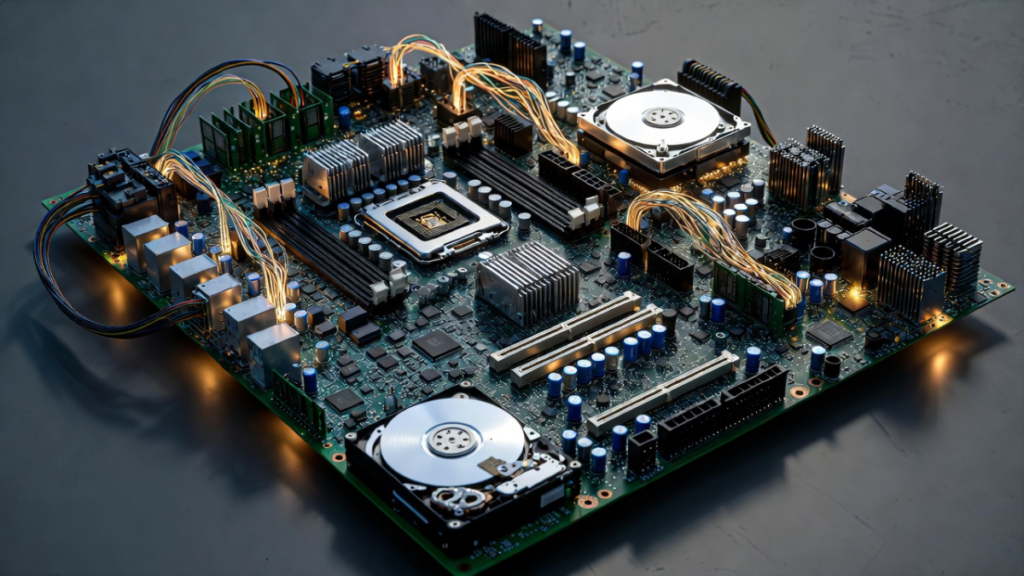
    Linux Booting Step by Step

    Here’s a detailed step-by-step overview of the Linux booting process:

    1. BIOS Initialization

    • Checks hardware integrity.
    • Identifies bootable devices.

    2. Bootloader Stage

    • GRUB (GRand Unified Bootloader) is commonly used.
    • Presents the Linux booting to GRUB prompt if configured for manual input.
    • Allows selection of kernel, OS, or recovery mode.
    • Handles dual booting Linux and Windows scenarios.

    3. Kernel Loading

    • Kernel is loaded into memory.
    • Decompressing Linux booting the kernel happens here.
    • Hardware drivers are initialized.

    4. Init Process

    • The kernel starts the first process (init).
    • Modern systems use systemd or init=/bin/bash in troubleshooting.
    • Runs Linux startup applications.

    5. Login Prompt

    • Displays graphical login or terminal login.
    • System is fully ready for user interaction.

    Linux Booting to GRUB Prompt
    Sometimes, your system stops at the GRUB prompt. This happens when:

    • GRUB is misconfigured.
    • Bootloader can’t find the kernel.
    • You’re using dual booting Linux and Windows setups.

    From GRUB, you can enter commands like linux /vmlinuz root=/dev/sda1 to manually boot Linux.

    Linux Booting: Common Issues and Solutions

    1. Linux Not Booting After Installation

    • Check BIOS boot order.
    • Ensure GRUB is installed correctly.
    • Boot from live media to repair.

    2. Arch Linux Booting to Black Screen

    This is a common problem in Arch Linux booting:

    • Black screen with cursor – usually graphics driver issue.
    • Booting into GRUB but not the OS – kernel parameters may be incorrect.

    Adding nomodeset in the GRUB command line often fixes the black screen issue.

    Arch Linux Booting

    Arch Linux is a rolling-release distribution, and understanding its boot process is crucial:

    1. Arch Linux booting to GRUB – GRUB manages kernel selection.
    2. Arch Linux booting to black screen with cursor – Graphics drivers need configuration.
    3. Troubleshooting steps:
      • Boot into live environment.
      • Chroot into your installation.
      • Reinstall or update GRUB.
      • Adjust kernel parameters.

    Dual Booting Linux and Windows

    Dual Booting Linux and Windows

    Many users opt for dual booting Linux and Windows. Here’s what you should know:

    • Is dual booting Linux and Windows good?
      Yes, if you need both OS environments. Ensure correct partitioning and use GRUB as the main bootloader.
    • GRUB will detect Windows automatically in most cases.
    • Avoid altering Windows bootloader directly, as it may overwrite GRUB.

    Linux Boot Commands and Tips

    Here are some useful Linux booting commands you might encounter:

    • ls /boot – lists kernel and boot files.
    • dmesg | less – shows kernel boot messages.
    • systemctl list-units --type=service – lists startup applications.
    • init=/bin/bash – boot into single-user mode for troubleshooting.
    • grub-install /dev/sda – reinstall GRUB bootloader.

    Linux Startup Applications

    Once the kernel and init system start, Linux startup applications launch automatically. These include:

    • System services (network, logging, cron jobs)
    • User-defined apps (chat clients, email, custom scripts)
    • GUI components (display manager, desktop environment)

    You can manage startup applications using systemctl, rc.d, or desktop-specific tools.

    Decompressing Linux Booting the Kernel

    The Linux kernel is often compressed to save space. During boot:

    1. Bootloader loads compressed kernel into memory.
    2. Kernel decompresses itself using zImage or bzImage.
    3. After decompression, kernel initializes hardware and mounts root filesystem.

    This step is crucial for embedded Linux booting as well.

    Linux Init=/bin/bash

    Sometimes Linux won’t boot normally. Using init=/bin/bash in GRUB allows:

    • Booting directly into a root shell.
    • Troubleshooting filesystem issues.
    • Fixing broken configurations.

    Linux Boot into BIOS

    If you need to change boot order or troubleshoot:

    • Press DEL, F2, F10, or ESC during startup.
    • Adjust boot priority for Linux or Windows.
    • Ensure Linux BIOS boot partition is correctly identified.

    Summary: Linux Booting Process Step by Step

    Here’s a quick recap of the Linux booting process step by step:

    1. Power-On → BIOS POST
    2. BIOS finds bootable device → loads boot block
    3. Bootloader (GRUB) loads → shows GRUB menu
    4. Kernel is loaded → decompressing Linux booting the kernel
    5. Kernel initializes hardware → mounts root filesystem
    6. Init process starts → runs Linux startup applications
    7. Login screen or shell prompt → system ready

    This sequence applies to both desktop Linux and embedded Linux booting process with slight variations.

    Key Takeaways

    • Understanding Linux booting is essential for troubleshooting.
    • Arch Linux booting issues like black screen or GRUB prompt are common for beginners.
    • Dual booting Linux and Windows is safe if done correctly.
    • Using init=/bin/bash or recovery options helps when Linux is not booting after installation.
    • BIOS and boot blocks are the foundation of any Linux system startup.

    FAQs About Linux Booting

    Q1: What is the primary function of BIOS in Linux booting?

    Ans: BIOS initializes hardware and loads the bootloader from the boot block.

    Q2: How do I fix Arch Linux booting to a black screen?

    Ans: Use nomodeset in GRUB, update graphics drivers, or check kernel parameters.

    Q3: Is dual booting Linux and Windows safe?

    Ans : Yes, if you properly partition the disk and use GRUB as the bootloader

    Q4: Can I boot Linux into a shell if it’s not starting?

    Ans: Yes, add init=/bin/bash in the GRUB boot parameters.

    Q5: What are Linux startup applications?

    Ans : They are services and programs that start automatically after boot.

    Conclusion

    The Linux booting process may seem complex at first, but breaking it down makes it manageable. From BIOS checks to GRUB selection, kernel decompression, init processes, and startup applications, every step plays a critical role. Whether you’re troubleshooting Arch Linux booting to a black screen, exploring embedded Linux booting, or setting up dual booting Linux and Windows, understanding this flow is essential for any Linux user or enthusiast.

    Remember, Linux booting isn’t just about starting the OS it’s about understanding how your system talks to your hardware and prepares your software environment. With this knowledge, you can confidently fix boot issues and optimize your system for reliability and performance.

    Understanding Linux Input Drivers : Input drivers connect your devices to the Linux system, making sure every keypress, click, or swipe is recognized.

    Read more: Input Drivers in Linux

  • 7 Easy Ways to Master GRUB Bootloader: Install, Repair, and Remove

    Learn everything about GRUB bootloader: install, repair, remove, and alternatives. Beginner-friendly guide for Linux and Arch users

    If you’ve ever installed Linux, you’ve probably heard about the GRUB bootloader. It’s a small but crucial piece of software that sits between your computer’s BIOS and your operating system, helping you choose which OS to boot. Think of it as a traffic controller at a busy intersection, making sure your system starts smoothly every time.

    In this guide, we’ll talk about what the GRUB bootloader is, how to install it, fix it when things go wrong, and even explore alternatives. Let’s dive in, coffee in hand.

    What is the GRUB Bootloader?

    The GRUB bootloader (short for GRand Unified Bootloader) is software that allows you to select and load operating systems installed on your computer. If you run multiple OSes like Linux and Windows, GRUB gives you a menu at startup to pick which one you want.

    Without GRUB, your computer wouldn’t know which operating system to boot, especially in dual-boot setups.

    How to Install GRUB Bootloader

    Installing GRUB is usually simple, especially if you’re installing Linux like Ubuntu, Debian, or Arch Linux. Here’s a basic overview:

    1. Boot into your Linux installation media.
    2. Open a terminal.
    3. Run the installation command for your distro. For example, on Arch Linux:
    arch install grub bootloader
    1. Select the target drive (usually /dev/sda) and install.
    2. Update GRUB configuration using:
    sudo grub-mkconfig -o /boot/grub/grub.cfg
    1. Reboot, and you should see the GRUB menu on startup.

    Installing GRUB bootloader Arch Linux works similarly, though Arch users often prefer manual installation for fine control.

    How to Access GRUB Bootloader

    To access the GRUB bootloader, restart your computer and press Shift (on BIOS) or Esc (on UEFI) right after the POST screen. You’ll see the GRUB menu appear, allowing you to select your OS or advanced boot options.

    You can also activate GRUB bootloader from within Linux if it wasn’t showing up before, by reinstalling it or updating its configuration.

    How to Fix or Repair GRUB Bootloader

    Sometimes GRUB stops working due to corrupted configurations or OS changes. Here’s a quick fix:

    1. Boot from a Linux live USB.
    2. Mount your Linux root partition:
    sudo mount /dev/sdaX /mnt
    sudo mount --bind /dev /mnt/dev
    sudo mount --bind /proc /mnt/proc
    sudo mount --bind /sys /mnt/sys
    
    1. Chroot into your system:
    sudo chroot /mnt
    
    1. Reinstall GRUB:
    grub-install /dev/sda
    update-grub
    
    1. Exit and reboot.

    This process helps repair GRUB bootloader effectively.

    How to Remove GRUB Bootloader

    If you’re switching back to Windows or want a clean system, you may need to remove GRUB.

    • From BIOS: You can change the boot order or remove the Linux entry.
    • From the OS: Use Windows recovery tools to restore the Windows bootloader, effectively overwriting GRUB.

    Commands like these can help:

    sudo grub-install --boot-directory=/mnt/boot /dev/sda
    

    Or, if you want to delete GRUB bootloader completely, wiping and reinstalling your primary OS is sometimes the easiest method.

    GRUB Bootloader Alternatives

    While GRUB is the most popular, there are alternatives to GRUB bootloader you might explore:

    • systemd-boot: Simple and fast, ideal for UEFI systems.
    • rEFInd: Great for multi-boot Macs and Linux.
    • LILO: Older Linux bootloader, less commonly used today.

    If you want to dive deeper into related Linux concepts like the kernel and operating system basics, check out this detailed guide on what is a kernel in operating system.

    Knowing your options helps if you want something lightweight or simpler than GRUB.

    Final Thoughts

    The GRUB bootloader is essential for managing multiple operating systems and ensuring your Linux system boots correctly. Whether you need to install GRUB bootloader, repair it, or even look for a GRUB bootloader alternative, understanding how it works saves you from a lot of headaches.

    Remember, for Arch Linux or other distros, manual configuration might feel intimidating at first, but once you get the hang of it, you’ll appreciate the control it

    Frequently Asked Questions about GRUB Bootloader

    1. What is a GRUB bootloader?

    The GRUB bootloader (GRand Unified Bootloader) is software that helps your computer load operating systems. It is essential for dual-boot setups and allows you to choose which OS to start at boot.

    2. How do I install GRUB bootloader?

    To install GRUB bootloader, boot into your Linux installation media, open a terminal, and run the appropriate commands for your distro. On Arch Linux, you can use arch install grub bootloader and update the configuration with sudo grub-mkconfig -o /boot/grub/grub.cfg.

    3. How can I access GRUB bootloader?

    Restart your computer and press Shift (BIOS) or Esc (UEFI) right after POST to access the GRUB menu. From there, you can select your OS or advanced options.

    4. How do I fix GRUB bootloader if it’s broken?

    To repair GRUB bootloader, boot from a live Linux USB, mount your root partition, chroot into it, and reinstall GRUB using grub-install /dev/sda and update-grub. Then reboot your system.

    5. How to remove GRUB bootloader from BIOS?

    To remove GRUB bootloader from BIOS, enter your BIOS/UEFI settings, locate the boot entries, and delete or disable the Linux/GRUB entry. This ensures the system boots directly to another OS.

    6. How to delete GRUB bootloader completely?

    You can delete GRUB bootloader by restoring your primary OS bootloader (e.g., Windows Boot Manager) using recovery tools. Wiping and reinstalling your OS also removes GRUB entirely.

    7. What are the alternatives to GRUB bootloader?

    Some GRUB bootloader alternatives include systemd-boot (lightweight and fast), rEFInd (great for multi-boot Macs and Linux), and LILO (older Linux bootloader).

    8. How do I activate GRUB bootloader?

    To activate GRUB bootloader, ensure it is installed correctly on your drive and update its configuration. A proper installation will automatically activate it on the next reboot.

    9. Can I use GRUB bootloader on Arch Linux?

    Yes! The GRUB bootloader Arch Linux/boot/grub/grub.cfg to boot your OS correctly.

    10. How do I repair GRUB bootloader on Arch Linux?

    To repair GRUB bootloader Arch Linux, boot from a live USB, mount your partitions, chroot into the system, and reinstall GRUB using grub-install and grub-mkconfig.

    11. Is there a lightweight alternative to GRUB bootloader?

    Yes, systemd-boot is a lightweight and simple alternative to GRUB bootloader, ideal for modern UEFI-based systems.

    12. Why would I need to fix GRUB bootloader?

    Sometimes GRUB fails due to OS updates, corrupted configurations, or disk changes. Fixing or repairing GRUB bootloader ensures your system can boot multiple OSes reliably.

    13. How to remove GRUB bootloader safely without affecting Windows?

    To safely remove GRUB bootloader without affecting Windows, boot into Windows recovery, run bootrec /fixmbr and bootrec /fixboot. This restores the Windows bootloader and removes GRUB.

  • Master Linux Boot Process: A Step-by-Step Guide for Beginners (2026)

    Linux Boot Process : Learn about the Linux boot process step by step. Understand BIOS/UEFI, bootloaders like GRUB, kernel initialization, init systems, and runlevels.

    Introduction of Linux Boot Process

    The Linux boot process is the sequence of events that occur from the moment a computer is powered on until the operating system is fully loaded and ready for use. Understanding this process is essential for system administrators, embedded engineers, and Linux users troubleshooting boot issues.

    In this guide, we will explore the Linux boot sequence, covering each stage in detail, from BIOS/UEFI initialization to reaching the login prompt.

    1. BIOS/UEFI – Hardware Initialization

    The boot process begins with the BIOS (Basic Input/Output System) or UEFI (Unified Extensible Firmware Interface). This firmware checks the system hardware and locates a bootable disk.

    Key Functions of BIOS/UEFI:

    ✅ Performs Power-On Self-Test (POST) to detect hardware issues.
    ✅ Initializes the CPU, RAM, and storage devices.
    ✅ Searches for a bootable disk (HDD, SSD, USB, Network).
    ✅ Loads the bootloader from the Master Boot Record (MBR) or EFI partition.

    📌 Related: How to Check BIOS Version in Linux

    2. Bootloader – Loading the Linux Kernel

    The bootloader is responsible for loading the Linux kernel and passing necessary parameters.

    Common Bootloaders in Linux:

    • GRUB (GRand Unified Bootloader) – Most widely used.
    • LILO (Linux Loader) – Legacy bootloader, less common.
    • systemd-boot – Used in systemd-based distributions.
    • U-Boot – Popular for embedded Linux (ARM-based systems).

    Bootloader Responsibilities:

    ✅ Loads the Linux kernel into RAM.
    ✅ Passes kernel parameters (e.g., root filesystem location).
    ✅ Loads the initial RAM disk (initramfs/initrd).

    🔹 GRUB Boot Configuration Example:

    GRUB_CMDLINE_LINUX_DEFAULT=\"quiet splash\"
    GRUB_CMDLINE_LINUX=\"root=/dev/sda1 ro\"

    📌 Related: How to Fix GRUB Boot Issues

    3. Kernel Initialization

    Once the bootloader executes, the Linux kernel takes control.

    Kernel Responsibilities:

    ✅ Initializes memory management, CPU scheduling, and process handling.
    ✅ Detects and initializes hardware components.
    ✅ Mounts the root filesystem (/).
    ✅ Starts the init system (PID 1).

    📌 Related: Linux Kernel vs Unix Kernel

    4. Initramfs/Initrd – Temporary Root Filesystem

    Before mounting the main root filesystem, Linux uses a temporary filesystem (initramfs/initrd) to:
    ✅ Load necessary kernel modules (e.g., RAID, LVM).
    ✅ Mount the actual root filesystem.

    🔹 How to View Initramfs Contents:

    lsinitrd /boot/initramfs-$(uname -r).img

    📌 Related: How to Rebuild Initramfs in Linux

    5. Init System – Starting User Space Processes

    The init system is the first user-space process executed by the Linux kernel (PID 1). It manages system services and startup scripts.

    Popular Init Systems in Linux:

    • Systemd (Modern Linux distributions)
    • SysVinit (Older Linux distributions)
    • Upstart (Legacy Ubuntu versions)

    🔹 Systemd Process Tree Example:

    systemctl list-units --type=service

    📌 Related: Systemd vs SysVinit

    💛 Support Embedded Prep

    If you find our tutorials helpful and want to support our mission of sharing high-quality embedded system knowledge, you can contribute by buying us a coffee. Every small contribution helps us keep creating valuable content for learners like you. ☕

    Thank you for your support — it truly keeps Embedded Prep growing. 💻✨

    6. Runlevels & System Targets

    Runlevels (SysVinit) or system targets (systemd) define the state of a Linux system at boot.

    Runlevels (SysVinit):

    • 0 – Shutdown
    • 1 – Single-user mode
    • 3 – Multi-user, no GUI
    • 5 – Multi-user with GUI
    • 6 – Reboot

    Systemd Targets:

    • poweroff.target – Shutdown
    • rescue.target – Single-user mode
    • multi-user.target – CLI mode
    • graphical.target – GUI mode
    • reboot.target – Reboot

    🔹 How to Change Runlevel in Systemd:

    systemctl isolate multi-user.target

    📌 Related: Linux Runlevels Explained

    7. User Login & Shell Execution

    Once all system services are initialized, the Linux system presents:
    ✅ A text-based shell (Bash, Zsh).
    ✅ A graphical login manager (GDM, SDDM, LightDM).

    🔹 How to Check Running Shell:

    echo $SHELL

    📌 Related: Bash vs Zsh – Which Shell is Better?

    8. Linux Boot Process in Embedded Systems (ARM)

    For ARM-based Linux systems, the boot sequence differs slightly:

    1️⃣ ROM Code Execution – Loads the primary bootloader (MLO/SPL).
    2️⃣ Primary Bootloader (U-Boot SPL) – Initializes RAM.
    3️⃣ Secondary Bootloader (U-Boot) – Loads the Linux kernel.
    4️⃣ Kernel Decompression & Execution
    5️⃣ Device Tree Parsing
    6️⃣ Init System Execution

    📌 Related: How U-Boot Works in Linux

    Frequently Asked Questions (FAQs)

    What is the Linux boot process in simple terms?

    It’s the sequence of events from powering on a system to reaching the user login prompt, involving BIOS, bootloader, kernel, init system, and services.

    Why does Linux use Initramfs?

    Initramfs provides a minimal root filesystem for loading essential kernel modules before mounting the main filesystem.

    How to reduce Linux boot time?

    ✅ Disable unnecessary kernel modules.
    ✅ Optimize systemd services using systemctl disable <service>.
    ✅ Use lightweight bootloaders like systemd-boot.

    📌 Related: How to Speed Up Linux Boot Time

    Conclusion

    The Linux boot process is a crucial aspect of system administration and embedded Linux development. Understanding how Linux boots—from BIOS/UEFI to user space—helps in troubleshooting, optimizing, and customizing the system.

    Did you find this guide helpful? Share your thoughts in the comments below!

    Thank you for exploring Linux Boot Process! Stay ahead in embedded systems with expert insights, hands-on projects, and in-depth guides. Follow Embedded Prep for the latest trends, best practices, and step-by-step tutorials to enhance your expertise. Keep learning, keep innovating!

    You can also Visit other tutorials of Embedded Prep