
Tag: GDB

  • GDB GNU Debugger | Master Beginner-Friendly Guide (2026)

    GDB GNU Debugger : GDB is a powerful tool used by developers to inspect what’s going on inside a running program or after it crashes. It helps you find and fix bugs by allowing you to pause execution, examine variables, inspect memory, and even step through lines of code.

    The GNU Debugger (GDB) is a powerful tool used to debug programs written in various programming languages. It lets you inspect and modify memory, control the execution flow, set breakpoints, and much more to analyze and fix issues in your code.

    GDB GNU Debugger

    GDB GNU Debugger

    1. Installing GDB

    In Red Hat Developer Toolset, the GNU Debugger is part of the devtoolset-9-gdb package, and it’s automatically installed along with the toolset. To get started with GDB, follow these installation steps:

    If you’re using the devtoolset-9 toolchain, GDB is already included. Here’s how you can install the necessary packages:

    $ scl enable devtoolset-9 'gcc -g -o output_file input_file'

    This will compile your code with debugging information, making it easier to debug later.

    2. Preparing Your Program for Debugging

    To compile a C or C++ program with debugging information, use the -g flag with gcc or g++. For example:

    For a C program:

    $ scl enable devtoolset-9 'gcc -g -o fibonacci fibonacci.c'
    

    For a C++ program:

    $ scl enable devtoolset-9 'g++ -g -o output_file input_file'
    

    3. Running GDB

    To start debugging your program with GDB, use the following command:

    $ scl enable devtoolset-9 'gdb fibonacci'
    

    Once inside GDB, you’ll see a prompt where you can start debugging your program. To exit GDB, simply type:

    (gdb) quit
    

    4. Listing Source Code

    To view the source code of the program you’re debugging, use the list command in GDB. It will show the first 10 lines of the code. You can also change the number of lines displayed:

    (gdb) list
    (gdb) set listsize 20  # Show 20 lines instead of 10
    

    5. Setting Breakpoints

    A breakpoint is a place where the program will stop, allowing you to inspect the state of your program. You can set a breakpoint at a specific line or function:

    (gdb) break file_name:line_number
    (gdb) break function_name
    

    For example, to set a breakpoint at line 10:

    (gdb) break 10
    

    You can list all breakpoints with:

    (gdb) info breakpoints
    

    To remove a breakpoint:

    (gdb) clear line_number
    

    6. Running Your Program in GDB

    Once you’ve set breakpoints, you can run your program inside GDB:

    (gdb) run
    

    If your program needs arguments, you can pass them like this:

    (gdb) run arg1 arg2
    

    The program will stop at the first breakpoint or when it encounters an error.

    7. Displaying Variable Values

    To check the current value of a variable while debugging, use the print command:

    (gdb) print variable_name
    

    For example, after stopping at a breakpoint, you can print the value of a variable:

    (gdb) print a
    (gdb) print b
    

    8. Continuing Execution

    To continue the program after hitting a breakpoint, use the continue command:

    (gdb) continue
    

    If you want to skip a certain number of breakpoints or stop after a few lines of code, use:

    (gdb) continue number
    (gdb) step number
    

    The step command allows you to execute a specific number of lines, which is useful when you’re debugging loops or functions.

    Example Workflow

    1. Compile the Program with Debug Info: $ scl enable devtoolset-9 'gcc -g -o fibonacci fibonacci.c'
    2. Start Debugging with GDB: $ scl enable devtoolset-9 'gdb fibonacci'
    3. Set Breakpoint at Line 10: (gdb) break 10
    4. Run the Program: (gdb) run
    5. Print Variable Values: (gdb) print a (gdb) print b
    6. Continue Execution: (gdb) continue

    Let’s work with a simple C code example to demonstrate the use of GDB.
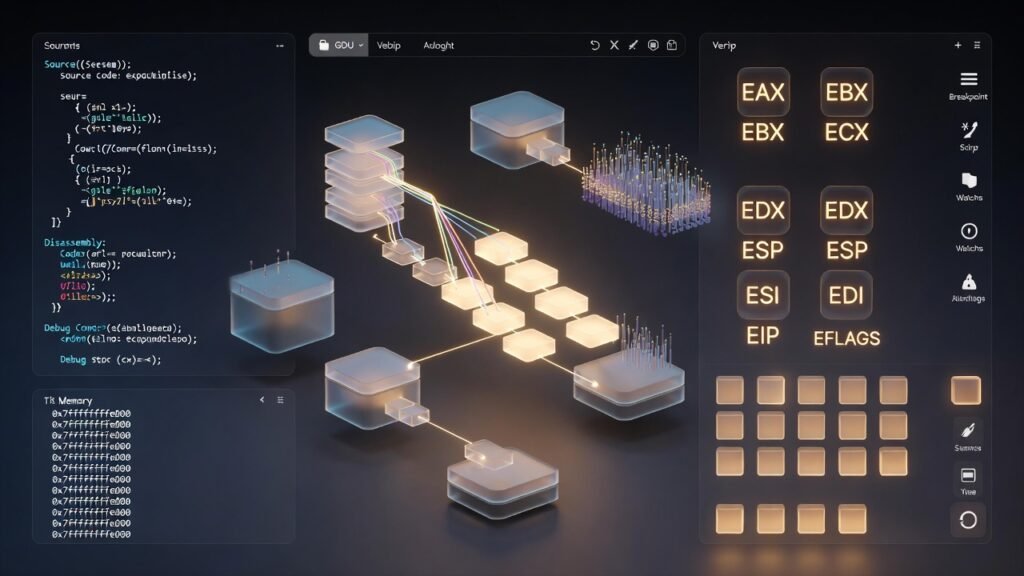
    work with a simple C code example to demonstrate the use of GDB

    Example C Program: factorial.c

    #include <stdio.h>
    
    int factorial(int n) {
        if (n == 0 || n == 1) {
            return 1;
        }
        return n * factorial(n - 1);
    }
    
    int main() {
        int num = 5;
        int result = factorial(num);
        printf("Factorial of %d is %d\n", num, result);
        return 0;
    }
    

    This program calculates the factorial of 5 and prints the result.

    Steps to Debug Using GDB:

    1. Compile the Program with Debug Information

    To compile the C code with debugging symbols, we use the -g option in gcc.

    gcc -g -o factorial factorial.c
    

    This will produce an executable file named factorial.

    1. Start GDB

    To start GDB with the compiled program, use the following command:

    gdb ./factorial
    
    1. Set Breakpoints

    We want to set a breakpoint at the factorial function to see the recursive calls.

    To set a breakpoint at the factorial function, run the following in the GDB prompt:

    (gdb) break factorial
    
    1. Run the Program

    Now, run the program inside GDB:

    (gdb) run
    

    The program will start, and GDB will pause at the first call to factorial.

    1. Step Through the Code

    To step through the code one line at a time, use the step command:

    (gdb) step
    

    This will take you inside the factorial function, and you can continue stepping through the function’s execution.

    1. Display Variable Values

    To check the value of the variables, such as n, you can use the print command. For example:

    (gdb) print n
    

    This will show the value of n at each step of the recursion.

    1. Continue Execution

    After reaching the breakpoint and checking variable values, you can continue execution until the next breakpoint (or the end of the program):

    (gdb) continue
    
    1. Exit GDB

    Once you’re done, exit GDB by typing:

    (gdb) quit
    

    Expected Output

    During the debugging session, GDB will allow you to inspect the recursive calls to factorial and the values of n at each step. Eventually, it will display the final result after the program reaches the print statement.

    1. GDB Basics and Commands

    What is GDB?

    GDB is the GNU Debugger. It lets you:

    • Start your program and pause it anywhere.
    • View variable values at runtime.
    • Step through code line by line.
    • Set breakpoints (pause points).
    • Inspect memory and CPU registers.

    How to Compile with Debug Info

    Before using GDB, compile your code with debug symbols:

    gcc -g main.c -o main
    

    The -g flag tells the compiler to include debug information.

    Starting GDB

    gdb ./main

    Common Commands

    CommandDescription
    runStarts the program
    break <line/function>Sets a breakpoint
    next or nSteps to next line (skips function calls)
    step or sSteps into a function
    continue or cResumes execution
    print <var>Prints the value of a variable
    listShows source code
    quitExits GDB

    2. Remote Debugging with GDB

    Remote debugging is used to debug a program running on another system (like embedded Linux or RTOS).

    Setup

    On Target (with GDB server):

    gdbserver :1234 ./app

    On Host (your PC):

    gdb ./app
    (gdb) target remote <target-ip>:1234

    Now you’re controlling the target program from your host machine.

    3. Breakpoints, Watchpoints, Backtrace

    Breakpoints

    Stop execution at specific lines or functions:

    (gdb) break main
    (gdb) break 42  # line 42
    

    Watchpoints

    Automatically pause when a variable changes:

    (gdb) watch counter
    

    Backtrace

    See the function call history (call stack):

    (gdb) backtrace
    

    This shows which functions were called and in what order.

    4. Disassembly and Register Inspection

    Disassemble Code

    See the machine code for your program:

    (gdb) disassemble main
    

    View Registers

    See CPU register values (great for low-level debugging):

    (gdb) info registers
    

    For ARM/MIPS/other architectures, you’ll see general-purpose and special registers.

    5. Debugging on Bare-Metal & RTOS

    Bare-Metal Debugging

    Bare-metal means there’s no OS — you’re debugging directly on hardware (e.g., ARM Cortex-M microcontroller).

    You’ll use:

    • A cross-compiler (arm-none-eabi-gcc)
    • gdb for that architecture
    • An OpenOCD or J-Link GDB server
    arm-none-eabi-gdb main.elf
    (gdb) target remote :3333
    (gdb) load  # Load program onto hardware
    (gdb) monitor reset init
    

    RTOS Debugging (e.g., FreeRTOS)

    RTOS debugging is similar to bare-metal, but you may need:

    • RTOS-aware GDB scripts (for thread/task context)
    • Special memory maps

    You can:

    • Pause execution
    • View current tasks
    • Inspect stack of each thread

    GDB extensions/plugins like FreeRTOS-aware GDB scripts can show tasks and queues.

    How GDB Interacts with Compiled Binaries

    GDB (GNU Debugger) is a tool used to examine and control programs after they are compiled. When you compile a program, the compiler turns your human-readable source code into machine-readable binary code. GDB interacts with these compiled binaries by reading and controlling their execution.

    Here’s how it works step-by-step:

    1. Reading the Binary File
      GDB loads the compiled binary file (usually an executable) into memory. If the binary contains debugging information (generated using the -g flag during compilation), GDB can use this information to map machine code back to your original source code, including variables, functions, and line numbers.
    2. Connecting to the Process
      GDB can either start a program directly or attach to an already running process. It uses system-level APIs to take control of the process execution.
    3. Controlling Execution
      Once attached, GDB can pause program execution (breakpoints), step through code line-by-line (step/next), or continue execution. This allows programmers to inspect exactly how their code is running.
    4. Inspecting Memory and Variables
      GDB reads the memory and register states of the running program. This lets you examine variable values, memory contents, and CPU registers to understand the program’s behavior.
    5. Modifying Execution
      GDB can also change variable values, set new program counter positions, or modify registers while the program runs. This helps in testing fixes without recompiling.

    Key takeaway: GDB bridges the gap between your compiled binary and the original source code, allowing you to inspect, control, and debug the program’s execution at a very deep level.

    Breakpoints and Watchpoints in GDB

    When debugging with GDB, you often need to pause the program or observe certain events to understand its behavior. That’s where breakpoints and watchpoints come in. They are both tools to stop or monitor a program during execution, but they work differently.

    1. Breakpoints

    A breakpoint is a marker you set at a specific line of code or function. When the program execution reaches that point, GDB pauses the program so you can inspect the state of the program.

    Example use case:
    If your program crashes in a function, you can set a breakpoint at the function start to see exactly what happens before the crash.

    How to set a breakpoint in GDB:

    (gdb) break main   # Break at the start of main()
    (gdb) break 25     # Break at line 25 in the current file
    

    When the program hits the breakpoint, GDB stops execution and gives control back to you.

    2. Watchpoints

    A watchpoint is like a dynamic watch on a variable or memory location. GDB pauses execution whenever the value of that variable or memory changes.

    Example use case:
    If a variable is changing unexpectedly, you can set a watchpoint on it to find the exact point where the change happens.

    How to set a watchpoint in GDB:

    (gdb) watch x   # Watch variable x
    

    When the watched variable changes, GDB stops execution and shows where the change occurred.

    Key Differences Between Breakpoints and Watchpoints

    FeatureBreakpointWatchpoint
    PurposeStop execution at a specific line or functionStop execution when a variable or memory changes
    TriggerReaching a specific location in codeChange in the value of a variable or memory
    UsageUsed to inspect execution flowUsed to monitor specific variable changes
    PerformanceLow impact on performanceHigher performance cost because memory is monitored

    In short:

    • Breakpoints → Stop at a specific point in code.
    • Watchpoints → Stop when data changes.

    Summary

    FeatureGDB Command
    Set Breakpointbreak <line/function>
    Step Through Codenext, step
    Inspect Variableprint var
    Remote Debugtarget remote <ip:port>
    View Registersinfo registers
    Disassembledisassemble
    Watch Variablewatch var
    Backtracebacktrace

    Here’s a beginner-friendly, plagiarism-free, and uniquely written explanation of essential GDB commands, complete with simple descriptions and a few helpful tips.

    Common GDB Commands You Should Know

    Common GDB Commands You Should Know
    CommandWhat It Does (Beginner-Friendly)
    run or rStarts the program from the beginning. Great for testing your code cleanly.
    break or bPuts a stop (breakpoint) at a specific line or function so you can pause there.
    disableTemporarily turns off a breakpoint without removing it. Useful for quick toggles.
    enableTurns a disabled breakpoint back on. Handy if you’re toggling breakpoints often.
    next or nMoves to the next line of code without entering into any called function.
    stepGoes to the next line, but enters into functions to help debug them deeper.
    list or lShows the source code around the current line or a specified location.
    print or pShows the current value of a variable. Also great for checking expressions.
    quit or qExits GDB. You’ll be asked to confirm if the program is still running.
    clearRemoves all breakpoints, or just one if specified. Good for cleanup.
    continueResumes program execution after hitting a breakpoint or stepping through code.

    Example Session (Simple Workflow)

    $ gdb ./my_program     # Start GDB with your compiled program
    (gdb) break main       # Set a breakpoint at the beginning
    (gdb) run              # Start running the program
    (gdb) next             # Move to the next line
    (gdb) print myVar      # Check the value of a variable
    (gdb) continue         # Resume execution until next breakpoint
    (gdb) quit             # Exit when you're done

    
    Frequently Asked Questions (FAQ) GDB

    1. What is GDB and why is it used?

    GDB (GNU Debugger) is a powerful debugging tool used to analyze and debug programs written in languages like C, C++, and others. It helps developers inspect code, find bugs, check variable values, trace program execution, and understand crashes or unexpected behavior.

    2. Is GDB only for C/C++ programs?

    No! While GDB is widely used for C and C++, it also supports other languages like Ada, Fortran, Go, Rust, and more—depending on compiler support and integration.

    3. How do I install GDB?

    • Linux: Use your package manager (e.g., sudo apt install gdb on Ubuntu).
    • macOS: Use Homebrew → brew install gdb.
    • Windows: Install via MinGW or download pre-built binaries from official sites.

    4. Can GDB debug running processes?

    Yes! GDB can attach to an already running process using the attach <pid> command, allowing you to debug without restarting the application.

    5. What are breakpoints in GDB?

    Breakpoints are markers you set in code to pause execution at specific lines or functions. They let you inspect program state, variables, and execution flow at precise points.

    Example:

    (gdb) break main
    

    6. How do I run a program inside GDB?

    Use the run command:

    (gdb) run
    

    Or pass arguments like:

    (gdb) run arg1 arg2
    

    7. What is a backtrace in GDB?

    A backtrace (via the bt command) shows the call stack leading to the current point in execution. It’s very helpful for diagnosing where and how a program crashed.

    8. Can GDB be used for remote debugging?

    Yes. GDB supports remote debugging over serial ports, TCP/IP, or JTAG interfaces. You use target remote to connect to a remote GDB server.

    9. Is GDB suitable for beginners?

    Absolutely! While it has a learning curve, GDB is beginner-friendly once you grasp basic commands like break, run, next, step, print, and bt.

    10. Are there graphical front-ends for GDB?

    Yes. Tools like:

    • DDD (Data Display Debugger)
    • Eclipse CDT Debugger
    • Insight
    • GDB Dashboard (TUI enhancements)

    These provide graphical interfaces that make debugging visually easier.

    11. How can I debug core dumps with GDB?

    If your program crashes and generates a core file, you can inspect it like this:

    gdb <program> core
    

    This lets you analyze the state of the program at the time of the crash.

    12. Is GDB available for free?

    Yes! GDB is completely free and open-source, distributed under the GNU General Public License (GPL).

    13. What’s new in GDB for 2025?

    (Replace this with your blog’s content if you’ve covered new GDB updates. For example:)

    • Improved Rust support
    • Faster multi-thread debugging
    • Better integration with modern IDEs

    14. Where can I learn more about GDB?

    • Official GDB Manual
    • Online tutorials
    • Community forums like Stack Overflow
    • Your “GDB GNU Debugger | Master Beginner-Friendly Guide (2025)” blog post!

    Special thanks to @mr-raj for contributing to this article on EmbeddedPrrep

    Want to estimate your social media income? Try this Facebook Earning Calculator to calculate potential earnings from Facebook content creators.

  • Master How to Read and Understand Schematics: The Complete 2026 Guide

    Introduction | How to Read and Understand Schematics of Hardware

    How to Read and Understand Schematics of Hardware : In the world of embedded systems, understanding hardware schematics is an essential skill for both hardware and software engineers. Schematics act as the blueprints of electronic circuits, guiding engineers through the design, debugging, and troubleshooting phases.

    This blog post provides a step-by-step guide on how to effectively read and interpret hardware schematics, covering core symbols, power distribution, communication interfaces, and debugging techniques.

    1. Understanding the Basics of a How to Read and Understand Schematics

    A schematic diagram represents the electronic components and their connections in a circuit. It uses standardized symbols instead of physical representations of the components. The key elements of a schematic include:

    a) Reference Designators

    Each component in a schematic is labeled with a unique identifier, known as a reference designator. Common examples include:

    • R1, R2, R3 – Resistors
    • C1, C2, C3 – Capacitors
    • U1, U2 – Integrated Circuits (ICs)
    • D1, D2 – Diodes
    • Q1, Q2 – Transistors

    b) Symbols and Notations

    Some commonly used symbols include:

    • Resistor (R) – A zig-zag line
    • Capacitor (C) – Two parallel lines (polarized capacitors have a positive and negative marking)
    • Diode (D) – A triangle pointing to a line
    • Transistor (Q) – Different types (NPN, PNP, MOSFET) have unique symbols
    • Microcontroller (U) – A rectangular box with labeled pins
    • Power and Ground (VCC, GND) – Symbols representing power supply connections

    c) Nets and Nodes

    • Nets (Lines) – Represent electrical connections between components.
    • Nodes (Junctions) – Where multiple connections meet.
    • Net Labels – Named connections, reducing wire clutter (e.g., SDA, SCL for I2C communication).

    2. Power Distribution in a Schematic

    a) Identifying Power Sources

    Most circuits operate on specific voltage levels. Common designations include:

    • VCC (or VDD) – Positive power supply (+5V, +3.3V, etc.)
    • GND (or VSS) – Ground reference

    b) Voltage Regulators

    Voltage regulators ensure a stable power supply to the circuit. Examples:

    • 7805 Regulator – Provides a 5V output from a higher voltage source
    • AMS1117-3.3V – Converts 5V to 3.3V

    c) Decoupling and Filtering Capacitors

    Capacitors are used for noise reduction and power stability:

    • Ceramic capacitors (0.1µF, 1µF) – Placed near IC power pins
    • Electrolytic capacitors (10µF, 100µF) – Used in power regulation circuits

    3. Identifying the Core Components

    a) Microcontrollers and Processors

    • Identify the power pins (VCC, GND)
    • Locate I/O pins (GPIOs, ADCs, UART, SPI, I2C, etc.)
    • Check for external clock (crystal oscillator) and reset circuits

    b) Memory Components

    • EEPROM, Flash, RAM
    • Look for data and address bus connections

    c) Communication Interfaces

    • I2C (SDA, SCL) – Requires pull-up resistors (typically 4.7kΩ)
    • SPI (MOSI, MISO, SCK, CS) – Point-to-point high-speed interface
    • UART (TX, RX, GND) – Serial communication interface
    • CAN (CANH, CANL) – For automotive applications

    4. Understanding Peripheral Circuits

    a) Sensors and Actuators

    • Temperature Sensors (e.g., LM35, DHT11) – Analog or digital output
    • Motors (DC, Servo, Stepper) – Driven by H-bridge circuits

    b) Display Modules

    • OLED/LCD (I2C, SPI, Parallel) – Requires appropriate power levels
    • 7-segment Displays – Uses multiplexing

    5. Analyzing Protection Circuits

    a) Pull-up and Pull-down Resistors

    • Used for GPIO stabilization (e.g., 10kΩ pull-up on RESET pin)

    b) Reverse Polarity Protection

    • Diodes in series with power lines prevent reverse voltage damage

    c) Fuse and Overcurrent Protection

    • PTC Resettable Fuses – Protect against short circuits
    • TVS Diodes – Absorb voltage spikes

    6. Debugging Using Schematics

    a) Finding Test Points

    Test points are designated spots where you can measure signals with a multimeter or oscilloscope.

    b) Checking Signal Flow

    Trace the signals from power to microcontroller and peripherals.

    c) Identifying Common Issues

    • No power? Check the voltage regulator and power traces.
    • Unstable signals? Check capacitors and grounding.
    • Microcontroller not working? Verify clock and reset circuits.

    7. Tools for Schematic Analysis

    a) Software Tools

    • KiCad – Open-source schematic and PCB design tool
    • Altium Designer – Industry-standard for professional PCB design
    • Eagle – Used for PCB and schematic layout
    • OrCAD – Professional circuit design software

    b) Hardware Debugging Tools

    • Multimeter – For voltage and continuity checks
    • Oscilloscope – To analyze signal waveforms
    • Logic Analyzer – To debug communication protocols

    💛 Support Embedded Prep

    If you find our tutorials helpful and want to support our mission of sharing high-quality embedded system knowledge, you can contribute by buying us a coffee. Every small contribution helps us keep creating valuable content for learners like you. ☕

    Thank you for your support — it truly keeps Embedded Prep growing. 💻✨

    8. Practical Example (How to Read and Understand Schematics) Analyzing an Embedded Schematic

    Let’s analyze a simple ESP32-based IoT sensor circuit:

    • ESP32 Module
      • VCC → 3.3V Regulator (AMS1117-3.3V)
      • GND → Common ground
      • GPIO21 (SDA) & GPIO22 (SCL) → I2C OLED Display
      • GPIO4 → DHT11 Temperature Sensor (with a pull-up resistor)
      • UART TX/RX → Debugging interface
    • Power Management
      • 5V input from USB → 3.3V regulator
      • Decoupling capacitors (100µF, 10µF, 0.1µF) near power pins
    • Communication
      • I2C lines have 4.7kΩ pull-up resistors
      • UART connected to debugging console

    This schematic shows how power, communication, and sensors are connected in an embedded system.

    The topics required How to Read and Understand Schematics

    1. Basic Electrical & Electronics Engineering

    📚 Topics Covered:

    • Ohm’s Law, Kirchhoff’s Laws
    • Resistors, Capacitors, Inductors
    • Diodes, Transistors, MOSFETs
    • Power Supply Circuits (Voltage Regulators, SMPS, Batteries)
    • AC & DC Circuits

    👨‍🏫 Relevant Subject Names:

    • Basic Electrical Engineering (BEE)
    • Circuit Theory
    • Electronic Devices & Circuits (EDC)

    2. Analog & Digital Electronics

    📚 Topics Covered:

    • Op-Amps, Comparators
    • Filters, Amplifiers (LM386, etc.)
    • Logic Gates (AND, OR, NOT, XOR, etc.)
    • Flip-Flops, Counters, Registers
    • ADC/DAC Converters

    👨‍🏫 Relevant Subject Names:

    • Analog Electronics
    • Digital Logic Design
    • Digital Signal Processing (DSP)

    3. Microprocessors & Microcontrollers

    📚 Topics Covered:

    • Microcontroller Architecture (8051, ARM Cortex, STM32, ESP32)
    • GPIOs, Timers, Interrupts
    • Memory (Flash, EEPROM, RAM)
    • Peripheral Interfaces (SPI, I2C, UART, CAN, PCIe)

    👨‍🏫 Relevant Subject Names:

    • Microprocessor and Microcontroller (MPMC)
    • Embedded Systems

    4. Embedded System Design

    📚 Topics Covered:

    • Schematic Reading & PCB Layout
    • Bootloaders & Firmware
    • Low Power Design & Power Management
    • Real-Time Operating Systems (RTOS)

    👨‍🏫 Relevant Subject Names:

    • Embedded Systems
    • Real-Time Systems
    • Hardware-Software Co-design

    5. Communication Protocols & Interfaces

    📚 Topics Covered:

    • Serial & Parallel Communication (SPI, I2C, UART, CAN, USB)
    • Wireless Communication (Bluetooth, Wi-Fi, Zigbee, LoRa)
    • Signal Integrity & High-Speed PCB Design

    👨‍🏫 Relevant Subject Names:

    • Communication Systems
    • Data Communication & Networking
    • VLSI & Interfacing

    6. Power Electronics & Circuit Design

    📚 Topics Covered:

    • Power Supply Design (Buck/Boost Converters)
    • Motor Driver Circuits (H-Bridge, PWM)
    • Protection Circuits (Fuses, TVS Diodes, Surge Protection)

    👨‍🏫 Relevant Subject Names:

    • Power Electronics
    • Control Systems
    • Analog & Mixed-Signal Design

    7. PCB Design & Signal Processing

    📚 Topics Covered:

    • PCB Design using KiCad, Altium, Eagle
    • PCB Traces, Ground Planes, EMI/EMC Considerations
    • Oscilloscope & Multimeter Usage for Debugging

    👨‍🏫 Relevant Subject Names:

    • PCB Design & Manufacturing
    • Signal Processing

    8. Computer Architecture & System Programming

    📚 Topics Covered:

    • ARM, x86, RISC-V Architectures
    • Memory Mapping & DMA
    • Interrupt Handling & Low-Level Programming

    👨‍🏫 Relevant Subject Names:

    • System Programming
    • Computer Organization & Architecture

    Requirement Gathering Tools for Embedded Firmware Development | How to Read and Understand Schematics

    Requirement gathering is crucial in embedded firmware development to ensure clarity, traceability, and compliance. Here are some tools categorized based on their purpose:

    1. Requirements Management & Traceability Tools

    These tools help capture, manage, and track requirements throughout the development lifecycle.

    • IBM DOORS (Dynamic Object-Oriented Requirements System) – Industry-standard for requirements management, widely used in automotive (ASPICE), aerospace (DO-178C), and medical fields.
    • Jama Connect – Provides end-to-end requirements traceability, change management, and impact analysis.
    • Helix ALM (formerly TestTrack) – Manages requirements, test cases, and defects in a unified platform.
    • Polarion ALM – A Siemens tool that integrates requirements, test cases, and project tracking with compliance support.
    • codeBeamer ALM – Great for automotive, medical, and industrial embedded systems (supports ASPICE & ISO 26262).

    2. Open-Source & Lightweight Requirement Tools

    If you need simpler or open-source tools:

    • ReqView – Standalone, lightweight requirement management with a simple UI.
    • LibrePlan – Open-source tool for requirement gathering and project planning.
    • Excel / Google Sheets – Many teams still use spreadsheets for capturing simple requirements with custom templates.

    3. UML & SysML-Based Requirement Tools

    For model-driven requirement engineering (especially in embedded systems).

    • Enterprise Architect – Supports UML, SysML, and model-based requirements tracking.
    • IBM Rational Rhapsody – Integrates UML/SysML with requirement tracking.
    • Cameo Systems Modeler – Good for SysML-based embedded systems modeling.

    4. Agile & Collaboration Tools for Requirement Management

    If your team follows an Agile or Scrum process for firmware development:

    • Jira (with Jira Advanced Roadmaps) – Helps track requirements, epics, and user stories in Agile development.
    • Azure DevOps – Combines requirement tracking, version control, and test management.
    • Confluence – Great for documenting requirements collaboratively.
    • Notion – Flexible tool for creating structured requirement documents.

    5. Compliance-Focused Requirement Tools

    For functional safety and regulatory compliance (e.g., ISO 26262, IEC 61508, DO-178C):

    • Ansys medini analyze – Used in automotive, medical, and aerospace embedded projects.
    • PTC Integrity (Windchill RV&S) – Advanced tool for safety-critical firmware requirements.
    • Visure Requirements ALM – Focused on automotive (ASPICE), aerospace, and industrial compliance.

    Choosing the Right Tool for Embedded Systems

    Use CaseRecommended Tool
    Basic Requirement DocumentationExcel, Confluence, ReqView
    Agile-based Embedded ProjectsJira, Azure DevOps, Notion
    Safety-Critical Systems (ASPICE, ISO 26262)IBM DOORS, Jama Connect, codeBeamer ALM
    Model-Based Requirement EngineeringEnterprise Architect, Cameo Systems Modeler
    Open-Source SolutionLibrePlan, ReqView

    Interview questions on How to Read and Understand Schematics :

    Basic Questions on How to Read and Understand Schematics

    • What is a schematic diagram in electronics?
    • Why is it important to read and understand schematics in embedded systems?
    • What are the common symbols used in schematics?
    • How do you differentiate between power rails (Vcc, Vdd, GND, etc.) in a schematic?
    • What is the role of reference designators (R1, C1, U1, etc.) in a schematic?

    Components & Symbols for How to Read and Understand Schematics

    • How do you identify resistors, capacitors, inductors, diodes, and transistors in a schematic?
    • What is a pull-up resistor, and how can you recognize it in a schematic?
    • How can you tell if a capacitor is being used for decoupling or filtering in a circuit?
    • What does a fuse or TVS diode symbol indicate in a schematic?
    • How do you recognize an operational amplifier (Op-Amp) configuration in a schematic?

    Power and Signal Flow for How to Read and Understand Schematics

    • How do you determine the power source of a circuit from a schematic?
    • What are bypass capacitors, and where do they appear in a schematic?
    • How can you trace signal flow from input to output in a schematic?
    • How do you identify and differentiate between analog and digital signal paths?
    • What is a ground plane, and why is it important in PCB design?

    Microcontroller & Communication Interfaces for How to Read and Understand Schematics

    • How do you recognize a microcontroller (MCU) or processor in a schematic?
    • How can you identify and verify connections for I2C, SPI, UART, and CAN in a schematic?
    • What are the key components required for an external crystal oscillator in an MCU circuit?
    • How do you identify reset and boot mode circuits in a microcontroller schematic?
    • What is a JTAG/SWD header, and why is it used in embedded systems?

    Debugging & Troubleshooting Schematics for How to Read and Understand Schematics

    • How can you identify floating (unconnected) pins in a schematic?
    • How do you check for short circuits or incorrect connections in a schematic?
    • How can you use a multimeter or oscilloscope to verify circuit behavior based on a schematic?
    • What are test points, and why are they included in schematics?
    • How do you identify and correct a missing or incorrectly placed component in a schematic?

    Advanced & Industry-Specific Questions on How to Read and Understand Schematics

    • How do you read power management schematics (buck converters, LDOs, etc.)?
    • How can you interpret impedance-matching networks in high-speed PCB designs?
    • What is EMI/EMC shielding, and how can you recognize it in a schematic?
    • How do you analyze a differential pair (LVDS, USB, Ethernet) in a schematic?
    • How do you ensure compliance with industry standards (ISO 26262, IPC-2221, etc.) when analyzing schematics?
    Master the Art of How to Read and Understand Schematics of Hardware (2025)
    Master the Art of How to Read and Understand Schematics of Hardware (2025)

    Frequently Asked Questions (FAQ) on How to Read and Understand Schematics

    1. What is a schematic diagram in electronics?

    A schematic is a graphical representation of an electronic circuit, showing components and their connections using standardized symbols.

    2. Why is reading schematics important in embedded systems?

    Schematics help engineers understand circuit design, debug hardware issues, and integrate firmware with the correct electrical components.

    3. What are the most commonly used symbols in schematics?

    Some common schematic symbols include:

    • Resistor (R) – Zigzag line
    • Capacitor (C) – Two parallel lines
    • Inductor (L) – Coiled loops
    • Diode (D) – Triangle pointing to a line
    • Transistor (Q) – NPN/PNP or MOSFET symbols
    • Ground (GND) – Three descending lines
    • Microcontroller (U) – Rectangular block with pins

    4. How do I identify power and ground in a schematic?

    • Vcc/Vdd/Vss – Represents different voltage levels in the circuit
    • GND (Ground) – Common return path for current
    • Battery (BAT) – Alternating long and short lines

    5. How can I trace signal flow in a schematic?

    Start from inputs (sensors, buttons, communication lines) and follow the signal through processing elements (MCUs, ICs) to outputs (displays, motors, LEDs).

    6. How do I find the microcontroller in a schematic?

    Look for a large rectangle (U1, U2, etc.) with multiple labeled pins, often connected to memory, sensors, and communication interfaces.

    7. What is a pull-up/pull-down resistor, and how do I find it in a schematic?

    A pull-up resistor (connected between Vcc and a signal) ensures a default high state, while a pull-down resistor (between GND and a signal) ensures a default low state.

    8. How can I identify communication protocols like I2C, SPI, UART in a schematic?

    • I2C – Look for SDA (Data) and SCL (Clock) lines, often with pull-up resistors.
    • SPI – Consists of MOSI, MISO, SCK, and CS (Chip Select) lines.
    • UART – Identified by TX (Transmit) and RX (Receive) connections.

    9. What are decoupling/bypass capacitors, and why are they used?

    Decoupling capacitors (placed near IC power pins) stabilize voltage and filter out noise from the power supply.

    10. What are test points in a schematic?

    Test points are designated locations for measuring voltage, signals, and debugging during hardware testing.

    11. How do I detect errors in a schematic?

    Check for:

    • Floating (unconnected) pins
    • Short circuits or incorrect connections
    • Missing pull-up/pull-down resistors
    • Incorrect capacitor or diode placement

    12. What tools can help in reading schematics?

    • KiCad, Eagle, Altium Designer, OrCAD – For viewing and designing schematics
    • LTspice, Proteus, TINA-TI – For simulating circuits

    13. What is a ground plane, and why is it important?

    A ground plane is a large conductive layer used in PCBs to provide a low-resistance return path for current and reduce noise.

    14. How can I interpret differential pair signals (LVDS, USB, Ethernet)?

    Differential pairs use two closely routed traces with opposite signals to reduce noise and improve signal integrity.

    15. What is EMI/EMC shielding, and how is it represented in schematics?

    Electromagnetic Interference (EMI) shielding protects sensitive signals and is typically represented by grounded shielding enclosures or ferrite beads.

    16. What is the difference between schematic and PCB layout?

    A schematic is a logical diagram of a circuit, while a PCB layout is the physical design that places components on a board.

    17. How do I ensure a schematic follows industry standards?

    Follow IPC standards, ISO 26262 (automotive), and best practices like using proper symbols, grounding, and labeling.

    18. What is a Bill of Materials (BOM), and how is it related to schematics?

    A BOM lists all components used in a schematic, including part numbers, values, and footprints for PCB design.

    19. How do I verify a schematic before designing a PCB?

    • Cross-check with component datasheets
    • Simulate circuits using SPICE tools
    • Review connections using ERC (Electrical Rule Check)

    20. How can I improve my schematic reading skills?

    • Practice analyzing real schematics
    • Refer to component datasheets
    • Use online tools like Digi-Key, Mouser, and Altium for circuit examples

    Debugging & Testing Tools

    If you\’re interested in learning about debugging tools, check out below detailed guide about tools:

    • Multimeter – Basic voltage and continuity checking
    • Oscilloscope – Debugging signals in real-time
    • Logic Analyzer – Capturing and analyzing digital communication (I2C, SPI, UART)
    • JTAG/SWD Debuggers – Segger J-Link, ST-Link, OpenOCD for debugging and flashing firmware
    • GDB (GNU Debugger) – Debugging firmware, setting breakpoints, and inspecting registers

    Thank you for exploring How to How to Read and Understand Schematics Stay ahead in embedded systems with expert insights, hands-on projects, and in-depth guides. Follow Embedded Prep for the latest trends, best practices, and step-by-step tutorials to enhance your expertise. Keep learning, keep innovating!

    You can also Visit other tutorials of Embedded Prep