
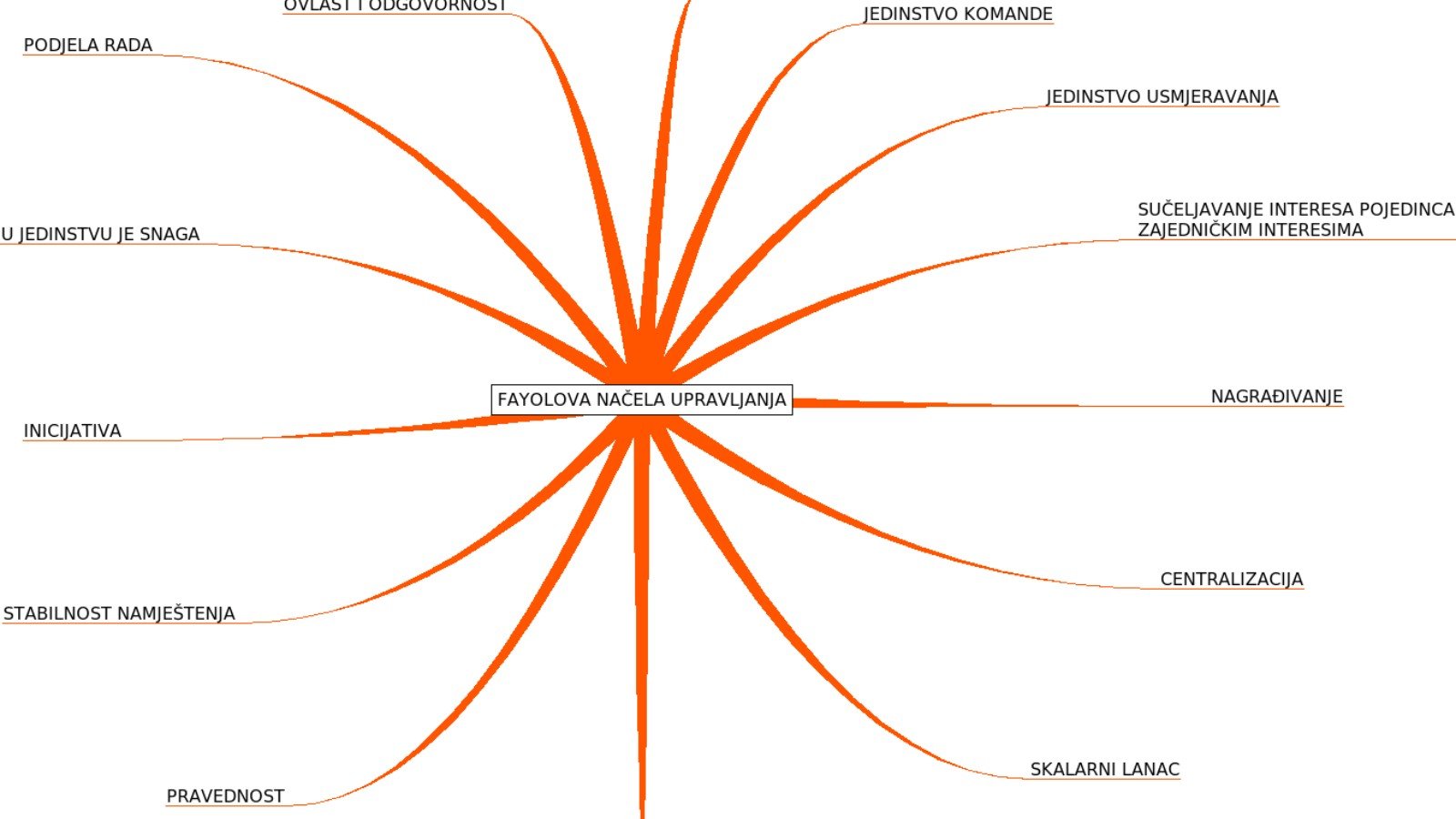
When a folder of notes feels like a pile of disconnected facts, a visual map can make the main themes easier to spot. NotebookLM’s Mind Maps feature can turn notebook sources into a branching diagram, which you can expand, collapse and use to ask follow-up questions.
Generate a map from a focused notebook
Open a notebook with sources you are allowed to use, then choose the Mind Map option in chat. The generated map appears in Studio. Select a node to ask a question about that topic, or expand a branch to inspect more detail. Keep the source set focused: a current project brief or a few lecture notes is easier to evaluate than a mixed archive.
Use it as an index, not a proof
A branch shows how the model grouped ideas; it does not prove that two concepts are causally connected or that a source actually made the claim shown. Google warns that NotebookLM can be inaccurate. Click back to the source, check its wording and date, and correct your notes before citing or sharing the result.
The feature is not currently supported in the NotebookLM mobile app, according to Google’s help page. If it is missing from your phone, try the web experience on a supported device rather than assuming your account is broken.
Useful workflow: generate the map, identify one surprising connection, then ask a follow-up question that requests the exact source passage supporting it. Keep the map as a navigation aid and the original documents as your evidence.
Official guide
Google: Use Mind Maps in NotebookLM
Featured image: The original uploader was Mirko Le?ko at Croatian Wikipedia. via Wikimedia Commons, CC BY-SA 3.0. Image source and license.
Leave a Reply