
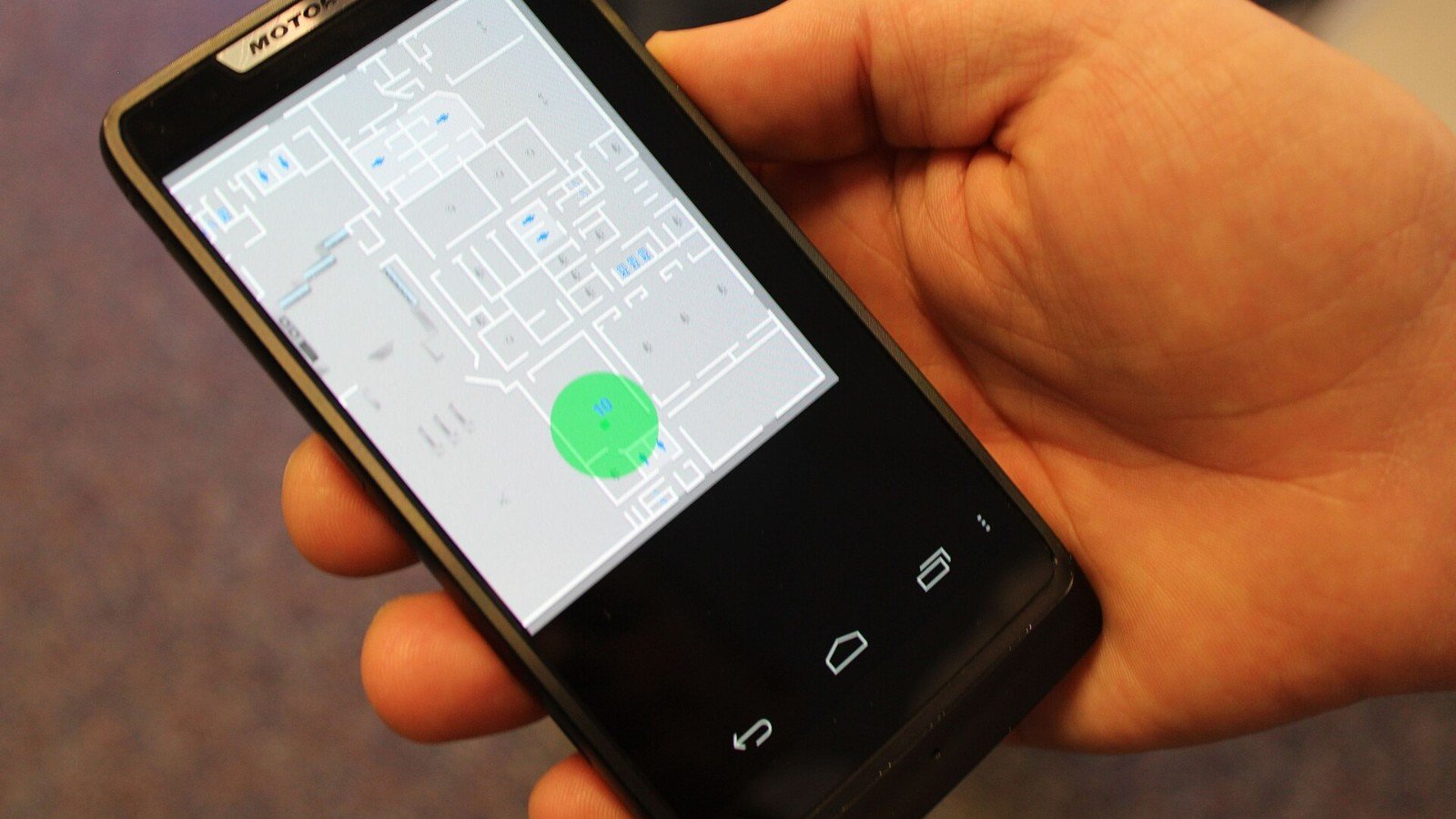
A map app may need your precise position to guide you to a door. A local weather app often does not. On iPhone, you can make that choice app by app instead of switching off Location Services for everything.
Turn off Precise Location for an app
Open Settings → Privacy & Security → Location Services, choose the app, then turn Precise Location off. You can also review whether the app is allowed to use location Never, Ask Next Time Or When I Share, While Using the App, or Always. The choices offered vary by app.
With Precise Location off, the app can still receive an approximate location. That can be enough for a forecast, nearby listings or regional recommendations. It may not be enough for turn-by-turn navigation, a ride pickup or another feature that depends on your exact position. If something stops working, revisit the same screen and restore precise access only for that app.
Check the bigger permission, too
Precise Location is not the same as allowing location access. If you set an app to Always, it can use location in the background; While Using the App limits access to when the app or a feature is visible. If you rarely need location, choose Ask Next Time or Never instead. Some apps explain why they request access; read the prompt before deciding.
These controls reduce what an app receives from Location Services, but they do not erase location information you previously shared or control every form of data an app collects. Review each app’s privacy information separately.
Quick check: Start with social, shopping and weather apps, then keep precise location for services that genuinely depend on it. Menu wording may change slightly between iOS versions.
Official guide
Apple: Control the location information you share on iPhone
Featured image credit: Intel Free Press via Wikimedia Commons, CC BY-SA 2.0. Image source and license.
Leave a Reply