Learn everything about Build Systems in Linux: explore make, CMake, autotools, and Yocto for efficient compilation, automation, and project management. Perfect guide for beginners and developers.
If you’ve ever tried compiling software on Linux, you might have heard the term “build system” thrown around. But what exactly is a build system, and why is it so important for developers working on Linux?
In this article, we’ll walk you through everything you need to know about build systems in Linux, including build practices, why we need them, how they are structured, and popular build systems used in the Linux ecosystem .
What Are Build Systems in Linux?
At its core, a build system in Linux is a set of tools and scripts that automates the process of converting source code into executable programs. Instead of manually compiling each file, linking libraries, and handling dependencies, a build system does all of this for you efficiently and reliably.
Imagine you’re building a complex house. You don’t want to lay every brick manually without a plan. A build system is like your construction plan and machinery rolled into one—it knows which parts depend on each other and ensures everything comes together correctly.
Why Do We Need Build Systems?
You might wonder, “Can’t I just compile my code manually?” Sure, you can, but for small projects, it’s fine. But as projects grow, manually managing compilation becomes a nightmare. Here’s why build systems in Linux are essential:
Handling Dependencies: Modern software often relies on multiple libraries and modules. Build systems automatically track which parts of the code need to be rebuilt when changes occur.
Efficiency: Instead of rebuilding everything, build systems only rebuild what’s necessary, saving time.
Consistency: They ensure that everyone on the team builds the software in the same way, avoiding the classic “It works on my machine” problem.
Automation: From compiling code to running tests, packaging, and deployment, build systems automate repetitive tasks.
Cross-Platform Builds: Many build systems support building software on different architectures and platforms without major changes.
In short, without a build system, maintaining and scaling software projects becomes error-prone and time-consuming.
Build Practices in Linux
Good build practices are as important as the build system itself. Even the best tools won’t save you from messy, inefficient builds if you don’t follow these practices:
Modular Code: Organize your source files into logical modules. This makes it easier for the build system to identify dependencies.
Consistent Directory Structure: Use a standard directory layout, such as separating headers (include/), sources (src/), and build outputs (bin/).
Version Control Integration: Your build system should work seamlessly with Git or other version control systems. This ensures reproducibility.
Incremental Builds: Always configure your build system to support incremental builds. Rebuilding only what changed saves huge amounts of time.
Use Build Scripts: Automate repetitive tasks like cleaning old binaries or running tests using scripts.
Document the Build Process: Include clear instructions on how to build the project. Future maintainers will thank you.
Following these practices ensures your build system is reliable, efficient, and maintainable.
How Build Systems Are Structured
Understanding the structure of build systems in Linux is crucial for anyone wanting to master them. Most build systems follow a similar structure:
Configuration Files: These define the project structure, compiler flags, and dependencies. Common examples include Makefile, CMakeLists.txt, or build.gradle.
Source Files: The raw code you write, often organized in directories by functionality.
Build Scripts/Rules: Instructions that tell the build system how to compile and link files.
Dependency Management: Some build systems handle downloading and including external libraries automatically.
Output Directory: Where compiled binaries, libraries, and other artifacts are stored.
Testing and Packaging: Advanced build systems can also automate unit tests and package software for deployment.
Here’s a simple example: Imagine a C project with main.c and utils.c. The build system reads the rules, compiles each .c file into an object file, and then links them into a single executable. If you modify utils.c, only it gets recompiled, saving time.
Popular Build Systems in Linux
Linux developers have many build systems to choose from. Let’s look at the most popular ones:
1. Make
Makeis the oldest and one of the most widely used build systems. It uses Makefiles to define rules, dependencies, and build commands.
Cons: Can become complex for large projects; not very portable.
Example Command:
make all
2. CMake
CMake is a modern, cross-platform build system generator. Instead of building directly, it generates native build scripts like Makefiles or Ninja files.
Pros: Cross-platform, handles complex dependencies, integrates with IDEs.
Cons: Slight learning curve; configuration files can be verbose.
Example Command:
cmake .
make
3. Ninja
Ninja is a small, fast build system designed for speed. It is often used as a backend for CMake.
Pros: Extremely fast, minimal overhead, great for incremental builds.
Cons: Low-level, not very human-readable without a generator.
4. Autotools
Autotools is a suite of tools for making portable and configurable software. It’s used heavily in traditional Linux projects.
Pros: Produces highly portable builds.
Cons: Complex to configure, verbose syntax.
5. Bazel
Bazel is a newer build system designed by Google for large-scale projects.
Pros: Handles large codebases efficiently, supports multiple languages.
Cons: Heavyweight for small projects, requires learning a new build language.
6. SCons
SCons uses Python scripts to define build rules, offering flexibility and simplicity.
Pros: Python-based, easy to extend, supports multiple languages.
Cons: Slower for very large projects compared to Ninja or Make.
Step-by-Step: How a Build System Works in Linux
To make this concrete, let’s walk through the steps a typical build system follows:
Read Configuration Files: The build system parses Makefile, CMakeLists.txt, or similar files.
Check Dependencies: It determines which source files depend on each other.
Compile Source Code: Each modified or new source file is compiled into an object file.
Link Objects: Object files are linked together into an executable or library.
Run Tests (Optional): Some systems automatically run unit tests.
Package (Optional): The final artifacts are packaged for distribution or deployment.
This process ensures efficiency and accuracy, especially in projects with hundreds of files and multiple dependencies.
Common Mistakes in Using Build Systems
Even seasoned developers can make mistakes with build systems. Here are some pitfalls to avoid:
Ignoring Dependencies: Not properly defining dependencies can lead to broken builds.
Recompiling Everything: Not using incremental builds wastes time.
Mixing Build Systems: Combining Make and CMake incorrectly can create conflicts.
Poor Directory Structure: Messy directories make automation hard.
Skipping Documentation: Future maintainers may struggle to build the project.
Following best build practices helps avoid these mistakes.
Build Systems and DevOps
In modern software development, build systems in Linux are tightly integrated with DevOps practices. Continuous Integration (CI) tools like Jenkins, GitHub Actions, and GitLab CI rely on build systems to automatically compile, test, and package code whenever changes are pushed. This automation ensures that software is always in a deployable state and reduces human error.
Yocto Project: A Powerful Build System for Embedded Linux
The Yocto Project is more than just a build system it’s a framework for creating custom Linux distributions for embedded systems. Unlike traditional build systems like Make or CMake, Yocto doesn’t just compile your code; it builds the entire OS image tailored to your hardware.
Why Use Yocto?
Custom Linux Images: You can include only the packages and libraries your embedded device needs, keeping the image small and efficient.
Cross-Compilation Support: Yocto makes it easy to build software for a target architecture different from your host machine.
Reproducibility: Once your configuration is set, Yocto ensures that your builds are consistent across machines.
Integration with Packages: Yocto supports a rich ecosystem of recipes and layers, making software integration easier.
How Yocto Works
Layers: Think of layers as modular building blocks. Each layer can contain software recipes, configurations, or kernel modifications.
Recipes: Recipes are scripts that tell Yocto how to fetch, configure, compile, and install a package.
Bitbake: Bitbake is Yocto’s build engine. It parses recipes and automates the build process.
Example: To build a minimal Linux image for ARM hardware:
Yocto will fetch all required source code, compile it, and generate a bootable image for your device.
Buildroot: Lightweight and Simple Embedded Build System
Buildroot is another popular tool for building custom Linux systems for embedded devices. Compared to Yocto, Buildroot is simpler and faster, making it perfect for small to medium projects.
Advantages of Buildroot
Simplicity: Easy to configure and use, with a menu-driven interface similar to make menuconfig.
Quick Builds: Buildroot is lightweight and faster for small images.
Custom Packages: You can add your own software packages easily.
Cross-Compilation: Like Yocto, Buildroot can build software for a target architecture different from your host.
How Buildroot Works
Configuration Menu: You configure your image using a menu (make menuconfig).
Package Selection: Choose which libraries and applications you want included.
Build Process: Buildroot automatically cross-compiles packages and generates a complete Linux image, including kernel, root filesystem, and bootloader.
Example: To build a basic embedded Linux system:
make menuconfig
make
The result is a ready-to-flash image for your embedded device.
Yocto vs Buildroot: Quick Comparison
Feature
Yocto Project
Buildroot
Complexity
High, more flexible
Low, simpler
Build Speed
Slower due to full rebuilds
Fast, lightweight builds
Customization
Highly customizable OS images
Limited customization
Target Projects
Large embedded systems
Small to medium devices
Learning Curve
Steep
Beginner-friendly
Tip: If you are building professional, scalable Linux images for embedded devices, Yocto is the industry standard. For quick prototypes or simpler projects, Buildroot is easier to start with.
Integrating Yocto and Buildroot into Linux Build Practices
When you combine Yocto or Buildroot with good build practices, you get a professional workflow:
Modular Layers (Yocto) or Packages (Buildroot): Keep your project organized.
Version Control: Track your configuration files and custom layers/packages.
Automated Builds: Use CI/CD pipelines to build, test, and deploy images automatically.
Documentation: Document the build configuration and steps for reproducibility.
This approach ensures your embedded Linux project is maintainable, scalable, and professional.
So, Yocto and Buildroot are not just tools—they’re essential parts of build systems in Linux for embedded projects. They extend the concept of a build system beyond compiling code—they help you build the entire Linux OS tailored for your hardware.
Summary
Let’s recap what we learned about build systems in Linux:
A build system automates compilation, linking, and packaging.
They are essential for efficiency, consistency, and scalability.
Good build practices include modular code, consistent directories, incremental builds, and documentation.
Build systems are structured with configuration files, build scripts, dependency management, and output directories.
Popular build systems include Make, CMake, Ninja, Autotools, Bazel, and SCons.
Avoid common mistakes by properly managing dependencies, incremental builds, and directory structures.
Modern DevOps pipelines rely heavily on build systems for CI/CD.
Whether you’re a beginner writing your first Linux program or a seasoned developer managing large projects, mastering build systems in Linux is a crucial skill that will save you time, prevent errors, and make your software easier to maintain.
Frequently Asked Questions (FAQs)
What is the primary role of a build system in Linux? It automates compilation, linking, and packaging of software from source code.
Can I compile software without a build system? Yes, but it’s inefficient and error-prone for large projects.
Which build system is best for beginners? Start with Make for simplicity, then move to CMake for larger projects.
How does a build system handle dependencies? It tracks file relationships and rebuilds only what is necessary.
Can build systems work with multiple programming languages? Yes, systems like Bazel and SCons support multiple languages.
Do build systems run on all Linux distributions? Most build systems are cross-platform, but some may require installation.
What is an incremental build? Rebuilding only the files that have changed instead of recompiling everything.
How do build systems integrate with CI/CD pipelines? They automate compilation, testing, and packaging whenever code is pushed.
Are build systems only for large projects? No, they’re useful for small projects too, but their benefits increase with project size.
Which build system is fastest? Ninja is designed for speed, especially for incremental builds.
If you’re preparing for Embedded Linux or Yocto Project roles, you’ll face advanced Yocto interview questions that go beyond recipes, layers, and the basic build. Senior interviews focus on real-world debugging, build optimization, BSP bring-up, BitBake, and layer design. In this guide, we break down advanced topics with beginner-friendly explanations and step-by-step examples so you can build confidence for architect-level discussions.
In this article, we’ll explore advanced Yocto interview questions with beginner-friendly explanations to help you understand the concepts step by step.
It’s 10:30 PM in the office. The lights are dim, most of your team has left, but your monitor still glows with an ongoing Yocto build. You’re the senior engineer responsible for bringing up a brand-new ARM board for an automotive client.
The pressure is high:
Tomorrow morning, the client expects to see the first boot on the new hardware.
The management team wants answers on how long the migration from Dunfell to Kirkstone will take.
Your developers are asking for a proper SDK toolchain so they can start app development.
The architect keeps talking about OTA updates because the system must support remote upgrades.
Meanwhile, your project manager just pinged you on Slack: “Why does the build take so long? Can we make it faster?”
This is the life of a Yocto expert. These challenges aren’t theory — they are real problems that senior engineers and architects solve every single day. And these same scenarios are exactly what interviewers ask in Yocto Interview Questions for senior roles.
Advanced Yocto Interview Questions
Let’s explore them one by one with practical explanations.
1.Explain Yocto’s task execution model (do_fetch, do_compile, do_install).
Ans: Yocto’s Task Execution Model
In Yocto, when you build a package (like a driver, library, or application), the build system follows a series of tasks. These tasks are like stages in a factory assembly line.
The most important ones you’ll see are:
do_fetch → Getting the source code
do_compile → Building (compiling) the source
do_install → Putting the built files in the right place for packaging
1. do_fetch (Fetching source code)
Think of this as collecting raw materials.
Yocto needs the source code before it can build anything.
do_fetch downloads the source from the location defined in the recipe (SRC_URI).
Sources can come from git repositories, tarballs, local directories, or mirrors.
Example in real life: You want to bake a cake. First, you go shopping for ingredients (flour, sugar, eggs). That’s your do_fetch.
2. do_compile (Compiling source code)
This is like the cooking step.
Once the source is fetched and unpacked, Yocto compiles it using the right compiler for your target device (cross-compilation).
It converts human-readable code (C, C++, etc.) into machine code (binaries).
Uses the environment defined by Yocto (toolchain, flags, dependencies).
Example in real life: After shopping, you start baking the cake by mixing ingredients and putting them in the oven. That’s your do_compile.
3. do_install (Installing built files)
This is the packaging step.
After compiling, Yocto needs to place the output in a structured directory (${D}), where it can later be packaged into .ipk, .rpm, or .deb files.
Files go into correct locations like /usr/bin, /usr/lib, /etc, etc.
This ensures the final image has the program in the right place.
Example in real life: Once the cake is baked, you place it nicely on a plate and decorate it so it’s ready to be served. That’s your do_install.
Summary
do_fetch → Get the source (raw materials).
do_compile → Build it (cook/bake).
do_install → Put it in the right place (serve it).
Together, these tasks form the core execution pipeline of Yocto when building any package
Yocto Task Dependencies (Execution Order)
Yocto doesn’t just run tasks randomly. It follows a dependency chain — meaning one task must finish before another can start.
do_image → Deliver the final cake to the customer.
Each step depends on the previous — you can’t bake before preheating, and you can’t serve before baking.
So the execution model works because of task dependencies. Yocto recipes declare these relationships, and BitBake makes sure everything happens in the correct order.
2.What is the role of sstate-cache?
Ans: Think of sstate-cache (Shared State Cache) as a reusable storage box where Yocto keeps the results of tasks it has already built.
When you build something (like compiling a library or creating a package), Yocto stores the output of that step in the sstate-cache.
Next time, instead of re-building everything from scratch, Yocto checks if the result is already available in the cache.
If it finds the exact same build result in sstate-cache, it just reuses it. This saves time and CPU effort.
Why is this important for beginners?
Without sstate-cache, Yocto would recompile every tiny piece of software every single time you build—even if nothing has changed. That means hours of waiting. With cache, Yocto quickly picks up the already built results and moves forward.
Real-time Use Case
Imagine you’re an embedded software engineer working on a custom Linux image for an IoT device.
Day 1: You build the entire image. It takes 4–5 hours because everything is built fresh. All outputs are stored in sstate-cache.
Day 2: You only modify a small configuration file, like enabling Wi-Fi support. Instead of re-building everything, Yocto reuses the majority of the previous results from the cache. Now, the build takes 15–20 minutes instead of hours.
In real companies, this is even more useful: Teams often share sstate-cache over a network. This way, if one developer builds something, others don’t need to rebuild the same thing again. They just pull from the cache, which makes collaboration super fast.
In short: sstate-cache is like Yocto’s time-saving memory. It prevents repeated work, speeds up builds, and helps teams collaborate efficiently.
Deep dive — sstate-cache (shared-state) in Yocto — how it works, why it speeds builds, and practical tips
Nice — let’s go from the “what” into the nuts and bolts, with commands, config examples and real-world gotchas.
1) Quick summary (one-liner)
sstate-cache (shared state cache) stores already-built task outputs (the reusable artifacts BitBake can restore later) so BitBake can skip expensive tasks when nothing relevant changed. (docs.yoctoproject.org)
2) What exactly is stored (and by whom)
BitBake stores the result of a task (for example: the installed files from do_install, packaged binaries from do_package, or content needed to populate a sysroot) as a sstate object.
The object contains just enough to restore the outputs of that task on another build that has the same inputs. It is not a full rebuild snapshot — it’s the reproducible output needed to skip the task. (docs.yoctoproject.org)
3) How BitBake decides whether an sstate entry is valid — task signatures
Every BitBake task has a signature built from all inputs that matter for that task: recipe metadata, dependencies, source checksums, certain relevant variables (compiler flags, sysroot contents, MACHINE, DISTRO, toolchain versions, etc.). Those inputs are combined into siginfo/sigdata files (you can find them under tmp/stamps/).
If the computed signature matches an sstate entry, BitBake can reuse that sstate instead of running the task. If it differs, BitBake rebuilds the task and writes a new sstate entry. You can inspect and compare these signatures with bitbake-dumpsigs and bitbake-diffsigs to see what changed. (docs.yoctoproject.org, wiki.yoctoproject.org)
4) Where the cache lives and how lookups work
Default location for the local cache is ${TOPDIR}/sstate-cache (configurable via SSTATE_DIR). In local.conf you can override it, e.g.:
SSTATE_DIR ?= "/srv/yocto/sstate-cache"
Lookup order: BitBake first checks the localSSTATE_DIR. If not present, it can consult one or more sstate mirrors you configured via SSTATE_MIRRORS (HTTP, file, etc). If a mirror contains the exact matching sstate file, BitBake downloads it into the local SSTATE_DIR and then uses it. If no match is found anywhere, BitBake executes the task and stores the produced sstate locally for future use. (wiki.yoctoproject.org, Bootlin)
5) Common commands / tools you will use
See what changed in signatures:
bitbake-dumpsigs <sigdata-file-or-recipe> — show inputs that contribute to a task signature.
bitbake-diffsigs file1 file2 — compare two signature files to find the differing input(s). These are the first tools to use when a recipe rebuilds unexpectedly. (docs.yoctoproject.org)
Remove sstate for a recipe (force rebuild from scratch for that recipe):
bitbake -c cleansstate <recipe> (this runs do_cleansstate for the recipe). Note: clean ≠ cleansstate — clean removes workdir outputs but does not remove sstate. (docs.yoctoproject.org)
6) Sharing sstate across developers / CI — practical patterns & config
Two popular approaches:
Shared SSTATE_DIR: mount a common SSTATE_DIR (e.g., via NFS) so all builders read/write the same cache. Simple, but concurrency and permissions can cause trouble on busy systems.
SSTATE_MIRRORS: run a single builder that publishes an sstate mirror (rsync/HTTP/S3), and have other builders point to it with SSTATE_MIRRORS so artifacts are fetched into local caches when needed. This is usually safer and scales better for CI. Example local.conf snippet:
When a mirror is used, BitBake copies matching sstate entries into the builder’s local SSTATE_DIR so subsequent tasks are fast. (wiki.yoctoproject.org, Bootlin)
7) Pitfalls, gotchas and security notes
Signatures must match exactly. Changing MACHINE, DISTRO, toolchain, or any recipe variable that is part of the signature will invalidate sstate for affected tasks. That’s why sstate is very helpful only when build inputs and metadata are stable across builders. (docs.yoctoproject.org)
Shared sstate on busy NFS can be problematic (locking, partial writes) — prefer mirrors/HTTP or local caches plus mirror-syncing for CI. Plan permissions and concurrency carefully. (Bootlin)
Security: pulling prebuilt binary artifacts from an untrusted public sstate server can be an attack vector because you’re executing/packaging binaries built elsewhere. Only use trusted sstate mirrors. (Yocto community threads discuss the security implications of shared sstate).
Stale / divergent caches: if you get odd rebuilds or failures, compare signatures with bitbake-diffsigs and consider cleaning sstate for the recipe with -c cleansstate or purging old cache entries.
8) Real-world workflow example (concrete)
Developer A does a full build on a CI server; the server produces and uploads sstate-cache content to an HTTP endpoint (or S3).
Developer B clones the tree, sets SSTATE_MIRRORS to the CI server. When B builds, BitBake finds many exact-match sstate entries on the mirror and downloads them into local SSTATE_DIR, so B’s build reuses artifacts instead of compiling everything.
If B changes only a tiny config, BitBake rebuilds only the affected tasks — most other outputs come from sstate. Result: massive reduction in build time and CPU usage across the team. (Bootlin, wiki.yoctoproject.org)
Did you change MACHINE, DISTRO, or toolchain? → signatures invalidated.
Are there setscene tasks in the log? If you see Running setscene task … it means sstate entries were used. (wiki.yoctoproject.org)
Compare signatures: bitbake-dumpsigs or bitbake-diffsigs on the task’s sigdata files to see what input changed. (docs.yoctoproject.org)
Inspect local.conf: confirm SSTATE_DIR and SSTATE_MIRRORS are set correctly.
If needed, bitbake -c cleansstate <recipe> to force a rebuild of a particular recipe. (docs.yoctoproject.org)
10) Best-practice tips (short)
Keep a reliable sstate mirror (HTTP/rsync/S3) for CI and developer teams. (Bootlin)
Use local SSD-backed SSTATE_DIR on build nodes for performance; mirror into it rather than mounting a remote sstate for heavy write loads.
Use bitbake-diffsigs often when things rebuild; it quickly pinpoints what input changed. (docs.yoctoproject.org)
Periodically prune old sstate files to conserve disk space (Yocto has scripts/recipes for sstate maintenance). (docs.yoctoproject.org)
3.How Does Yocto Handle Cross-Compilation?
Ans: When you build software for embedded devices, the biggest challenge is that the target hardware (like ARM boards, BeagleBone, or Raspberry Pi) is very different from your development machine (usually x86 Linux or Windows). This is where cross-compilation comes in.
What is Cross-Compilation?
Cross-compilation means building software on one machine but running it on another.
Your laptop/PC = Host Machine (build environment).
Embedded board = Target Machine (where the software will run).
Since the target device usually doesn’t have enough power to compile big projects (like a Linux kernel or libraries), Yocto takes care of cross-compiling everything on the host machine.
How Yocto Handles Cross-Compilation
Yocto simplifies the process with a structured build system:
Toolchains
Yocto generates a cross-toolchain (compiler, linker, libraries) specific to the target architecture.
Example: If you’re building for ARM, Yocto creates an arm-poky-linux-gnueabi-gcc compiler.
Recipes and Metadata
Recipes (.bb files) describe how to fetch, configure, compile, and install software.
Each recipe automatically uses the correct cross-compiler and flags for the target architecture.
Sysroot
Yocto provides a sysroot (a mini root filesystem) with target-specific headers and libraries.
This ensures your application is compiled against the exact environment that will exist on the device.
BitBake Automation
The BitBake build tool ensures every package is compiled with the right toolchain, so you don’t have to manually set paths or flags.
Real-Life Example
Imagine you are developing a smart home controller on a Raspberry Pi (ARM).
You write your application on your laptop.
Instead of trying to compile directly on the Pi (which is slow), Yocto builds the app on your laptop using the ARM cross-toolchain.
Once compiled, the binaries run perfectly on the Pi because they were built for its architecture.
This makes Yocto extremely powerful for companies working on IoT devices, automotive systems, and consumer electronics.
In short: Yocto handles cross-compilation by automatically setting up the right toolchains, sysroot, and build environment. This allows you to build on your PC and deploy directly to your embedded target device without compatibility issues.
How to Generate and Use a Yocto SDK Toolchain for Cross-Compilation
Sometimes you don’t want to build everything with BitBake. You just want to write your own C/C++ app (like a Hello World or a sensor driver test) and cross-compile it outside Yocto. That’s where the Yocto SDK (toolchain) comes in.
Step 1: Generate the SDK Toolchain
In your Yocto build directory, run:
bitbake core-image-minimal -c populate_sdk
core-image-minimal is just an example image (you can replace it with your own image name).
This command creates an SDK installer script (something like poky-glibc-x86_64-core-image-minimal-cortexa9t2hf-neon-toolchain.sh).
Think of this SDK as a ready-made kit containing compilers, linkers, headers, and libraries for your target device.
Now your shell is ready to use the cross-compiler (like arm-poky-linux-gnueabi-gcc).
Step 3: Cross-Compile Your Application
Suppose you have a simple hello.c:
#include <stdio.h>
int main() {
    printf("Hello from Yocto cross-compilation!\n");
    return 0;
}
Compile it with:
$CC hello.c -o hello
Here $CC is automatically set by the SDK environment (e.g., arm-poky-linux-gnueabi-gcc).
The output binary hello is ready for your embedded target device.
Step 4: Deploy and Run
Copy it to your target device (like a Raspberry Pi or BeagleBone):
scp hello root@192.168.1.50:/home/root/
Then run it on the target:
./hello
And you’ll see:
Hello from Yocto cross-compilation!
Real-Life Use Case
Imagine you’re developing an IoT sensor application for an ARM-based board.
Instead of rebuilding the full Yocto image every time, you generate the SDK once.
Then you use it to quickly build and test small apps (like sensor readers, network clients, or debug tools).
This saves time and speeds up the development cycle.
Summary: Yocto’s SDK toolchain lets you cross-compile applications outside BitBake.
bitbake <image> -c populate_sdk → generate SDK.
Install and source the SDK → setup environment.
Compile apps with $CC → run on your embedded board.
4.How Do You Add a Custom Driver Module in Yocto?
Ans: When you’re working with embedded Linux, sometimes you need to add your own kernel driver — maybe for a new sensor, custom hardware, or a special board feature. Yocto makes this possible by letting you integrate your driver into the build system.
Suppose you’re building an IoT air quality monitor.
The board has a custom MQ-135 gas sensor circuit.
You write a driver module to interface with the sensor.
Adding this driver to Yocto ensures it’s automatically built and packaged with the image.
Every time the system boots, the driver is available without manually compiling on the target.
Summary: To add a custom driver in Yocto:
Write your driver (.c + Makefile).
Create a recipe (.bb) with inherit module.
Add recipe to your image.
Build with BitBake.
Load and test driver on target.
5.What Are Multiconfig Builds in Yocto?
Ans: Normally, a Yocto build creates one image for one target machine at a time. But in real-world projects, you might need to build multiple configurations (different targets or use-cases) in the same build environment.
That’s where multiconfig builds come in.
Beginner-Friendly Definition
Multiconfig builds in Yocto allow you to build multiple different targets (configs) in parallel, within the same build directory.
Each configuration can have its own:
Machine (hardware target)
Distro (Linux distribution)
Build settings
Image type
How It Works
You define multiple configs inside: build/conf/multiconfig/ For example:
multiconfig/machineA.conf
multiconfig/machineB.conf
Each config behaves like a separate Yocto build environment.
You then tell BitBake to build for both configs in one go: bitbake mc:machineA:core-image-minimal mc:machineB:core-image-sato
Real-Life Example
Imagine you’re working in automotive software:
You need to build an image for the Infotainment System (ARM).
At the same time, you also need a smaller image for a Telematics ECU (PowerPC).
With multiconfig builds:
You can build both images in a single Yocto project, sharing downloads, sstate-cache, and build artifacts.
This saves disk space and reduces build time because common dependencies are reused.
Why It’s Useful?
Build for multiple boards in one environment (e.g., Raspberry Pi + BeagleBone).
Build companion images (main system + recovery system).
Build SDK + image in a single step.
Saves time by reusing caches instead of maintaining separate build directories.
Summary: Multiconfig builds in Yocto let you generate multiple images (for different machines or purposes) in parallel, within the same build directory, while sharing downloads and caches. This is widely used in automotive, IoT, and consumer electronics, where multiple devices or partitions need separate images but must be managed together.
6.How Do You Debug Build Failures in Yocto?
Ans: Yocto builds are complex — they involve fetching sources, patching, configuring, compiling, installing, and packaging. If something goes wrong, the build can fail at any of these stages.
Debugging build failures is about finding where it broke and why.
Step 1: Look at the Error Message
When a build fails, BitBake will stop and show you an error summary. Example:
ERROR: Task (/meta-custom/recipes-apps/myapp/myapp_1.0.bb:do_compile) failed with exit code '1'
This means the error happened in the do_compile step of your recipe.
Step 2: Check the Log Files
Every task in Yocto logs output. You can find logs here:
This file usually contains the real compiler/linker errors.
Step 3: Use BitBake Debug Options
Run with debug messages: bitbake myapp -DDD (-D = debug, more Ds = more details).
Force a task to rerun and see logs: bitbake -c compile -f myapp
Drop into a shell at failure point: bitbake myapp -c compile -f -c devshell This opens a shell with the environment BitBake uses, so you can try compiling manually.
Step 4: Common Failure Causes
Missing Dependencies
Example: A library is required but not added in DEPENDS.
Fix: Add the missing dependency in your recipe.
Incorrect Paths
Example: Source files not found.
Fix: Check SRC_URI and S variables.
Patch Failures
Happens when the source code changes upstream.
Fix: Update or rebase your patches.
Toolchain Issues
Example: Wrong compiler flags.
Fix: Ensure you’re using Yocto’s cross-toolchain, not host gcc.
Step 5: Real-Life Example
Suppose you’re building an IoT temperature logger app.
The build fails in do_compile because it can’t find libm.so.
You check log.do_compile → it says: fatal error: math.h: No such file or directory
Root cause: You forgot to add the libm dependency.
Fix: Update recipe: DEPENDS += "virtual/libc"
Rebuild → now it works.
Summary: To debug Yocto build failures:
Check the error message (which task failed).
Open the task log (log.do_<task>).
Use BitBake debug flags (-DDD, -f, -c devshell).
Fix common issues like missing dependencies, bad paths, or patch errors.
1. Who should read Master Advanced Yocto Interview Questions (2025) | SET #3?
This guide is ideal for senior embedded engineers, system architects, and professionals preparing for interviews where advanced knowledge of Yocto is tested. If you already know the basics of layers, recipes, and builds, this set will help you dive deeper into real-world challenges.
2. What makes this Yocto interview guide different from others?
Unlike generic question lists, this guide provides beginner-friendly explanations of advanced topics, real-world use cases, and step-by-step reasoning. It helps you understand why things work in Yocto, not just what they are.
3. What topics are covered in this FAQ set?
This set focuses on advanced-level Yocto interview questions, including board bring-up and BSP creation, custom distributions and upgrades, multiconfig builds, cross-compilation techniques, debugging build failures, optimizing root filesystem size, and custom driver integration.
4. Do I need prior Yocto knowledge before reading this?
Yes. You should already understand the Yocto basics—recipes, layers, and tasks (do_fetch, do_compile, do_install)—before tackling these advanced interview questions. If you’re new, start with beginner Yocto tutorials first.
5. Are the answers suitable for real interview preparation?
Absolutely! The questions are commonly asked in senior and architect-level interviews, and the answers are framed so you can confidently explain them in a real interview setting.
6. Does this guide include real-world applications?
Yes. Each explanation is tied to practical embedded Linux scenarios, such as optimizing builds for automotive, IoT, or medical devices—making the content relevant for hands-on engineers and interview preparation.
7. Can I use these questions for quick revision?
Yes! The FAQs are structured so you can skim for quick prep or dive deeper for in-depth clarity before interviews.
8. Will this FAQ help me crack senior-level Yocto interviews?
While no guide can guarantee results, this FAQ gives you a solid edge by covering frequently asked advanced Yocto topics with clear, concise, and practical explanations.
You can also Visit other tutorials of Embedded Prep
Prepare for your embedded Linux career with our comprehensive guide on Yocto Interview Questions. This article covers common and advanced questions, practical tips, and step-by-step explanations to help you confidently crack Yocto-related interviews. Ideal for beginners and experienced developers aiming to strengthen their Yocto knowledge and ace technical rounds.
When Ravi, a young embedded developer, first joined an automotive company, he was super excited about working with Yocto. On his very first task, he was asked to customize the Linux kernel and add a new package to the image. But he froze—he only knew the basics of Yocto and BitBake. His senior smiled and said:
“Don’t worry, once you understand the intermediate concepts, Yocto will feel less scary and more powerful.”
That’s exactly what this article is about. If you’ve already covered the Yocto basics, these intermediate interview questions will help you prepare for real-world scenarios like Ravi’s.
Intermediate Yocto Interview Questions
1.Explain the Yocto build process step by step.
Meet Priya, an embedded engineer who needs a custom Linux image for a BeagleBone. She’s never built a full Yocto image before, so she treats the work like a recipe: gather ingredients, prepare the kitchen, follow the steps, and taste-test the result. Below is the recipe Priya followed — written so you can copy, paste, and run it yourself.
Short roadmap (what you’ll do)
Prepare your build host and install prerequisites.
Fetch Yocto (poky) and any BSP/meta layers.
Create a build directory and source the environment.
Configure local.conf and bblayers.conf.
Add custom layers or recipes (optional).
Run bitbake <image> to build.
Inspect outputs, SDKs, and caches.
Debug and iterate.
The step-by-step story (with commands & why)
1) Prepare the build host
Priya installs the packages the Yocto docs list (Python, git, required dev libs). Having the recommended host packages avoids weird failures later. The Yocto Quick Start lists the build-host prerequisites and the basic flow to get started. (Yocto Project Documentation)
Why: Yocto builds are heavy and sensitive to host tools. Install the distro packages the docs recommend before you start.
2) Get the source: clone poky and layers
Priya clones poky (the Yocto reference distribution) and any layers she needs (for example meta-openembedded, vendor BSP layers, or meta-myproject).
git clone git://git.yoctoproject.org/poky
cd poky
git clone git://git.openembedded.org/meta-openembedded ../meta-openembedded
# add other BSP/meta layers as needed
This is the usual starting point for a Yocto build. The Quick Build shows the typical checkout-and-build flow. (Yocto Project Documentation)
3) Create a build directory and source the environment
Priya runs the helper script to create and enter a build environment:
That script creates build/conf/ and sets up environment variables so bitbake works from the build directory. (Yocto Project Documentation)
4) Configure the build (local.conf & bblayers.conf)
Inside build/conf/ there are two files you edit:
local.conf — set MACHINE, BB_NUMBER_THREADS, PARALLEL_MAKE, and paths for DL_DIR and SSTATE_DIR.
bblayers.conf — list the layers (paths) the build should use.
Priya sets MACHINE to her board (e.g., beaglebone), points DL_DIR and SSTATE_DIR to a big fast disk, and tweaks thread counts so the build uses her CPU effectively. The Yocto build docs explain how these files control the build and where to set caches and machine targets. (Yocto Project Documentation)
Tip: Use a shared sstate-cache if you build multiple images or share between developers — it saves a lot of rebuild time.
5) Add or create a layer (optional; for your recipes)
If Priya needs to add a custom driver or recipe, she either adds an existing layer with:
bitbake-layers add-layer ../meta-my-layer
or creates one (yocto-layer helper or templates) and puts .bb recipes there. Layers let you keep custom code separate from upstream meta layers. The Yocto docs and common tasks sections show how layers and recipes organize metadata. (Yocto Project Documentation, The Yocto Project)
6) Build the image with BitBake
Now the main command:
bitbake core-image-minimal # or your custom-image
What happens under the hood? BitBake parses recipes, resolves dependencies, and runs recipe tasks in order (for each recipe: do_fetch → do_unpack → do_patch → do_configure → do_compile → do_install → do_package → do_populate_sysroot / image assembly). These tasks and their ordering are defined in the build system and are executed automatically. (Yocto Project Documentation)
Practical notes:
Build time depends on what needs to be compiled and whether artifacts exist in sstate/DL_DIR.
Use bitbake -k <image> to keep building other packages when failures occur, or bitbake -c cleansstate <recipe> to force rebuilding a recipe from scratch.
7) Where the results live (artifacts)
When the build succeeds, Priya finds images and packages under:
build/tmp/deploy/images/<MACHINE>/
There will be kernel zImage/uImage, rootfs tarballs, wic images, and package feeds. If she built an SDK, it appears from bitbake -c populate_sdk <image> (or bitbake <image>-sdk). The Yocto Quick Build and build docs describe where these outputs are placed. (Yocto Project Documentation)
8) Caching & downloads — why they matter
Two folders are critical:
DL_DIR — stores downloaded source tarballs.
SSTATE_DIR — shared state cache with prebuilt intermediate results.
Priya points these to persistent storage so subsequent builds (or other developers) reuse downloads and compiled pieces — massively speeding up rebuilds. The docs emphasize using DL_DIR and SSTATE_DIR to optimize builds. (Yocto Project Documentation)
9) Useful BitBake commands for iteration & debugging
bitbake -c listtasks <recipe> — show available tasks.
bitbake -c fetch <recipe> — fetch sources only.
bitbake -c cleansstate <recipe> — erase sstate for a recipe.
bitbake -e <recipe> — show environment variables.
bitbake <recipe> -c devshell — drop into a build shell for debugging (if supported).
Inspect logs: build/tmp/work/<arch>/<recipe>/<version>/temp/log.* for do_compile, do_configure, etc. See the tasks and common tasks docs for more debugging workflows. (Yocto Project Documentation)
If a dependency fails to fetch: check DL_DIR and proxy settings.
If compile fails: inspect the recipe’s log.do_compile and try bitbake -c cleansstate <recipe> and rebuild.
If build is slow: increase BB_NUMBER_THREADS and PARALLEL_MAKE in local.conf and ensure sstate is on fast storage.
If image missing a package: add it to IMAGE_INSTALL in local.conf or the image recipe.
Final — a one-paragraph recap
Priya’s Yocto build was a sequence of preparation (host packages), pulling the right metadata (poky and layers), configuring local.conf/bblayers.conf, and running bitbake which orchestrates many recipe tasks (fetch → configure → compile → package → assemble image). Artifacts end up in tmp/deploy/images/<MACHINE>, while DL_DIR and SSTATE_DIR speed up future builds. The Yocto docs (Quick Start, build/dev manual, and BitBake tasks reference) are excellent companions while you learn and iterate. (Yocto Project Documentation, The Yocto Project)
2.What is a .bbclass file and why is it used?
Imagine you are working in a kitchen that serves hundreds of recipes every day. Instead of writing the same steps like “wash vegetables, cut onions, add oil to the pan” in every recipe card, you create a shared guidebook. Every new recipe just says “follow the guidebook for chopping and frying” — simple, clean, and reusable.
That’s exactly what a .bbclass file does in Yocto.
A .bbclass file is a BitBake class file used in Yocto. It contains common functions, tasks, and variables that can be inherited by multiple recipes (.bb files).
Instead of duplicating code across recipes, developers put shared logic in a .bbclass file and then use:
inherit <classname>
inside their .bb recipe.
Why is it used? (Benefits)
Code Reuse → Write once, use everywhere. Example: packaging steps, fetching from Git, or autotools build flow.
Consistency → Ensures all recipes follow the same structure for similar tasks.
Simplifies Maintenance → Fix a bug or update logic in one .bbclass file, and all recipes that inherit it get the fix automatically.
Customization → Developers can create their own custom classes (like mycompany-update.bbclass) to enforce company-specific build rules.
Examples in Yocto
autotools.bbclass → Provides standard tasks for configure/compile/install when building with GNU Autotools.
cmake.bbclass → Defines how to build packages using CMake.
kernel.bbclass → Provides helper tasks for building Linux kernels.
In short: A .bbclass file in Yocto is like a shared recipe guide. It holds reusable build instructions that multiple recipes can inherit, making builds more efficient, cleaner, and easier to maintain.
Rreal-life mini example to show how .bbclass makes your Yocto recipes clean and reusable.
Step 1: Create a custom .bbclass file
Let’s say you often write recipes that install a simple script into /usr/bin. Instead of repeating the do_install task everywhere, you can create a .bbclass file:
my-common.bbclass
# my-common.bbclass
# A reusable class to install scripts into /usr/bin

do_install() {
    install -d ${D}${bindir}
    install -m 0755 ${WORKDIR}/${PN}.sh ${D}${bindir}/${PN}
}
What this does:
Creates /usr/bin in the rootfs (${bindir}).
Installs a script named after the recipe (${PN}.sh) into /usr/bin.
Step 2: Create two recipes that use this class
Now we’ll write two recipes that inherit this class.
hello-script.bb
SUMMARY = "A simple hello world script"
LICENSE = "MIT"
SRC_URI = "file://hello-script.sh"

S = "${WORKDIR}"

inherit my-common
goodbye-script.bb
SUMMARY = "A simple goodbye script"
LICENSE = "MIT"
SRC_URI = "file://goodbye-script.sh"

S = "${WORKDIR}"

inherit my-common
Step 3: Add the scripts
Inside each recipe’s files/ directory, add the scripts:
hello-script.sh
#!/bin/sh
echo "Hello, Yocto World!"
goodbye-script.sh
#!/bin/sh
echo "Goodbye, Yocto World!"
Step 4: Build and check
When you run:
bitbake hello-script
bitbake goodbye-script
👉 Both will install their scripts into /usr/bin/hello-script and /usr/bin/goodbye-script, but thanks to my-common.bbclass, you didn’t duplicate the do_install logic in each recipe.
Key Takeaway: The .bbclass file acts like a reusable library of tasks. Instead of repeating installation steps across multiple recipes, you write them once and just inherit it.
Typical Layer Structure
When you create a new layer (say meta-mycustom), the structure looks like this:
This tells Yocto where to look for recipes (.bb) and classes (.bbclass).
Step 3: Inherit the class in your recipes
Inside each recipe (hello-script.bb or goodbye-script.bb), add:
inherit my-common
That’s it — now both recipes reuse the logic from your .bbclass.
Step 4: Build and verify
From your build directory:
bitbake hello-script
bitbake goodbye-script
After build, check inside the rootfs (tmp/work/.../image/usr/bin/) and you should see:
/usr/bin/hello-script
/usr/bin/goodbye-script
In short:
.bbclass files live in classes/ inside your layer.
Point to them via layer.conf.
Inherit them in recipes to avoid duplicating code.
3.Difference Between .bb and .bbappend Files in Yocto
Imagine you’re a chef in a big kitchen.
A recipe card (.bb file) tells you exactly how to cook a dish — what ingredients to fetch, how to prepare them, and how to plate it.
But sometimes, you don’t want to rewrite the whole recipe. Instead, you just want to say: “Add extra spices” or “Serve with salad”. That’s where a .bbappend file comes in — it lets you extend or modify the original recipe without copying the entire thing.
What is a .bb file?
A BitBake recipe file (.bb) describes how to build a package.
It contains instructions like:
where to fetch source code (SRC_URI)
how to configure and compile (do_compile, do_install)
# Add an extra patch to hello recipe
SRC_URI += "file://hello-fix.patch"

do_install_append() {
    echo "Hello Yocto!" > ${D}${bindir}/extra.txt
}
This doesn’t replace the original recipe — it piggybacks on it and adds modifications.
Key Differences
Feature
.bb File
.bbappend File
Purpose
Defines a recipe from scratch
Extends or modifies an existing recipe
Content
Full build instructions (fetch, compile, install)
Only contains changes or additions
Naming
<recipe>_<version>.bb
<recipe>_<version>.bbappend
Use Case
When creating a new package/recipe
When tweaking an existing recipe (add patches, change variables, etc.)
In short:
.bb → full recipe (like the original cookbook entry).
.bbappend → patch/extension to an existing recipe (like adding your own notes on the cookbook page).
4.How do you use the bitbake-layers command?
Ans: Imagine you’ve just started working on a Yocto project. You open the project folder and see so many files and directories that it feels like walking into a big library with no map. Every book (or in Yocto’s case, every recipe) is kept in a section called a layer. But the question is: how do you quickly find out which sections exist, what books are inside, or where a new book should go?
That’s where the bitbake-layers command becomes your guide. Think of it as the librarian of Yocto layers.
What can this “librarian” do for you?
Show all the sections (layers) you already havebitbake-layers show-layers => Just like asking the librarian, “Which sections are in this library?”
List all the books (recipes) insidebitbake-layers show-recipes => You’ll see all the recipes Yocto knows about.
Find out who provides a specific bookbitbake-layers show-recipes <recipe-name> => If the same book exists in two sections, this command tells you which one is being used.
Add a new section to your librarybitbake-layers add-layer ../meta-myproject => Imagine bringing a brand-new section of books and placing it in the library.
Remove a section you no longer needbitbake-layers remove-layer ../meta-myproject => Just like taking out an old, unused section.
Check which books have special notes (appends)bitbake-layers show-appends => Shows you all .bbappend files—like sticky notes attached to certain books with extra instructions.
Why is this helpful for beginners?
When you’re new to Yocto, it’s easy to get lost. The bitbake-layers command gives you clarity and control:
You know which layers are active.
You can quickly spot which recipe is being used.
Adding or removing layers becomes simple.
In short: The bitbake-layers command is like a friendly librarian for your Yocto project—it shows you the layers, recipes, and lets you manage them without confusion.
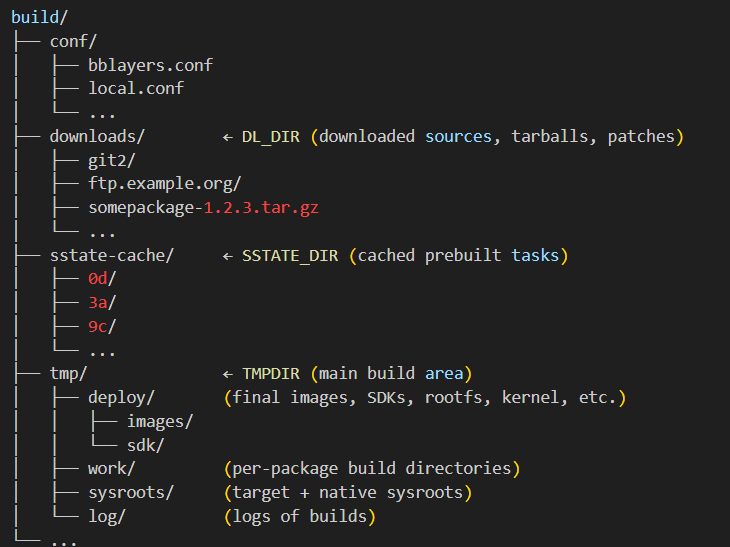
5.What is the purpose of DL_DIR, SSTATE_DIR, and TMPDIR in Yocto?
Ans: Imagine you are building a huge Lego city with thousands of pieces. To make it faster and smoother, you don’t want to run to the shop every time you need a piece, right? You’ll keep some parts in storage, reuse old ones, and have a special workbench where you assemble everything.
In Yocto, these three directories act just like that:
1. DL_DIR → The Lego Shop Bag
Whenever you need new Lego parts, you first download them. In Yocto, source codes, patches, and tarballs are downloaded and saved inside DL_DIR.
Purpose:
Stores all downloaded source files.
Prevents downloading the same thing again in future builds.
Saves internet bandwidth and time.
Think of it as the bag you bring home from the Lego shop—you keep it safe so you don’t need to buy the same piece twice.
2. SSTATE_DIR → The Reusable Parts Box
As you build, sometimes you already assembled something earlier, like a Lego house wall. Instead of rebuilding it from scratch, you pull it out of your reusable box.
Purpose:
Stores precompiled and cached build outputs.
Allows Yocto to reuse previous builds.
Makes repeated builds much faster.
It’s like your personal storage of pre-built Lego walls, windows, and doors—ready to plug in without wasting time.
3. TMPDIR → The Workbench
This is where the real action happens. You open the bag, take out pieces, use some from your reusable box, and build on your workbench.Purpose:
Stores all temporary build files.
Contains the working space for compiling, assembling, and linking.
Usually the largest directory in size.
It’s like the big table where you build your Lego city before showing it to the world.
Why are these three important together?
DL_DIR ensures you don’t keep downloading sources.
SSTATE_DIR ensures you don’t rebuild the same thing again.
TMPDIR is where Yocto actually builds your final image.
By using these three smartly, Yocto saves time, resources, and makes the build process efficient.
In short:
DL_DIR = Download bag (sources).
SSTATE_DIR = Reusable parts box (cached builds).
TMPDIR = Workbench (active build area).
Where do DL_DIR, SSTATE_DIR, and TMPDIR exist?
When you set up a Yocto build environment (by sourcing oe-init-build-env), a new folder called build/ (or whatever you named it) gets created. Inside this, there is a configuration folder called conf/local.conf.
This is the place where DL_DIR, SSTATE_DIR, and TMPDIR are defined.
Default locations:
DL_DIR
Default: build/downloads/
You can change it in local.conf: DL_DIR ?= "${TOPDIR}/downloads"
This folder will contain all the tarballs, source code archives, and patches.
SSTATE_DIR
Default: build/sstate-cache/
You can change it in local.conf: SSTATE_DIR ?= "${TOPDIR}/sstate-cache"
This is where Yocto saves prebuilt shared state objects (cache).
TMPDIR
Default: build/tmp/
You can change it in local.conf: TMPDIR ?= "${TOPDIR}/tmp"
This folder is the biggest one—it contains all intermediate build files, sysroots, and the final images.
So, do they always exist?
Yes, by default they get created automatically when you run your first bitbake build.
Their locations are controlled from local.conf (inside build/conf/).
You can move them outside the build folder if you want to share downloads or sstate across multiple projects.
In short:
These three directories exist inside your Yocto build directory by default.
You’ll see them as:
build/downloads → (DL_DIR)
build/sstate-cache → (SSTATE_DIR)
build/tmp → (TMPDIR)
6.How do you add a new package to a Yocto image?
Ans: Imagine you are preparing a lunchbox for a school trip. By default, the lunchbox already has some food items—like rice, vegetables, and water. But suddenly your friend says: “Hey, can you also add some chocolates?”
In Yocto, your image is just like that lunchbox. It already contains some software packages, but you can add extra packages (like chocolates) to it before it is built.
Step-by-Step (with Story)
Find the package you want
First, make sure the package exists in one of your Yocto layers.Example: Let’s say you want to add nano (a text editor).
It’s like checking if chocolates are available in your kitchen before packing. bitbake-layers show-recipes | grep nano
Edit the Image Recipe 🥡
Open your custom image recipe or local.conf.Add the package under IMAGE_INSTALL_append.
Example (inside local.conf): IMAGE_INSTALL_append = " nano" Just like putting chocolates inside the lunchbox.
Rebuild the Image
Now build the image again using:
bitbake core-image-minimal (or whichever image recipe you are using). This is like closing the lunchbox and preparing it for the trip.
Flash and Check
Once the image is built, flash it to your board and boot.Run:
nano --version If you see the version, it means your “chocolate” (package) is inside the lunchbox.
Why is this important?
Adding packages to a Yocto image is how you customize your embedded Linux system. Instead of shipping a plain box, you create a tailored image that has exactly the tools and applications you need.
In short: To add a new package to a Yocto image, you:
Check if the package recipe exists.
Add it to your image (IMAGE_INSTALL_append).
Rebuild the image.
Boot and verify.
It’s just like packing extra food in your lunchbox before a trip—simple, flexible, and under your control.
Adding Packages in Yocto: local.conf vs. Custom Image Recipe
Continuing with our lunchbox story
Imagine you are preparing lunch for a short picnic today. You quickly add a chocolate bar 🍫 inside your own lunchbox. But when you open a canteen business (serving hundreds of students every day), you wouldn’t go and edit each lunchbox one by one—you’d create a standard menu 🍱 that always includes chocolates.
That’s exactly the difference between using local.conf and a custom image recipe in Yocto.
Method 1: Add Packages in local.conf
This is the quick and easy way, like packing your own lunchbox just for today.
Open build/conf/local.conf.
Add your package: IMAGE_INSTALL_append = " nano htop"
Build the image.
Best for testing and experimenting with packages. Not good for long-term projects, because your changes stay only in your local setup.
Method 2: Create a Custom Image Recipe
This is the professional way, like writing a canteen’s fixed lunch menu 🍱. Every lunchbox that comes out will automatically follow this recipe.
Steps:
Create a new recipe inside your own layer, e.g.: meta-myimage/recipes-core/images/my-image.bb
Inside the .bb file, define your image: SUMMARY = "My Custom Image" LICENSE = "MIT" IMAGE_INSTALL += " \ nano \ htop \ vim \ " inherit core-image
Build with: bitbake my-image
Best for real projects and teams where you want reproducibility and a clean history of changes.
Comparison Table
Method
When to Use
Example Use Case
local.conf
Quick testing, one-time changes
Adding nano just to try
Custom Image Recipe
Permanent project setup
Your product image always needs nano + htop + vim
7.What Steps Are Involved in Customizing the Linux Kernel in Yocto?
Ans : Let’s imagine a real-life story:
You bought a smart coffee machine that runs on an embedded Linux system. The company shipped it with basic features—make coffee, adjust temperature, etc. But as an engineer, you want to customize it. Maybe you want to add support for a new touchscreen display, or optimize the system to boot faster in the morning when you’re half-asleep.
This is exactly like customizing the Linux kernel in Yocto. The kernel is the heart of your embedded device, and Yocto lets you tune it for your hardware.
Here are the steps you’d follow in Yocto:
1. Identify Your Kernel Recipe
In Yocto, everything is managed with recipes. The Linux kernel recipe is usually found inside:
meta/recipes-kernel/linux/
For example: linux-yocto.bb or a vendor-specific kernel recipe.
In our coffee machine story: This is like finding the original recipe for your coffee—what beans, water temperature, and milk ratio are used.
2. Create Your Own Layer for Customization
Never edit Yocto’s default files directly. Instead, create a new layer (example: meta-coffee-kernel). This keeps your changes clean and separate.
Just like in real life: Instead of spoiling the company’s recipe book, you make your own recipe notes in a new diary.
3. Use a .bbappend File
To modify the kernel, create a .bbappend file that matches the original kernel recipe’s name. Example:
linux-yocto_%.bbappend
Here you can add patches, extra configurations, or point to a different kernel source.
Think of it like adding your own twist to the coffee recipe—extra chocolate powder or almond milk—without rewriting the whole recipe.
4. Add Kernel Configuration Changes
Yocto allows kernel configs using fragments. You can create a file like myconfig.cfg:
CONFIG_SPI=y
CONFIG_I2C=y
CONFIG_USB_SERIAL=m
Then reference it in your .bbappend.
In the coffee machine: This is like saying, “Always enable the steam nozzle, but make milk frother optional.”
5. Apply Kernel Patches (if needed)
If you want deeper customization (e.g., new driver, bug fix), you add a patch file (.patch) and tell Yocto to apply it.
Like fixing your coffee machine’s button that sometimes doesn’t work—you solder a fix and update the design.
6. Rebuild the Kernel
Run:
bitbake linux-yocto
Yocto will fetch, patch, configure, and build the kernel.
This is like brewing the coffee with your new recipe. You test if it tastes better.
7. Deploy and Test
Flash the newly built kernel to your board or device. Boot it and check logs:
dmesg
Make sure your new features are working.
Like sipping the coffee ☕—if it’s too strong, adjust again. If perfect, enjoy .
[
Step 1 ] ➝ Find Kernel Recipe
   📂 Location: meta/recipes-kernel/linux/
   Example: linux-yocto.bb

        |
        v

[ Step 2 ] ➝ Create Custom Layer
   📂 Example: meta-coffee-kernel
   (Keep changes clean, separate from Yocto core)

        |
        v

[ Step 3 ] ➝ Add .bbappend File
   📝 File: linux-yocto_%.bbappend
   (Extend original recipe without modifying it)

        |
        v

[ Step 4 ] ➝ Add Kernel Configurations
   🛠️ Example: myconfig.cfg
   CONFIG_SPI=y
   CONFIG_I2C=y
   CONFIG_USB_SERIAL=m

        |
        v

[ Step 5 ] ➝ Apply Kernel Patches (if needed)
   🧩 Add .patch files for drivers, bug fixes, or features

        |
        v

[ Step 6 ] ➝ Rebuild Kernel
   💻 Command: bitbake linux-yocto

        |
        v

[ Step 7 ] ➝ Deploy & Test
   📱 Flash new kernel → Boot device
   🔍 Check logs with: dmesg
8.How Do You Enable or Disable systemd in a Yocto Build?
Ans : Imagine you’re setting up a smart home system .
If you want everything automated (lights turn on, coffee machine starts, doors lock), you choose a modern manager to handle all tasks → this is like systemd.
If you want an old-school approach where you manually start things one by one, you stick with SysVinit.
In Yocto, you can decide which init system (startup manager) your embedded device should use.
Steps to Enable or Disable systemd in Yocto
1. Add systemd to DISTRO_FEATURES
Edit your distro configuration file (e.g., local.conf or your custom distro .conf file):
SysVinit = Old manual filter coffee maker 🫖 (still works, but step by step). In Yocto, you decide which one your “kitchen” (embedded device) should use.
9.What is the purpose of MACHINE, DISTRO, and TCLIBC variables?
1. MACHINE
What it means: It tells Yocto for which hardware (board/SoC/CPU architecture) you are building the image.
Why it matters: Each board has different bootloaders, kernel configs, and device trees. The MACHINE variable ensures Yocto picks the right BSP (Board Support Package).
Example:MACHINE = "beaglebone-yocto" MACHINE = "qemuarm64" 👉 If you set MACHINE="beaglebone-yocto", the image will include BeagleBone-specific kernel, bootloader, and drivers.
2. DISTRO
What it means: It defines the distribution policy — i.e., the set of rules about how the image is built, what features are included, and how packages are managed.
Why it matters: Different distros can enable/disable systemd, package managers, debug tools, or optimizations.
Example:DISTRO = "poky" DISTRO = "nodistro" 👉 If you use DISTRO="poky", you get the standard Poky distribution (Yocto’s reference distro). If you use nodistro, you get a very minimal build without distro-specific policies.
3. TCLIBC
What it means: It specifies which C library implementation will be used as the standard C library for the build.
Why it matters: The C library affects performance, footprint, and compatibility.
Options:
glibc → Default, full-featured, widely used
musl → Lightweight, fast, good for embedded
uclibc → Older, small footprint, but less common now
Example:TCLIBC = "glibc" TCLIBC = "musl" 👉 For a resource-constrained IoT device, you might choose musl. For a general Linux system, glibc is standard.
In short:
MACHINE → Which hardware/board am I targeting?
DISTRO → What distribution rules/policies should I follow?
TCLIBC → Which C library will power my programs?
Real-life analogy: Imagine you are cooking 👩🍳:
MACHINE = Which kitchen are you cooking in? (big restaurant kitchen vs. small home kitchen)
DISTRO = Which recipe book are you following? (Indian, Italian, or minimal diet plan)
TCLIBC = Which cooking oil are you using? (butter = full flavor, olive oil = light, coconut oil = minimal)
Let’s go step by step so you see where and how Yocto actually sets these variables.
Where MACHINE, DISTRO, and TCLIBC are set
MACHINE
Where it is set:
Usually in your conf/local.conf file (in the build/conf/ directory).
Machine-specific details (bootloader, kernel, device tree) live inside meta-<board>/conf/machine/<machine>.conf.
Example (local.conf):MACHINE ?= "beaglebone-yocto"
Machine config file (beaglebone-yocto.conf):require conf/machine/include/tune-arm926ejs.inc UBOOT_MACHINE = "am335x_boneblack_config" KERNEL_DEVICETREE = "am335x-boneblack.dtb" -> This tells Yocto to use BeagleBone’s bootloader and kernel device tree.
DISTRO
Where it is set:
In conf/local.conf (to pick which distribution you want).
The actual distro configuration file is inside meta-poky/conf/distro/poky.conf (if you’re using Poky).
Example (local.conf):DISTRO ?= "poky"
Distro config file (poky.conf):DISTRO_NAME = "Poky (Yocto Project Reference Distro)" DISTRO_VERSION = "4.0" INIT_MANAGER = "systemd" PACKAGE_CLASSES ?= "package_rpm" -> Here Yocto decides: use systemd as init, RPM as package format, etc.
TCLIBC
In short:
MACHINE → Set in local.conf, details in machine/*.conf.
DISTRO → Set in local.conf, rules defined in distro/*.conf.
TCLIBC → Set in local.conf, C library recipes chosen accordingly.
Real-life story: Imagine you’re running a food delivery kitchen:
MACHINE = Which branch kitchen you are cooking from (Delhi branch vs. Bangalore branch).
DISTRO = Which menu card you follow (North Indian thali, Italian pasta, or a custom diet menu).
TCLIBC = Which cooking base you use (butter, olive oil, or ghee).
All three work together so the customer (your embedded device) gets the right dish (final Linux image).
10.How to Minimize the Size of a Yocto Root Filesystem
Ans: When we build an operating system image with Yocto, the root filesystem (rootfs) contains all the programs, libraries, and files that your device will use. But in embedded devices (like routers, IoT boards, or automotive systems), storage is very limited. So, we must make the rootfs as small as possible.
Simple Ways to Minimize Yocto Rootfs
Use a Smaller Base Distribution
Instead of using the full poky (which is like a big buffet meal), you can use poky-tiny, which only gives you the essentials. This way, your system only gets what it really needs to run, nothing extra.
Remove Extra Tools and Debug Packages
By default, Yocto may add tools for debugging, profiling, or package management.
If your device doesn’t need them, remove them. It’s like packing your travel bag — if you’re going on a weekend trip, you don’t need to carry an iron, a heavy coat, or five pairs of shoes. Just take what’s necessary.
Use BusyBox Instead of Full Utilities
BusyBox is like a Swiss Army knife: it combines many small tools (like ls, cp, rm) into one lightweight binary.
This drastically cuts down size. Imagine instead of carrying 10 different kitchen tools (spoon, knife, peeler, corkscrew, opener…), you just carry a single Swiss knife that does all the jobs.
Choose a Lightweight C Library (musl)
Most Linux systems use glibc, but it’s heavy.
For small embedded devices, musl is a better option. It’s like choosing a lightweight sports bike instead of a heavy truck when you only need to move around the city.
Strip Debug Information
Programs often include debugging details, which are helpful for developers but unnecessary on the final device.
Removing this information saves space. It’s like buying new clothes — you don’t keep the price tags and extra packaging, you throw them away before wearing them.
Disable Package Manager (if you don’t need updates)
Package managers like RPM or opkg allow you to install new software later, but they also take up space.
If your device has a fixed purpose (like showing weather data on a screen), you don’t need a package manager. It’s like a set-top box — you don’t install apps on it every day, so why keep that extra overhead?
Compress the Filesystem
Use compressed filesystems like squashfs to shrink the final image size. This is like vacuum-packing clothes before a trip — same items, but taking up half the space.
Real-Life Application
Imagine you’re designing a smart home temperature monitor with an ESP32 or BeagleBone:
You only need:
A Linux kernel
Drivers for Wi-Fi and sensors
A small web server
A few basic commands
You don’t need:
Big GUI libraries
Multimedia tools
Heavy debugging utilities
By following the above tricks:
Your rootfs might shrink from 200 MB → 20 MB.
That means it fits easily into the device’s flash memory, and your product becomes faster and cheaper to produce.
In short:
Pick the smallest base (like poky-tiny).
Use BusyBox + musl.
Remove extras and strip binaries.
Compress the filesystem.
Your embedded device then becomes like a minimal backpack for a short trip — small, light, and only carrying what you need.
Minimal local.conf Example for Small Root Filesystem
# ================================
# Yocto Minimal RootFS Configuration
# ================================

# 1. Select target machine (board/SoC)
MACHINE ?= "beaglebone-yocto"

# 2. Use a small distribution
DISTRO ?= "poky-tiny"

# 3. Use lightweight C library
TCLIBC ?= "musl"

# 4. Keep only minimal image features
IMAGE_FEATURES = "splash"
EXTRA_IMAGE_FEATURES = ""

# 5. Remove unnecessary tools (debug, profiling, package management)
IMAGE_FEATURES_remove = "tools-debug tools-profile package-management"

# 6. Prefer BusyBox over full GNU utilities
PREFERRED_PROVIDER_virtual/ps = "busybox"
PREFERRED_PROVIDER_virtual/init = "busybox"

# 7. Strip debug symbols to reduce binary size
INHERIT += "rm_work"
IMAGE_GEN_DEBUGFS = "0"

# 8. Choose smaller package format (ipk is usually lighter than rpm/deb)
PACKAGE_CLASSES ?= "package_ipk"

# 9. Add compressed root filesystem type
IMAGE_FSTYPES += "squashfs"

# 10. Set default image to a minimal base image
CORE_IMAGE_EXTRA_INSTALL = ""
What This Does in Real Life
Imagine you are making a smart home gateway (like a Wi-Fi hub for IoT devices).
✅ poky-tiny + musl = minimal Linux base → fits into 16 MB flash.
✅ busybox = one tool instead of many → reduces space.
How to Write Your First Hello World Driver : Learn step-by-step how to write your first “Hello World” driver with Yocto. This beginner-friendly guide explains kernel module basics, creating a Yocto recipe, building with BitBake, and testing on your embedded Linux board.
If you’re learning hello world yocto driver and want to understand how device drivers fit into an embedded Linux system, writing a simple Hello World driveris the best starting point. This article will guide you step by step on how to write, compile, and test a kernel module using Yocto.
How to Write Your First Hello World Driver Step by Step
Prerequisites for Writing a Hello World Driver with Yocto
Basic Knowledge
Understanding of Linux basics (commands, file structure).
Some exposure to C programming (especially pointers and functions).
Awareness of what a kernel module is.
Yocto Setup
A working Yocto build environment (Poky or a vendor BSP like meta-yocto, meta-ti, etc.).
You should be able to build at least a core-image-minimal successfully.
Development Machine
Ubuntu (20.04 or 22.04 LTS) or Debian recommended.
A real embedded board (e.g., BeagleBone Black, Raspberry Pi, STM32MP1, Qualcomm, etc.)
OR QEMU (Yocto supports running images in QEMU for testing).
Cross-Compilation Knowledge
Basic idea of cross-compilation since Yocto builds software for a different architecture than your PC (e.g., ARM target vs x86 build machine).
Kernel Source & Headers
Ensure your Yocto build has the kernel source available for building external modules (linux-yocto recipe).
Bitbake & Layers
Familiarity with bitbake commands.
Knowledge of adding a custom layer using: bitbake-layers add-layer ../meta-myproject
Git Clone Methods in Yocto Setup
When working with Yocto, you usually clone the Poky repository (the reference distribution of Yocto). Depending on your internet and use case, you can use either HTTPS or SSH method.
1. HTTPS Method (Recommended for Beginners)
This is the easiest and most common. No special keys required.
git clone git://git.yoctoproject.org/poky
or sometimes:
git clone https://git.yoctoproject.org/git/poky
👉 Use this if you’re just learning and don’t want to deal with SSH keys.
2. SSH Method (For Contributors/Advanced Users)
If you plan to contribute to Yocto or push code, you need an SSH key.
git clone git@yoctoproject.org:poky
👉 Use this if you have a developer account with Yocto Project and want to push patches.
3. Cloning a Specific Yocto Release
Yocto has releases like dunfell, kirkstone, mickledore, etc. After cloning, you can check out a stable branch:
cd poky
git checkout kirkstone
👉 Always use an LTS (Long-Term Support) branch if you’re learning (e.g., kirkstone is an LTS release).
4. Shallow Clone (Faster, Less Disk Space)
The Yocto repo is big. If you just want the latest branch, use:
git clone https://git.yoctoproject.org/git/poky
cd poky
git checkout kirkstone   # or the LTS release your board supports
Then add BSP layers for your board (e.g., meta-raspberrypi, meta-ti).
Step 1: What is Yocto?
The Yocto Project is a build system for creating custom Linux distributions for embedded devices. It allows you to create minimal Linux images and include your own applications, libraries, and drivers.
When working with Yocto, you usually create recipes (.bb files) that tell Yocto how to build and install your software.
Step 2: Write a Simple “Hello World” Linux Driver
Let’s create a very basic Linux kernel module (driver).
👉 Create a file named hello.c
#include <linux/init.h>      // For module init/exit macros
#include <linux/module.h>    // For all kernel modules
#include <linux/kernel.h>    // For printk()

static int __init hello_init(void)
{
    printk(KERN_INFO "Hello, World from Yocto Driver!\n");
    return 0;
}

static void __exit hello_exit(void)
{
    printk(KERN_INFO "Goodbye, World from Yocto Driver!\n");
}

module_init(hello_init);
module_exit(hello_exit);

MODULE_LICENSE("GPL");
MODULE_AUTHOR("Beginner");
MODULE_DESCRIPTION("A Simple Hello World Driver for Yocto");
This driver simply prints a message when it is loaded and unloaded.
Step 3: Create a Makefile
Create a file named Makefile in the same directory:
obj-m += hello.o

all:
	make -C /lib/modules/$(shell uname -r)/build M=$(PWD) modules

clean:
	make -C /lib/modules/$(shell uname -r)/build M=$(PWD) clean
This allows you to build the kernel module outside the Yocto environment first (just to test).
Run:
make
This will generate a file hello.ko (the kernel object module).
👉 You can load it manually using:
sudo insmod hello.ko
dmesg | tail
And remove it using:
sudo rmmod hello
dmesg | tail
Step 4: Create a Yocto Recipe for Your Driver
Now let’s integrate this driver into Yocto.
Inside your Yocto layer (for example meta-myproject/), create a folder for your driver:
Flashing of SD Card using Card Reader USB to SD Card Reader
Target Preparation
Conclusion
Congratulations! 🎉 You just wrote your first Hello World driver with Yocto.
You learned how to write a basic Linux kernel module.
You created a Yocto recipe for your driver.
You built and tested it on your target board.
This is the foundation. From here, you can extend your driver to work with real hardware like GPIO, I2C, or sensors.
FAQ Writing Hello World Driver with Yocto
1. What is Yocto used for?
Ans: Yocto is a build system that helps developers create custom Linux distributions for embedded devices. It allows you to add drivers, applications, and libraries into your Linux image.
2. What is a Hello World driver in Linux?
Ans: A Hello World driver is the simplest Linux kernel module that just prints a message when loaded and unloaded. It helps beginners understand how kernel modules work.
3. Do I need Yocto to write a Hello World driver?
Ans : No, you can first write and test it on any Linux system using insmod and rmmod. Yocto is used when you want to integrate the driver into your embedded Linux distribution.
4. What is the difference between a driver and a kernel module?
Ans: A driver is a program that lets the kernel communicate with hardware. A kernel module is a piece of code that can be loaded into the Linux kernel at runtime—many drivers are kernel modules.
5. How do I compile a Hello World driver in Linux?
Ans: You write the driver code in C, create a Makefile, and run make to build a .ko (kernel object) file. Then use insmod to insert it and dmesg to check messages.
6. How do I add a driver to Yocto?
Ans: You create a recipe (.bb file) in a Yocto layer. The recipe tells Yocto how to compile and package your driver. Then you run bitbake to build it.
7. What is a Yocto recipe?
Ans: A recipe (.bb file) is a set of instructions used by Yocto to fetch, build, and package software like drivers or applications.
8. Where can I find the Hello World driver after building with Yocto?
Ans: Yocto puts the compiled driver (.ko file or .ipk package) in the tmp/deploy/ folder inside your build directory.
9. How do I test my Yocto driver on the target board?
Ans: Copy the .ko or .ipk file to your embedded board, use insmod to load the driver, and check logs with dmesg.
10. Can I extend the Hello World driver to control real hardware?
Ans: Yes ✅. Once you learn the basics, you can modify the driver to handle GPIO, I2C, SPI, or sensors. This is the next step after the Hello World driver.
You can also Visit other tutorials of Embedded Prep