
Tag: Process Management

  • Master QNX OS Interview Questions and Answer 2026

    QNX OS interview questions and answers for 2026, explained in simple language. Covers microkernel architecture, IPC, scheduling, resource managers, and real-time concepts for embedded and automotive engineers.

    This collection of QNX OS interview questions and answers is designed for engineers who want to truly understand QNX, not just memorize definitions. The questions are written in a practical way, similar to what is actually asked in real technical interviews, especially for automotive, embedded, and RTOS roles.

    The content starts from basic concepts, such as what QNX is, why it is called a microkernel OS, and how it differs from Linux. As the questions progress, they move into core internal topics like kernel space vs user space, message passing, processes and threads, scheduling, IPC, and resource managers. Advanced sections cover fault tolerance, adaptive partitioning, real-time behavior, priority scheduling, and system reliability, which are commonly discussed in senior-level interviews.

    Each answer is written in simple language, focusing on clarity and understanding, not textbook definitions. Wherever possible, explanations reflect real-world behavior, how QNX works internally, and how engineers actually use it in production systems like automotive ECUs, medical devices, and industrial controllers.

    This material is especially useful for:

    • Embedded Software Engineers
    • Automotive/QNX Developers
    • RTOS and System Programming Interviews
    • Engineers working with QNX Neutrino

    The goal is not to impress with complex wording, but to help you explain QNX confidently and naturally during interviews just like an experienced engineer would.

    QNX is a POSIX-compliant, microkernel-based real-time operating system used in embedded and safety-critical systems. It provides deterministic real-time performance, high reliability, and fault isolation, making it ideal for automotive, medical, industrial, and aerospace applications.

    Key Points to Mention in Interviews

    • RTOS (Real-Time OS) → Guarantees predictable response times
    • Microkernel architecture → Only essential services (scheduler, IPC, interrupts) run in kernel
    • Fault tolerant → A crashing driver doesn’t crash the whole system
    • POSIX compliant → Familiar Linux/UNIX APIs
    • High reliability & safety → Used in ADAS, infotainment, medical devices
    • Message-passing IPC → Core communication mechanism
    • Certified OS → ISO 26262, IEC 61508, etc.

    Where QNX is Used

    • Automotive (Infotainment, ADAS, Digital Cockpits)
    • Medical Devices
    • Industrial Automation
    • Aerospace & Defense
    • Robotics

    QNX is a real-time operating system (RTOS).

    Interview-Ready Answer

    QNX is a hard real-time operating system that provides deterministic and predictable response times, which makes it suitable for safety-critical embedded systems.

    Why QNX is Real-Time

    • Deterministic scheduling → Guaranteed response within deadlines
    • Microkernel architecture → Minimal kernel, faster interrupt handling
    • Priority-based preemptive scheduling
    • Message-passing IPC → Core real-time communication mechanism
    • Low interrupt latency & jitter

    Hard vs Soft Real-Time

    • QNX = Hard real-time OS
      Missing a deadline is considered a system failure (important for automotive, medical systems).

    Interview One-Liner (Strong)

    QNX is a POSIX-compliant, microkernel-based hard real-time operating system designed for deterministic and safety-critical applications.

    In QNX, a microkernel means that only the most essential operating system services run in the kernel, such as the scheduler, interrupt handling, and inter-process communication (IPC). All other services like device drivers, file systems, networking, and protocol stacks run as user-space processes.

    Key Points to Mention

    1. Minimal Kernel → Only critical functions run in kernel space.
    2. User-space Services → Most OS services run as separate processes, improving stability and fault isolation.
    3. Fault Isolation → If a driver or service crashes, it won’t crash the whole system.
    4. Message-Passing IPC → Kernel facilitates communication between processes efficiently.
    5. Real-Time Friendly → Microkernel keeps latency low, making it suitable for hard real-time applications.

    Example Explanation

    • Suppose the audio driver crashes in QNX → Only that driver stops; the OS and other applications continue running.
    • Contrast this with monolithic kernels (like Linux), where a driver crash can crash the whole system.

    One-Liner for Interviews

    QNX’s microkernel architecture runs only essential services in the kernel, while other services run in user space, providing fault tolerance and real-time performance.

    QNX is a microkernel-based real-time operating system designed for deterministic, safety-critical embedded systems, while Linux is a monolithic, general-purpose OS that is not inherently real-time (unless using PREEMPT_RT patches).

    Key Differences to Mention

    FeatureQNXLinux
    Kernel TypeMicrokernelMonolithic
    Real-Time SupportHard real-time (deterministic)General-purpose; soft real-time with PREEMPT_RT
    Fault IsolationHigh – services run in user space; crashes don’t crash OSLow – kernel modules can crash entire system
    Inter-Process Communication (IPC)Message-passing via microkernelShared memory, signals, pipes (less deterministic)
    Typical Use CaseAutomotive, medical, industrial, aerospaceDesktop, servers, embedded systems (non-critical)
    Memory FootprintSmall, lightweightLarger, heavier
    Boot TimeFast, optimized for embedded systemsSlower, general-purpose boot
    CertificationISO 26262, IEC 61508, DO-178Not generally certified for safety-critical applications

    Example for Interview

    • Automotive Infotainment: QNX → Digital dashboard (hard real-time, fault-tolerant).
    • Desktop Application: Linux → Ubuntu OS on a laptop.

    One-Liner for Interviews

    QNX is a real-time, microkernel OS optimized for safety-critical embedded systems, whereas Linux is a general-purpose monolithic OS with limited real-time support.

    QNX is widely used in embedded and safety-critical systems where reliability, fault tolerance, and real-time performance are essential.

    Key Areas / Industries

    1. Automotive
      • Infotainment systems (digital dashboards, touchscreens)
      • Advanced Driver Assistance Systems (ADAS)
      • Digital cockpits and instrument clusters
    2. Medical Devices
      • Life-support equipment, patient monitors
      • Imaging systems
    3. Industrial Automation
      • Robotics, PLCs, factory automation controllers
      • Process control systems
    4. Aerospace & Defense
      • Avionics and flight control systems
      • Mission-critical embedded electronics
    5. Telecommunications
      • Network switches, base stations
    6. IoT and Embedded Devices
      • Smart appliances, robotics, edge devices

    Example for Interview

    “For example, in automotive, QNX is used in digital dashboards where a crash in the media player or Bluetooth module won’t take down the whole system, thanks to its microkernel architecture.”

    One-Liner

    QNX is commonly used in automotive, medical, industrial, aerospace, and telecommunications systems where reliability and real-time performance are critical.

    QNX is a microkernel-based real-time operating system with features designed for embedded and safety-critical systems, providing high reliability, determinism, and fault tolerance.

    Key Features

    1. Microkernel Architecture
      • Only essential services run in the kernel (scheduler, IPC, interrupts)
      • Other services (drivers, file systems, networking) run in user space
      • Ensures fault isolation and system stability
    2. Real-Time Performance
      • Hard real-time deterministic scheduling
      • Low interrupt latency and predictable response times
      • Priority-based preemptive multitasking
    3. POSIX Compliance
      • Supports standard UNIX/Linux APIs
      • Eases application porting from other systems
    4. Inter-Process Communication (IPC)
      • Efficient message-passing mechanism
      • Supports synchronous and asynchronous communication between processes
    5. Fault Tolerance & High Reliability
      • Crashing of a driver or service does not crash the OS
      • Critical for safety-certified applications
    6. Scalability
      • Runs on small microcontrollers to complex multi-core systems
      • Suitable for both resource-constrained devices and high-end embedded platforms
    7. File System Support
      • Journaling and networked file systems for reliability
      • Can integrate custom embedded file systems
    8. Networking & Communication
      • Supports TCP/IP, CAN, USB, and other industrial protocols
      • Suitable for connected embedded systems
    9. Security & Safety Certification
      • ISO 26262 (Automotive), IEC 61508 (Industrial), DO-178B/C (Aerospace)
      • Enables use in safety-critical applications
    10. Modularity
      • Easy to add/remove components without affecting the kernel
      • Lightweight and customizable for specific embedded use cases

    Example for Interview

    “For instance, in an automotive digital dashboard, QNX ensures that even if the media or Bluetooth service crashes, the display of speed, fuel, and engine status continues to work reliably, thanks to its microkernel architecture and fault isolation.”

    One-Liner for Interviews

    QNX features a microkernel architecture, hard real-time performance, fault tolerance, POSIX compliance, scalable modular design, and is certified for safety-critical systems.

    POSIX compliance in QNX means that the operating system supports standard UNIX/Linux APIs and interfaces, allowing developers to write portable applications that can run on QNX with minimal changes.

    Key Points to Mention

    1. Standardized API
      • QNX provides POSIX-compliant system calls for file I/O, process management, threading, signals, and IPC.
      • Makes it familiar to developers coming from Linux or UNIX environments.
    2. Portability
      • Applications written using POSIX APIs can be easily ported between QNX and other POSIX-compliant systems.
    3. Real-Time Extensions
      • QNX extends POSIX with real-time features, such as real-time scheduling (SCHED_FIFO, SCHED_RR) and priority inheritance mutexes.
    4. Example APIs in QNX
      • File operations: open(), read(), write(), close()
      • Threads: pthread_create(), pthread_join()
      • IPC: mq_open(), mq_send(), mq_receive() (message queues)
    5. Why It Matters
      • Reduces development time and learning curve
      • Enables cross-platform development for embedded systems
      • Ensures consistency and standard compliance in embedded applications

    Example for Interview

    “If you have an application written for Linux using standard POSIX threads and message queues, you can port it to QNX almost directly because QNX supports the same POSIX APIs, while also providing real-time guarantees.”

    One-Liner for Interviews

    POSIX compliance in QNX ensures standard UNIX/Linux API support, enabling application portability and consistent development while adding real-time capabilities.

    QNX is a proprietary operating system developed by BlackBerry. It is not open source, and its source code is licensed under commercial terms.

    Key Points to Mention

    1. Proprietary License
      • QNX requires a commercial license for development and deployment.
      • Source code is not freely available to the public.
    2. Commercial Support
      • BlackBerry provides official support, updates, and safety certifications.
      • Essential for automotive, medical, and industrial applications.
    3. Contrast with Open Source OS
      • Linux, FreeRTOS → Open source, source code freely available.
      • QNX → Closed-source, with guaranteed reliability and certification.
    4. Why Proprietary Matters
      • Ensures controlled development, rigorous testing, and compliance with safety standards like ISO 26262 or IEC 61508.

    One-Liner for Interviews

    QNX is a proprietary, commercially licensed real-time operating system with source code controlled by BlackBerry.

    Neutrino is the microkernel-based real-time operating system (RTOS) at the core of QNX. It provides the fundamental services like scheduling, inter-process communication (IPC), and interrupt handling, enabling QNX to deliver deterministic, reliable, and fault-tolerant performance in embedded systems.

    Key Points to Mention

    1. Core of QNX
      • Neutrino is the actual OS kernel.
      • All QNX services (file system, networking, drivers) run on top of Neutrino.
    2. Microkernel Architecture
      • Only essential functions (scheduler, IPC, interrupt handling) are in the Neutrino kernel.
      • Other services run in user space → better fault isolation.
    3. Real-Time Capabilities
      • Supports hard real-time scheduling.
      • Ensures predictable response times for critical applications.
    4. POSIX Compliance
      • Neutrino implements POSIX APIs, allowing applications to be portable from UNIX/Linux.
    5. Fault-Tolerant
      • If a driver or service crashes, Neutrino keeps the system running.

    Example for Interview

    “In an automotive dashboard, Neutrino ensures that the speedometer and fuel gauge continue updating even if a non-critical service like media playback crashes, thanks to its microkernel design.”

    One-Liner for Interviews

    Neutrino is the microkernel RTOS at the heart of QNX, providing deterministic real-time performance, POSIX compliance, and fault tolerance for embedded systems.

    Deterministic behavior in an RTOS means that the system responds to events or interrupts within a guaranteed, predictable amount of time, regardless of system load. This is essential for real-time applications where timing is critical.

    Key Points to Mention

    1. Predictable Response
      • A deterministic RTOS ensures that tasks meet their deadlines consistently.
      • Example: If a sensor triggers an interrupt, the OS handles it within a fixed maximum latency.
    2. Critical for Real-Time Systems
      • Timing guarantees are required in automotive, medical, aerospace, and industrial systems.
      • Missing deadlines can lead to system failures or safety hazards.
    3. Determinism vs Speed
      • Determinism focuses on predictability, not just fast execution.
      • Even if execution is slightly slower, as long as timing is predictable, it’s considered deterministic.
    4. Example
      • In a car’s ABS system, the RTOS must read wheel speed sensors and control brakes within exact deadlines. QNX ensures this deterministic behavior.

    One-Liner for Interviews

    Deterministic behavior in an RTOS means predictable, guaranteed response times to events or interrupts, ensuring real-time deadlines are always met.

    The latest major version of QNX is QNX Software Development Platform (SDP) 8.0. It includes:

    • QNX OS 8.0 – The core microkernel-based real-time operating system.
    • QNX OS for Safety 8.0 – Safety-certified edition for critical systems (ISO 26262, IEC 61508).
    • QNX Hypervisor 8.0 – Embedded virtualization platform.
    • QNX Momentics IDE 8.0.x – Development environment supporting SDP 8.0.

    Key Points:

    • Designed for embedded and safety-critical systems.
    • Provides deterministic real-time performance.
    • Supports fault isolation and microkernel architecture.

    One-Liner for Interviews:

    “QNX SDP 8.0 is the latest version, with QNX OS 8.0 at its core, optimized for embedded and safety-critical applications.”

    QNX Architecture

    QNX Architecture Overview

    QNX is a microkernel-based real-time operating system (RTOS). Its architecture is designed for high reliability, modularity, and real-time performance.

    The main layers are:

    1. Microkernel

    • Core of QNX.
    • Very small and minimal: only contains the most essential OS functions.
    • Responsibilities:
      • Task scheduling (prioritized, real-time scheduling)
      • Interprocess communication (IPC)
      • Interrupt handling
      • Timers
      • Low-level memory management
    • All other OS services run as user-space processes, not inside the kernel.

    Key point: This design improves stability because a crash in a service doesn’t crash the entire system.

    2. Process Managers (User-space Services)

    These are system services that run outside the kernel, providing higher-level OS functionalities:

    ServiceFunction
    File SystemManages files, directories, and storage devices.
    Network StackHandles TCP/IP, UDP, and network protocols.
    Device DriversHardware control (keyboard, serial, audio, display) as user-space tasks.
    Resource ManagersUnified interface for devices & files, exposing them as files (/dev).
    Timers / ClocksUser-space timers and scheduling assistance.
    • These services communicate with each other and with the microkernel via IPC.
    • Because they are separate from the kernel, if one fails, the system can continue running.

    3. Application Layer

    • Your user applications run here.
    • They request services via standard APIs or POSIX calls, which get translated into IPC messages to the microkernel or system services.
    • Applications are fully isolated, which enhances reliability.

    4. Communication Model

    • QNX uses message-passing IPC instead of traditional system calls.
    • Every process can send and receive messages synchronously or asynchronously.
    • This ensures determinism, essential for real-time systems.

    5. Memory Architecture

    • Microkernel handles basic memory protection.
    • Applications and services are isolated in their own address space, preventing accidental overwrites.
    • Memory faults in one service usually do not affect the kernel or other services.

    6. Highlights of QNX Architecture

    • Modular & Scalable: Add/remove services without touching the kernel.
    • Fault-Tolerant: Crashes in user-space services don’t crash the kernel.
    • Deterministic: Real-time scheduling ensures predictable behavior.
    • POSIX-Compliant: Supports standard APIs for portability.

    Architecture Diagram (Text Representation)

    +----------------------------------+
    |         User Applications        |
    +----------------------------------+
    |        POSIX APIs / Libraries    |
    +----------------------------------+
    |       User-Space Services        |
    |  (File System, Network, Drivers)|
    +----------------------------------+
    |           Microkernel            |
    |  (Scheduler, IPC, Interrupts)   |
    +----------------------------------+
    |           Hardware Layer         |
    +----------------------------------+
    

    Interview-Friendly Answer:

    “QNX has a microkernel-based architecture, where the kernel is minimal and handles only essential functions like task scheduling, interprocess communication (IPC), interrupt handling, and memory management. All other services, such as file systems, network stacks, and device drivers, run as user-space processes, communicating with the kernel and each other via IPC. Applications run on top of these services using POSIX APIs. This modular design ensures high reliability, fault tolerance, and deterministic real-time performance, making QNX ideal for embedded and safety-critical systems.”
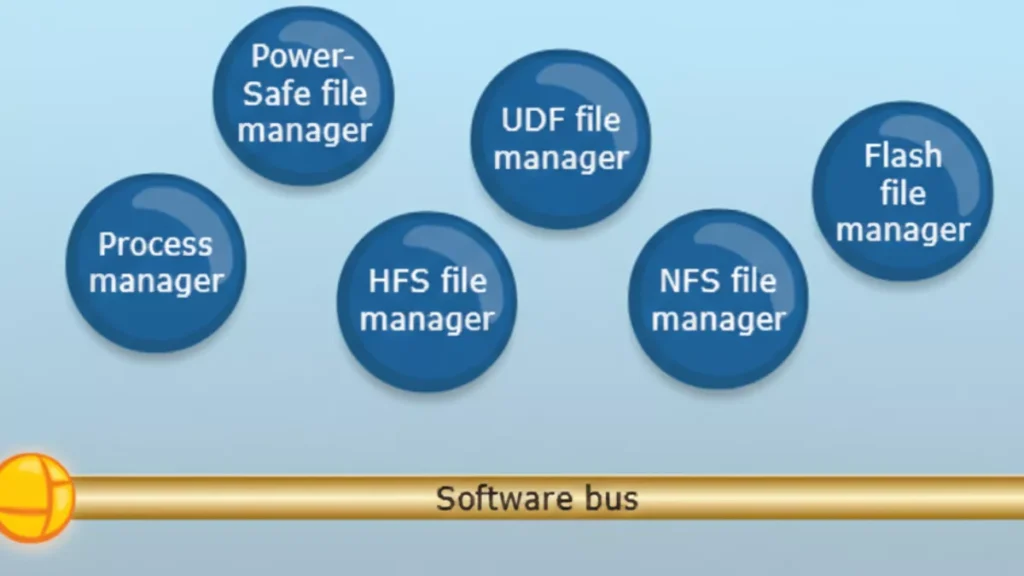
    Explanation of the Diagram

    1. Software Bus (Middle Layer)
      • Acts as a communication backbone for all user-space managers and applications.
      • All managers (file, network, GUI, character, etc.) and applications communicate with each other through this message-passing mechanism.
      • Essentially, this is how QNX implements microkernel principles: minimal kernel + IPC.
    1. Upper Layer: File and Process Managers
      These are system-level services running in user space:
      • Process Manager: Handles process creation, deletion, and scheduling requests.
      • File Managers: Manage different types of file systems:
        • Power-Safe file manager
        • UDF file manager
        • HFS file manager
        • NFS file manager
        • Flash file manager
      • These managers communicate via the software bus, instead of being inside the kernel.
    1. Lower Layer: Applications and Resource Managers
      • GUI Manager: Handles graphical interface.
      • Character Manager: Handles character devices (e.g., keyboard, serial port).
      • Network Manager: Handles network services.
      • Mqueue Manager: Manages message queues (IPC feature).
      • CIFS File Manager: For network file sharing (SMB/CIFS).
      • Applications: End-user or embedded applications running on top of these managers.

    Key Takeaways

    • This diagram shows QNX’s modular microkernel architecture in action:
      • Microkernel: Handles only essential kernel tasks (not shown explicitly in this diagram; it’s below the software bus, managing IPC, scheduling, and interrupts).
      • Software bus: Allows all user-space managers and applications to communicate.
      • Managers: Implement higher-level OS services in user space.
      • Applications: Sit at the top and use these services via message passing.
    • If one manager crashes, it doesn’t crash the kernel or other managers, highlighting QNX’s fault-tolerant design.

    Interview Tip:
    You can say:

    “This diagram shows QNX Neutrino’s user-space architecture. System managers like file managers, network manager, GUI manager, and process manager run as independent processes in user space. Applications communicate with these managers via the software bus, which implements the microkernel’s message-passing IPC. This design makes QNX highly modular, fault-tolerant, and suitable for real-time embedded systems.”

    QNX uses a microkernel architecture, meaning the operating system kernel is kept very small and only contains the most critical functions.
    All other OS services run as separate user-space processes, not inside the kernel.

    What Runs Inside the QNX Microkernel?

    The QNX Neutrino microkernel includes only four core responsibilities:

    1. Thread scheduling
      • Priority-based, fully preemptive
      • Ensures deterministic real-time behavior
    2. Inter-Process Communication (IPC)
      • Message passing (MsgSend, MsgReceive, MsgReply)
      • This is the heart of QNX
    3. Interrupt handling
      • Fast and predictable interrupt response
    4. Low-level thread and process management

    Nothing else runs in kernel space

    What Runs Outside the Kernel (User Space)?

    All higher-level OS services are implemented as user-space servers:

    • File systems (e.g., /fs-qnx6.so)
    • Device drivers (UART, I2C, SPI, Audio, Network)
    • Networking stack (TCP/IP)
    • Process manager (procnto)
    • Memory manager
    • Resource managers

    These components communicate using message passing.

    QNX Architecture Overview (Logical Flow)

    +-----------------------+
    |   Applications          |
    +-----------------------+
              |
              |  Message Passing (IPC)
              |
    +-----------------------+
    | OS Services / Servers |
    | (Drivers, FS, Net)         |
    +-----------------------+
              |
              | IPC
              |
    +-----------------------+
    |   Microkernel         |
    | (Scheduler, IPC, IRQ)|
    +-----------------------+
              |
    +-----------------------+
    |      Hardware         |
    +-----------------------+
    

    Message Passing – The Core Concept

    Unlike Linux (which uses system calls heavily), QNX uses:

    • Synchronous message passing
    • Client sends request → server processes → replies

    Example:

    • App wants to write to a UART
    • App sends message to UART driver
    • UART driver responds after operation
    • No shared memory required
    • Strong isolation
    • Predictable timing

    Why Microkernel? (Advantages)

    1. High Reliability

    • If a driver crashes, only that process restarts
    • Kernel remains unaffected

    2. Fault Tolerance

    • Ideal for safety-critical systems (ASIL-D)

    3. Deterministic Real-Time Behavior

    • Guaranteed response times
    • Used in automotive and medical systems

    4. Security

    • Smaller kernel → smaller attack surface

    QNX vs Linux (Interview Comparison)

    FeatureQNXLinux
    Kernel typeMicrokernelMonolithic
    DriversUser spaceKernel space
    IPCMessage passingSyscalls + shared memory
    Real-timeNativeNeeds RT patches
    Fault isolationStrongWeak
    Safety certificationYes (ASIL-D)Limited

    Real-World Example (Automotive)

    In a car infotainment system:

    • Audio driver crashes
    • Only audio service restarts
    • Navigation and UI keep running

    This is why QNX is used in automotive ECUs

    One-Line Interview Answer

    QNX uses a microkernel architecture where only scheduling, IPC, interrupts, and thread management run in the kernel, while all other services like drivers and file systems run in user space as separate processes, ensuring high reliability, fault isolation, and deterministic real-time behavior.

    In QNX (Neutrino), the kernel space contains only the most critical real-time components. Everything else runs in user space.

    The following run in kernel space:

    1. Thread Scheduling

    • Priority-based, fully preemptive scheduler
    • Ensures deterministic real-time behavior
    • Handles context switching

    2. Inter-Process Communication (IPC)

    • Core message passing mechanism
    • MsgSend(), MsgReceive(), MsgReply()
    • Fast, synchronous IPC

    IPC is the heart of QNX

    3. Interrupt Handling

    • Low-latency interrupt dispatching
    • Interrupt Service Routines (ISRs)
    • Interrupt events delivery to threads

    4. Low-Level Thread & Process Management

    • Thread creation and destruction
    • Basic process control
    • Kernel-level synchronization primitives

    What Does NOT Run in Kernel Space?

    These run in user space, not kernel space:

    • Device drivers (UART, I2C, SPI, Audio, Network)
    • File systems
    • Memory manager
    • Network stack (TCP/IP)
    • Process manager (procnto)
    • Resource managers

    One-Line Interview Answer

    In QNX, kernel space contains only the microkernel responsible for scheduling, message-passing IPC, interrupt handling, and low-level thread management; all other OS services and drivers run in user space.

    Memory Tip for Interviews

    Think S-I-I-T:

    • Scheduling
    • IPC
    • Interrupts
    • Threads

    In QNX Neutrino, almost everything except the microkernel runs in user space as separate processes (servers).

    Major Components Running in User Space

    1. Process Manager (procnto)

    • Handles:
      • Process creation (fork, spawn)
      • Signal delivery
      • POSIX compliance
    • Acts as the root server of the system

    2. Memory Manager

    • Virtual memory management
    • Address space creation
    • Memory protection
    • Page faults handling (with kernel support)

    3. Device Drivers

    • UART, I2C, SPI, CAN
    • Audio, Display, Camera
    • GPIO, ADC, PWM
    • Network drivers
    • Run as normal user processes
    • Can be restarted if they crash

    4. File Systems

    • QNX6 filesystem
    • Flash file systems
    • Network file systems
    • Mounted under /

    5. Network Stack

    • TCP/IP stack
    • Ethernet, Wi-Fi drivers
    • Socket services

    6. Resource Managers

    • Implement POSIX-style resources
    • Expose services as files (e.g. /dev/ser1)
    • Handle open/read/write/ioctl

    7. System Services & Daemons

    • Audio services
    • Power management
    • Clock services
    • Logging services

    8. User Applications

    • HMI / UI apps
    • Control logic
    • Diagnostic tools
    • Middleware

    QNX User Space Layout (Conceptual)

    +----------------------+
    |   User Applications  |
    +----------------------+
    | System Services      |
    | File Systems         |
    | Network Stack        |
    | Device Drivers       |
    | Resource Managers    |
    | procnto              |
    +----------------------+
            |
            | IPC (message passing)
            |
    +----------------------+
    |   Microkernel        |
    +----------------------+
    

    Why This Design Matters

    Fault Isolation

    • Driver crash ≠ system crash

    Easy Recovery

    • Restart a single service

    Safety Certification

    • Ideal for ASIL-D systems

    Secure Architecture

    • Minimal kernel attack surface

    One-Line Interview Answer

    In QNX, user space contains the process manager, memory manager, device drivers, file systems, network stack, resource managers, system services, and all applications—each running as separate processes that communicate via message passing.

    QNX uses message passing as its core communication mechanism to achieve deterministic real-time behavior, fault isolation, reliability, and scalability in a microkernel architecture.

    1. Fits the Microkernel Design

    QNX keeps the kernel very small.
    Since drivers, file systems, and services run in user space, they must communicate safely.

    ➡ Message passing replaces shared kernel data structures

    • No direct function calls across protection boundaries
    • Clean client–server model

    2. Deterministic Real-Time Behavior (Key Reason)

    Message passing in QNX is:

    • Synchronous
    • Priority-aware

    What this means:

    • Client blocks until server replies
    • Server temporarily inherits the client’s priority (priority inheritance)

    ✔ Prevents priority inversion
    ✔ Guarantees bounded latency
    ✔ Ideal for hard real-time systems

    3. Strong Fault Isolation & Reliability

    • Each driver/service runs as a separate process
    • If a driver crashes:
      • Kernel stays alive
      • Other services keep running
      • Only the failed service is restarted

    ➡ Message passing enforces strict process isolation

    4. Security by Design

    • No shared memory by default
    • No arbitrary kernel access
    • Services only expose controlled interfaces

    ➡ Smaller attack surface than monolithic kernels

    5. Unified Communication Model

    QNX uses one mechanism everywhere:

    OperationImplemented via
    File I/O (read/write)Messages
    Device accessMessages
    Network stackMessages
    Signals & eventsMessages

    ➡ Simpler OS design
    ➡ Easier to reason about timing

    6. Zero-Copy Efficiency

    Despite being message-based:

    • QNX supports zero-copy transfers
    • Uses shared memory only when explicitly needed

    ➡ High performance with real-time guarantees

    7. Easier Debugging & Maintenance

    • Services can be:
      • Stopped
      • Replaced
      • Restarted
    • No kernel rebuild required

    ➡ Faster development and safer updates

    Real Example (Automotive)

    • Audio application → sends message to audio driver
    • Audio driver crashes
    • Audio service restarts
    • Navigation & safety systems continue running

    ➡ System does not reboot

    One-Line Interview Answer

    QNX uses message passing to enable safe and deterministic communication between user-space services in its microkernel architecture, providing real-time predictability, fault isolation, priority inheritance, and high system reliability.

    Memory Trick for Interviews

    Think D-R-F-S-U:

    • Determinism
    • Reliability
    • Fault isolation
    • Security
    • Unified IPC

    Resource managers in QNX are user-space server processes that implement POSIX-style resources (files, devices, pseudo-devices) and expose them through the filesystem namespace using message passing.

    In simple words:

    A resource manager lets a user-space service behave like a file or device (e.g. /dev/ser1).

    Why Resource Managers Exist

    QNX follows the principle:

    “Everything is a file”

    Instead of placing drivers in kernel space (like Linux), QNX uses resource managers in user space to handle:

    • open()
    • read()
    • write()
    • ioctl()
    • close()

    All these calls are translated into messages.

    Where Do Resource Managers Run?

    • User space
    • As normal processes
    • Communicate with clients via QNX IPC (message passing)
    • Crash-safe
    • Restartable
    • Isolated

    Common Examples of Resource Managers

    ResourceExample
    Serial driver/dev/ser1
    GPIO/dev/gpioX
    Audio/dev/snd/*
    Custom device/dev/mydevice
    Pseudo file/proc, /dev/random

    How a Resource Manager Works (Flow)

    1. Application calls:fd = open("/dev/ser1", O_RDWR);
    2. Kernel converts this into a message
    3. Message is sent to the resource manager
    4. Resource manager processes the request
    5. Sends a reply back to the application

    Key Components of a Resource Manager

    1. Dispatch Layer

    • Receives messages
    • Routes them to appropriate handlers

    2. Connect Functions

    • Handle:
      • open()
      • close()

    3. I/O Functions

    • Handle:
      • read()
      • write()
      • ioctl()

    Types of Resource Managers

    Device Resource Managers

    • Hardware drivers (UART, I2C, CAN)

    Filesystem Resource Managers

    • QNX6, Flash FS

    Pseudo Resource Managers

    • Virtual or logical devices

    Benefits of Resource Managers

    Fault Isolation

    • Driver crash ≠ system crash

    POSIX Compliance

    • Standard file APIs

    Real-Time Friendly

    • Priority inheritance during IPC

    Easy Debugging

    • Run, stop, restart like any process

    QNX vs Linux (Quick Comparison)

    FeatureQNXLinux
    Driver locationUser spaceKernel space
    InterfaceFile-basedSyscalls
    Crash impactLocalOften system-wide
    IPCMessage passingFunction calls

    One-Line Interview Answer

    Resource managers in QNX are user-space processes that expose devices and services as POSIX-compliant files, handling open/read/write/ioctl requests via message passing, enabling fault isolation and real-time reliability.

    The microkernel’s role in QNX is to provide the core real-time foundation by handling thread scheduling, message-passing IPC, interrupt handling, and basic process/thread management, while all other OS services run in user space.

    QNX achieves fault tolerance by running drivers and OS services in user space, using message passing for isolation, and allowing failed components to be restarted without affecting the microkernel or the rest of the system.

    How QNX Achieves Fault Tolerance (Key Points)

    1. Microkernel Architecture
      • Kernel contains only scheduling, IPC, and interrupts
      • Minimal kernel → fewer failure points
    2. User-Space Drivers & Services
      • Device drivers, file systems, network stack run as separate processes
      • A crash affects only that component, not the whole OS
    3. Message Passing (Strong Isolation)
      • No shared kernel data by default
      • Faults are contained within a single process
    4. Service Restart & Recovery
      • Failed services/drivers can be restarted dynamically
      • System continues running
    5. Priority Inheritance in IPC
      • Prevents priority inversion during communication
      • Maintains real-time stability even under faults
    6. Health Monitoring (Optional)
      • Watchdogs and supervisors can detect failures and relaunch services

    Adaptive Partitioning in QNX is a CPU resource management mechanism that guarantees each group of threads a minimum percentage of CPU time, while dynamically redistributing unused CPU to other partitions.

    Key Points (Simple)

    • CPU time is divided into partitions
    • Each partition has a guaranteed minimum CPU budget
    • Unused CPU is adaptively shared with others
    • Ensures real-time tasks are never starved

    Why QNX Uses Adaptive Partitioning

    • Prevents CPU starvation
    • Improves system predictability
    • Supports mixed-criticality systems (safety + infotainment)

    Example

    PartitionCPU Guarantee
    Safety tasks40%
    Audio30%
    UI20%
    Background10%
    • If UI uses only 10%, the extra 10% is temporarily used by others
    • When UI needs CPU again, it gets its guaranteed share back

    Where It’s Used

    • Automotive ECUs
    • Medical devices
    • Industrial control systems

    One-Line Interview Answer

    Adaptive partitioning ensures guaranteed CPU bandwidth for critical tasks while efficiently sharing unused CPU among other processes.

    A thread in QNX is the smallest schedulable unit of execution that runs within a process and is scheduled by the microkernel based on priority.

    Key points:

    • Executes code
    • Has its own:
      • Program counter
      • Stack
      • Priority
    • Shares process resources (memory, file descriptors)
    • Scheduled directly by the QNX microkernel

    A process in QNX is a protected container that provides an address space and resources for one or more threads.

    Key points:

    • Owns:
      • Virtual address space
      • File descriptors
      • Signals
      • Permissions
    • Contains one or more threads
    • Provides isolation from other processes

    Relationship (Easy to Remember)

    • Process = container
    • Thread = worker
    Process
     ├── Thread 1 (main thread)
     ├── Thread 2
     └── Thread 3
    

    QNX-Specific Interview Highlight

    • Threads are the real-time scheduling entities, not processes
    • Priority, IPC, and interrupts are all thread-centric

    One-Line Comparison (Interview Gold)

    In QNX, a process provides isolation and resources, while threads are the actual execution units scheduled by the microkernel.

    Thread States in QNX

    In QNX Neutrino, a thread can exist in the following main states:

    1. READY

    • Thread is ready to run
    • Waiting for CPU
    • Placed in a priority-based ready queue

    2. RUNNING

    • Thread is currently executing on the CPU

    3. BLOCKED

    • Thread is waiting for an event or resource

    Common reasons:

    • Waiting for a message (MsgReceive)
    • Waiting for a reply (MsgSend)
    • Waiting for I/O
    • Waiting for a mutex or semaphore
    • Sleeping (nanosleep)

    4. STOPPED

    • Thread execution is suspended

    Causes:

    • Debugger attached
    • Job control signals (e.g. SIGSTOP)
    • Explicit suspension

    5. WAITING (ZOMBIE – process level)

    • Thread has exited
    • Waiting for parent process to collect status

    Note: Zombie is mainly a process concept, but threads can be in a terminated state internally.

    Simple State Diagram (Interview Friendly)

    READY → RUNNING → BLOCKED
      ↑        ↓         |
      └────────┴─────────┘
            STOPPED
    

    Important QNX Interview Points

    • Threads (not processes) are scheduled
    • Scheduling is priority-based and preemptive
    • IPC operations heavily influence BLOCKED states
    • Message passing directly affects thread transitions

    One-Line Interview Answer

    In QNX, threads transition between READY, RUNNING, BLOCKED, and STOPPED states, with scheduling handled at the thread level using priority-based preemption.

    Memory Trick

    Think R-R-B-S:

    • Ready
    • Running
    • Blocked
    • Stopped

    Thread Scheduling Algorithm in QNX

    QNX uses a priority-based, fully preemptive, deterministic thread scheduling algorithm, designed for hard real-time systems.

    Core Characteristics

    1. Priority-Based Scheduling

    • Each thread has a fixed priority
    • Priority range: 0 (lowest) to 255 (highest)
    • Highest-priority READY thread always runs

    2. Fully Preemptive

    • If a higher-priority thread becomes READY:
      • It immediately preempts the currently running thread
    • Ensures fast response for real-time tasks

    3. Round-Robin Within Same Priority

    • Threads with the same priority share CPU time
    • Each gets a time slice
    • Prevents starvation among equal-priority threads

    4. Thread-Centric Scheduling

    • QNX schedules threads, not processes
    • Each thread is an independent scheduling entity

    5. Deterministic Behavior

    • Scheduling decisions are predictable
    • No dynamic priority changes by default
    • Ideal for safety-critical systems

    Scheduling Flow (Simple)

    1. Scheduler checks READY queues (highest → lowest priority)
    2. Picks the highest-priority READY thread
    3. Thread runs until:
      • It blocks
      • Its time slice expires (same-priority case)
      • A higher-priority thread becomes READY

    Priority Inheritance (Very Important)

    • Used during message passing and mutex locking
    • If a high-priority thread is blocked by a lower-priority one:
      • Lower-priority thread temporarily inherits the higher priority
    • Prevents priority inversion

    Comparison with Linux (Interview Highlight)

    FeatureQNXLinux
    SchedulingFixed priorityCFS (dynamic)
    PreemptionAlwaysConfig-dependent
    DeterminismGuaranteedBest-effort
    Priority inheritanceBuilt-inPartial

    One-Line Interview Answer

    QNX uses a priority-based, fully preemptive scheduling algorithm where the highest-priority ready thread always runs, with round-robin scheduling among threads of equal priority and priority inheritance to prevent inversion.

    Conclusion

    QNX is not just another operating system—it is built for environments where reliability, predictability, and safety truly matter. Understanding QNX means understanding how real-time systems behave under pressure, how failures are isolated, and how software can continue running even when individual components crash.

    These interview questions and answers are meant to help you think like a QNX engineer, not just repeat definitions. By focusing on microkernel design, message passing, scheduling, fault tolerance, and system design choices, this content prepares you to explain why QNX works the way it does, not just what it is.

    If you can clearly explain these concepts in your own words during an interview, it shows strong fundamentals, real project exposure, and confidence in system-level thinking—qualities that interviewers look for in embedded and automotive roles.

    Master the concepts, relate them to real use cases, and you won’t just clear a QNX interview—you’ll stand out as someone who truly understands the system.

    FAQ : QNX OS Interview Questions

    1. What is QNX OS?

    QNX is a real-time operating system (RTOS) designed for systems that require high reliability, deterministic performance, and fault tolerance. It is widely used in automotive, medical, industrial, and safety-critical embedded systems.

    2. Why is QNX called a microkernel operating system?

    QNX uses a microkernel architecture, meaning only the most essential services (scheduling, IPC, interrupt handling) run in kernel space. All other services run in user space, improving system stability and fault isolation.

    3. How is QNX different from Linux?

    Linux uses a monolithic kernel, while QNX uses a microkernel. In QNX, drivers and services run in user space and can be restarted if they fail, whereas in Linux, a faulty driver can crash the entire system.

    4. What runs in kernel space in QNX?

    Only critical components run in kernel space:

    • Thread scheduling
    • Inter-process communication (IPC)
    • Interrupt handling
    • Low-level synchronization

    This keeps the kernel small and reliable.

    5. What runs in user space in QNX?

    Most system services run in user space, including:

    • Device drivers
    • File systems
    • Network stacks
    • Resource managers
    • System services

    This design improves fault tolerance.

    6. Why does QNX use message passing?

    QNX uses message passing for IPC to ensure:

    • Deterministic communication
    • Strong process isolation
    • Safer interaction between services
    • Easier debugging and recovery

    It is a core reason for QNX’s reliability.

    7. What is a resource manager in QNX?

    A resource manager is a user-space server that manages system resources like files, devices, or custom interfaces. Applications interact with resource managers using standard POSIX calls such as open(), read(), and write().

    8. What is the role of the microkernel in QNX?

    The microkernel acts as a traffic controller, handling communication, scheduling, and interrupts while letting user-space services do the rest. This separation makes the system robust and scalable.

    9. How does QNX achieve fault tolerance?

    QNX achieves fault tolerance through:

    • Process isolation
    • User-space drivers
    • Automatic service restart
    • Priority-based scheduling

    A failure in one component does not crash the entire system.

    10. What is adaptive partitioning in QNX?

    Adaptive partitioning ensures CPU time is reserved for critical processes. Even if one process misbehaves, real-time and safety-critical tasks continue to run without disruption.

    11. What is a process in QNX?

    A process is an independent program with its own memory space. It may contain one or more threads and communicates with other processes using message passing.

    12. What is a thread in QNX?

    A thread is the smallest unit of execution in QNX. Threads share the same address space within a process but are scheduled independently.

    13. What are the thread states in QNX?

    Common thread states include:

    • Running
    • Ready
    • Blocked (waiting for IPC or resources)
    • Stopped

    These states help manage real-time execution efficiently.

    14. What scheduling algorithm does QNX use?

    QNX uses priority-based preemptive scheduling. Higher-priority threads always run first, ensuring deterministic real-time behavior.

    Read More about Process : What is is Process
    Read More about System Call in Linux : What is System call
    Read More about IPC : What is IPC
  • Master Context Switching in a Single-Core CPU: 7 Essential Facts You Must Know

    Learn what context switching in a single-core CPU is, how it works, its advantages, disadvantages, real-time uses, C example code, and explained .

    Okay, so you’ve got a single-core processor. Only one core means only one “worker” executing instructions at any given instant. But you still run lots of programs (or threads) that seem to run at once. That illusion comes from something called context switching in a single-core CPU.

    In plain terms: when you switch from one task (process or thread) to another on a single core, the operating system pauses one task, saves its current state, then loads the state of another task and starts that one. That is exactly context switching in a single-core CPU. (GeeksforGeeks)

    So the phrase “context switching in a single-core CPU” describes the mechanism by which one task yields (or is pre-empted) and another takes over, even though physically there’s only one core doing work at any moment.

    Why does context switching in a single-core CPU happen?

    Good question. A few reasons:

    • Multitasking: You’ve got many tasks (apps, threads) that need CPU time. On a single core you can’t literally run them in parallel, so you interleave them via context switching in a single-core CPU. (Netdata)
    • Time-slicing: The OS gives each runnable task a small slice of time (say a few milliseconds) on the CPU, then does a context switch in a single-core CPU to let another task run. (Design Gurus)
    • Interrupts, I/O waits or higher-priority tasks: If a running task blocks (waiting for I/O) or an interrupt needs service or a higher-priority task becomes ready, the OS might decide to perform context switching in a single-core CPU. (GeeksforGeeks)

    So context switching in a single-core CPU is how the system keeps things responsive and fair, even though only one task can execute at once.

    How exactly does context switching in a single-core CPU work?

    Let’s walk through a simplified flow:

    1. Task A is running on the single core.
    2. Something triggers: maybe Task A hits an I/O wait, maybe its time slice expires, maybe Task B (higher priority) becomes ready.
    3. The OS initiates context switching in a single-core CPU: it saves Task A’s CPU context (registers, program counter, stack pointer, maybe memory map) into its Task Control Block (or Process Control Block). (GeeksforGeeks)
    4. Then the OS loads Task B’s saved context (registers etc) from its PCB and resumes Task B’s execution.
    5. Task B runs for its time slice (or until it blocks), then eventually context switching in a single-core CPU happens again to maybe go back to Task A or another task.

    Key point: “context switching in a single-core CPU” means that all this state saving/loading happens even though the hardware core hasn’t changed; it’s just switching tasks.

    What’s the cost of context switching in a single-core CPU?

    Ah yes—there’s always a cost. When context switching in a single-core CPU happens:

    • The CPU is doing “house-keeping” (saving/restoring state) rather than doing useful work for the tasks. (GeeksforGeeks)
    • Caches and TLB entries may get invalidated or less effective because the new task uses different memory footprint. That means extra latency. (Stack Overflow)
    • If context switching in a single-core CPU happens too frequently, overhead builds up and you lose efficiency. (Netdata)

    So yes, context switching in a single-core CPU is necessary, but you want to minimize unnecessary switching.

    Example: Single-core multitasking via context switching

    Let’s paint a scenario: You’re running a single-core machine. You’ve got three tasks: a music player, a web browser, and a background file-upload. The OS gives each task a tiny time slice. So: music plays (task 1) for a few ms, then context switching in a single-core CPU happens and browser (task 2) runs, then later file upload (task 3). Back to task 1, and so on.

    You perceive they run “simultaneously” because the switching is rapid. But underneath, it’s a single core juggling tasks through context switching in a single-core CPU. This is akin to time-slicing. (Reddit)

    When is context switching in a single-core CPU particularly important / tricky?

    • Real-time or embedded systems with a single core: If tasks need strict timing, too much context switching in a single-core CPU can introduce jitter or latency.
    • Systems with many tasks sharing one core: The switching rate increases and overhead becomes non-trivial. (Server Fault)
    • Systems where cache/TLB behaviour matters: Frequent context switching in a single-core CPU can degrade cache/TLB efficiency, slowing things down.

    How to manage / reduce context switching in a single-core CPU?

    Here are some friendly tips:

    • Keep task count reasonable: Fewer runnable tasks means fewer switches.
    • Use appropriate time slice lengths: Too short → excessive switching; too long → responsiveness suffers.
    • Consider CPU affinity (though on a single core it’s trivial) and avoid wasting cycles in switching.
    • Avoid tasks constantly blocking/unblocking or forcing preemption if you can manage scheduling logic.
    • Monitor context switch rate: If you see high context switching in a single-core CPU (switches per second very high) and performance is bad, you may have a scheduling or task‐design issue. (Netdata)

    Why the phrase “context switching in a single-core CPU” matters as a keyword

    Because many people talk about context switching in general, but focusing on a single core highlights that you don’t have multiple cores doing true parallel work. The mechanics and the cost matter a bit differently. By using “context switching in a single-core CPU” as the primary keyword, you explicitly capture the scenario where time-slicing and task switching matter the most.

    Recap

    So here’s your takeaway:

    • Context switching in a single-core CPU is the act of saving one task’s state and loading another’s on a processor that has only one execution core.
    • It’s essential for multitasking on single-core systems.
    • It introduces overhead, mainly through register/context saves/restores, cache/TLB inefficiency, and switching delay.
    • It’s manageable: fewer tasks, smarter scheduling, monitoring help.
    • It’s especially relevant in embedded, real-time, or constrained systems where a single core must juggle many tasks.

    Advantages of Context Switching in a Single-Core CPU

    So why even bother with context switching in a single-core CPU? There are some clear benefits that make multitasking possible even with just one core:

    1. Multitasking illusion – You can run multiple programs “at once,” even though it’s one core. This is the biggest advantage of context switching in a single-core CPU.
    2. Better CPU utilization – When one process waits for I/O, another can use the CPU.
    3. Improved responsiveness – The OS can quickly switch between apps, making the user feel everything’s smooth.
    4. Priority management – Critical tasks can preempt others through context switching in a single-core CPU.
    5. Fairness among processes – Every process gets some CPU time instead of one process hogging the entire core.

    So basically, context switching in a single-core CPU keeps your system balanced and responsive — even though it’s technically doing one thing at a time.

    Disadvantages of Context Switching in a Single-Core CPU

    Of course, there’s no free lunch. Context switching in a single-core CPU also brings a few downsides you should care about:

    1. Performance overhead – Saving and loading CPU states takes time, eating up cycles.
    2. Cache loss – Each context switch may flush CPU caches and TLB entries, lowering performance.
    3. Increased latency – If switching happens too often, tasks take longer to complete.
    4. Complex OS design – Handling smooth context switching in a single-core CPU requires smart scheduling.
    5. Power consumption – Frequent switches can slightly increase energy use.

    In short, too much context switching in a single-core CPU slows things down instead of helping.

    Real-Time Applications of Context Switching in a Single-Core CPU

    Real-time systems — like those in embedded electronics — rely heavily on context switching in a single-core CPU. Here’s how it plays out in real life:

    1. Automotive systems – In vehicles, a single-core microcontroller switches between sensor reading, engine control, and safety monitoring tasks.
    2. Medical devices – Pacemakers or monitors handle sensor data, display output, and alarms using context switching in a single-core CPU.
    3. Industrial control – PLCs run multiple control loops through time-sliced context switching.
    4. Consumer electronics – Simple IoT devices use context switching in a single-core CPU to alternate between connectivity, sensor data, and display updates.
    5. Audio systems – Managing playback, input, and signal processing on one processor core depends on context switching.

    So, context switching in a single-core CPU isn’t just a theory—it’s what keeps real devices working efficiently in the real world.

    Simple C Example: Context Switching in a Single-Core CPU (Simulated)

    This example simulates context switching in a single-core CPU using basic structures and manual task switching logic. It’s simplified but shows the concept clearly:

    #include <stdio.h>
    #include <ucontext.h>
    #include <unistd.h>
    
    ucontext_t task1, task2, main_context;
    
    void function1() {
        for (int i = 0; i < 3; i++) {
            printf("Task 1 running (Iteration %d)\n", i + 1);
            sleep(1);
            swapcontext(&task1, &task2); // Context switch
        }
    }
    
    void function2() {
        for (int i = 0; i < 3; i++) {
            printf("Task 2 running (Iteration %d)\n", i + 1);
            sleep(1);
            swapcontext(&task2, &task1); // Context switch
        }
    }
    
    int main() {
        getcontext(&task1);
        task1.uc_stack.ss_sp = malloc(8192);
        task1.uc_stack.ss_size = 8192;
        task1.uc_link = &main_context;
        makecontext(&task1, function1, 0);
    
        getcontext(&task2);
        task2.uc_stack.ss_sp = malloc(8192);
        task2.uc_stack.ss_size = 8192;
        task2.uc_link = &main_context;
        makecontext(&task2, function2, 0);
    
        // Start Task 1
        swapcontext(&main_context, &task1);
    
        printf("All tasks completed.\n");
        return 0;
    }
    

    Explanation

    • getcontext(), makecontext(), and swapcontext() simulate context switching in a single-core CPU at the user level.
    • Each function runs, pauses, and switches to the other — just like a scheduler would.
    • On a real OS, the kernel handles saving CPU registers, program counters, and stack pointers during context switching in a single-core CPU.

    FAQs on Context Switching in a Single-Core CPU

    1. What is context switching in a single-core CPU in simple terms?
    It’s the process of saving one task’s state and loading another’s, allowing multitasking on one CPU core.

    2. Does context switching in a single-core CPU happen automatically?
    Yes, it’s managed by the operating system scheduler when time slices expire or I/O interrupts occur.

    3. How long does context switching in a single-core CPU take?
    It depends on the OS and CPU architecture — typically a few microseconds.

    4. Is context switching in a single-core CPU the same as multitasking?
    Not exactly. Multitasking is the outcome; context switching is the mechanism that makes it happen.

    5. Can we reduce context switching in a single-core CPU?
    Yes. By optimizing time slices, reducing blocking operations, or merging small tasks into larger ones.

    6. Why is context switching important in embedded systems?
    Because many embedded devices use a single core and rely on context switching to run multiple tasks efficiently.

    7. What’s the difference between process and thread context switching in a single-core CPU?
    Thread switching is lighter since threads share memory; process switching saves more data (like page tables).

    Final Thoughts

    Context switching in a single-core CPU is what gives life to multitasking. It’s how one processor core manages multiple tasks, keeps your apps responsive, and maintains system balance. Sure, it has overhead — but without it, you’d only ever run one thing at a time.

    In embedded, real-time, and resource-limited systems, mastering context switching in a single-core CPU is key to designing efficient and responsive software.

  • What is a Process and Process Table in Operating Systems? | 5 Easy Steps to Understand Them

    It was a cold winter Christmas night…..
    The city lights shimmered through the fog as Rahul sat alone in his room, a cup of hot coffee steaming beside his laptop . Outside, snowflakes danced against the window, but Rahul’s focus was elsewhere — his computer screen. He was multitasking like crazy: downloading a movie, listening to music, chatting with friends, and compiling code all at once. Suddenly, everything froze for a second. The music paused. The cursor lagged.
    “Uh oh… what just happened?” he muttered, staring at the screen.

    Moments later, everything went back to normal — as if nothing had ever gone wrong. But Rahul’s curiosity was piqued.

    “How did my computer manage to run all that together — and recover so fast?” he wondered.

    And that’s when he stumbled upon two fascinating concepts that quietly power every computer in the world: processes and the process table.

    That’s where processes and the process table come into the picture. Let’s understand both in the simplest way possible.

    What is a Process and Process Table in Operating Systems?

    What is a Process?

    In simple terms, a process is a program that’s currently being executed by your computer’s CPU.

    When you double-click an application — say, your browser or a text editor — your operating system loads it into memory and starts running it. That running instance becomes a process.

    Think of it like this
    A program is just a recipe stored in your system, while a process is the actual cooking happening in real time. You can even have multiple cooks (processes) preparing the same recipe (program) at once!

    Example:

    If you open three Chrome windows, you’re not running one Chrome program — you’re running three Chrome processes.
    Each works independently, so if one crashes, the others continue running smoothly.

    Key Features of a Process

    Every process has some unique characteristics that help the operating system manage it properly:

    • Process ID (PID): A unique number assigned to each process.
    • Program Counter (PC): Keeps track of which instruction will execute next.
    • Registers: Temporary CPU storage used while executing instructions.
    • Memory Space: Each process gets its own memory area to prevent conflicts.
    • State: Shows if the process is running, waiting, or finished.

    What is a Process Table?

    Now that you understand what a process is, let’s see how the operating system keeps track of them all.

    The process table is like a master list that the OS maintains to store all information about running processes. Each entry in this table represents one active process.

    Think of your teacher’s attendance register — every student (process) has a record with their roll number and current status (present/absent). Similarly, the OS keeps a record of all running processes in the process table.

    What Does the Process Table Contain?

    Each entry in the process table is known as a Process Control Block (PCB).
    The PCB contains all the data the OS needs to manage the process effectively, including:

    • Process ID
    • Process State (Running, Waiting, Ready, etc.)
    • Program Counter
    • CPU Register Values
    • Memory Management Info
    • I/O Device Status
    • Scheduling Information

    Whenever the CPU switches from one process to another, it stores the current process’s information in its PCB and loads another process’s data — this is called a context switch.

    Why is the Process Table Important?

    The process table is crucial for smooth multitasking and resource management.
    Without it, your operating system wouldn’t know:

    • Which processes are running right now
    • Which one to execute next
    • How to resume a paused process correctly

    It’s the core of process management, ensuring your system runs multiple programs efficiently without confusion.

    Real-Life Example in Linux

    If you’re using Linux, you can view process details using a simple command:

    ps aux
    

    This command lists all the running processes, their IDs, memory usage, and more — giving you a peek inside the process table itself.

    check out this detailed guide on : Kernel Modules in Linux Operating System.
    It’ll help you understand how modules interact with processes at the kernel level.

    Final Thoughts of What is a Process and Process Table ?

    To summarize:

    • A process is a running instance of a program.
    • The process table keeps track of all active processes and their details.

    Together, they form the foundation of how an operating system handles multitasking.
    So the next time you open multiple tabs, apps, or background services — remember, it’s all possible thanks to processes and the process table quietly managing everything behind the scenes.

    Advantages, Disadvantages, and Applications of a Process and Process Table in Operating Systems

    Advantages of a Process and Process Table

    Understanding a process and process table in operating systems helps us see why they are essential for multitasking and system efficiency.

    Here are the key advantages:

    1. Efficient Process Management
      The process table stores details of all active processes, allowing the operating system to manage them efficiently.
      Example: In Linux, commands like ps aux retrieve process details instantly from the process table.
    2. Smooth Multitasking
      With a process table, multiple processes can run simultaneously without interference.
      Example: A desktop running a browser, video player, and antivirus program without slowing down.
    3. Better Resource Allocation
      The process table helps the OS allocate CPU, memory, and I/O resources effectively.
      Example: In cloud servers, resource allocation to virtual machines is handled using process tables.
    4. Quick Process Switching
      The process table supports faster context switching between processes.
      Example: Switching between apps on your smartphone happens seamlessly.
    5. Improved System Stability
      By maintaining proper process states, the process table helps prevent crashes and deadlocks.
      Example: An autonomous vehicle system maintains stability even while processing sensor data and navigation simultaneously.

    Disadvantages of a Process and Process Table

    While the process table is critical, it has some limitations:

    1. Memory Overhead
      Each process entry in the process table consumes memory, which can grow large with many processes.
      Example: In high-performance servers running thousands of processes, process table size can affect performance.
    2. Complexity
      Maintaining and managing a process table increases operating system complexity.
      Example: Designing a process table for a real-time operating system requires careful priority and state management.
    3. Context Switching Overhead
      Frequent process switching can cause performance overhead.
      Example: In systems with high multitasking needs, context switching may reduce CPU efficiency.
    4. Security Risks
      If process table data is exposed, it can reveal sensitive information about processes.
      Example: In shared environments like cloud computing, strict process table access control is necessary.

    Applications of a Process and Process Table

    The concept of a process and process table in operating systems is widely applied in various real-time and multitasking environments:

    1. Desktop Operating Systems
      Enables smooth multitasking, such as running a browser, music player, and office software together.
      Example: Windows, Linux, and macOS use process tables for process management.
    2. Mobile Operating Systems
      Allows multiple apps to run in the background while keeping the user experience smooth.
      Example: Android and iOS rely heavily on process tables for multitasking.
    3. Real-Time Systems
      Ensures timely execution of tasks with minimal delay.
      Example: In medical monitoring systems, the process table manages real-time data processing and alerts.
    4. Cloud Computing
      Allocates resources efficiently to virtual machines and containers.
      Example: AWS and Google Cloud use process tables for process scheduling and resource distribution.
    5. Embedded Systems
      Supports multitasking in devices like smart appliances, automotive control systems, and robotics.
      Example: Autonomous vehicles use process tables for managing sensor data, navigation, and safety control simultaneously.

    C Code : Simulating a Process and Process Table in Operating Systems

    #include <stdio.h>
    #include <string.h>
    
    #define MAX_PROCESSES 5
    
    // Structure to simulate a Process Control Block (PCB)
    struct Process {
        int pid;              // Process ID
        char name[20];        // Process Name
        char state[20];       // Process State
        int priority;         // Process Priority
    };
    
    // Simulated Process Table
    struct Process processTable[MAX_PROCESSES];
    
    // Function to display the process table
    void displayProcessTable(int count) {
        printf("\n----- Process Table -----\n");
        printf("PID\tName\t\tState\t\tPriority\n");
        printf("--------------------------------------------\n");
    
        for (int i = 0; i < count; i++) {
            printf("%d\t%s\t\t%s\t\t%d\n",
                   processTable[i].pid,
                   processTable[i].name,
                   processTable[i].state,
                   processTable[i].priority);
        }
        printf("--------------------------------------------\n");
    }
    
    int main() {
        int processCount = 3;
    
        // Simulating some processes
        processTable[0].pid = 101;
        strcpy(processTable[0].name, "Chrome");
        strcpy(processTable[0].state, "Running");
        processTable[0].priority = 1;
    
        processTable[1].pid = 102;
        strcpy(processTable[1].name, "MusicPlayer");
        strcpy(processTable[1].state, "Waiting");
        processTable[1].priority = 2;
    
        processTable[2].pid = 103;
        strcpy(processTable[2].name, "CodeEditor");
        strcpy(processTable[2].state, "Ready");
        processTable[2].priority = 1;
    
        // Display process table
        displayProcessTable(processCount);
    
        return 0;
    }
    

    How This Code Explains the Concept

    Output Example:
    ----- Process Table -----
    PID     Name            State       Priority
    --------------------------------------------
    101     Chrome          Running     1
    102     MusicPlayer     Waiting     2
    103     CodeEditor      Ready       1
    --------------------------------------------
    

    The above C program demonstrates a simple simulation of a process and process table in operating systems.
    Since the process table is a core part of the OS kernel, normal user programs cannot directly access it. So, this example is designed for learning purposes.

    Key Points in the Code:

    1. Process Control Block (PCB) Simulation:
      Each process is represented as a structure (struct Process) containing:
      • Process ID (PID)
      • Process Name
      • Process State (Running, Waiting, Ready)
      • Process Priority
      This mirrors how a real operating system stores process information in the process table.
    2. Process Table:
      The array processTable[MAX_PROCESSES] represents the process table in memory.
      In a real OS, this process table is dynamically managed by the kernel and scheduler.
    3. Displaying the Process Table:
      The function displayProcessTable() prints all process details in a table format.
      This helps visualize how the operating system tracks active processes.
    4. Example Process States:
      • "Running" — The process is currently executing.
      • "Waiting" — The process is waiting for resources or events.
      • "Ready" — The process is ready to execute when CPU time is available.

    By studying this example, readers can better appreciate why the process table is vital for multitasking, context switching, and CPU scheduling in operating systems.

    This code example clearly explains the concept of a process and process table in operating systems in a simple, beginner-friendly way. It makes the abstract idea of process management tangible and easy to understand.

    Pro Tip for Readers:
    If you want to explore real process tables in Linux, try the command:

    ps aux

    This shows all currently running processes along with their IDs, states, CPU usage, and memory usage — just like our simulated process table in this C example

    How it Connected to Real-World

    In a real OS, the process table is stored in kernel memory and managed by the dispatcher & scheduler.
    This simulation helps beginners visualize how the OS keeps track of processes using the process table.

    Top Interview Questions on What is a Process and Process Table in Operating Systems – What Interviewers Might Ask

    1. Basic Understanding Questions

    These questions test your foundational knowledge of a process and process table in operating systems.

    • Can you explain in simple words what a process is and how it differs from a program?
    • What is a process table in an operating system, and why is it important?
    • What is a Process Control Block (PCB), and what details does it store?
    • Can you describe the different states of a process and give real examples for each?

    2. Practical and Scenario-Based Questions

    Interviewers like to see how you connect theory to real-life situations.

    • If you were designing a new operating system, how would you implement a process table?
    • How does a process table help in multitasking? Can you give a real-time example?
    • How does the operating system perform a context switch using the process table?
    • In Linux, how would you check the process table? Can you name commands and explain their output?

    3. Advanced and Analytical Questions

    These questions test your deep understanding and problem-solving ability.

    • What challenges might arise when maintaining a process table in a high-performance OS?
    • How does the process table differ in a real-time operating system compared to a general-purpose OS?
    • How can improper handling of the process table lead to security vulnerabilities?
    • How would you optimize process table management for an embedded system?

    4. Interviewer Trick Questions

    These are designed to test your analytical thinking and depth of knowledge.

    • Can a process exist without being listed in the process table? Why or why not?
    • How does the process table interact with the scheduler and dispatcher in an OS?
    • Is it possible for two processes to share the same process table entry? Explain with an example.
    • How would you debug a corrupted process table in a live operating system?

    5. Real-Time Example Questions

    These test your ability to apply knowledge to real systems.

    • Explain how a process table is used in Android OS multitasking.
    • How does a process table help in cloud computing and virtualization?
    • Can you explain a real-time scenario where the process table plays a critical role (for example, in autonomous vehicles or robotics)?
    • How would a process table failure affect system performance and stability?

    FAQ: What is a Process and Process Table ?

    Q1. What is a process in an operating system?

    A process in an operating system is an instance of a program that is currently being executed. When you open an application like a browser or text editor, the OS loads it into memory and runs it as a process. Think of a process as the active execution of a program.

    Q2. What is a process table in an operating system?

    The process table is a vital data structure maintained by the operating system to store information about all running processes. It tracks process IDs, states, memory usage, CPU registers, scheduling details, and more — ensuring efficient multitasking.

    Q3. What information does a process table contain?

    Each entry in the process table, called a Process Control Block (PCB), contains essential details such as:

    • Process ID (PID)
    • Process state (Running, Waiting, Ready, etc.)
    • Program Counter (PC)
    • CPU register values
    • Memory management information
    • I/O status information
    • Scheduling information

    Q4. How is a process different from a program?

    A program is a static set of instructions stored on disk, while a process is the dynamic execution of those instructions in memory. A process is essentially the working state of a program.

    Q5. Why is the process table important in operating systems?

    The process table allows the operating system to track and manage multiple processes efficiently. It ensures smooth multitasking, proper resource allocation, and system stability by storing all necessary process-related information.

    Q6. How can I view the process table in Linux?

    In Linux, you can view active processes and their details using commands such as:

    ps aux
    top
    htop

    These commands display process IDs, CPU usage, memory usage, and other process details — giving you a live view of the process table.

    Q7. What happens during a context switch?

    A context switch occurs when the CPU changes from running one process to another. During this switch, the current process’s state is saved in its PCB, and the new process’s state is loaded, allowing multitasking to happen seamlessly.

    Q8. Can multiple processes run the same program?

    Yes! When you open multiple instances of the same program, each instance runs as a separate process with its own memory and PID. For example, opening several tabs in Chrome creates multiple Chrome processes.

    Q9. What are the main states of a process?

    A process can be in several states, including:

    • New: Process is being created.
    • Running: Process is executing instructions.
    • Waiting: Process is waiting for resources or events.
    • Ready: Process is ready to run when CPU is available.
    • Terminated: Process has completed execution.

    Q10. How does the process table improve multitasking?

    The process table is essential for multitasking because it helps the operating system know exactly which processes are active, which are waiting, and which are ready to run. This allows the OS to switch tasks quickly and efficiently, keeping your computer running smoothly.

  • Master System Call in Linux: A Beginner’s Guide (2026)

    Imagine this: You’re sitting in front of your laptop, typing a command like ls to see the files in a folder. Instantly, your terminal prints the list of files. Seems simple, right? But behind the scenes, something magical happens — your command doesn’t talk directly to your hardware. Instead, it asks the operating system for help.

    That “help request” is what we call a system call in Linux.

    Just like when you need to withdraw cash, you don’t walk into the bank’s vault directly — you interact with a teller or ATM. In the same way, programs don’t access hardware (like CPU, memory, or disk) directly. They use system calls as a secure and controlled gateway.

    It’s a hot summer afternoon. The sun is blazing, and you’re sitting in your room, sweating. You don’t want to get up, but you’re terribly thirsty. There’s a chilled water bottle in the fridge, but instead of walking to the kitchen yourself, you call your younger brother:

    “Hey, can you please get me some cold water from the fridge?”

    Your brother goes, opens the fridge, and hands you the bottle.

    Now think about this carefully — you didn’t go to the fridge yourself, but you still got the water. You just requested the help of someone who had access.

    This is exactly how system calls in Linux work.

    Your program (you) can’t directly touch the fridge (hardware). Instead, it has to request help from someone who can access it safely — in this case, your brother (the kernel). The request you made (“get me water”) is like a system call.

    Just like you trust your brother not to break the fridge while getting water, the Linux kernel ensures programs interact with hardware safely and efficiently.

    What is a System Call in Linux?

    A system call in Linux is the way a program requests a service from the kernel.
    The kernel is the heart of Linux — it manages resources like memory, files, devices, and processes. Since user programs cannot directly interact with the kernel for safety reasons, system calls act as a middleman.

    In short: System calls are APIs provided by the Linux kernel that allow user-space applications to request kernel-level services.

    Why Do We Need System Calls?

    Without system calls, your program would be like a driverless car on a busy highway — unsafe and chaotic. System calls bring order, security, and efficiency.

    Here’s what they help with:

    • Process Management – Create, schedule, or terminate processes (fork, exec, exit).
    • File Management – Open, read, write, and close files (open, read, write).
    • Device Management – Communicate with devices like keyboard, mouse, or disk.
    • Memory Management – Allocate or free memory (mmap, brk).
    • Communication – Enable interaction between processes (pipe, socket).

    Types of System Calls in Linux

    System calls can be grouped into categories for easier understanding:

    1. Process Control
      • Examples: fork(), exec(), exit(), wait().
      • Used to start or stop programs.
    2. File Management
      • Examples: open(), read(), write(), close().
      • Deal with files and directories.
    3. Device Management
      • Examples: ioctl(), read(), write().
      • For reading and writing from devices.
    4. Information Maintenance
      • Examples: getpid(), alarm(), sleep().
      • Retrieve or update system information.
    5. Communication
      • Examples: pipe(), shmget(), msgsnd().
      • For inter-process communication (IPC).

    Example: How a System Call Works

    Let’s look at a small C program:

    #include <stdio.h>
    #include <unistd.h>
    
    int main() {
        write(1, "Hello, Linux!\n", 14);  
        return 0;
    }
    

    Here, the function write() is a system call.

    • 1 → Standard output (your terminal).
    • "Hello, Linux!\n" → Message to print.
    • 14 → Number of characters.

    Real Linux system call example in C

    Example 1: Using system() to run ls

    #include <stdio.h>
    #include <stdlib.h> // for system()
    
    int main() {
        printf("Listing files in the current directory using a system call:\n\n");
    
        // system() calls the shell to execute a command like 'ls'
        int ret = system("ls -l");
    
        if (ret == -1) {
            perror("system call failed");
            return 1;
        }
    
        return 0;
    }
    

    Explanation:

    • system() is a library function, but internally it makes a system call to the kernel to execute /bin/sh with your command.
    • The kernel interacts with the filesystem (hardware) to fetch the list of files.
    • Just like in your story, you asked the kernel to do a task (fetch water → fetch file list).

    Example 2: Using fork() and exec() (more low-level, like real system calls)

    #include <stdio.h>
    #include <unistd.h>  // for fork(), execl()
    #include <sys/wait.h> // for wait()
    
    int main() {
        pid_t pid = fork(); // create a new process
    
        if (pid == 0) {
            // Child process: kernel executes this
            printf("Child process: Executing 'ls -l'\n");
            execl("/bin/ls", "ls", "-l", NULL); // replace child process with 'ls'
            perror("execl failed"); // only runs if execl fails
        } else if (pid > 0) {
            // Parent process: wait for child to finish
            wait(NULL);
            printf("\nParent process: 'ls' command completed by child process.\n");
        } else {
            perror("fork failed");
            return 1;
        }
    
        return 0;
    }
    

    Explanation:

    1. fork() → asks the kernel to create a new process.
    2. execl() → tells the kernel to run a program (ls) in the child process.
    3. wait() → parent waits for the kernel to complete the task.

    Analogy to your story:

    • You (user program) don’t fetch files yourself.
    • Kernel (brother) executes the command (ls) and brings results back.

    Example: Reading a File Using System Calls in C

    #include <stdio.h>
    #include <fcntl.h>   // For open()
    #include <unistd.h>  // For read(), write(), close()
    #include <errno.h>   // For perror()
    
    #define BUFFER_SIZE 1024
    
    int main(int argc, char *argv[]) {
        if (argc < 2) {
            printf("Usage: %s <filename>\n", argv[0]);
            return 1;
        }
    
        const char *filename = argv[1];
    
        // System call: open the file
        int fd = open(filename, O_RDONLY);
        if (fd == -1) {
            perror("open failed");
            return 1;
        }
    
        char buffer[BUFFER_SIZE];
        ssize_t bytesRead;
    
        // System call: read from the file
        while ((bytesRead = read(fd, buffer, sizeof(buffer))) > 0) {
            // System call: write to stdout
            if (write(STDOUT_FILENO, buffer, bytesRead) == -1) {
                perror("write failed");
                close(fd);
                return 1;
            }
        }
    
        if (bytesRead == -1) {
            perror("read failed");
        }
    
        // System call: close the file
        if (close(fd) == -1) {
            perror("close failed");
            return 1;
        }
    
        return 0;
    }
    

    Explanation: Real System Call Application

    1. open() → Ask the kernel to open a file (like requesting a resource).
    2. read() → Ask the kernel to read data from that file.
    3. write() → Ask the kernel to print data to your terminal.
    4. close() → Ask the kernel to release the file.

    Analogy:

    • You (user program) don’t directly touch the disk (hardware).
    • Kernel handles all low-level operations.
    • System calls are the bridge between user space and space.
    Linux kernel functions
    Kernel system calls
    System-level calls in Linux
    Linux syscall interface
    Kernel interaction in Linux

    System Calls vs Interrupts in Linux

    When you run a command like ls in Linux, it’s easy to assume that the kernel immediately knows what to do. But under the hood, Linux uses system calls to let user programs request services from the kernel, while interrupts handle hardware events asynchronously. Let’s break this down.

    1. What is a System Call?

    A system call is a request from a user-space program to the kernel to perform a privileged operation, such as:

    • Opening files or directories (open())
    • Reading file contents (read())
    • Writing output to the terminal (write())

    When you run ls, it doesn’t directly access the filesystem. Instead, it makes system calls to the kernel, which safely retrieves directory contents and returns the data to ls for display.

    2. What is an Interrupt?

    An interrupt is a signal from hardware or software that temporarily halts the CPU to handle urgent tasks, such as:

    • A key press on the keyboard
    • Data ready from a disk or network card
    • Timer expiration for multitasking

    Interrupts are asynchronous. They can occur at any time, even when the kernel is busy handling a system call.

    3. How ls Executes in Linux

    1. User types ls in the shell.
    2. Shell executes the ls program in user space.
    3. ls makes system calls (open(), read(), write()) to interact with the kernel.
    4. Meanwhile, the kernel may be interrupted by hardware events (like timers or I/O signals), ensuring it remains responsive.

    Key Point: Running ls does not trigger an interrupt. System calls are synchronous requests to the kernel, while interrupts handle asynchronous hardware events.

    FeatureSystem CallInterrupt
    TriggerUser programHardware or software
    TimingSynchronousAsynchronous
    PurposeRequest kernel serviceNotify kernel of event
    Exampleread(), write(), open()Keyboard press, timer, disk ready

    Hardware interrupts and Software interrupts

    1. Hardware Interrupts (HW Interrupts)

    • Origin: Physical hardware devices.
    • Purpose: Notify the CPU that something urgent happened.
    • Examples:
      • Keyboard key pressed
      • Mouse movement
      • Network packet arrival
      • Disk read/write complete
      • Timer tick for process scheduling

    Key point: Hardware interrupts can occur at any time, even if the CPU is executing a system call or kernel code.

    2. Software Interrupts (SW Interrupts)

    • Origin: Software requests, usually from programs or the OS itself.
    • Purpose: Trigger CPU to switch from user mode to kernel mode.
    • Example: System calls like read(), write(), open() in Linux on x86 using int 0x80 (historical) or syscall instruction (modern).

    Note:

    • They behave like interrupts in the sense that they transfer control to the kernel.
    • But they are synchronous, caused intentionally by a program, not asynchronously by hardware.

    Applications of System Calls in Linux

    1. File Operations

    System calls allow programs to create, read, write, and manage files.

    • Common system calls:
      • open()
      • read()
      • write()
      • close()
      • lseek()
      • unlink()

    Example in C:

    #include <stdio.h>
    #include <fcntl.h>
    #include <unistd.h>
    
    int main() {
        int fd = open("example.txt", O_CREAT | O_WRONLY, 0644);
        if (fd < 0) {
            perror("open");
            return 1;
        }
    
        char *msg = "Hello, Linux system call!\n";
        write(fd, msg, 25);  // write to file
        close(fd);
    
        return 0;
    }
    

    Application: Writing log files, reading configuration files, or handling user data.

    2. Process Management

    System calls help in creating and controlling processes.

    • Common system calls:
      • fork() – create a child process
      • exec() – execute a program
      • wait() – wait for a process to finish
      • exit() – terminate a process
      • getpid() / getppid() – get process IDs

    Example in C:

    #include <stdio.h>
    #include <unistd.h>
    
    int main() {
        pid_t pid = fork(); // create a child process
    
        if (pid == 0) {
            printf("Child process: PID = %d\n", getpid());
        } else if (pid > 0) {
            printf("Parent process: PID = %d, child PID = %d\n", getpid(), pid);
        } else {
            perror("fork");
        }
    
        return 0;
    }
    

    Application: Running background tasks, launching shells, or process scheduling.

    3. Memory Management

    System calls allow a program to allocate or manipulate memory.

    • Common system calls:
      • mmap() – map files or devices into memory
      • brk() / sbrk() – manage heap memory
      • munmap() – unmap memory

    Example in C:

    #include <stdio.h>
    #include <sys/mman.h>
    #include <unistd.h>
    
    int main() {
        int *arr = mmap(NULL, 10 * sizeof(int), PROT_READ | PROT_WRITE,
                        MAP_ANONYMOUS | MAP_PRIVATE, -1, 0);
    
        if (arr == MAP_FAILED) {
            perror("mmap");
            return 1;
        }
    
        for (int i = 0; i < 10; i++)
            arr[i] = i * i;
    
        for (int i = 0; i < 10; i++)
            printf("%d ", arr[i]);
        
        munmap(arr, 10 * sizeof(int));
        return 0;
    }
    

    Application: Allocating shared memory, memory-mapped files, or dynamic memory management.

    4. Interprocess Communication (IPC)

    System calls are used to communicate between processes.

    • Common system calls:
      • pipe()
      • shmget() / shmat() (shared memory)
      • msgget() / msgsnd() / msgrcv() (message queues)
      • socket() (network communication)

    Example in C (Pipe):

    #include <stdio.h>
    #include <unistd.h>
    
    int main() {
        int fd[2];
        pipe(fd); // create a pipe
    
        pid_t pid = fork();
        if (pid == 0) { // child
            close(fd[0]); // close read end
            write(fd[1], "Hi parent", 10);
        } else { // parent
            char buffer[20];
            close(fd[1]); // close write end
            read(fd[0], buffer, 10);
            printf("Parent received: %s\n", buffer);
        }
        return 0;
    }
    

    Application: Data sharing, client-server communication, or synchronization.

    5. Device Control

    System calls interact with hardware devices via device files.

    • Common system calls:
      • ioctl() – device-specific operations
      • read() / write() – reading/writing to devices

    Example in C:

    #include <stdio.h>
    #include <fcntl.h>
    #include <unistd.h>
    #include <sys/ioctl.h>
    
    int main() {
        int fd = open("/dev/ttyS0", O_RDWR);
        if (fd < 0) {
            perror("open device");
            return 1;
        }
    
        // Example: ioctl(fd, some_command, argument);
    
        close(fd);
        return 0;
    }
    

    Application: Controlling sensors, serial devices, or custom hardware.

    6. Networking

    System calls enable network programming.

    • Common system calls:
      • socket()
      • bind()
      • listen()
      • accept()
      • connect()
      • send() / recv()

    Example in C (Socket Creation):

    #include <stdio.h>
    #include <sys/socket.h>
    #include <netinet/in.h>
    
    int main() {
        int sock = socket(AF_INET, SOCK_STREAM, 0);
        if (sock < 0) {
            perror("socket");
            return 1;
        }
        printf("Socket created successfully!\n");
        return 0;
    }
    

    Application: Building network servers, clients, or IoT communication.

    System calls form the backbone of Linux application development, enabling programs to:

    • Access and manage files
    • Control processes
    • Handle memory
    • Communicate between processes
    • Interface with hardware
    • Enable networking

    Almost every real-world Linux program relies on system calls under the hood.

    Advantages of System Calls in Linux

    Security – Prevents programs from directly accessing sensitive hardware.
    Simplicity – Provides a clean interface for programmers.
    Portability – Same code works across different Linux distributions.
    Efficiency – Optimized by the kernel for fast execution.

    Disadvantages of System Calls

    Overhead – Each system call involves switching from user mode to kernel mode, which can slow things down.
    Complexity for Beginners – Understanding low-level details may feel overwhelming.
    Limited Control – Programs depend on what the kernel allows.

    Final Thoughts

    Think of system calls in Linux as the trusted gatekeepers between your program and the kernel. They ensure smooth, safe, and efficient communication. Without them, Linux wouldn’t be the stable powerhouse we know today.

    So, the next time you run a command or write a program, remember — every action, from printing text to creating files, relies on system calls working silently in the background.

    System Call in Linux – Interview Questions

    Beginner-Level Questions

    1. What is a System Call in Linux?
    2. Why are System Calls needed in Linux?
    3. Can you name a few common System Calls in Linux?
    4. What is the difference between a System Call and a function call?
    5. How does a Linux program switch from user space to kernel space?
    6. Which System Call is used to create a new process in Linux?
    7. What is the role of the fork() System Call in Linux?
    8. How is file handling done using System Calls in Linux?
    9. Can you explain the purpose of the open() and close() System Calls?
    10. What is the difference between read() and write() System Calls in Linux?

    Intermediate-Level Questions

    1. How does the Linux kernel identify which System Call a process is requesting?
    2. What is the purpose of the exec() family of System Calls in Linux?
    3. How does the wait() System Call work in process management?
    4. Can you explain the use of the mmap() System Call in Linux?
    5. What happens if a System Call in Linux fails?
    6. How are System Calls implemented at the assembly level in Linux?
    7. What is the role of System Call numbers in Linux?
    8. How does the Linux kernel return results or error codes from a System Call?
    9. Can you explain how signals relate to System Calls in Linux?
    10. What is the difference between blocking and non-blocking System Calls?

    Advanced-Level Questions

    1. How does the Linux kernel handle System Call context switching?
    2. What are Virtual System Calls (vsyscall) in Linux?
    3. How do System Calls in Linux ensure security and privilege separation?
    4. Can you explain the role of ioctl() System Call in device drivers?
    5. How does Linux optimize System Calls using the vdso mechanism?
    6. What is the difference between System Calls, Library Calls, and APIs in Linux?
    7. How are System Calls traced using tools like strace in Linux?
    8. Can you explain the difference between synchronous and asynchronous System Calls?
    9. What changes are needed in the Linux kernel to add a new System Call?
    10. How do System Calls differ across different architectures in Linux (x86 vs ARM)?
    System Call in Linux
    Master System Call in Linux A Beginner’s Guide (2025)