
Tag: Embedded Audio

  • Digital Audio Interface Hardware: 7 Powerful Ways to Enhance Embedded Audio Performance

    An audio interface is a hardware component that allows a computer, microcontroller, or embedded system to send and receive digital audio data. It acts as a bridge between digital systems and audio hardware, such as microphones, speakers, amplifiers, and audio codecs.

    In simple terms, an audio interface defines how audio samples are transferred, synchronized, and formatted between a processor (SoC, MCU, CPU) and an audio codec or peripheral.

    Embedded audio hardware is the physical circuitry and components that:

    • Capture sound (from microphones)
    • Process sound (digitally or analog)
    • Store / transfer audio data
    • Play sound (through speakers or headphones)

    It works together with embedded software + audio drivers + audio frameworks (ALSA, I2S, etc.).
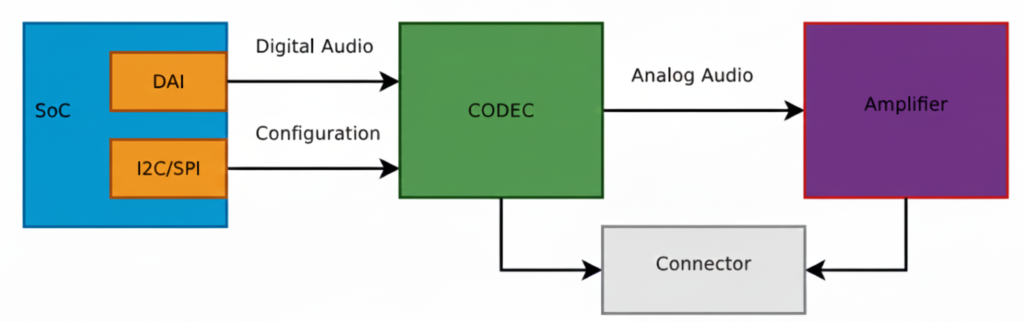
    This diagram shows a typical embedded Linux / SoC audio playback architecture exactly the kind of pipeline you deal with in ALSA, QNX audio, codec drivers, and board bring-up.
    Let’s break it block by block, signal by signal, and then connect it to real software components you use.

    SoC (System on Chip)

    The SoC is the brain of the system (Qualcomm, TI, NXP, STM32MP, etc.).

    Inside the SoC, two important blocks are shown:

    DAI (Digital Audio Interface)

    This block is responsible for sending and receiving digital audio samples.

    Typical interfaces:

    • I2S
    • TDM
    • PCM
    • DSP_A / DSP_B

    What flows here?

    • Raw PCM samples
    • Example: 16-bit / 24-bit / 32-bit audio
    • Sample rates: 44.1 kHz, 48 kHz, 96 kHz

    Signals on the wire:

    • BCLK (Bit clock)
    • LRCLK / FS (Frame sync)
    • DATA

    This is high-speed, real-time audio data

    I2C / SPI (Control Interface)

    This is NOT audio data.

    Used only for:

    • Configuring the codec
    • Setting volume
    • Power control
    • Selecting input/output paths
    • Muting, unmuting
    • Clocking modes

    Example operations:

    • Set DAC sample rate
    • Enable headphone output
    • Set gain = +6 dB
    • Power up analog blocks

    This is low-speed control, not streaming audio.

    Digital Audio Path (SoC → CODEC)

    The arrow labeled “Digital Audio” represents:

    SoC DAI  ──(I2S/TDM/PCM)──>  CODEC
    

    ✔ Audio is still digital
    ✔ No voltage amplification
    ✔ No sound yet

    This is where:

    • ALSA PCM writes happen
    • DMA transfers audio buffers
    • Timing is critical

    In ALSA terms:

    • CPU DAI ↔ Codec DAI
    • Defined in ASoC machine driver
    • Linked using snd_soc_dai_link

    CODEC (Most Important Block)

    The CODEC (Coder–Decoder) is the heart of audio hardware.

    What the CODEC does:

    • DAC: Digital → Analog (playback)
    • ADC: Analog → Digital (capture)
    • Filtering
    • Mixing
    • Volume control
    • Clock management

    Inputs:

    • Digital audio (I2S/TDM)
    • Control commands (I2C/SPI)

    Outputs:

    • Analog audio signals (line-level)

    Important:

    The codec output is NOT strong enough to drive speakers

    That’s why the next block exists.

    Analog Audio Path (CODEC → Amplifier)

    The arrow labeled “Analog Audio” means:

    • Audio is now continuous voltage
    • Typical level: ~1 Vrms (line level)
    • Sensitive to noise, grounding, layout

    Signals here:

    • Left / Right analog outputs
    • Differential or single-ended

    Amplifier

    The Amplifier increases signal power so it can:

    • Drive speakers
    • Drive headphones
    • Overcome impedance

    Amplifier types:

    • Class D (most common in embedded)
    • Class AB
    • Headphone amps

    What it does:

    • Voltage amplification
    • Current amplification
    • Power delivery

    Example:

    • Codec output: 1V
    • Amplifier output: 5–12V swing (speaker)

    Connector (Speaker / Headphone Jack)

    The Connector is the physical output:

    • Speaker connector
    • 3.5mm headphone jack
    • Line-out
    • Automotive speaker terminals

    Why shown separately?
    Because:

    • Board routing matters
    • ESD protection is added
    • Jack detection may exist
    • Multiple outputs can be routed

    Full Signal Flow (End-to-End)

    Playback path:

    Application (aplay / media app)
            ↓
    ALSA PCM
            ↓
    CPU DAI (SoC)
            ↓  [Digital Audio: I2S/TDM]
    CODEC (DAC)
            ↓  [Analog Audio]
    Amplifier
            ↓
    Speaker / Headphones
    

    Software Mapping (Very Important)

    In Linux ALSA ASoC:

    Hardware BlockSoftware Component
    SoC DAICPU DAI driver
    CODECCodec driver
    I2C/SPIRegmap
    ConnectionsMachine driver
    User appaplay, arecord

    Why WAV is Used for Testing

    • WAV = raw PCM
    • No decoding needed
    • Direct match to DAI data
    • Perfect for testing this pipeline

    MP3/AAC would require:

    • Decoder
    • Extra CPU
    • More variables

    Big Picture Audio Hardware Block Diagram

    Microphone
       ↓
    [ Analog Front End ]
       ↓
    ADC  →  SoC / MCU  →  DAC
       ↑        ↓        ↓
     Codec   DSP / CPU  Amplifier
                             ↓
                          Speaker
    

    Let’s explain each block in detail.

    Audio Input Hardware (Sound Capture)

    Microphone

    Converts sound waves → electrical signals

    Types:

    • Electret Condenser Mic (analog output)
    • MEMS Mic
      • Analog MEMS
      • Digital MEMS (PDM / I2S output)

    Key parameters:

    • Sensitivity (dBV/Pa)
    • Signal-to-noise ratio (SNR)
    • Directionality (Omni / Uni-directional)

    Analog Front End (AFE)

    Before audio reaches the ADC, it must be conditioned.

    AFE includes:

    • Pre-amplifier (boosts weak mic signals)
    • Biasing circuit (for electret mics)
    • Low-pass filter (anti-aliasing)
    • Noise filtering

    Without AFE, captured audio will be noisy or distorted.

    Audio Codec (Heart of Audio Hardware)

    What is an Audio Codec?

    A codec = Coder + Decoder

    It usually integrates:

    • ADC (Analog → Digital)
    • DAC (Digital → Analog)
    • Mixers, volume control, mute
    • Power management

    Examples:

    • TLV320 series (TI)
    • PCM5102, PCM1808
    • WM8960
    • Realtek codecs

    Why Codec Is Important

    • MCU/SoC cannot directly handle analog audio
    • Codec ensures:
      • Correct sampling
      • Bit depth
      • Clean audio conversion

    Digital Audio Interfaces (SoC ↔ Codec)

    Audio data moves digitally between SoC and codec.

    I2S (Most Common)

    Used for PCM audio.

    Signals:

    • BCLK (Bit Clock)
    • LRCLK / WS (Left-Right clock)
    • DATA
    • MCLK (optional)
    SoC  ←→  Codec
     I2S     I2S
    

    Other Audio Interfaces

    • PCM/TDM – multi-channel audio (automotive, pro audio)
    • PDM – digital microphone interface
    • SPDIF – consumer audio
    • AC97 / HDA – PC-class audio

    Audio Processing Hardware

    MCU / SoC

    Processes audio samples.

    Responsibilities:

    • Buffer management
    • DMA handling
    • Audio routing
    • Running DSP algorithms

    Examples:

    • BeagleBone (AM335x)
    • STM32F4/F7/H7
    • ESP32
    • Qualcomm SoCs

    DSP (Optional but Powerful)

    Dedicated processor for:

    • Noise cancellation
    • Echo cancellation
    • Equalizer
    • Compression

    In many SoCs, DSP is integrated.

    Audio Output Hardware (Sound Playback)

    DAC

    Converts digital PCM samples → analog waveform

    Parameters:

    • Resolution (16-bit / 24-bit)
    • Sampling rate
    • Dynamic range

    Often integrated inside codec.

    Audio Power Amplifier

    Boosts low-level analog signal to drive speakers.

    Examples:

    • LM386 (you’ve used this)
    • TPA3116
    • Class-D amplifiers

    Why needed?

    • Codec output ≈ millivolts
    • Speaker needs watts

    Speaker / Headphones

    Final sound-producing component.

    Considerations:

    • Impedance (4Ω, 8Ω)
    • Power rating
    • Mono vs stereo

    Clocking Hardware (Very Important)

    Audio hardware needs precise clocks.

    Sources:

    • External crystal
    • SoC PLL
    • Codec internal PLL

    Clock affects:

    • Sampling accuracy
    • Audio quality
    • Jitter

    Power Management in Audio Hardware

    Audio is sensitive to power noise.

    Hardware includes:

    • Separate analog & digital power rails
    • LDOs
    • Ground separation (AGND / DGND)

    Bad power = hiss, pop, distortion.

    Real Embedded Example (BeagleBone + Codec)

    Mic → AFE → Codec ADC
                   ↓
               I2S Bus
                   ↓
            AM335x (ALSA)
                   ↓
               I2S Bus
                   ↓
               Codec DAC
                   ↓
              LM386 Amp
                   ↓
                Speaker
    

    Software controls:

    • ALSA drivers
    • Device Tree
    • Mixer settings

    Common Embedded Audio Hardware Issues

    • No sound → clock misconfiguration
    • Distorted audio → wrong gain
    • Noise → poor grounding
    • Channel swap → LRCLK mismatch
    • Crackling → buffer underrun

    Summary

    BlockPurpose
    MicrophoneCapture sound
    AFECondition analog signal
    ADCConvert to digital
    CodecAudio conversion + control
    I2S/PCMTransfer digital audio
    SoC/DSPProcess audio
    DACConvert to analog
    AmplifierBoost signal
    SpeakerPlay sound

    Codec = ADC + DAC + mixers + clocks + controls

    CODEC = COder + DECoder

    An audio codec is a single chip that can:

    • Record sound → convert analog sound into digital data
    • Play sound → convert digital data back into analog sound

    It acts as a bridge between the real (analog) world and the digital world.

    Controlled via:

    • I2C / SPI → registers
    • I2S / TDM → audio data

    Why do we need a CODEC?

    Microcontrollers / SoCs cannot understand analog voltages directly.

    • Microphone → gives analog voltage
    • Processor → understands digital numbers
    • Speaker → needs analog voltage

    So we need a translator → that’s the CODEC.

    Inside a CODEC: ADC + DAC

    A codec internally contains:

    ADC (Analog to Digital Converter)

    • Takes analog voltage (from mic/line-in)
    • Converts it into digital samples
    • Used during audio capture / recording

    DAC (Digital to Analog Converter)

    • Takes digital samples
    • Converts them into analog voltage
    • Used during audio playback

    Both ADC and DAC are inside one chip → called an Audio CODEC

    What exactly does a CODEC do?

    Recording path

    Microphone → Analog voltage → ADC → Digital samples → SoC
    

    Playback path

    SoC → Digital samples → DAC → Analog voltage → Speaker / Amplifier
    

    How does a CODEC talk to the SoC? (DAI)

    CODECs don’t send data randomly.
    They use a Digital Audio Interface (DAI).

    DAI is a synchronous serial interface (everything happens on clock edges).

    Common DAI standards:

    • I²S
    • PCM
    • TDM

    PCM / I²S Interface Basics

    The 2 Main Clocks

    Bit Clock (BCLK / BCK)

    • Ticks once per bit
    • Controls bit-by-bit transfer

    Frame Clock (LRCLK / FSCLK / WCLK)

    • Ticks once per audio sample
    • Indicates Left / Right channel
    • Its frequency = Sample Rate (Fs)

    Example:

    • Fs = 48 kHz → 48,000 samples per second

    Relationship Between Clocks

    Formula:

    BCLK = FS × Number_of_Channels × Bit_Depth
    

    Example:

    • Sample Rate (Fs) = 48 kHz
    • Channels = 2 (Stereo)
    • Bit depth = 16 bits
    BCLK = 48,000 × 2 × 16 = 1.536 MHz
    

    BCLK must run much faster than LRCLK.

    Data Lines (Audio Data)

    Along with clocks, we have data lines:

    • Carry the actual audio bits
    • Usually called: SDATA, DSDATA, ASDATA

    Important points:

    • One data line can carry two channels (Left + Right)
    • Some codecs have multiple data lines:
      • One per channel pair
      • Useful for multi-channel audio

    Multiple DAI Interfaces

    Some codecs support:

    • Separate DAI for input (ADC)
    • Separate DAI for output (DAC)

    This allows:

    • Different clocks
    • Different sample rates
    • Independent routing

    Real Example: AD1937 CODEC

    Capabilities

    • 8 DAC channels → 4 stereo output pairs
    • 4 ADC channels → 2 stereo input pairs

    Playback (DAC side)

    • Clocks:
      • ABCLK → Bit clock
      • ALRCLK → Frame clock
    • Data lines:
      • ASDATA[1–2] → 2 output data lines

    Capture (ADC side)

    • Clocks:
      • DBCLK
      • DLRCLK
    • Data lines:
      • DSDATA[1–4] → 4 input data lines

    Perfect for multi-channel professional audio systems

    Control Interface (Configuration Bus)

    Audio data ≠ configuration.

    CODECs use a separate control bus to:

    • Set volume
    • Select sample rate
    • Enable ADC/DAC
    • Configure routing

    Common control buses:

    • I²C
    • SPI

    Audio flows on DAI, configuration happens on I²C/SPI.

    What is MCLK? (Master Clock)

    MCLK = System Clock for CODEC

    • Required for internal codec operation
    • Feeds internal DSP, ADC, DAC

    How is MCLK provided?

    • By SoC clock output
    • By external crystal oscillator
    • Sometimes derived from BCLK or LRCLK

    Is MCLK Always Required?

    • Usually yes
    • Sometimes optional

    Some codecs:

    • Can run using BCLK or LRCLK
    • Useful for simple systems

    But:

    • High-quality codecs usually require MCLK

    MCLK Relationship

    MCLK is usually a multiple of Fs:

    Common values:

    • 256 × Fs
    • 384 × Fs
    • 512 × Fs

    Example:

    • Fs = 48 kHz
    • MCLK = 48k × 256 = 12.288 MHz

    Big Picture Summary

    Microphone → ADC → PCM/I²S → SoC → PCM/I²S → DAC → Speaker
                    ↑           ↑
                  MCLK        BCLK, LRCLK

    What is Left-Justified (LJ) Audio Digital Format?

    Left-Justified is a digital audio data format used to transfer audio samples between a codec and a SoC/DSP over serial audio interfaces like:

    • I²S
    • TDM
    • PCM interfaces

    It defines how audio bits are aligned with the clock signals.

    The 3 Important Audio Signals (Recap)

    In any digital audio interface, you’ll see:

    SignalMeaning
    BCLKBit Clock – clocks each bit
    LRCLK / WSLeft-Right Clock (Word Select)
    DATAActual audio sample bits

    Left-Justified format describes when DATA starts relative to LRCLK.

    Left-Justified Format – Core Idea

    The MSB (Most Significant Bit) of the audio sample appears immediately after the LRCLK transition.

    Key Rule:

    • No delay
    • MSB is aligned with the LRCLK edge
    • Data is “left-aligned” in the word frame

    Timing Diagram (Conceptual)

    LRCLK:  |____ LEFT ____|____ RIGHT ____|
                ↑                ↑
               MSB              MSB
    BCLK :  |‾|_|‾|_|‾|_|‾|_|‾|_|‾|_|
    DATA :  [MSB ........ LSB][MSB .... LSB]
    

    As soon as LRCLK changes:

    • Data starts immediately
    • First bit = MSB

    Example: 16-bit Audio Sample

    Assume:

    • Sample size = 16 bits
    • Left channel sample = 0x5A3C

    Bit Transmission (Left Channel)

    LRCLK = 0  → LEFT channel
    DATA   = 0 1 0 1 1 0 1 0 0 0 1 1 1 1 0 0
              ↑
             MSB (no delay!)
    

    Left-Justified vs I²S (Very Important Interview Point)

    FeatureLeft-JustifiedI²S
    MSB positionImmediately after LRCLK edge1 BCLK delay
    AlignmentLeft alignedDelayed
    SimplicitySimpleSlightly complex
    Codec supportOlder & simple codecsMost modern codecs

    This 1-bit delay is the ONLY difference — but it breaks audio if misconfigured.

    Why is it Called “Left-Justified”?

    Because:

    • Audio data is pushed to the left side of the word frame
    • No padding before MSB
    • Extra unused bits (if any) come after LSB

    Example (24-bit sample on 32-bit frame):

    [ MSB .... LSB ][ 0 0 0 0 0 0 0 0 ]
    

    Where is Left-Justified Used?

    Common in:

    • Audio codecs (TLV320, PCM series)
    • Simple DAC/ADC interfaces
    • Embedded SoCs during codec bring-up
    • Some QNX / ALSA hardware configs

    You’ll often see it as:

    LEFT_J
    LEFT_JUSTIFIED
    LJ
    

    ALSA / Embedded Perspective (Real World)

    In ALSA, Left-Justified is configured using:

    • DAI format flags
    • Example:
    SND_SOC_DAIFMT_LEFT_J
    

    If:

    • Codec = Left-Justified
    • SoC = I²S

    Audio will be distorted or silent

    Simple One-Line Definition (Interview Ready)

    Left-Justified audio format is a digital audio data format where the MSB of the sample appears immediately after the LRCLK transition, with no bit delay.

    What is Right-Justified (RJ) Audio Digital Format?

    Right-Justified is a digital audio data alignment format used to transfer audio samples between:

    • Codec ↔ SoC / DSP
    • Over interfaces like I²S, PCM, TDM

    It defines how audio bits are aligned with the LRCLK (Word Select) signal.

    Core Idea (Very Important)

    In Right-Justified format, the LSB (Least Significant Bit) of the audio sample is aligned with the end of the LRCLK period.

    Meaning:

    • Data is right-aligned
    • MSB position depends on sample width

    Signals Involved

    SignalRole
    BCLKClocks each bit
    LRCLK / WSSelects Left or Right channel
    DATAAudio sample bits

    Right-Justified format defines where the LSB appears relative to LRCLK.

    Timing Concept (Simple View)

    LRCLK:  |____ LEFT ____|____ RIGHT ____|
                         ↑                ↑
                        LSB              LSB
    
    BCLK :  |‾|_|‾|_|‾|_|‾|_|‾|_|‾|_|
    DATA :  [MSB .... LSB][MSB .... LSB]
    

    The last bit before LRCLK changes is always LSB.

    Example: 16-bit Audio Sample

    Assume:

    • Sample size = 16 bits
    • Frame size = 32 bits

    Left Channel Transmission

    [ 0 0 0 0 0 0 0 0 | MSB .... LSB ]
                        ↑           ↑
                      starts      aligned
    

    Padding bits come before MSB
    Sample ends exactly at LRCLK edge

    Why “Right-Justified”?

    Because:

    • Audio data is aligned to the right side of the frame
    • Extra unused bits are placed before MSB
    • LSB touches the LRCLK boundary

    Right-Justified vs Left-Justified vs I²S

    FeatureLeft-JustifiedRight-JustifiedI²S
    MSB alignmentImmediately after LRCLKVariable1 BCLK delay
    LSB alignmentVariableAt LRCLK edgeFixed
    Padding bitsAfter LSBBefore MSBAfter LSB
    Common usageSome codecsLegacy codecsMost modern systems

    Important Embedded Detail

    In Right-Justified, the SoC must know sample width:

    • 16-bit
    • 20-bit
    • 24-bit
    • If sample width mismatches:
    • Audio distortion
    • Shifted samples
    • Noise / silence

    This is why RJ is more error-prone than LJ or I²S.

    ALSA / Driver Perspective

    In ALSA SoC drivers, Right-Justified is selected using:

    SND_SOC_DAIFMT_RIGHT_J
    

    Typical usage:

    • Old DACs / ADCs
    • Simple PCM audio paths
    • Some automotive codecs

    One-Line Interview Definition

    Right-Justified audio format aligns the LSB of each audio sample with the LRCLK edge, while MSB position depends on the sample width.

    Quick Memory Trick

    • Left-Justified → MSB touches LRCLK
    • Right-Justified → LSB touches LRCLK
    • I²S → MSB delayed by 1 BCLK

    What is I2S (Inter-IC Sound)?

    I2S (Inter-IC Sound) is a digital audio communication protocol used to transfer audio data between chips such as a processor, audio codec, DAC, or ADC.

    Key Points of I2S

    • Designed specifically for digital audio
    • Transfers PCM (Pulse Code Modulation) audio data
    • Commonly used in embedded systems, SoCs, and audio boards
    • Simple and easy to implement

    I2S Signals

    I2S uses three or four lines:

    • BCLK (Bit Clock): Clocks each audio bit
    • LRCLK / WS (Word Select): Selects Left or Right audio channel
    • SD (Serial Data): Carries audio sample data
    • MCLK (Optional): Master clock for codec timing

    I2S Features

    • Supports stereo audio (Left & Right)
    • Fixed channel structure
    • Low latency
    • Ideal for headphones, speakers, microphones

    Where I2S is Used

    • Audio codecs (PCM, WM, TLV series)
    • Embedded Linux audio (ALSA)
    • Microcontrollers and DSPs
    • Music players and voice applications

    What is TDM (Time Division Multiplexing)?

    TDM (Time Division Multiplexing) is a digital audio interface that allows multiple audio channels to be transmitted over a single data line by assigning each channel a time slot.

    Key Points of TDM

    • Supports multi-channel audio
    • Uses time slots instead of separate data lines
    • Highly scalable and efficient
    • Common in professional and automotive audio systems

    TDM Signals

    TDM typically uses:

    • BCLK (Bit Clock): Drives bit transmission
    • FS / SYNC (Frame Sync): Marks start of a frame
    • SD (Serial Data): Carries data for all channels

    TDM Features

    • Supports 4, 8, 16, or more channels
    • Better bandwidth utilization
    • Reduces pin count on SoCs
    • Ideal for surround sound and voice systems

    Where TDM is Used

    • Automotive infotainment systems
    • Multi-microphone arrays
    • Professional audio mixers
    • Advanced SoC audio pipelines

    I2S vs TDM – Quick Comparison

    FeatureI2STDM
    Channels2 (Stereo)Multiple (4–16+)
    Data LinesOne per streamSingle shared
    ComplexitySimpleModerate
    Use CaseBasic audioMulti-channel audio
    ScalabilityLimitedHigh

    Summary

    • I2S is best for simple stereo audio communication
    • TDM is ideal for multi-channel, high-performance audio systems
    • Both are widely used in embedded audio, Linux ALSA, and SoC designs

    Linux (ALSA)

    User App (aplay)
       ↓
    ALSA PCM API
       ↓
    ALSA SoC Layer
       ↓
    Codec Driver
       ↓
    I2S / TDM Driver
       ↓
    Hardware

    QNX

    Audio Service
       ↓
    io-audio / devctl
       ↓
    Driver
       ↓
    Codec + Interface
    

    Unlike files or networking:

    Late data = noise
    Missing data = crack/pop
    Clock mismatch = drift

    Key challenges:

    • Buffer underrun / overrun
    • Clock synchronization
    • Interrupt latency
    • DMA tuning

    Playback

    File → PCM → DAC → Speaker

    Capture

    Mic → ADC → PCM → File / Stream

    Drivers must support both directions.

    TypeExampleUsed Where
    RawPCMDrivers, ALSA
    CompressedMP3, AACApps
    LosslessWAV, FLACStorage

    Embedded drivers almost never touch MP3/AAC.

    Audio correctness depends more on TIMING than data

    Even perfect samples are useless if late.

    In digital audio, a clock is a timing signal that synchronizes the transfer of audio data between components like a CPU, DSP, or audio codec. Without clocks, audio data could be misaligned, causing glitches, noise, or distortion.

    Types of Clocks in Audio DAI (Digital Audio Interface)

    1. Bit Clock (BCLK)
      • Drives the rate at which each audio bit is sent.
      • Think of it like the tick of a metronome, sending bits one by one.
      • Bit Clock Producer: One DAI (Digital Audio Interface) must generate this clock, called the BCLK producer (previously called “master”).
    2. Frame Clock (LRCLK / Word Select / FS)
      • Signals the start of each audio frame (Left and Right channels in stereo).
      • Ensures the receiving device knows which bits belong to the left or right channel.
      • Frame Clock Producer: One DAI generates this, called the frame producer.
    3. Master Clock (MCLK)
      • Optional but important for many CODECs.
      • Provides a high-frequency reference clock that other clocks (BCLK, LRCLK) can derive from using PLLs and dividers.
      • Helps CODECs generate precise bit and frame clocks even if the SoC provides multiple MCLK rates.

    Who Should Generate the Clock?

    • Often, it’s better to let the CODEC act as the clock producer because:
      • CODECs have built-in PLLs and dividers for accurate BCLK from MCLK.
      • Reduces jitter (timing errors) in audio.
    • Some SoCs have specialized audio PLLs, so the CPU can generate precise clocks too.

    Rule of thumb:

    • Let the device with the best PLL stability produce the clock.
    • The other device is called the bit or frame consumer, which simply follows the clock.

    In audio systems, auxiliary devices are additional hardware components that are not the main audio codec or processor, but help in modifying, routing, or amplifying audio signals. They can exist on the analog path (after digital-to-analog conversion) or sometimes on the digital path.

    These devices are essential for fine-tuning audio output, volume control, or channel selection.

    Types of Auxiliary Devices

    1. Amplifiers
      • Boost the audio signal strength before sending it to speakers or headphones.
      • Examples:
        • Headphone amplifiers in mobile phones
        • Line amplifiers in sound cards
      • They can be controlled digitally in modern systems to adjust gain or mute audio.
    2. Potentiometers (Volume Controls)
      • Analog knobs or digital controls that adjust signal amplitude.
      • They act as volume knobs or mixing controls.
      • Can be exposed in the ALSA sound card interface so software can control them.
    3. Multiplexers (MUXes)
      • Switch between multiple audio sources or paths.
      • Example: Choosing between line-in, mic, or Bluetooth input.
      • Controlled via software registers to route audio correctly.
    4. Other Analog Path Devices
      • Filters, equalizers, or attenuators
      • Ensure signal quality, reduce noise, or adjust frequency response

    Control of Auxiliary Devices

    • Many auxiliary devices are software-controllable.
    • In ALSA (Advanced Linux Sound Architecture):
      • They appear as controls of the sound card.
      • Software can adjust volume, enable/disable paths, or switch inputs.

    Example in ALSA ASoC:

    SOC_SINGLE("Headphone Gain", codec_reg, 0, 31, 0);
    SOC_ENUM("Input Source", input_mux_enum);
    
    • Headphone Gain: Controls amplifier gain
    • Input Source: Selects which audio path the multiplexer connects

    This software abstraction makes it easy to manage analog devices programmatically.

    Key Points for Beginners

    • Auxiliary devices are not the main audio codec, but they enhance or route audio.
    • They can be analog or digital controlled.
    • Exposing them as sound card controls allows software to adjust audio dynamically.
    • Common examples: Amplifiers, volume controls, multiplexers.

    Q1. What is I2S?
    Answer:
    I2S (Inter-IC Sound) is a digital audio interface used to transfer PCM audio data between chips such as processors, codecs, DACs, and ADCs.

    Q2. How many signals does I2S use?
    Answer:
    I2S typically uses 3 or 4 signals:

    • BCLK (Bit Clock) – Clocks each audio bit
    • LRCLK / WS (Word Select) – Indicates Left or Right channel
    • SD (Serial Data) – Carries audio samples
    • MCLK (Master Clock) – Optional, used for codec timing

    Q3. What audio formats does I2S support?
    Answer:
    I2S supports PCM audio, commonly 16-bit, 24-bit, or 32-bit samples, stereo only.

    Q4. Difference between Left-Justified and I2S format?
    Answer:

    • I2S format: Data starts one clock after LRCLK changes.
    • Left-Justified: Data starts exactly at the LRCLK edge.

    Q5. Where is I2S used in embedded systems?
    Answer:

    • Audio codecs (WM8731, PCM5122)
    • Microcontrollers (STM32, ESP32)
    • Audio playback/recording
    • Linux ALSA systems

    Q1. What is TDM in audio?
    Answer:
    TDM allows multiple audio channels to share a single data line by assigning each channel a time slot, used for professional multi-channel audio.

    Q2. How many channels can TDM support?
    Answer:
    It depends on the implementation; common configurations support 4, 8, 16, or more channels.

    Q3. Difference between I2S and TDM?
    Answer:

    FeatureI2STDM
    Channels2 (Stereo)Multiple (4–16+)
    Data linesOne per streamSingle shared
    ComplexitySimpleModerate
    Use caseBasic stereo audioMulti-channel audio

    Q4. What signals are used in TDM?
    Answer:

    • BCLK (Bit Clock) – Synchronizes bits
    • FS / SYNC (Frame Sync) – Marks frame start
    • SD (Serial Data) – Carries all channels sequentially

    Q5. Where is TDM commonly used?
    Answer:

    • Automotive infotainment
    • Multi-microphone voice capture
    • Surround sound systems
    • DSP audio pipelines
    1. How do you connect an I2S codec to STM32?
      • Use BCLK, WS, SD pins, enable I2S peripheral, configure sample rate & word length.
    2. How do you configure ALSA for TDM multi-channel audio?
      • Define codec and CPU DAI in ASoC machine driver, set number of slots, slot width, frame sync, and register in ALSA.
    3. Why choose TDM over I2S?
      • When you need more than 2 channels over limited pins, e.g., 8-channel microphone arrays.
    4. Explain Left-Justified vs Right-Justified format in I2S/TDM.
      • Left-Justified: Data aligned with LRCLK edge
      • Right-Justified: Data ends at LRCLK edge
  • 50 Proven ALSA Interview Questions for Guaranteed Success (2026)

    50 Proven ALSA Interview Questions for Guaranteed 2026 Success is a complete, beginner-to-advanced guide covering ALSA architecture, PCM, mixer, drivers, debugging, and real Linux audio interview questions to help you crack embedded and Linux audio interviews confidently.

    Basic ALSA Questions | ALSA Interview Questions

    ALSA interview questions : Are you preparing for an interview involving the Advanced Linux Sound Architecture (ALSA)? This post covers 50 essential ALSA interview questions tailored for 2026, helping you brush up on key concepts, technical details, and real-world applications. Whether you\’re a beginner or an experienced professional, these questions will help you assess your knowledge on ALSA drivers, user-space libraries, audio processing, PCM interfaces, mixer controls, and debugging techniques. Stay ahead of the curve with these up-to-date and practical ALSA interview questions!

    1. What is ALSA, and how does it differ from OSS (Open Sound System)?

    Advanced Linux Sound Architecture (ALSA) is a framework for handling sound on Linux systems. It provides:

    • Low-level kernel drivers for audio devices
    • A user-space library (libasound) to simplify application development
    • Features like software mixing, MIDI support, and audio processing

    Differences between ALSA and OSS:

    FeatureALSAOSS (Open Sound System)
    ArchitectureModular, supports multiple devicesOlder, monolithic design
    Full Duplex SupportYesLimited in OSSv3
    Hardware MixingYesLimited
    User-Space APIlibasoundOSS /dev/dsp interface
    Multiple ApplicationsUses software mixing (dmix)Required hardware mixing
    Default in LinuxDefault since Linux 2.6Replaced by ALSA

    OSS was the default in early Linux versions but was replaced by ALSA due to flexibility and better hardware support.

    2. What are the key components of the ALSA architecture (ALSA Interview Questions)?

    The ALSA architecture consists of three major layers:

    • Kernel Space (Driver Layer)
      • Hardware-specific drivers (for sound cards)
      • Core ALSA driver modules (snd-* modules)
      • Interfaces like PCM, MIDI, control interfaces
    • User-Space Library (libasound)
      • Provides API for applications
      • Abstracts low-level kernel interfaces
      • Supports PCM streaming, MIDI, and device controls
    • User-Space Applications & Utilities
      • Command-line utilities: aplay, arecord, alsamixer, amixer
      • GUI-based applications: PulseAudio, JACK

    3. Explain the role of PCM (Pulse Code Modulation) in ALSA.

    PCM (Pulse Code Modulation) is a method of digitally representing analog signals.
    In ALSA, PCM acts as the interface for audio data streams, allowing applications to send/receive raw audio samples.

    PCM in ALSA includes:

    • Hardware PCM (hw:x,y) – Direct access to the sound card\’s PCM interface
    • Software PCM (plug:device_name) – Handles conversion (e.g., resampling, mixing)
    • Default PCM (default) – Uses the system\’s default configuration

    PCM devices allow for audio playback and recording, and they support various parameters like:

    • Sample rate (e.g., 44.1 kHz, 48 kHz, 96 kHz)
    • Bit depth (e.g., 16-bit, 24-bit, 32-bit)
    • Number of channels (mono, stereo, 5.1 surround)

    4. What is an ALSA sound card, and how is it represented in Linux?

    A sound card in ALSA is a hardware or virtual device that handles audio playback/recording.(ALSA Interview Questions)

    • ALSA identifies sound cards using an index number (cardX)
    • Each sound card has one or more devices (deviceY)

    Example structure:

    /proc/asound/cards
    /sys/class/sound/

    To list sound cards:

    cat /proc/asound/cards

    Example output:

    0 [PCH]: HDA-Intel - HDA Intel PCH
    1 [USB]: USB-Audio - Logitech USB Headset

    Here, PCH is the internal sound card (card0), and USB is an external USB sound device (card1).

    5. What are ALSA controls (Mixer, Volume, Switches)?

    ALSA provides a mixer interface that allows you to control audio settings, such as:

    • Volume Control – Adjusts playback and recording levels
    • Switches – Toggles features like mute, mic boost
    • Gain and Attenuation – Controls input/output signal strength
    • Audio Routing – Determines the audio path (e.g., speakers vs. headphones)

    To list available controls:

    amixer controls

    To adjust volume:

    amixer set Master 80%

    GUI-based control can be done using:

    alsamixer

    6. How do you list available sound cards in ALSA?

    To list sound cards:

    cat /proc/asound/cards

    or use:

    aplay -l    # Lists playback devices
    arecord -l  # Lists recording devices

    Example output:

    List of PLAYBACK Hardware Devices 
    card 0: PCH [HDA Intel PCH], device 0: ALC892 Analog [ALC892 Analog]

    Here, card 0, device 0 refers to the primary audio device.

    7. How do you check available PCM devices?

    To check playback PCM devices:

    aplay -L

    To check recording PCM devices:

    arecord -L

    This lists devices like:

    hw:0,0
    default
    plug:dmix
    • hw:0,0 → Direct hardware access
    • default → System-defined default PCM
    • plug:dmix → Software mixer

    8. How do you test audio playback and recording using ALSA utilities?

    • To test playback:
    aplay -D hw:0,0 /usr/share/sounds/alsa/test.wav
    • To test recording:
    arecord -D hw:0,0 -f cd test.wav

    This records audio and saves it as test.wav.

    • To check speaker output:
    speaker-test -D hw:0,0 -c 2 -t wav

    This plays test tones in stereo.

    9. What is the function of the ALSA Mixer?

    The ALSA Mixer manages audio controls on a sound card. It allows:

    • Adjusting playback and recording volume
    • Muting/unmuting audio channels
    • Configuring input/output sources

    Common utilities:

    • alsamixer → Graphical terminal-based mixer
    • amixer → Command-line control

    Example commands:

    alsamixer      # Opens the mixer UI
    amixer set Master 50%    # Sets volume to 50%

    💛 Support Embedded Prep

    If you find our tutorials helpful and want to support our mission of sharing high-quality embedded system knowledge, you can contribute by buying us a coffee. Every small contribution helps us keep creating valuable content for learners like you. ☕

    Thank you for your support — it truly keeps Embedded Prep growing. 💻✨

    10. How does ALSA handle multiple applications trying to access the same audio device?

    ALSA provides software mixing (dmix) to allow multiple applications to use the same audio device.

    • Hardware Mixing – If the sound card supports it, multiple streams can be mixed in hardware.
    • Software Mixing (dmix) – If hardware mixing isn’t available, ALSA uses a software-based mixer.
    • PulseAudio / JACK – Higher-level sound servers handle multi-client audio mixing.

    To enable dmix, ALSA configures a default ~/.asoundrc:

    pcm.!default {
        type plug
        slave.pcm \"dmix\"
    }

    Applications then route through dmix instead of directly accessing the hardware.

    ALSA User-Space Programming Questions | ALSA Interview Questions

    1. How do you open an ALSA PCM device in C++?

    In C++, you open an ALSA PCM (Pulse Code Modulation) device using the snd_pcm_open() function, which initializes the PCM device for playback or recording.

    Example: Opening a PCM Device

    #include <alsa/asoundlib.h>
    #include <iostream>
    int main() {
        snd_pcm_t *pcm_handle;
        const char *device_name = \"default\";  // Can also be \"hw:0,0\" for direct access
        int err = snd_pcm_open(&pcm_handle, device_name, SND_PCM_STREAM_PLAYBACK, 0);
        if (err < 0) {
            std::cerr << \"Error opening PCM device: \" << snd_strerror(err) << std::endl;
            return -1;
        }
        std::cout << \"PCM device opened successfully.\" << std::endl;
        snd_pcm_close(pcm_handle);  // Always close the device when done
        return 0;
    }
    

    2. How do you configure ALSA for a specific sample rate and bit depth?

    After opening a PCM device, you configure its parameters using the snd_pcm_hw_params_* functions.

    Steps for Configuration

    • Allocate a snd_pcm_hw_params_t structure.
    • Set the access type (interleaved or non-interleaved).
    • Set the sample format (e.g., 16-bit, 32-bit).
    • Set the sample rate (e.g., 44100 Hz, 48000 Hz).
    • Set the number of channels (mono/stereo).
    • Apply the configuration using snd_pcm_hw_params().

    Example: Configuring Sample Rate and Bit Depth

    #include <alsa/asoundlib.h>
    #include <iostream>
    int main() {
        snd_pcm_t *pcm_handle;
        snd_pcm_hw_params_t *params;
        unsigned int sample_rate = 44100;
        int dir = 0;
        snd_pcm_open(&pcm_handle, \"default\", SND_PCM_STREAM_PLAYBACK, 0);
        snd_pcm_hw_params_alloca(&params);
        snd_pcm_hw_params_any(pcm_handle, params);
        snd_pcm_hw_params_set_access(pcm_handle, params, SND_PCM_ACCESS_RW_INTERLEAVED);
        snd_pcm_hw_params_set_format(pcm_handle, params, SND_PCM_FORMAT_S16_LE);
        snd_pcm_hw_params_set_channels(pcm_handle, params, 2);
        snd_pcm_hw_params_set_rate_near(pcm_handle, params, &sample_rate, &dir);
        snd_pcm_hw_params(pcm_handle, params);
        std::cout << \"PCM configured: 44100 Hz, 16-bit, stereo\" << std::endl;
        snd_pcm_close(pcm_handle);
        return 0;
    }
    

    3. What are the different PCM stream types supported by ALSA?

    ALSA supports two main PCM stream types:

    • SND_PCM_STREAM_PLAYBACK → Used for audio output (playing sound).
    • SND_PCM_STREAM_CAPTURE → Used for audio input (recording sound).

    4. How do you read/write audio samples using ALSA in C++?

    You read/write PCM data using snd_pcm_writei() and snd_pcm_readi() for interleaved mode.

    Example: Writing Audio Samples (Playback)

    #include <alsa/asoundlib.h>
    #include <iostream>
    #include <vector>
    int main() {
        snd_pcm_t *pcm_handle;
        snd_pcm_open(&pcm_handle, \"default\", SND_PCM_STREAM_PLAYBACK, 0);
        snd_pcm_hw_params_t *params;
        snd_pcm_hw_params_alloca(&params);
        snd_pcm_hw_params_any(pcm_handle, params);
        snd_pcm_hw_params_set_access(pcm_handle, params, SND_PCM_ACCESS_RW_INTERLEAVED);
        snd_pcm_hw_params_set_format(pcm_handle, params, SND_PCM_FORMAT_S16_LE);
        snd_pcm_hw_params_set_channels(pcm_handle, params, 2);
        unsigned int sample_rate = 44100;
        snd_pcm_hw_params_set_rate_near(pcm_handle, params, &sample_rate, nullptr);
        snd_pcm_hw_params(pcm_handle, params);
        int buffer_size = 1024;  // Frame count
        std::vector<short> buffer(buffer_size * 2, 0);  // Stereo buffer
        // Write zeroed buffer to produce silence
        snd_pcm_writei(pcm_handle, buffer.data(), buffer_size);
        snd_pcm_close(pcm_handle);
        return 0;
    }
    

    5. What is the difference between blocking and non-blocking ALSA I/O?

    Mode (ALSA Interview Questions) Behavior (ALSA Interview Questions)
    Blocking ModeThe function waits until the requested operation completes.
    Non-Blocking ModeThe function returns immediately if the operation cannot be performed.
    • Use blocking mode for normal playback.
    • Use non-blocking mode (SND_PCM_NONBLOCK) for low-latency applications.
    snd_pcm_open(&pcm_handle, \"default\", SND_PCM_STREAM_PLAYBACK, SND_PCM_NONBLOCK);
    

    6. How do you set up an ALSA capture stream for recording audio?

    To record audio, you open a PCM device in capture mode (SND_PCM_STREAM_CAPTURE) and use snd_pcm_readi().

    Example: Recording Audio

    #include <alsa/asoundlib.h>
    #include <iostream>
    #include <vector>
    #include <fstream>
    int main() {
        snd_pcm_t *pcm_handle;
        snd_pcm_open(&pcm_handle, \"default\", SND_PCM_STREAM_CAPTURE, 0);
        snd_pcm_hw_params_t *params;
        snd_pcm_hw_params_alloca(&params);
        snd_pcm_hw_params_any(pcm_handle, params);
        snd_pcm_hw_params_set_access(pcm_handle, params, SND_PCM_ACCESS_RW_INTERLEAVED);
        snd_pcm_hw_params_set_format(pcm_handle, params, SND_PCM_FORMAT_S16_LE);
        snd_pcm_hw_params_set_channels(pcm_handle, params, 1);
        unsigned int sample_rate = 44100;
        snd_pcm_hw_params_set_rate_near(pcm_handle, params, &sample_rate, nullptr);
        snd_pcm_hw_params(pcm_handle, params);
        std::vector<short> buffer(1024);
        std::ofstream file(\"recorded.raw\", std::ios::binary);
        snd_pcm_readi(pcm_handle, buffer.data(), buffer.size());
        file.write(reinterpret_cast<const char*>(buffer.data()), buffer.size() * sizeof(short));
        file.close();
        snd_pcm_close(pcm_handle);
        return 0;
    }
    

    7. How do you implement buffer management in ALSA?

    • Frames: Smallest audio unit in ALSA.
    • Periods: A set of frames processed at once.
    • Buffer: Holds multiple periods.

    Use:

    snd_pcm_hw_params_set_period_size_near(pcm_handle, params, &frames, &dir);
    snd_pcm_hw_params_set_buffer_size_near(pcm_handle, params, &buffer_size);
    

    8. What is an interleaved vs. non-interleaved audio buffer format?

    Formatv(ALSA Interview Questions)Description (ALSA Interview Questions)
    InterleavedChannels are stored sequentially (L R L R L R)
    Non-InterleavedSeparate memory buffers for each channel (L L L and R R R)

    9. How do you handle underruns and overruns in ALSA?

    • Underrun: Occurs when playback buffer runs out of data (ALSA Interview Questions).
    • Overrun: Occurs when recording buffer is full before being processed.

    To recover from underrun/overrun:

    if (snd_pcm_prepare(pcm_handle) < 0) {
        std::cerr << \"Failed to recover from buffer error\" << std::endl;
    }
    

    10. Explain the difference between direct hardware access and plughw in ALSA.

    ModeDescription
    hw:Direct access to hardware (no resampling)
    plughw:Uses ALSA’s software layer for format conversion

    Use hw for low-latency, plughw for compatibility.

    ALSA Driver Development Questions | ALSA Interview Questions

    1. What is ALSA SoC (ASoC), and how does it work?

    ALSA System on Chip (ASoC) is a Linux kernel framework designed for embedded audio systems, particularly SoCs with onboard audio hardware. It simplifies the development of ALSA drivers by (ALSA Interview Questions) breaking them into modular components:

    • Codec Driver → Manages the audio codec (e.g., WM8960, PCM5122).
    • Platform Driver → Handles SoC-specific audio DMA and I/O.
    • Machine Driver → Connects the codec and platform drivers, defining board-specific settings.
    • DAI (Digital Audio Interface) → Facilitates data transfer between SoC and codec (e.g., I2S, TDM).

    How ASoC Works

    • The machine driver registers the codec and platform components.
    • The codec driver manages audio signal processing.
    • The platform driver handles the data flow.
    • The ASoC core coordinates these components, allowing flexibility across different SoCs and codecs.

    2. Explain the role of a Codec Driver in ALSA.

    A codec driver in ALSA (ALSA Interview Questions) is responsible for configuring and controlling the audio codec, which handles audio signal processing like:

    • ADC (Analog-to-Digital Conversion) for recording.
    • DAC (Digital-to-Analog Conversion) for playback.
    • Mixer controls (volume, mute, gain).
    • Power management (turning on/off audio paths).

    Example: Codec Driver Structure

    static const struct snd_soc_dapm_widget my_codec_widgets[] = {
        SND_SOC_DAPM_OUTPUT(\"Speaker\"),
        SND_SOC_DAPM_INPUT(\"Mic\"),
    };
    static const struct snd_soc_component_driver my_codec_driver = {
        .dapm_widgets = my_codec_widgets,
        .num_dapm_widgets = ARRAY_SIZE(my_codec_widgets),
    };
    static int my_codec_probe(struct snd_soc_component *component)
    {
        return 0;
    }
    static struct snd_soc_codec_driver my_codec = {
        .probe = my_codec_probe,
    };
    

    3. What is a Machine Driver, and why is it needed in ALSA?

    A machine driver links the platform driver (SoC-specific) and codec driver (audio chip-specific) by:

    • Defining DAI links (e.g., I2S connections between SoC and codec).
    • Configuring the routing of audio signals.
    • Managing power sequencing.

    Example: Machine Driver

    static struct snd_soc_dai_link my_dai_link = {
        .name = \"I2S Codec\",
        .stream_name = \"Audio Stream\",
        .cpu_dai_name = \"I2S0\",
        .codec_dai_name = \"wm8960-hifi\",
        .platform_name = \"my-platform\",
        .codec_name = \"wm8960.1-001a\",
    };
    static struct snd_soc_card my_asoc_card = {
        .name = \"MyAudioBoard\",
        .owner = THIS_MODULE,
        .dai_link = &my_dai_link,
        .num_links = 1,
    };
    static int my_asoc_probe(struct platform_device *pdev)
    {
        return devm_snd_soc_register_card(&pdev->dev, &my_asoc_card);
    }
    static struct platform_driver my_asoc_driver = {
        .driver = {
            .name = \"my-audio\",
        },
        .probe = my_asoc_probe,
    };
    

    4. What is a Platform Driver in ALSA?

    The platform driver handles:

    • DMA (Direct Memory Access) transfers for audio data.
    • Clock management for the audio subsystem.
    • Interrupts related to audio streaming.

    Example: Platform Driver Skeleton

    static const struct snd_pcm_hardware my_pcm_hardware = {
        .info = SNDRV_PCM_INFO_MMAP | SNDRV_PCM_INFO_INTERLEAVED,
        .formats = SNDRV_PCM_FMTBIT_S16_LE,
        .rate_min = 8000,
        .rate_max = 48000,
        .channels_min = 1,
        .channels_max = 2,
    };
    static int my_pcm_open(struct snd_pcm_substream *substream)
    {
        snd_pcm_set_runtime_hwparams(substream, &my_pcm_hardware);
        return 0;
    }
    static struct snd_pcm_ops my_pcm_ops = {
        .open = my_pcm_open,
        .hw_params = my_pcm_hw_params,
        .trigger = my_pcm_trigger,
    };
    static int my_platform_probe(struct platform_device *pdev)
    {
        return snd_pcm_new(&pdev->dev, \"My PCM\", 0, 1, 1, NULL);
    }
    static struct platform_driver my_platform_driver = {
        .probe = my_platform_probe,
        .driver = {
            .name = \"my-audio-platform\",
        },
    };
    

    5. What are DAI (Digital Audio Interfaces), and how do they work?

    A DAI (Digital Audio Interface) transfers audio data between SoC and codec using protocols like:

    • I2S (Inter-IC Sound) → Standard audio protocol.
    • TDM (Time-Division Multiplexing) → Multi-channel support.
    • AC97, SPI, and PCM → Other formats.

    DAI Configuration Example

    static struct snd_soc_dai_link my_dai_link = {
        .name = \"I2S Interface\",
        .stream_name = \"Playback\",
        .cpu_dai_name = \"i2s.0\",
        .codec_dai_name = \"wm8960-hifi\",
        .dai_fmt = SND_SOC_DAIFMT_I2S | SND_SOC_DAIFMT_NB_NF,
    };
    

    6. How do you register a new ALSA driver in the Linux kernel?

    • Define the driver structure (platform_driver, i2c_driver, or spi_driver).
    • Implement the probe() and remove() functions.
    • Register the driver with module_platform_driver().
    static struct platform_driver my_asoc_driver = {
        .driver = {
            .name = \"my-audio\",
        },
        .probe = my_asoc_probe,
    };
    module_platform_driver(my_asoc_driver);
    

    7. How do you handle I2S communication in an ALSA driver?

    • Configure the I2S DAI in the machine driver.
    • Set correct clocking and data formats.
    • Ensure the right bit depth and sample rate.

    8. What are ALSA PCM operations, and how are they implemented in a driver?

    PCM operations define how audio data is managed:

    • open() → Initializes the PCM device.
    • hw_params() → Configures the hardware.
    • trigger() → Starts or stops audio streaming.
    • pointer() → Returns buffer position.
    static struct snd_pcm_ops my_pcm_ops = {
        .open = my_pcm_open,
        .hw_params = my_pcm_hw_params,
        .trigger = my_pcm_trigger,
        .pointer = my_pcm_pointer,
    };
    

    9. How do you define DTS (Device Tree) bindings for a custom codec?

    Device Tree describes hardware configuration.

    Example DTS for an I2S Codec

    &i2s0 {
        status = \"okay\";
        codec@1a {
            compatible = \"wm8960\";
            reg = <0x1a>;
        };
    };
    

    10. How do you debug an ALSA driver if no sound is coming out?

    • Check driver logs: dmesg | grep ALSA
    • Verify registered sound cards: aplay -l
    • Check PCM devices: aplay -L
    • Use ALSA test tools: speaker-test -D hw:0,0 -c 2
    • Enable ALSA debugging: echo 1 > /sys/module/snd/parameters/debug

    Custom Codec & Driver Modification | ALSA Interview Questions

    1. How do you write a custom ALSA codec driver from scratch?

    Writing a custom ALSA codec driver involves implementing an ASoC (ALSA System-on-Chip) codec driver that interfaces with a hardware codec.(ALSA Interview Questions) The driver should handle audio data transmission, mixer controls, and power management.

    Steps to Write a Custom Codec Driver:

    • Define the codec driver structure:
      • Implement DAPM (Dynamic Audio Power Management) widgets.
      • Define mixer controls (volume, mute, gain).
      • Register PCM operations.
    • Implement codec probe function:
      • Initialize the codec.
      • Set up I2C/SPI communication.
      • Configure registers.
    • Define DAI (Digital Audio Interface) settings:
      • Specify supported formats (I2S, PCM, TDM).
      • Configure clocking and bit-depth.
    • Register the codec with the ALSA framework.

    Example Codec Driver Skeleton (I2C-based)

    static const struct snd_kcontrol_new my_codec_controls[] = {
        SOC_SINGLE(\"Playback Volume\", 0x10, 0, 255, 0),
    };
    static const struct snd_soc_dapm_widget my_codec_dapm_widgets[] = {
        SND_SOC_DAPM_OUTPUT(\"Speaker\"),
        SND_SOC_DAPM_INPUT(\"Mic\"),
    };
    static const struct snd_soc_component_driver my_codec_driver = {
        .controls = my_codec_controls,
        .num_controls = ARRAY_SIZE(my_codec_controls),
        .dapm_widgets = my_codec_dapm_widgets,
        .num_dapm_widgets = ARRAY_SIZE(my_codec_dapm_widgets),
    };
    static int my_codec_probe(struct snd_soc_component *component)
    {
        dev_info(component->dev, \"Custom Codec Initialized\\n\");
        return 0;
    }
    static int my_codec_i2c_probe(struct i2c_client *client, const struct i2c_device_id *id)
    {
        return devm_snd_soc_register_component(&client->dev, &my_codec_driver, NULL, 0);
    }
    static struct i2c_driver my_codec_i2c_driver = {
        .driver = {
            .name = \"my_codec\",
        },
        .probe = my_codec_i2c_probe,
    };
    module_i2c_driver(my_codec_i2c_driver);
    

    2. What modifications are required to add support for a new codec in ALSA?

    To add support for a new audio codec in ALSA, you need to modify the machine driver and device tree to recognize the new codec.

    Required Modifications:

    • Add the new codec driver to the Linux kernel (sound/soc/codecs/).
    • Modify the Machine Driver (sound/soc/soc-xxx/) to:
      • Update the DAI link (snd_soc_dai_link).
      • Change the codec name and DAI settings.
    • Modify the Device Tree (DTS) to:
      • Register the codec under I2C or SPI.
      • Configure the codec’s regulator and clock settings.

    Example Device Tree Changes

    &i2c1 {
        codec@1a {
            compatible = \"my,new-codec\";
            reg = <0x1a>;
        };
    };
    

    3. How do you modify an existing ALSA driver for a different I2C/SPI address?

    If the codec is connected to a different I2C/SPI address, update:

    • Device Tree (DTS):
      • Change the reg field.
    • Kernel Driver:
      • Modify the i2c_device_id table.

    Example Modification in DTS

    &i2c1 {
        codec@1b {  // Changed from 0x1a to 0x1b
            compatible = \"existing-codec\";
            reg = <0x1b>;
        };
    };
    

    Modification in Codec Driver

    static const struct i2c_device_id my_codec_i2c_id[] = {
        { \"my_codec\", 0 },
        { }
    };
    MODULE_DEVICE_TABLE(i2c, my_codec_i2c_id);
    

    4. How do you modify ALSA to support a new sample rate or bit depth?

    Modify the PCM hardware constraints in the codec or platform driver.

    Example: Updating Sample Rate and Bit Depth

    static struct snd_pcm_hardware my_pcm_hardware = {
        .formats = SNDRV_PCM_FMTBIT_S16_LE | SNDRV_PCM_FMTBIT_S24_LE,
        .rate_min = 8000,
        .rate_max = 96000,
        .channels_min = 1,
        .channels_max = 2,
    };
    

    5. How do you implement custom mixer controls in an ALSA codec driver?

    Use the snd_kcontrol_new structure to define mixer controls.

    Example: Adding a Volume Control

    static const struct snd_kcontrol_new my_codec_controls[] = {
        SOC_SINGLE(\"Master Volume\", 0x02, 0, 127, 0),
    };
    

    6. What is the role of snd_soc_register_codec() in an ALSA codec driver?

    It registers the codec driver with the ALSA framework. It links the codec to the machine driver.

    Example Usage

    return snd_soc_register_codec(&i2c->dev, &my_codec_driver, &my_dai_driver, 1);
    

    7. How do you modify an ALSA machine driver to support a new board?

    Modify the machine driver to:

    • Change DAI links to match the new codec.
    • Update the device tree references.

    Example Modification in Machine Driver

    static struct snd_soc_dai_link my_new_board_dai_link = {
        .name = \"NewBoard I2S\",
        .codec_dai_name = \"newcodec-hifi\",
    };
    

    8. How do you write a custom ALSA PCM driver?

    A PCM driver manages audio buffering, DMA, and playback/capture.

    PCM Driver Implementation Steps

    • Define PCM hardware parameters.
    • Implement PCM operations (open, hw_params, trigger).
    • Register the PCM device.

    Example PCM Driver

    static int my_pcm_open(struct snd_pcm_substream *substream)
    {
        snd_pcm_set_runtime_hwparams(substream, &my_pcm_hardware);
        return 0;
    }
    static struct snd_pcm_ops my_pcm_ops = {
        .open = my_pcm_open,
        .hw_params = my_pcm_hw_params,
    };

    9. How do you enable dynamic power management in ALSA drivers?

    Enable DAPM (Dynamic Audio Power Management).

    Example DAPM Implementation

    static const struct snd_soc_dapm_widget my_codec_dapm_widgets[] = {
        SND_SOC_DAPM_INPUT(\"Mic\"),
        SND_SOC_DAPM_OUTPUT(\"Speaker\"),
    };

    10. How do you test and debug a custom ALSA codec driver?

    Debugging Steps

    • Check if ALSA detects the codec: aplay -l
    • Check for ALSA driver errors: dmesg | grep ALSA
    • Test playback: speaker-test -D hw:0,0 -c 2
    • Verify audio controls: amixer controls
    • Enable ALSA kernel debug messages: echo 1 > /sys/module/snd/parameters/debug

    Summary

    Question (ALSA Interview Questions)Key Takeaways (ALSA Interview Questions)
    Writing a custom codec driverImplement mixer controls, PCM ops, DAPM, and register the codec.
    Modifying ALSA for a new codecUpdate machine driver, device tree, and register the codec.
    Changing I2C/SPI addressModify reg field in DTS and driver probe function.
    Supporting a new sample rateModify PCM hardware constraints.
    Implementing mixer controlsUse snd_kcontrol_new for volume, mute, and gain.
    snd_soc_register_codec()Registers the codec with the ALSA framework.
    Modifying machine driverChange dai_link settings for new hardware.
    Writing a PCM driverDefine PCM ops, hw_params, and trigger functions.
    Enabling power managementUse DAPM widgets to manage power dynamically.
    Debugging an ALSA codec driverCheck aplay -l, dmesg, and use speaker-test.

    ALSA Plugins and Advanced Topics | ALSA Interview Questions

    1. What are ALSA plugins, and why are they used?

    ALSA plugins provide software-based extensions that enhance audio handling without modifying the underlying hardware drivers. (ALSA Interview Questions) They are used for:

    • Software mixing (dmix for multiple streams).
    • Resampling (rate plugin for different sample rates).
    • Channel remapping (route plugin).
    • Virtual devices (creating loopbacks or null sinks).
    • Interfacing with higher-level audio systems like PulseAudio or PipeWire.

    Common ALSA Plugins (ALSA Interview Questions)

    PluginFunction
    dmixSoftware mixing for multiple streams.
    dsnoopCapturing from multiple applications.
    rateSample rate conversion.
    routeChannel remapping and mixing.
    equalSoftware equalizer (via LADSPA).
    softvolPer-stream software volume control.

    2. How do you configure dmix for software mixing in ALSA?

    dmix allows multiple applications to play audio simultaneously (ALSA Interview Questions) on hardware that does not support hardware mixing.

    Example: Configuring dmix in /etc/asound.conf

    pcm.dmixed {
        type dmix
        ipc_key 1024
        slave {
            pcm \"hw:0,0\"
            rate 48000
            format S16_LE
            period_time 0
            period_size 1024
            buffer_size 4096
        }
    }
    pcm.!default {
        type plug
        slave.pcm \"dmixed\"
    }
    

    Usage:

    • Redirects all application audio to the dmixed device.
    • Enables multiple applications to play sounds at the same time.

    3. What is the purpose of the asound.conf file?

    The asound.conf file (global) and ~/.asoundrc (user-level) are used to customize ALSA configurations without modifying kernel drivers.

    Use Cases

    • Set a default audio device.
    • Configure dmix for software mixing.
    • Define virtual devices.
    • Enable loopback for audio routing.
    • Modify buffering settings for low latency.

    4. How do you create a virtual ALSA device?

    A virtual ALSA device routes audio through software without needing real hardware.

    Example: Virtual Null Device

    pcm.null {
        type null
    }
    
    • This allows applications to \”play\” audio without actual sound output.

    Example: Virtual Loopback for Recording

    pcm.virtual {
        type plug
        slave.pcm \"hw:Loopback,1,0\"
    }
    • This allows capturing audio from the virtual device.

    5. How do you implement an ALSA loopback device?

    ALSA loopback devices allow internal audio routing between playback and capture.(ALSA Interview Questions)

    Enable the Loopback Device

    modprobe snd-aloop
    • This creates a virtual hw:Loopback device.

    Record from the loopback device

    arecord -D hw:Loopback,1,0 -f cd output.wav
    • Captures the playback audio.

    Playback through the loopback device

    aplay -D hw:Loopback,0,0 input.wav

    6. How does ALSA integrate with PulseAudio or PipeWire?

    ALSA can redirect audio to PulseAudio or PipeWire, which handle mixing, resampling, and network streaming.

    ALSA to PulseAudio | ALSA Interview Questions

    PulseAudio provides an ALSA plugin that redirects sound.

    pcm.!default {
        type pulse
    }
    ctl.!default {
        type pulse
    }
    • Applications using ALSA will output sound via PulseAudio.

    ALSA to PipeWire

    PipeWire replaces PulseAudio while maintaining ALSA compatibility.

    systemctl --user enable --now pipewire pipewire-pulse
    • Ensures that ALSA applications send audio to PipeWire.

    7. What are ALSA UCM (Use Case Manager) Profiles?

    ALSA UCM (Use Case Manager) is used to define audio routing for complex hardware setups. It is common in embedded devices (e.g., smartphones, IoT devices).

    Example UCM Profile (/usr/share/alsa/ucm/mydevice/HiFi.conf)

    SectionUseCase.\"HiFi\" {
        File \"HiFi\"
        Comment \"High fidelity playback\"
    }
    • Helps switch between different audio modes (e.g., headset, speaker, HDMI).

    8. How do you configure ALSA for low-latency audio?

    Low-latency audio is critical for real-time applications like gaming, music production, and VoIP.

    Best Practices for Low-Latency Audio in ALSA

    • Increase buffer settings in asound.conf: pcm.lowlatency { type hw card 0 period_time 0 period_size 128 buffer_size 512 }
    • Use a real-time kernel (low-latency patches for Linux).
    • Use JACK instead of ALSA for ultra-low-latency audio.
    • Disable power-saving features in alsa-base.conf: options snd_hda_intel power_save=0

    9. How do you enable and use multi-channel audio (5.1, 7.1 surround sound)?

    ALSA supports multi-channel audio by remapping channels in asound.conf.

    Example: Enabling 5.1 Surround Sound

    pcm.surround51 {
        type route
        slave.pcm \"hw:0,0\"
        ttable.0.0 1
        ttable.1.1 1
        ttable.2.4 1
        ttable.3.5 1
        ttable.4.2 1
        ttable.5.3 1
    }
    • This maps ALSA’s default stereo output to 6-channel audio.

    Testing 5.1 Audio

    speaker-test -D surround51 -c 6 -t wav
    • Ensures all speakers work correctly.

    10. How do you implement an ALSA DSP filter (Equalizer, Noise Cancellation, etc.)?

    DSP filters allow real-time audio processing in ALSA.

    Using the LADSPA Equalizer

    • Install LADSPA plugins: sudo apt install swh-plugins
    • Configure ALSA Equalizer in asound.conf: pcm.equal { type ladspa slave.pcm \"plughw:0,0\" path \"/usr/lib/ladspa/mbeq_1197.so\" control.1 5.0 5.0 5.0 5.0 5.0 5.0 5.0 5.0 5.0 5.0 }
    • Apply the equalizer: aplay -D equal sample.wav

    Using SOF (Sound Open Firmware) for DSP

    • SOF provides advanced DSP effects like noise cancellation and voice enhancement.
    • It requires firmware support and is commonly used on Intel and Qualcomm platforms.

    Debugging & Troubleshooting ALSA | ALSA Interview Questions

    1. How do you check ALSA logs using dmesg?

    The dmesg command displays kernel logs, including ALSA-related messages.

    Check ALSA-specific logs

    dmesg | grep -i alsa
    • Helps identify driver initialization and errors.

    Check codec driver logs

    dmesg | grep -i codec
    • Useful for I2C/SPI communication issues.

    Check I2S-related logs

    dmesg | grep -i i2s
    • Helps debug I2S frame sync issues.

    2. How do you enable ALSA debug logs in the kernel?

    Enable ALSA debug logs by modifying the kernel parameters.

    Method 1: Enable dynamic ALSA debugging

    echo \"file sound/* +p\" > /sys/kernel/debug/dynamic_debug/control
    • Enables debug logs for all ALSA-related kernel files.

    Method 2: Set ALSA debug messages via boot parameters

    Add the following to the bootloader (GRUB or U-Boot):

    snd.debug=1

    Method 3: Compile the kernel with ALSA debug support

    Recompile the kernel with:

    CONFIG_SND_DEBUG=y
    CONFIG_SND_DEBUG_VERBOSE=y
    • Enables detailed logging.

    3. How do you test ALSA with aplay and arecord?

    Test playback with aplay

    aplay -D hw:0,0 -f cd test.wav
    • Plays test.wav using hardware card 0, device 0.

    Test capture with arecord

    arecord -D hw:0,0 -f cd -d 10 test_record.wav
    
    • Records 10 seconds of audio in CD quality.

    List available ALSA devices

    aplay -l  # Playback devices
    arecord -l  # Capture devices
    

    4. How do you debug no sound output in ALSA?

    Step 1: Check if the ALSA driver is loaded

    lsmod | grep snd
    
    • If missing, manually load it: modprobe snd_soc_yourcodec

    Step 2: Check ALSA controls (amixer)

    amixer -c 0
    
    • Ensure volume is not muted (MM indicates mute).
    • Unmute: amixer set Master unmute amixer set PCM 100%

    Step 3: Check if the correct device is selected

    cat /proc/asound/cards
    
    • If the wrong card is default, force selection in /etc/asound.conf: defaults.pcm.card 1 defaults.ctl.card 1

    Step 4: Check for kernel errors

    dmesg | tail -50
    
    • Look for codec initialization errors.

    Step 5: Verify I2S communication

    cat /proc/asound/pcm
    
    • Ensure that I2S is configured.

    5. How do you identify I2S frame sync issues?

    Check I2S configuration

    cat /sys/kernel/debug/asoc/platforms
    
    • Lists the configured I2S platform drivers.

    Use arecord to monitor incoming I2S signals

    arecord -D hw:0,0 -f cd -vvv
    
    • If data is missing or corrupted, check frame sync (FS) signals.

    Use an oscilloscope or logic analyzer

    • Check for bit clock (BCLK) and frame sync (FS) activity.
    • Common frame sync errors:
      • FS missing → Codec not initialized.
      • Incorrect FS polarity → Mismatch between SoC and codec.

    6. How do you check if an ALSA codec is detected correctly?

    Check if codec is registered

    cat /proc/asound/cards
    
    • The codec should appear as an audio card.

    Verify codec driver is loaded

    lsmod | grep snd_soc
    
    • If missing, manually load: modprobe snd_soc_yourcodec

    Check I2C/SPI communication

    For I2C codecs:

    i2cdetect -y 1
    
    • Ensure the codec’s I2C address appears.

    For SPI codecs:

    dmesg | grep spi
    
    • Look for SPI transfer errors.

    7. What tools can be used to debug ALSA audio paths?

    ToolPurpose
    dmesgChecks driver logs for initialization issues.
    aplay/arecordTests playback and capture.
    amixerChecks and modifies audio controls.
    alsamixerGUI-based mixer for volume settings.
    speaker-testPlays test tones to verify speakers.
    i2cdetectChecks I2C codec connectivity.
    alsa-info.shCollects detailed ALSA system info.

    Run alsa-info.sh to generate a debug report

    alsa-info.sh --upload
    
    • Uploads ALSA logs for analysis.

    8. How do you test ALSA drivers with speaker-test?

    Test mono/stereo playback

    speaker-test -D hw:0,0 -c 2 -t sine
    
    • Plays a sine wave on left and right channels.

    Test multi-channel audio (e.g., 5.1 surround)

    speaker-test -D surround51 -c 6 -t wav
    
    • Verifies multi-channel output.

    Test different sample rates

    speaker-test -D hw:0,0 -r 48000 -t pink
    
    • Ensures playback works at 48 kHz.

    9. What are common Device Tree issues in ALSA?

    Common DTS Issues

    IssueDebugging Step
    Codec not detectedCheck `dmesg
    Wrong codec driverVerify compatible string in DTS.
    No I2S soundCheck `dmesg
    Wrong audio routingValidate sound-dai and simple-audio-card nodes.

    Example of a Correct ALSA Device Tree Entry

    &i2c1 {
        codec@1a {
            compatible = \"ti,tlv320aic32x4\";
            reg = <0x1a>;
            #sound-dai-cells = <0>;
        };
    };
    &sound {
        compatible = \"simple-audio-card\";
        simple-audio-card,format = \"i2s\";
        simple-audio-card,cpu {
            sound-dai = <&i2s1>;
        };
        simple-audio-card,codec {
            sound-dai = <&codec>;
        };
    };
    
    • Ensures the correct codec driver is loaded.

    10. How do you check the current active audio route in ALSA?

    Use alsactl to list the active audio configuration

    alsactl store -f /tmp/alsa.state
    cat /tmp/alsa.state
    
    • Shows the current audio routes and settings.

    Check the ALSA topology (procfs method)

    cat /proc/asound/card0/pcm0p/info
    
    • Displays active PCM streams.

    Use pactl if PulseAudio is involved

    pactl list sinks
    
    • Shows the current output routing.

    ALSA vs Other Audio Frameworks (ALSA Interview Questions)

    1. How does ALSA compare to PulseAudio, OSS, and PipeWire?

    FeatureALSAPulseAudioOSS (Open Sound System)PipeWire
    TypeLow-level Kernel APIUser-space Sound ServerLegacy Kernel APIModern Sound Server
    LatencyLow (hardware access)Higher (buffering)LowVery Low
    Multiple Audio StreamsNeeds dmix pluginYes (default)No (single process access)Yes
    Network Audio SupportNoYesNoYes
    Bluetooth SupportNoYesNoYes
    Professional Audio (Pro-Audio)Yes (via JACK)NoNoYes (JACK-compatible)
    UsageDirect hardware controlDesktop systemsLegacy Unix systemsNext-gen Linux audio
    • ALSA is best for low-level access and embedded systems.
    • PulseAudio is best for desktop sound mixing.
    • OSS is deprecated in favor of ALSA.
    • PipeWire is the future for desktop and pro-audio.

    2. When should you use ALSA instead of PulseAudio?

    Use CaseALSAPulseAudio
    Embedded Systems (Raspberry Pi, BeagleBone, Qualcomm SoC)✅ Best choice❌ Not required
    Low-latency applications (e.g., real-time audio processing, music production)✅ Preferred❌ Too much latency
    Direct hardware access (e.g., ALSA driver development, debugging)✅ Required❌ Not needed
    Consumer Linux desktops (Ubuntu, Fedora, Arch, etc.)❌ Too low-level✅ Default
    Bluetooth audio (headphones, speakers, etc.)❌ No support✅ Built-in support

    Use ALSA when you need low-level hardware control or real-time performance.
    Use PulseAudio when you need mixing, Bluetooth, or network audio.

    3. How does ALSA handle multiple audio sources compared to PulseAudio?

    ALSA (Using dmix)

    • By default, ALSA allows only one process to access a device at a time.
    • To allow multiple streams, dmix (software mixing) must be enabled: pcm.!default { type plug slave.pcm \"dmix\" }
    • This is manual configuration, making it less user-friendly.

    PulseAudio (Automatic Mixing)

    • PulseAudio mixes all streams by default without user configuration.
    • Uses buffering, which increases latency but improves usability.
    • Example: YouTube and VLC can play audio simultaneously.

    ALSA needs manual dmix setup for multiple sources, whereas PulseAudio does it automatically (ALSA Interview Questions)

    4. What is ALSA-lib, and how does it interact with ALSA drivers?

    ALSA Architecture

    • Kernel Space: ALSA drivers interact with hardware.
    • User Space: ALSA-lib (libasound.so) provides an API for applications.

    How ALSA-lib Works

    • ALSA-lib provides:
      • Abstraction: Applications don’t need direct kernel interaction.
      • PCM API: For playing and recording sound.
      • Mixer API: For volume control.
      • Control API: For querying hardware state.

    Example ALSA-lib API Usage (C Code)

    #include <alsa/asoundlib.h>
    int main() {
        snd_pcm_t *handle;
        snd_pcm_open(&handle, \"default\", SND_PCM_STREAM_PLAYBACK, 0);
        snd_pcm_close(handle);
        return 0;
    }
    

    ALSA-lib is the user-space API that simplifies ALSA hardware access (ALSA Interview Questions)

    5. How does ALSA interact with JACK Audio Connection Kit?

    FeatureALSAJACK
    Main PurposeGeneral AudioLow-latency, Pro-Audio
    LatencyLowUltra-Low
    Multiple StreamsNeeds dmixYes
    Use CaseStandard audio playbackMusic production, professional audio routing

    Connecting ALSA with JACK

    • Use ALSA as JACK’s backend: jackd -d alsa -d hw:0
      • Uses ALSA as a low-latency audio engine.
    • Bridge ALSA to JACK: alsa_out -j alsa_bridge -d hw:0

    ALSA is low-level, whereas JACK is optimized for ultra-low-latency professional audio.

    Embedded Linux & ALSA Use-Case Questions

    1. How do you port ALSA to a new embedded platform (e.g., STM32, BeagleBone, ESP32, etc.)?

    Porting ALSA to an embedded platform involves (ALSA Interview Questions) configuring the kernel, writing drivers, and integrating user-space applications. The key steps are:

    Step 1: Enable ALSA in the Linux Kernel

    • In the kernel configuration (make menuconfig), enable ALSA: Device Drivers ---> Sound card support ---> Advanced Linux Sound Architecture ---> <*> ALSA for SoC audio support
    • Select the SoC-specific driver (e.g., snd-soc-stm32 for STM32).

    Step 2: Write/Modify the ALSA Machine Driver

    • Define the I2S, I2C, or SPI connections for the codec.
    • Example for an STM32 board: static struct snd_soc_dai_link my_board_dai = { .name = \"I2S Codec\", .stream_name = \"I2S Audio\", .cpu_dai_name = \"stm32-i2s\", .codec_dai_name = \"wm8731-hifi\", .platform_name = \"stm32-audio\", .codec_name = \"wm8731.0-001a\", };
    • Register the machine driver using snd_soc_register_card().

    Step 3: Define Device Tree Bindings

    • The Device Tree (.dts) should describe the audio hardware: &i2s2 { status = \"okay\"; pinctrl-names = \"default\"; pinctrl-0 = <&i2s2_pins_a>; }; &i2c1 { codec: wm8731@1a { compatible = \"wlf,wm8731\"; reg = <0x1a>; }; };
    • Load the device tree and check logs using dmesg | grep ALSA.

    Step 4: Compile and Boot Kernel with ALSA Support

    • Build the kernel and root filesystem.
    • Boot the board and check: aplay -l # List audio playback devices arecord -l # List recording devices

    Key Challenges for 50 ALSA interview questions 2026 :

    • I2S timing issues → Use an oscilloscope.
    • Incorrect codec configuration → Debug using dmesg logs.
    • DMA transfer errors → Check buffer management.

    2. How do you configure ALSA for a low-power embedded system?

    Techniques to Reduce Power Consumption for ALSA Interview Questions

    1. Enable ALSA Dynamic Power Management (DPM)

    • Many embedded codecs support power-down modes when not in use.
    • Enable in the machine driver: snd_soc_dapm_disable_pin(&card->dapm, \"Headphone Jack\");

    2. Reduce Clock Usage (Lower Sample Rate)

    • Set a lower sampling rate in the driver or user application: aplay -r 16000 -f S16_LE audio.wav # Use 16kHz instead of 48kHz

    3. Optimize DMA Buffering

    • Configure smaller DMA buffers to save power: snd_pcm_hw_params_set_buffer_size_near(handle, params, 1024);

    4. Use Wake-on-Sound Features

    • Some SoCs allow waking up from deep sleep on audio events.

    Best Practices for 50 ALSA interview questions 2026 :
    ✅ Reduce sample rates & buffer sizes.
    ✅ Use power-down modes for idle states.
    ✅ Optimize clock configurations.

    3. What are the key considerations when designing an ALSA-based audio application?

    1. Hardware Selection

    • Choose low-latency audio codecs (e.g., WM8731, TLV320AIC).
    • Ensure I2S or TDM support if multiple channels are needed.

    2. Latency and Buffer Management

    • Use low-latency buffers in ALSA: snd_pcm_hw_params_set_period_size_near(handle, params, &period_size, 0);
    • Choose interleaved or non-interleaved formats based on application.

    3. Power Consumption

    • Implement dynamic clock gating.
    • Use low-power codecs.

    4. Audio Processing Features

    • Implement noise cancellation, echo suppression if needed.
    • Use ALSA DSP filters for equalization.

    Best Practices for 50 ALSA interview questions 2026 :
    ✅ Choose hardware with low latency.
    ✅ Optimize buffer management.
    ✅ Implement power-saving strategies.

    4. How do you optimize ALSA for real-time audio processing?

    1. ALSA Interview Questions : Use Real-Time Scheduling

    • Set high-priority threads: struct sched_param param; param.sched_priority = 99; pthread_setschedparam(pthread_self(), SCHED_FIFO, &param);

    2. ALSA Interview Questions : Reduce ALSA Buffer Latency

    • Configure ALSA with low-latency parameters: aplay -D hw:0 -r 48000 -f S16_LE -B 512 -P 128 audio.wav

    3. ALSA Interview Questions : Use Zero-Copy DMA Transfers

    • Reduce CPU usage by enabling direct DMA access in the ALSA driver.

    4. ALSA Interview Questions : Optimize ALSA IRQ Handling

    • Use threaded IRQs for real-time scheduling: irq_set_irq_type(irq, IRQF_TRIGGER_RISING);

    Key Considerations for 50 ALSA interview questions 2026 :
    ✅ Use real-time scheduling.
    ✅ Optimize DMA transfers.
    ✅ Minimize buffer sizes for lower latency.

    5.ALSA Interview Questions : How do you implement voice processing and echo cancellation in ALSA?

    1. Use ALSA Plugin for Software DSP

    • ALSA provides plugins for audio processing.
    • Enable noise suppression and echo cancellation using LADSPA: pcm.echo_cancel { type ladspa slave.pcm \"hw:0\" path \"/usr/lib/ladspa\" plugins [ { label \"aec\" input_channels 2 output_channels 2 } ] }

    2. Use an External DSP (Hardware-Based Echo Cancellation)

    • Some codecs support built-in echo cancellation (e.g., Qualcomm ADSP).
    • Configure echo cancellation in the driver: snd_soc_component_write(codec, WM8731_EQ_CTRL, 0x02);

    3. Implement Software-Based Echo Cancellation (Speex, WebRTC)

    • Use Speex DSP Library: SpeexEchoState *st = speex_echo_state_init(1024, 4096); speex_echo_cancel(st, input, echo, output, &Y);

    4. Enable ALSA UCM (Use Case Manager) for Voice Processing

    • Configure UCM profiles for voice processing in /usr/share/alsa/ucm/: SectionDevice.\"Voice Call\" { ConflictingDevice \"Music\" EnableSequence [ cdev \"hw:0\" cset \"name=\'Echo Cancellation\' on\" ] }

    Best Practices:
    1.Use LADSPA for software echo cancellation.
    2.Utilize DSP offloading when available.
    3.Configure ALSA UCM for voice processing.

    FAQ : ALSA Interview Questions

    What is ALSA, and how is it different from OSS?

    • ALSA (Advanced Linux Sound Architecture) is the default sound system in Linux, replacing OSS (Open Sound System). It supports modern audio features like multiple sound cards, software mixing, and low-latency audio.

    What are the main components of ALSA?

    • ALSA consists of:
      • ALSA Kernel Drivers (for hardware interaction)
      • ALSA-lib (User-space API)
      • PCM Interface (for audio streaming)
      • Mixer Interface (for volume and controls)

    How do you list available sound cards in ALSA?

    • Use: aplay -l for playback devices, arecord -l for recording devices.
    • Check: /proc/asound/cards for a list of detected sound cards.

    What is an ALSA PCM device, and how do you use it?

    • PCM (Pulse Code Modulation) devices handle digital audio streams.
    • Programs can open an ALSA PCM device using snd_pcm_open() in C++.

    How do you debug ALSA issues in Linux?

    • Check logs: dmesg | grep -i alsa
    • Use alsamixer to adjust volume settings.
    • Run speaker-test -c 2 -t wav to test audio output.

    What is an ALSA codec driver, and why is it needed?

    • An ALSA codec driver interfaces with audio chips (DAC/ADC).
    • It is required for configuring I2S, sampling rates, and audio formats.

    How do you modify an existing ALSA driver for a custom board?

    • Update the Device Tree to match hardware settings.
    • Modify the Machine Driver to support the new audio path.
    • Recompile and reload the kernel module for ALSA.

    How do you write a simple ALSA playback application in C++?

    • Open a PCM device using snd_pcm_open().
    • Set parameters like sample rate, format, and buffer size.
    • Write audio data using snd_pcm_writei().

    MCQ questions with the keyword ALSA Interview Questions

    Here are MCQ descriptions with the keyword ALSA Interview Questions included in each one:

    ✅ ALSA Interview Questions – 1:

    What does ALSA stand for in Linux audio architecture?
    A) Advanced Linux Sound Architecture
    B) Automated Linux Sound Adapter
    C) Audio Linux System Access
    D) Advanced Low-Level Sound Application
    Answer: A) Advanced Linux Sound Architecture

    ✅ ALSA Interview Questions – 2:

    Which command is used to list all ALSA-supported sound cards?
    A) aplay -l
    B) alsa-info
    C) alsactl list
    D) amixer -l
    Answer: A) aplay -l

    ✅ ALSA Interview Questions – 3:

    In ALSA, which API is used to handle PCM streams in user space?
    A) snd_pcm_open()
    B) snd_card_open()
    C) alsa_pcm_init()
    D) pcm_stream_create()
    Answer: A) snd_pcm_open()

    ✅ ALSA Interview Questions – 4:

    Which ALSA configuration file is commonly used to define the audio device settings?
    A) /etc/alsa.conf
    B) /etc/asound.conf
    C) /usr/bin/alsa_config
    D) /usr/local/alsa.conf
    Answer: B) /etc/asound.conf

    ✅ ALSA Interview Questions – 5:

    What is the purpose of alsamixer in ALSA?
    A) To control audio volume and mixer settings
    B) To display active audio streams
    C) To compile ALSA drivers
    D) To configure PCM buffers
    ✅ Answer: A) To control audio volume and mixer settings

    Thank you for exploring this ALSA Interview Questions ! Stay ahead in embedded systems with expert insights, hands-on projects, and in-depth guides. Follow Embedded Prep for the latest trends, best practices, and step-by-step tutorials to enhance your expertise. Keep learning, keep innovating !

    You can also Visit other tutorials of Embedded Prep