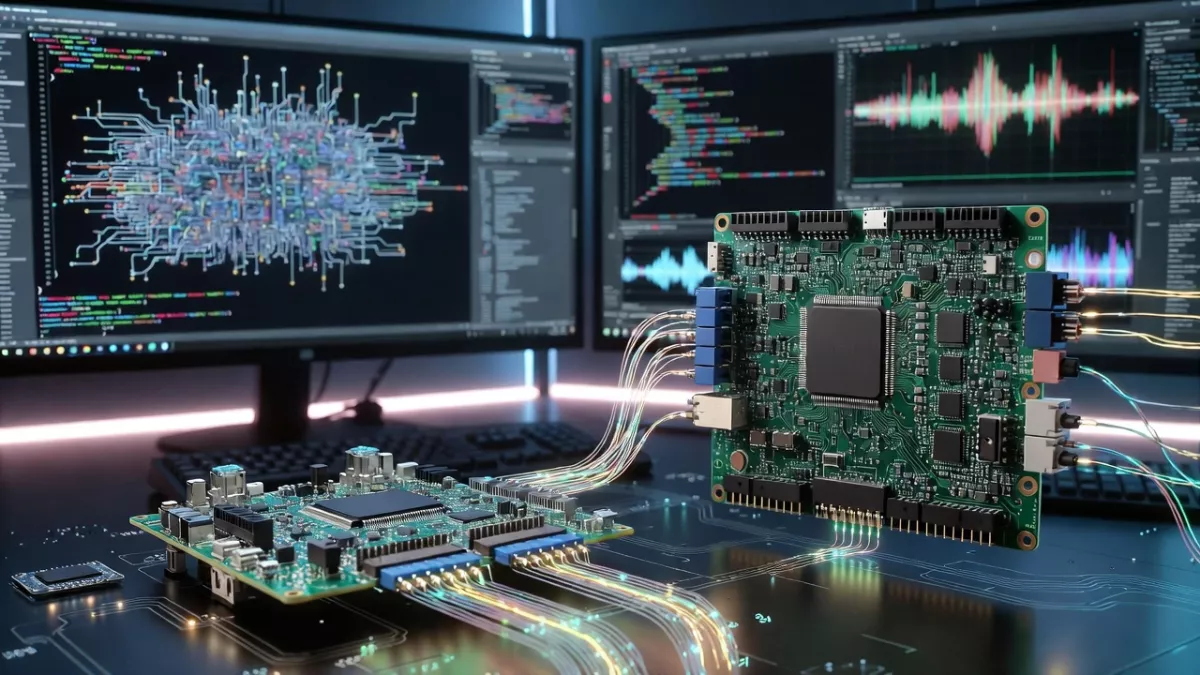
Master Advanced Automotive & Embedded Audio with expert insights on Yocto Linux integration, ALSA driver development, low-latency design, multi-zone audio, and troubleshooting. Prepare for senior-level projects and interviews with practical tips and best practices.
Audio issues on Linux systems can range from silent playback, distorted sound, device detection failures, XRUNs, latency problems, to driver/kernel misconfigurations. As an embedded audio engineer, being systematic in your approach will separate you from others in interviews and in practice.
Let’s walk through everything you need to know in depth from device enumeration to low‑level hardware verification.
Audio debugging Questions
1. Audio Plays But No Sound : A Step‑by‑Step Debugging Approach
Silent audio despite a successful playback command is one of the most common interview and real‑world problems. The key is to isolate where the audio pipeline is failing: user space → middleware → kernel → hardware.
1.1 Step 1 — Confirm the Playback Path
- Does the playback even reach the audio subsystem?
- Use verbose commands to confirm:
aplay -vvv myfile.wav paplay --verbose myfile.wavThis shows which device is selected and what parameters are negotiated.
1.2 Step 2 — Identify Which Audio System is in Use
Linux may have:
- ALSA (Advanced Linux Sound Architecture)
- PulseAudio
- PipeWire (in newer distros, replacing PulseAudio)
Determine what’s running:
ps aux | grep -E "pulseaudio|pipewire|alsa"
1.3 Step 3 — Check Device Availability
If the device isn’t present, sound will be silent:
aplay -l
Expect output listing cards and devices.
1.4 Step 4 — Check Mixer Levels
Common cause of silence is a muted or zero‑gain mixer:
alsamixer
Verify the playback volume and unmute with M.
1.5 Step 5 — Bypass Middleware
PulseAudio or PipeWire can mask problems. Bypass them:
pasuspender -- aplay test.wav
If it works here, the issue is in PulseAudio/PipeWire.
1.6 Step 6 — Inspect Kernel Logs
Device detection, driver initialization issues, and firmware errors are visible in dmesg:
dmesg | grep -i audio
1.7 Step 7 — Try Another Output
If using headphones, try speakers; if HDMI, try analog; this helps detect routing issues.
2. How to Check Available Audio Devices in the System
Identifying audio hardware helps locate where the problem resides.
2.1 Using ALSA Tools
List cards and devices:
aplay -l   # Playback devices
arecord -l # Capture devices
Example output:
card 0: AudioPCI [HDA Intel], device 0: ALC887 Analog [ALC887 Analog]
2.2 Using cat /proc/asound/cards
A simple view of cards:
cat /proc/asound/cards
2.3 Using lspci and lsusb
For bus enumeration:
lspci | grep -i audio
lsusb | grep -i audio
2.4 PulseAudio & PipeWire Device Lists
For PulseAudio:
pactl list sinks
pactl list sources
For PipeWire:
pw-cli list-objects Node3. Difference Between aplay and paplay
Understanding the tools you use is critical.
| Command | Audio System | Use Case |
|---|---|---|
aplay | ALSA | Direct playback to ALSA devices |
paplay | PulseAudio | Playback via PulseAudio server |
3.1 When to Use aplay
- Debug raw ALSA problems
- Verify device PCM support
- Bypassing PulseAudio
Example
aplay -D hw:0,0 sound.wav
3.2 When to Use paplay
- Desktop systems with PulseAudio
- Routing via PulseAudio preferences
Example
paplay --device=alsa_output.pci-0000_00_1b.0.analog-stereo music.wav
3.3 Key Differences
aplaytalks directly to ALSA.paplaygoes through the PulseAudio server; if the server isn’t running, playback will fail.
4. How to Debug ALSA Issues
ALSA issues often involve PCM devices, mixer settings, or plugin configurations.
4.1 PCM Device Issue
4.1.1 List PCM Devices
aplay -L
Shows alias names like default, front, surround51.
4.1.2 Attempt Playback on Specific PCM
Try all devices to isolate:
aplay -D hw:0,0 test.wav
4.1.3 Check Sample Rates & Formats
Mismatch can cause silence:
aplay --dump-hw-params test.wav
4.2 Mixer Issues
- Unmuted channels
- Correct output path (headphones vs speakers)
Usealsamixer:
alsamixer -c 0
Navigate with left/right, use M to toggle mute.
4.3 ALSA Plugin Problems
ALSA uses plugins like dmix/dshare for sharing device access.
Check default config:
cat /etc/asound.conf ~/.asoundrc
Common mistake: missing or misconfigured dmix block.
Example dmix:
pcm.dmixed {
    type dmix
    ipc_key 1024
    slave {
        pcm "hw:0,0"
        rate 44100
    }
}
4.4 Dump ALSA State
amixer contents
Helpful for interviews; shows all controls.
5. How to Debug PulseAudio Issues
PulseAudio adds complexity — a server with sinks (outputs), sources (inputs), clients, and contexts.
5.1 Confirm PulseAudio is Running
systemctl --user status pulseaudio
5.2 List Sinks (Playback Outputs)
pactl list sinks short
Example:
0 alsa_output.pci-... RUNNING
5.3 List Sources (Recording Inputs)
pactl list sources short
5.4 Check Client List
pactl list clients
Clients sending audio to PulseAudio.
5.5 Inspect Sink Inputs
Displays which audio streams go to which sink:
pactl list sink-inputs
5.6 Restart PulseAudio
Often solves routing glitches:
pulseaudio -k
pulseaudio --start
5.7 Volume and Mute
PulseAudio mixers are separate from ALSA:
pavucontrol
5.8 Look at PulseAudio Logs
Increase verbosity:
pulseaudio -k
pulseaudio --verbose
6. How to Debug Kernel Audio Drivers
For embedded systems, kernel and drivers are crucial.
6.1 Confirm the Driver is Loaded
lsmod | grep snd
6.2 Check dmesg Logs after Probe
dmesg | tail -n 50
Look for:
- Device probing
- Firmware loading
- Driver errors
6.3 Enable Dynamic Debug
For deeper insight into driver internals:
echo 'module snd_soc_* +p' > /sys/kernel/debug/dynamic_debug/control
Then reproduce the behavior and review logs.
6.4 Watch for Errors
Look for:
Failed to load firmwareProbe failedCodec not found
6.5 Validate Device Tree / ACPI
For SoC platforms:
- Ensure correct sound card nodes
- Clock and pinctrl settings
7. How to Check Codec Registers and Verify Codec Configurations
Hardware codecs (often over I2C) have registers controlling paths, volumes, clocking.
7.1 Identifying the Codec
Typically read via I2C:
i2cdetect -l
7.2 Reading/Writing Registers
Use i2cget/i2cset:
i2cget -y 1 0x1a 0x02
Where:
1= bus number0x1a= device address0x02= register
7.3 Datasheet Reference
Match register values to expected defaults:
- Clocking mode
- Interface format (I2S, TDM)
- Output enable bits
7.4 Verify Codec Clock Configuration
If codec expects different master/slave or sample rate:
- Wrong clock = no sound
7.5 Log Codec Initialization in Kernel
Add debug prints to driver:
dev_info(component->dev, "Register 0x%02x = 0x%02x\n", reg, val);
8. How to Verify I2S/TDM Signals Using an Oscilloscope or Logic Analyzer
For embedded systems, digital audio interface integrity is critical.
8.1 I2S Basics
- WS (Word Select): Left/Right frame
- SCK/Bit clock
- SD (Serial Data)
8.2 What to Check on an Oscilloscope
- Clock presence
- Is SCK toggling?
- Correct polarity
- WS switches at frame boundaries
- Data transitions
- Data valid on correct clock edge
8.3 Logic Analyzer Setup
Configure digital channels for:
- Bit clock
- Word clock
- Data lines
Capture and decode using tools (e.g., Sigrok, Saleae software).
8.4 TDM Verification
More lanes; ensure:
- Correct time slots
- Frame sync
8.5 Common Issues
- Clock not enabled
- Incorrect pin mux
- Noise at the interface
9. How to Debug XRUN (Buffer Overrun/Underrun) Issues
XRUNs are common in ALSA/ASoC; they indicate the DSP or CPU couldn’t keep up with data.
9.1 Understanding XRUN
- Overrun: Producer too fast
- Underrun: Consumer starved of data
Triggered when buffer pointers exceed limits.
9.2 Symptoms
- Pops/clicks
- Silence
- Repeated XRUN messages
9.3 Check ALSA Debug
Enable verbose ALSA:
echo 1 > /proc/asound/card0/pcm0p/sub0/status
9.4 Adjust Buffer Parameters
Increase periods or buffer size:
aplay -D hw:0,0 --buffer-size=8192 --period-size=1024 test.wav
9.5 System Load
High CPU utilization can starve audio:
top
9.6 Real‑Time Scheduling
Grant real‑time priority to audio threads:
chrt -f 50 myaudioapp
10. How to Debug Latency Issues in the Audio Pipeline
Latency can manifest as delayed playback or recording.
10.1 Identify Path
Latency can come from:
- ALSA buffer sizes
- PulseAudio buffering
- DSP processing
10.2 Measure Latency
Use loopback tests with timestamped audio.
10.3 Reduce Buffer Sizes
Smaller buffers = lower latency (risk XRUNs):
aplay -D hw:0,0 --period-size=256 --buffer-size=1024 file.wav
10.4 Check Middleware
PulseAudio has defaults that add latency:
pactl list | grep latency
10.5 Check CPU and Power Settings
CPU frequency scaling can introduce jitter.
11. Practical Examples & Commands
Here are some practical snippets you should know.
11.1 Check All Devices
aplay -l && arecord -l
11.2 ALSA Mixer
alsamixer -c 0
11.3 PulseAudio Reset
pulseaudio -k && pulseaudio --start
11.4 Read Kernel Logs
dmesg | grep -i snd
11.5 Codec Register Check
i2cget -y 1 0x1a 0x0f12. Tips, Common Pitfalls & Best Practices
12.1 Tips
- Always capture logs at the point of failure
- Use verbose modes
- Compare known‑good systems
12.2 Common Pitfalls
- Ignoring mixer mute states
- Assuming PulseAudio equals ALSA
- Overlooking clocking mismatches
12.3 Best Practices
- Document your environment
- Automate capture of ALSA and PulseAudio states
- Apply incremental changes
Mastering Audio Integration in Yocto
Audio integration in embedded Linux using Yocto is a topic that comes up frequently in interviews for embedded software roles, particularly those involving multimedia, automotive, and IoT systems. To succeed, you need a thorough understanding of ALSA, PulseAudio, systemd integration, device trees, kernel drivers, and Yocto recipe management. Below, I explain these concepts step by step with practical examples and common pitfalls.
1. How ALSA is Enabled in Yocto
ALSA (Advanced Linux Sound Architecture) is the primary framework for audio in Linux. In Yocto, enabling ALSA involves selecting the correct layers, including recipes, and configuring the kernel.
Step 1: Include the Right Layers
Yocto uses layers to organize recipes. For ALSA, the important layers are:
meta-oe(from OpenEmbedded): contains ALSA utilities and libraries.meta-alsa(optional, sometimes included inmeta-openembedded): contains ALSA drivers, utilities, and configuration examples.- Your BSP layer (
meta-myboard): contains board-specific ALSA configurations and kernel drivers.
Example:
bitbake-layers add-layer ../meta-openembedded/meta-oe
bitbake-layers add-layer ../meta-myboard
Step 2: Include ALSA Packages in Your Image
To include ALSA support in your Yocto image, you need to add the relevant packages in your IMAGE_INSTALL:
IMAGE_INSTALL += "alsa-utils alsa-lib"
alsa-lib: Core ALSA library.alsa-utils: Command-line utilities likeaplay,arecord, andalsamixer.
These recipes reside in meta-oe or meta-openembedded/meta-oe.
Step 3: Configure Kernel for ALSA
The kernel must include ALSA support for your platform. This involves setting the following options:
- Sound subsystem:
Device Drivers → Sound card support - ALSA drivers:
Advanced Linux Sound Architecture → PCI/SoC/USB sound devices - Codec drivers: Enable support for your audio codec chip (e.g.,
CODEC_AK4558).
If your driver is out-of-tree, you may need to include it as a module via Yocto:
IMAGE_INSTALL += "my-alsa-codec-module"
Pitfall: Forgetting to enable the SoC-specific I2S/TDM interface in the kernel can result in ALSA being present but no sound output.
Step 4: Configure ALSA Defaults
Sometimes, you may need a .asoundrc or /etc/asound.conf file to define default playback/capture devices, especially if your board has multiple audio interfaces. This can be done in Yocto via a recipe or ROOTFS_OVERLAY.
Interview Tip: Be ready to explain the difference between user-space ALSA configuration (.asoundrc) and kernel-level device support.
2. How PulseAudio is Added in Yocto
PulseAudio is a user-space sound server that runs on top of ALSA, providing mixing, per-application volume control, and network audio.
Step 1: Include the Correct Layer
PulseAudio recipes are generally available in meta-oe:
bitbake-layers add-layer ../meta-openembedded/meta-oe
Step 2: Add PulseAudio Packages
Include the main server and utilities in your image:
IMAGE_INSTALL += "pulseaudio pulseaudio-utils pulseaudio-module-alsa"
pulseaudio: Core daemon.pulseaudio-utils: CLI tools likepactlandpacmd.pulseaudio-module-alsa: Allows PulseAudio to interface with ALSA.
Step 3: Configure ALSA-PulseAudio Integration
PulseAudio requires ALSA devices to be available. The pulseaudio-module-alsa provides a virtual ALSA device:
- Ensure
alsa-libis included before PulseAudio. - Verify module loading order via systemd (PulseAudio must start after ALSA devices are initialized).
Step 4: Run PulseAudio as a System Service
For embedded devices, you often run PulseAudio in system mode:
- Create a systemd service file (or use the one in the recipe).
- Ensure it depends on
alsa-restore.serviceto restore ALSA mixer state.
Common Pitfalls:
- Forgetting
pulseaudio-module-alsaresults in “No ALSA devices” error. - PulseAudio in system mode requires proper permissions (
pulseuser/group).
Interview Tip: Understand when PulseAudio is required (e.g., multi-zone audio, network streaming) versus when bare ALSA is sufficient (low-latency playback in automotive systems).
3. Difference Between IMAGE_INSTALL and DEPENDS
Understanding these two Yocto recipe directives is critical for interviews.
IMAGE_INSTALL
- Specifies runtime packages to include in the final image.
- Examples:
IMAGE_INSTALL += "alsa-utils my-audio-app" - Only affects the root filesystem; does not affect build-time dependencies.
DEPENDS
- Specifies build-time dependencies that must be built first.
- Examples:
DEPENDS = "alsa-lib" - Ensures that libraries or modules are available for compilation but does not install them automatically in the final image.
Example in a custom audio app recipe:
DEPENDS = "alsa-lib pulseaudio"
RDEPENDS_${PN} = "alsa-utils pulseaudio-module-alsa"
DEPENDS: ensures your app can compile against ALSA headers.RDEPENDS: ensures necessary packages are installed in the final root filesystem.
Interview Tip: Always differentiate build-time versus runtime dependencies; interviewers often ask this in Yocto contexts.
4. How Systemd Services Are Enabled in Yocto
Embedded systems use systemd to manage service initialization. For audio services, enabling them properly ensures deterministic startup.
Step 1: Create a Systemd Service File
Example for an audio service:
[Unit]
Description=My Custom Audio Service
After=alsa-restore.service sound.target

[Service]
Type=simple
ExecStart=/usr/bin/my-audio-app
Restart=always

[Install]
WantedBy=multi-user.target
Step 2: Include in a Recipe
If your audio app is packaged as a Yocto recipe:
inherit systemd

SYSTEMD_SERVICE_${PN} = "my-audio-service.service"
SYSTEMD_AUTO_ENABLE = "enable"
inherit systemdallows Yocto to handle enabling and installing the service.SYSTEMD_AUTO_ENABLEensures the service starts automatically on boot.
Step 3: Build and Deploy
When building your image:
bitbake core-image-minimal
The service will be installed in /etc/systemd/system/ and enabled for boot.
Common Pitfalls:
- Forgetting
After=alsa-restore.servicecan cause your audio service to start before the ALSA devices are ready. - Using
Type=forkingincorrectly when your app doesn’t daemonize.
Interview Tip: Be able to explain WantedBy, After, and Type in systemd in the context of embedded audio initialization.
5. How Audio Services Start at Boot
The startup sequence is critical for audio systems:
- Kernel initialization: Initializes drivers for I2S/TDM and audio codecs.
- ALSA device creation: Kernel modules expose
/dev/snd/*devices. - ALSA restore:
alsa-restore.serviceloads mixer state from/var/lib/alsa/asound.state. - PulseAudio (optional): Starts after ALSA is ready.
- Custom audio services: Start via systemd, usually depending on
sound.target.
Practical Insight
- For deterministic startup, ensure kernel modules and device tree are correct.
- Use
systemctl list-dependenciesto verify the order of services. - For extremely low-latency audio (e.g., automotive infotainment), sometimes ALSA apps start before PulseAudio or without it entirely.
Interview Tip: Describe how you debug boot-time audio issues using journalctl, aplay -l, and lsmod.
6. How Device Tree Affects Audio
The device tree (DT) defines hardware for the Linux kernel. Audio is heavily dependent on DT.
Step 1: Define Codec Node
Example DT snippet for a WM8960 codec:
&i2c1 {
    wm8960: codec@1a {
        compatible = "wlf,wm8960";
        reg = <0x1a>;
        #sound-dai-cells = <0>;
    };
};

&i2s1 {
    status = "okay";
    pinctrl-names = "default";
    pinctrl-0 = <&i2s1_pins>;
    codec-handle = <&wm8960>;
};
compatible: identifies the codec driver.reg: I2C address.#sound-dai-cells: defines DAI cells for ALSA.
Step 2: Connect DAI to CPU
The cpu node for I2S/TDM must reference the codec:
sound {
    compatible = "simple-audio-card";
    simple-audio-card,name = "MyAudioCard";
    simple-audio-card,format = "i2s";
    simple-audio-card,cpu {
        sound-dai = <&i2s1>;
    };
    simple-audio-card,codec {
        sound-dai = <&wm8960>;
    };
};
Pitfalls:
- Incorrect clock settings in DT can result in
-EINVALerrors in ALSA. - Missing or misconfigured
#sound-dai-cellsprevents the driver from binding.
Interview Tip: Be ready to explain simple-audio-card and how it maps CPU DAI to codec DAI.
7. How to Enable Codec Driver in Kernel
Audio codecs often require kernel modules.
Step 1: Enable in Kernel Config
Use menuconfig:
Device Drivers → Sound card support → Advanced Linux Sound Architecture → SoC Audio support
Enable your codec:
- Built-in:
<*> - Module:
<M>
Step 2: Yocto Kernel Recipe
If using Yocto:
KERNEL_FEATURES += "audio"
Or, patch your BSP layer:
SRC_URI += "file://my_codec_defconfig"
Then:
bitbake virtual/kernel
Step 3: Load Module
- Built-in: automatically initialized at boot.
- Module: load via
/etc/modules-load.d/or systemd.service.
Pitfalls:
- Forgetting dependent drivers (I2S, clock framework) results in the codec driver failing.
- Not enabling interrupts in kernel can prevent DMA operation.
8. How to Add a Custom Audio Application Recipe
For embedding your own audio app:
Step 1: Create a Recipe File
meta-myboard/recipes-audio/my-audio-app/my-audio-app.bb:
DESCRIPTION = "Custom Audio Application"
LICENSE = "CLOSED"
SRC_URI = "file://my-audio-app.tar.gz"

DEPENDS = "alsa-lib pulseaudio"
RDEPENDS_${PN} = "alsa-utils pulseaudio-module-alsa"

S = "${WORKDIR}/my-audio-app"

do_install() {
    install -d ${D}${bindir}
    install -m 0755 my-audio-app ${D}${bindir}/
}
Step 2: Install Service File
Include systemd service in the recipe:
FILES_${PN} += "/lib/systemd/system/my-audio-service.service"
SYSTEMD_SERVICE_${PN} = "my-audio-service.service"
SYSTEMD_AUTO_ENABLE = "enable"
Step 3: Add Recipe to Image
IMAGE_INSTALL += "my-audio-app"
Practical Tips:
- Ensure
DEPENDSincludes all compile-time libraries. - Use
RDEPENDSfor runtime packages your app needs. - Test locally with
bitbake -c devshell my-audio-appbefore building the image.
Interview Tip: Be prepared to explain do_install, ${D}, and ${bindir}—common Yocto interview questions.
Practical Best Practices and Pitfalls
- Debugging Audio Issues:
aplay -lshows ALSA devices.aplay test.wav -D hw:0,0tests direct hardware playback.journalctl -u my-audio-servicefor service logs.
- Common Pitfalls:
- Not enabling clocks in DT results in silent playback.
- PulseAudio must start after ALSA devices are ready.
- Kernel modules for codecs must match the DT configuration.
- Interview Tips:
- Be ready to explain end-to-end initialization: kernel → ALSA → PulseAudio → user app.
- Know the difference between compile-time (
DEPENDS) and runtime (RDEPENDS/IMAGE_INSTALL) dependencies. - Demonstrate knowledge of DTS binding, systemd sequencing, and module loading.
Summary Table for Interview Quick Recall
| Topic | Key Points |
|---|---|
| ALSA in Yocto | meta-oe/meta-alsa layers, alsa-lib, alsa-utils, kernel support, DT binding |
| PulseAudio in Yocto | meta-oe, pulseaudio + pulseaudio-module-alsa, depends on ALSA |
| IMAGE_INSTALL vs DEPENDS | IMAGE_INSTALL → runtime packages; DEPENDS → build-time dependencies |
| Systemd Services | service files, inherit systemd, enable via SYSTEMD_AUTO_ENABLE |
| Audio Service Boot Sequence | kernel modules → ALSA devices → PulseAudio → custom audio apps |
| Device Tree | simple-audio-card, codec & CPU DAI nodes, clocks, I2S/TDM |
| Codec Driver | Kconfig options, built-in vs module, dependency on clocks/I2S |
| Custom Audio Recipe | .bb file, DEPENDS & RDEPENDS, do_install, systemd integration |
PROJECT & SENIOR-LEVEL QUESTIONS
1. Explaining the Linux Audio Project: Architecture, Goals, and Overall Design
In my Linux audio project, the primary goal was to develop a robust, flexible, and low-latency audio playback and control system for embedded devices, like infotainment systems in automotive or consumer audio products. The requirements were:
- Support for multiple audio outputs (internal speakers, external USB or Bluetooth devices).
- Smooth volume control and audio transitions.
- Fault-tolerance for hotplug events and service crashes.
- Scalable design for future integration with advanced features like multi-zone audio, DSP effects, and real-time processing.
Architecture Overview:
I designed the system in three layers:
- Application Layer:
- Handles user interactions, playback requests, and volume control.
- Provides APIs for other software components to request audio playback.
- Implements features like fade-in/fade-out, device selection, and error recovery.
- Audio Service Layer:
- A dedicated service responsible for managing audio devices and streams.
- Interfaces with the audio backend (PulseAudio or ALSA).
- Provides abstraction to handle hardware-specific quirks and hotplug events.
- Audio Backend Layer:
- Uses PulseAudio as the main audio server.
- Manages PCM devices, mixing multiple streams, and routing audio to the correct output.
- Provides low-level access to ALSA for cases where hardware-level control is required.
Overall Design Decisions:
- Modularity: Separate application logic from audio service to ensure maintainability.
- Event-driven: All device events, volume changes, and playback requests are handled asynchronously to reduce latency and avoid blocking the main application.
- Stateful management: Each device has a state machine—
available,playing,muted,removed—to manage audio flow gracefully.
Example:
In one of my automotive infotainment projects, we had internal dashboard speakers and external Bluetooth audio. The service would automatically route media to Bluetooth when connected, but fallback to internal speakers if the device was removed. This required robust device enumeration and real-time event handling.
2. Why PulseAudio Over Pure ALSA
Choosing PulseAudio over direct ALSA access is often debated in embedded systems. Here’s my reasoning:
Advantages of PulseAudio:
- Hardware abstraction: PulseAudio handles differences in multiple sound cards and output devices. For example, a USB audio dongle and onboard I2S codec can have completely different ALSA device names. PulseAudio abstracts this for the application.
- Mixing multiple streams: ALSA doesn’t provide software mixing by default. PulseAudio can mix multiple streams in software, avoiding the need for custom mixer code.
- Network transparency: Although not always used in embedded, PulseAudio allows streaming to remote devices if needed.
- Dynamic device management: PulseAudio supports hotplug events natively, allowing seamless switching between devices.
Trade-offs:
- Latency: PulseAudio adds a small overhead due to software mixing and buffering. For strict real-time applications, this might be a concern.
- Complexity: Integrating with PulseAudio requires understanding its asynchronous API and callback model, which is more complex than ALSA’s blocking PCM interface.
Integration Considerations:
- When latency is critical (e.g., voice prompts in automotive), I reduce PulseAudio buffer sizes and ensure real-time threads handle playback.
- For hardware effects like equalization or DSP offloading, we sometimes bypass PulseAudio and talk directly to ALSA.
Practical Example:
In a music playback feature, PulseAudio allowed us to mix navigation prompts over background music without tearing or glitches—something that would have required significant custom code using pure ALSA.
3. How the App Selects the Speaker
Selecting the correct output device involves enumeration, priority rules, and fallback mechanisms.
Device Enumeration:
- PulseAudio provides a list of available sinks (
pa_context_get_sink_info_list). - ALSA provides devices as
hw:X,Yorplughw:X,Y.
Selection Strategy:
- Priority-based:
- User-preferred device (e.g., Bluetooth headphones).
- Internal speaker.
- Default ALSA device if nothing else is available.
- Fallback Mechanisms:
- If a Bluetooth device disconnects, the system immediately switches to the next available device without interrupting playback.
- State machine ensures the application is aware of the current device and handles re-routing smoothly.
Practical Example:
During development, we discovered that some USB audio devices would enumerate slowly after hotplug, causing initial playback to fail. To handle this, we implemented a short retry mechanism before falling back to the default device.
Pitfall to Avoid:
Never assume hw:0,0 is always the correct device—embedded systems often have multiple sound cards. Always enumerate dynamically.
4. Volume and Gain Handling
Volume management is split into software control and hardware control.
Software Control:
- Implemented via PulseAudio APIs (
pa_context_set_sink_volume_by_index) or ALSA mixer APIs. - Allows smooth volume adjustments, fade-in/fade-out, and non-linear scaling to match human perception (logarithmic volume curve).
Hardware Control:
- Some audio codecs provide hardware gain control through I2C or SPI registers.
- Hardware control is preferable when software volume scaling might degrade audio quality.
Edge Cases:
- Avoid clipping when combining software and hardware volume changes.
- Handle min/max limits to prevent user from exceeding hardware specifications.
- Ensure volume state persists across service restarts.
Example:
In a car infotainment project, navigation prompts were mixed over music with a temporary gain increase. We used hardware mute/unmute on the music codec while adjusting software gain for the prompt to ensure no distortion.
5. Fade-In / Fade-Out Implementation
Smooth transitions enhance user experience and prevent audio artifacts.
Algorithm:
- Calculate step size:
(target_volume - current_volume) / num_steps. - Apply the volume increment at fixed intervals using a timer or dedicated thread.
- For linear fade, use equal steps; for perceptual fade, apply a logarithmic curve.
Implementation:
- Software Timer: A high-resolution timer triggers volume adjustment callbacks.
- Threaded Approach: Dedicated low-priority thread updates volume to avoid blocking playback threads.
Practical Consideration:
- Avoid too small intervals which increase CPU load.
- Avoid too large intervals which make the fade abrupt.
- Combine fade-out of one stream and fade-in of another to crossfade.
Example:
For a media player, when switching tracks, the old track faded out over 500ms while the new track faded in, creating a smooth listening experience.
6. Handling Device Removal (Hotplug)
Device removal is common in embedded and automotive environments. Handling it gracefully is critical.
Hotplug Detection:
- PulseAudio emits
sink_input_removedorsink_removedevents. - ALSA udev events can also be monitored for low-level detection.
State Management:
- Maintain a state table of active devices and streams.
- On removal:
- Pause or stop the affected stream.
- Re-route to the next available device.
- Notify the application layer for UI updates.
Recovery:
- Automatically resume playback if the device returns.
- Implement a retry mechanism for slow-enumerating devices.
Pitfall:
Never assume the device is permanently removed; USB devices may reconnect quickly. Improper handling leads to crashes or silent audio failures.
7. Handling Audio Service Restart
Audio services may crash or require updates. The system must be resilient.
Graceful Shutdown:
- Stop all active streams and save playback state.
- Disconnect from PulseAudio context without abrupt termination.
Reconnection Strategy:
- On restart, enumerate devices again.
- Restore previous playback session: device, volume, and mute state.
- Notify application layer and UI for consistency.
User Experience Considerations:
- Avoid long interruptions; a few milliseconds of pause is acceptable, but abrupt silence is not.
- Use background threads for reconnection to avoid blocking UI.
Example:
During development, a bug in PulseAudio caused service crashes. Implementing automatic reconnection with state restoration eliminated user complaints.
8. Making the System Production-Ready
Production readiness requires robustness, scalability, and maintainability.
Best Practices:
- Robustness:
- Handle all error paths, including device failures, buffer underruns, and invalid configuration.
- Use watchdog timers to detect and restart stuck threads.
- Scalability:
- Modular design allows adding new outputs, codecs, or audio effects.
- Support multiple concurrent streams without significant CPU overhead.
- Logging & Diagnostics:
- Maintain structured logs for device events, stream errors, and latency metrics.
- Expose diagnostics through APIs or web interfaces.
- Maintainability:
- Separate hardware-specific code from application logic.
- Use standardized APIs (PulseAudio, ALSA) for portability.
- Include unit tests for all critical modules.
Example:
In one embedded system, logging audio routing and buffer states helped identify subtle latency issues caused by multiple clients writing to the same sink.
9. Porting to QNX
Porting a Linux audio system to QNX requires understanding differences in the audio stack and real-time constraints.
Key Differences:
- QNX uses audio framework based on Photon / Audio HAL, not PulseAudio.
- ALSA-like low-level drivers exist but are more deterministic.
- Real-time threads and strict scheduling must be respected.
Porting Strategy:
- Replace PulseAudio calls with QNX audio service APIs.
- Implement sink/device management using QNX audio channels.
- Reimplement fade-in/fade-out and volume control with real-time safe algorithms.
- Adjust thread priorities to meet RT constraints.
Example:
We ported an infotainment audio system from Linux to QNX. Using AudioSession objects and audio_dev_ctl commands, we were able to replicate device enumeration and volume control in a real-time safe manner.
10. Making Audio Real-Time Safe
Real-time safety is critical in embedded systems, especially for automotive.
Strategies:
- Thread Priorities: Playback threads should have higher priority than UI threads.
- Locking Strategies: Avoid mutexes in critical paths; use lock-free queues or spinlocks for audio buffers.
- Avoid Blocking Calls: File I/O, network requests, or logging should be offloaded to lower-priority threads.
- Pre-allocate Buffers: Prevent dynamic memory allocation in the audio path.
Pitfall:
Improper locking or priority inversion can lead to audio glitches even with high-end hardware.
11. Reducing CPU Usage
Efficient CPU usage ensures smooth playback and battery efficiency.
Techniques:
- Buffer Management: Use double or triple buffering to prevent frequent context switches.
- Efficient Mixing: Use SIMD instructions or DSP offload for software mixing.
- Avoid Busy Loops: Use event-driven playback instead of polling for PCM availability.
- Dynamic Load Adjustment: Lower sample rate or processing quality if CPU usage spikes.
Example:
Switching from a busy-loop ALSA read/write to an event-driven poll() mechanism reduced CPU usage by ~20% in a consumer audio device.
12. Automatic Audio Testing
Testing audio systems is non-trivial due to real-time and hardware dependencies.
Unit Testing:
- Mock ALSA or PulseAudio APIs to test volume, fade-in/out, and routing logic.
- Test state machines for device handling and hotplug events.
Integration Testing:
- Automated tests with loopback devices or virtual sinks.
- Validate audio quality, latency, and error recovery.
Continuous Testing:
- Use CI pipelines to run audio tests on hardware-in-the-loop (HIL) setups.
- Include automated logging, error capture, and regression tests.
Example:
We created a CI pipeline where every build triggered audio playback tests via virtual ALSA sinks, verifying correct routing, fade transitions, and volume limits.
FAQ: Project & Senior-Level Questions in Yocto, Embedded Audio, Debugging & Troubleshooting
1. What are common senior-level project questions in embedded audio systems?
Senior-level project questions usually focus on designing, optimizing, and debugging complex audio pipelines. Examples include:
- How do you design low-latency audio systems for embedded Linux?
- How would you integrate an ALSA-based codec driver in a custom board?
- How do you handle multi-zone audio in automotive systems?
- How do you implement fail-safe audio paths and ensure audio deterministic behavior?
Tip: Interviewers look for your ability to link hardware, software, and real-time constraints efficiently.
2. How do you integrate audio drivers using Yocto for embedded Linux?
Integration steps include:
- Layer setup: Add meta-layers for your SoC, audio codec, and drivers.
- Kernel configuration: Enable ALSA, ASoC, and relevant drivers using
menuconfig. - Recipe creation: Write recipes for codec driver, machine driver, and audio service binaries.
- Build & deploy: Compile the image and test audio functionality on target hardware.
Best Practices: Use BitBake logging for build debugging, and always validate .dtb device tree settings for audio peripherals.
3. Why is Yocto important for embedded audio development?
Yocto allows:
- Custom Linux images with only required packages (reducing memory footprint).
- Seamless integration of audio middleware (ALSA, PulseAudio, PipeWire).
- Reproducible builds, critical for production-level embedded audio systems.
4. How do you debug audio issues in Linux-based embedded systems?
Common debugging steps:
- Check audio devices: Use
aplay -lorarecord -l. - Verify kernel logs:
dmesg | grep audiofor driver errors. - Test driver functionality: Run ALSA loopback tests.
- Monitor PCM streams: Use
alsalooporarecord | aplay. - Check resource conflicts: Ensure DMA channels and IRQs are not shared incorrectly.
Tip: Always test with different sample rates and device removal scenarios.
5. How do you handle device hotplug and audio service restart?
- Use udev rules or systemd units to detect audio device insertion/removal.
- Implement auto-reconnect logic in your audio service.
- Ensure thread-safe handling of mixer, PCM, and pipeline states.
Example: Restart PulseAudio gracefully without dropping ongoing playback using pulseaudio --kill && pulseaudio --start.
6. What are key performance considerations for embedded audio?
- CPU usage: Optimize DMA transfer and avoid polling loops.
- Latency: Use real-time scheduling (
SCHED_FIFO) for critical threads. - Power management: Suspend audio peripherals intelligently without losing state.
- Memory: Allocate buffers statically for deterministic performance.
7. What are common pitfalls in embedded audio projects?
- Incorrect buffer size causing underruns or overruns.
- Ignoring endianness differences between codec and CPU.
- Not validating clock and sample rate synchronization, leading to glitches.
- Overlooking multi-zone audio and fail-safe paths in automotive or industrial systems.
8. How do you port Linux audio services to QNX?
- Map ALSA concepts to QNX audio framework, including PCM and mixer handling.
- Adapt device drivers using QNX resource managers.
- Implement audio pipelines with real-time threads to maintain deterministic behavior.
- Validate using loopback and external audio hardware for timing and synchronization.
9. How do you implement debugging and troubleshooting in embedded audio projects?
- Use hardware tools: Oscilloscopes, logic analyzers, and multimeters to validate audio signals.
- Log ALSA/driver events with
snd_pcm_open,snd_pcm_writeitracepoints. - Analyze kernel dumps and stack traces when audio services crash.
- Test under edge cases: device removal, high CPU load, multiple streams.
10. How can I prepare for senior-level embedded audio interview questions?
- Master ALSA, ASoC, and PulseAudio internals.
- Learn Yocto layer management, kernel configs, and recipes.
- Practice debugging real hardware using DMA, IRQ, and buffer analysis.
- Be ready to discuss low-latency, fail-safe, and multi-zone audio design.
Read More: Embedded Audio Interview Questions & Answers | Set 1
Read More : Embedded Audio Interview Questions & Answers | Set 2
Read More : Top Embedded Audio Questions You Must Master Before Any Interview
Read More : What is Audio and How Sound Works in Digital and Analog Systems
Read More : Digital Audio Interface Hardware
Read More : Advanced Linux Sound Architecture for Audio and MIDI on Linux
Read More : What is QNX Audio
Read more : Complete guide of ALSA
Read More : 50 Proven ALSA Interview Questions
Read More : ALSA Audio Interview Questions & Answers
Read More : ALSA Audio Interview Questions & Answers SET 2

Mr. Raj Kumar is a highly experienced Technical Content Engineer with 7 years of dedicated expertise in the intricate field of embedded systems. At Embedded Prep, Raj is at the forefront of creating and curating high-quality technical content designed to educate and empower aspiring and seasoned professionals in the embedded domain.
Throughout his career, Raj has honed a unique skill set that bridges the gap between deep technical understanding and effective communication. His work encompasses a wide range of educational materials, including in-depth tutorials, practical guides, course modules, and insightful articles focused on embedded hardware and software solutions. He possesses a strong grasp of embedded architectures, microcontrollers, real-time operating systems (RTOS), firmware development, and various communication protocols relevant to the embedded industry.
Raj is adept at collaborating closely with subject matter experts, engineers, and instructional designers to ensure the accuracy, completeness, and pedagogical effectiveness of the content. His meticulous attention to detail and commitment to clarity are instrumental in transforming complex embedded concepts into easily digestible and engaging learning experiences. At Embedded Prep, he plays a crucial role in building a robust knowledge base that helps learners master the complexities of embedded technologies.