Tag: embedded audio systems

  • Advanced Automotive & Embedded Audio Interview Questions | Crack Expert-Level Audio Interviews (2026)

    Master Advanced Automotive & Embedded Audio with expert insights on Yocto Linux integration, ALSA driver development, low-latency design, multi-zone audio, and troubleshooting. Prepare for senior-level projects and interviews with practical tips and best practices.

    Audio issues on Linux systems can range from silent playback, distorted sound, device detection failures, XRUNs, latency problems, to driver/kernel misconfigurations. As an embedded audio engineer, being systematic in your approach will separate you from others in interviews and in practice.

    Let’s walk through everything you need to know in depth from device enumeration to low‑level hardware verification.

    Silent audio despite a successful playback command is one of the most common interview and real‑world problems. The key is to isolate where the audio pipeline is failing: user space → middleware → kernel → hardware.

    1.1 Step 1 — Confirm the Playback Path

    • Does the playback even reach the audio subsystem?
    • Use verbose commands to confirm:aplay -vvv myfile.wav paplay --verbose myfile.wav This shows which device is selected and what parameters are negotiated.

    1.2 Step 2 — Identify Which Audio System is in Use

    Linux may have:

    • ALSA (Advanced Linux Sound Architecture)
    • PulseAudio
    • PipeWire (in newer distros, replacing PulseAudio)

    Determine what’s running:

    ps aux | grep -E "pulseaudio|pipewire|alsa"
    

    1.3 Step 3 — Check Device Availability

    If the device isn’t present, sound will be silent:

    aplay -l
    

    Expect output listing cards and devices.

    1.4 Step 4 — Check Mixer Levels

    Common cause of silence is a muted or zero‑gain mixer:

    alsamixer
    

    Verify the playback volume and unmute with M.

    1.5 Step 5 — Bypass Middleware

    PulseAudio or PipeWire can mask problems. Bypass them:

    pasuspender -- aplay test.wav
    

    If it works here, the issue is in PulseAudio/PipeWire.

    1.6 Step 6 — Inspect Kernel Logs

    Device detection, driver initialization issues, and firmware errors are visible in dmesg:

    dmesg | grep -i audio
    

    1.7 Step 7 — Try Another Output

    If using headphones, try speakers; if HDMI, try analog; this helps detect routing issues.

    Identifying audio hardware helps locate where the problem resides.

    2.1 Using ALSA Tools

    List cards and devices:

    aplay -l   # Playback devices
    arecord -l # Capture devices
    

    Example output:

    card 0: AudioPCI [HDA Intel], device 0: ALC887 Analog [ALC887 Analog]
    

    2.2 Using cat /proc/asound/cards

    A simple view of cards:

    cat /proc/asound/cards
    

    2.3 Using lspci and lsusb

    For bus enumeration:

    lspci | grep -i audio
    lsusb | grep -i audio
    

    2.4 PulseAudio & PipeWire Device Lists

    For PulseAudio:

    pactl list sinks
    pactl list sources
    

    For PipeWire:

    pw-cli list-objects Node

    Understanding the tools you use is critical.

    CommandAudio SystemUse Case
    aplayALSADirect playback to ALSA devices
    paplayPulseAudioPlayback via PulseAudio server

    3.1 When to Use aplay

    • Debug raw ALSA problems
    • Verify device PCM support
    • Bypassing PulseAudio

    Example

    aplay -D hw:0,0 sound.wav
    

    3.2 When to Use paplay

    • Desktop systems with PulseAudio
    • Routing via PulseAudio preferences

    Example

    paplay --device=alsa_output.pci-0000_00_1b.0.analog-stereo music.wav
    

    3.3 Key Differences

    • aplay talks directly to ALSA.
    • paplay goes through the PulseAudio server; if the server isn’t running, playback will fail.

    ALSA issues often involve PCM devices, mixer settings, or plugin configurations.

    4.1 PCM Device Issue

    4.1.1 List PCM Devices

    aplay -L
    

    Shows alias names like default, front, surround51.

    4.1.2 Attempt Playback on Specific PCM

    Try all devices to isolate:

    aplay -D hw:0,0 test.wav
    

    4.1.3 Check Sample Rates & Formats

    Mismatch can cause silence:

    aplay --dump-hw-params test.wav
    

    4.2 Mixer Issues

    • Unmuted channels
    • Correct output path (headphones vs speakers)
      Use alsamixer:
    alsamixer -c 0
    

    Navigate with left/right, use M to toggle mute.

    4.3 ALSA Plugin Problems

    ALSA uses plugins like dmix/dshare for sharing device access.

    Check default config:

    cat /etc/asound.conf ~/.asoundrc
    

    Common mistake: missing or misconfigured dmix block.

    Example dmix:

    pcm.dmixed {
        type dmix
        ipc_key 1024
        slave {
            pcm "hw:0,0"
            rate 44100
        }
    }
    

    4.4 Dump ALSA State

    amixer contents
    

    Helpful for interviews; shows all controls.

    PulseAudio adds complexity — a server with sinks (outputs), sources (inputs), clients, and contexts.

    5.1 Confirm PulseAudio is Running

    systemctl --user status pulseaudio
    

    5.2 List Sinks (Playback Outputs)

    pactl list sinks short
    

    Example:

    0   alsa_output.pci-...   RUNNING
    

    5.3 List Sources (Recording Inputs)

    pactl list sources short
    

    5.4 Check Client List

    pactl list clients
    

    Clients sending audio to PulseAudio.

    5.5 Inspect Sink Inputs

    Displays which audio streams go to which sink:

    pactl list sink-inputs
    

    5.6 Restart PulseAudio

    Often solves routing glitches:

    pulseaudio -k
    pulseaudio --start
    

    5.7 Volume and Mute

    PulseAudio mixers are separate from ALSA:

    pavucontrol
    

    5.8 Look at PulseAudio Logs

    Increase verbosity:

    pulseaudio -k
    pulseaudio --verbose
    

    For embedded systems, kernel and drivers are crucial.

    6.1 Confirm the Driver is Loaded

    lsmod | grep snd
    

    6.2 Check dmesg Logs after Probe

    dmesg | tail -n 50
    

    Look for:

    • Device probing
    • Firmware loading
    • Driver errors

    6.3 Enable Dynamic Debug

    For deeper insight into driver internals:

    echo 'module snd_soc_* +p' > /sys/kernel/debug/dynamic_debug/control
    

    Then reproduce the behavior and review logs.

    6.4 Watch for Errors

    Look for:

    • Failed to load firmware
    • Probe failed
    • Codec not found

    6.5 Validate Device Tree / ACPI

    For SoC platforms:

    • Ensure correct sound card nodes
    • Clock and pinctrl settings

    Hardware codecs (often over I2C) have registers controlling paths, volumes, clocking.

    7.1 Identifying the Codec

    Typically read via I2C:

    i2cdetect -l
    

    7.2 Reading/Writing Registers

    Use i2cget/i2cset:

    i2cget -y 1 0x1a 0x02
    

    Where:

    • 1 = bus number
    • 0x1a = device address
    • 0x02 = register

    7.3 Datasheet Reference

    Match register values to expected defaults:

    • Clocking mode
    • Interface format (I2S, TDM)
    • Output enable bits

    7.4 Verify Codec Clock Configuration

    If codec expects different master/slave or sample rate:

    • Wrong clock = no sound

    7.5 Log Codec Initialization in Kernel

    Add debug prints to driver:

    dev_info(component->dev, "Register 0x%02x = 0x%02x\n", reg, val);
    

    For embedded systems, digital audio interface integrity is critical.

    8.1 I2S Basics

    • WS (Word Select): Left/Right frame
    • SCK/Bit clock
    • SD (Serial Data)

    8.2 What to Check on an Oscilloscope

    • Clock presence
      • Is SCK toggling?
    • Correct polarity
      • WS switches at frame boundaries
    • Data transitions
      • Data valid on correct clock edge

    8.3 Logic Analyzer Setup

    Configure digital channels for:

    • Bit clock
    • Word clock
    • Data lines
      Capture and decode using tools (e.g., Sigrok, Saleae software).

    8.4 TDM Verification

    More lanes; ensure:

    • Correct time slots
    • Frame sync

    8.5 Common Issues

    • Clock not enabled
    • Incorrect pin mux
    • Noise at the interface

    XRUNs are common in ALSA/ASoC; they indicate the DSP or CPU couldn’t keep up with data.

    9.1 Understanding XRUN

    • Overrun: Producer too fast
    • Underrun: Consumer starved of data

    Triggered when buffer pointers exceed limits.

    9.2 Symptoms

    • Pops/clicks
    • Silence
    • Repeated XRUN messages

    9.3 Check ALSA Debug

    Enable verbose ALSA:

    echo 1 > /proc/asound/card0/pcm0p/sub0/status
    

    9.4 Adjust Buffer Parameters

    Increase periods or buffer size:

    aplay -D hw:0,0 --buffer-size=8192 --period-size=1024 test.wav
    

    9.5 System Load

    High CPU utilization can starve audio:

    top
    

    9.6 Real‑Time Scheduling

    Grant real‑time priority to audio threads:

    chrt -f 50 myaudioapp
    

    Latency can manifest as delayed playback or recording.

    10.1 Identify Path

    Latency can come from:

    • ALSA buffer sizes
    • PulseAudio buffering
    • DSP processing

    10.2 Measure Latency

    Use loopback tests with timestamped audio.

    10.3 Reduce Buffer Sizes

    Smaller buffers = lower latency (risk XRUNs):

    aplay -D hw:0,0 --period-size=256 --buffer-size=1024 file.wav
    

    10.4 Check Middleware

    PulseAudio has defaults that add latency:

    pactl list | grep latency
    

    10.5 Check CPU and Power Settings

    CPU frequency scaling can introduce jitter.

    Here are some practical snippets you should know.

    11.1 Check All Devices

    aplay -l && arecord -l
    

    11.2 ALSA Mixer

    alsamixer -c 0
    

    11.3 PulseAudio Reset

    pulseaudio -k && pulseaudio --start
    

    11.4 Read Kernel Logs

    dmesg | grep -i snd
    

    11.5 Codec Register Check

    i2cget -y 1 0x1a 0x0f

    12.1 Tips

    • Always capture logs at the point of failure
    • Use verbose modes
    • Compare known‑good systems

    12.2 Common Pitfalls

    • Ignoring mixer mute states
    • Assuming PulseAudio equals ALSA
    • Overlooking clocking mismatches

    12.3 Best Practices

    • Document your environment
    • Automate capture of ALSA and PulseAudio states
    • Apply incremental changes

    Audio integration in embedded Linux using Yocto is a topic that comes up frequently in interviews for embedded software roles, particularly those involving multimedia, automotive, and IoT systems. To succeed, you need a thorough understanding of ALSA, PulseAudio, systemd integration, device trees, kernel drivers, and Yocto recipe management. Below, I explain these concepts step by step with practical examples and common pitfalls.

    1. How ALSA is Enabled in Yocto

    ALSA (Advanced Linux Sound Architecture) is the primary framework for audio in Linux. In Yocto, enabling ALSA involves selecting the correct layers, including recipes, and configuring the kernel.

    Step 1: Include the Right Layers

    Yocto uses layers to organize recipes. For ALSA, the important layers are:

    • meta-oe (from OpenEmbedded): contains ALSA utilities and libraries.
    • meta-alsa (optional, sometimes included in meta-openembedded): contains ALSA drivers, utilities, and configuration examples.
    • Your BSP layer (meta-myboard): contains board-specific ALSA configurations and kernel drivers.

    Example:

    bitbake-layers add-layer ../meta-openembedded/meta-oe
    bitbake-layers add-layer ../meta-myboard
    

    Step 2: Include ALSA Packages in Your Image

    To include ALSA support in your Yocto image, you need to add the relevant packages in your IMAGE_INSTALL:

    IMAGE_INSTALL += "alsa-utils alsa-lib"
    
    • alsa-lib: Core ALSA library.
    • alsa-utils: Command-line utilities like aplay, arecord, and alsamixer.

    These recipes reside in meta-oe or meta-openembedded/meta-oe.

    Step 3: Configure Kernel for ALSA

    The kernel must include ALSA support for your platform. This involves setting the following options:

    1. Sound subsystem: Device Drivers → Sound card support
    2. ALSA drivers: Advanced Linux Sound Architecture → PCI/SoC/USB sound devices
    3. Codec drivers: Enable support for your audio codec chip (e.g., CODEC_AK4558).

    If your driver is out-of-tree, you may need to include it as a module via Yocto:

    IMAGE_INSTALL += "my-alsa-codec-module"
    

    Pitfall: Forgetting to enable the SoC-specific I2S/TDM interface in the kernel can result in ALSA being present but no sound output.

    Step 4: Configure ALSA Defaults

    Sometimes, you may need a .asoundrc or /etc/asound.conf file to define default playback/capture devices, especially if your board has multiple audio interfaces. This can be done in Yocto via a recipe or ROOTFS_OVERLAY.

    Interview Tip: Be ready to explain the difference between user-space ALSA configuration (.asoundrc) and kernel-level device support.

    2. How PulseAudio is Added in Yocto

    PulseAudio is a user-space sound server that runs on top of ALSA, providing mixing, per-application volume control, and network audio.

    Step 1: Include the Correct Layer

    PulseAudio recipes are generally available in meta-oe:

    bitbake-layers add-layer ../meta-openembedded/meta-oe
    

    Step 2: Add PulseAudio Packages

    Include the main server and utilities in your image:

    IMAGE_INSTALL += "pulseaudio pulseaudio-utils pulseaudio-module-alsa"
    
    • pulseaudio: Core daemon.
    • pulseaudio-utils: CLI tools like pactl and pacmd.
    • pulseaudio-module-alsa: Allows PulseAudio to interface with ALSA.

    Step 3: Configure ALSA-PulseAudio Integration

    PulseAudio requires ALSA devices to be available. The pulseaudio-module-alsa provides a virtual ALSA device:

    • Ensure alsa-lib is included before PulseAudio.
    • Verify module loading order via systemd (PulseAudio must start after ALSA devices are initialized).

    Step 4: Run PulseAudio as a System Service

    For embedded devices, you often run PulseAudio in system mode:

    • Create a systemd service file (or use the one in the recipe).
    • Ensure it depends on alsa-restore.service to restore ALSA mixer state.

    Common Pitfalls:

    • Forgetting pulseaudio-module-alsa results in “No ALSA devices” error.
    • PulseAudio in system mode requires proper permissions (pulse user/group).

    Interview Tip: Understand when PulseAudio is required (e.g., multi-zone audio, network streaming) versus when bare ALSA is sufficient (low-latency playback in automotive systems).

    3. Difference Between IMAGE_INSTALL and DEPENDS

    Understanding these two Yocto recipe directives is critical for interviews.

    IMAGE_INSTALL

    • Specifies runtime packages to include in the final image.
    • Examples: IMAGE_INSTALL += "alsa-utils my-audio-app"
    • Only affects the root filesystem; does not affect build-time dependencies.

    DEPENDS

    • Specifies build-time dependencies that must be built first.
    • Examples: DEPENDS = "alsa-lib"
    • Ensures that libraries or modules are available for compilation but does not install them automatically in the final image.

    Example in a custom audio app recipe:

    DEPENDS = "alsa-lib pulseaudio"
    RDEPENDS_${PN} = "alsa-utils pulseaudio-module-alsa"
    
    • DEPENDS: ensures your app can compile against ALSA headers.
    • RDEPENDS: ensures necessary packages are installed in the final root filesystem.

    Interview Tip: Always differentiate build-time versus runtime dependencies; interviewers often ask this in Yocto contexts.

    4. How Systemd Services Are Enabled in Yocto

    Embedded systems use systemd to manage service initialization. For audio services, enabling them properly ensures deterministic startup.

    Step 1: Create a Systemd Service File

    Example for an audio service:

    [Unit]
    Description=My Custom Audio Service
    After=alsa-restore.service sound.target
    
    [Service]
    Type=simple
    ExecStart=/usr/bin/my-audio-app
    Restart=always
    
    [Install]
    WantedBy=multi-user.target
    

    Step 2: Include in a Recipe

    If your audio app is packaged as a Yocto recipe:

    inherit systemd
    
    SYSTEMD_SERVICE_${PN} = "my-audio-service.service"
    SYSTEMD_AUTO_ENABLE = "enable"
    
    • inherit systemd allows Yocto to handle enabling and installing the service.
    • SYSTEMD_AUTO_ENABLE ensures the service starts automatically on boot.

    Step 3: Build and Deploy

    When building your image:

    bitbake core-image-minimal
    

    The service will be installed in /etc/systemd/system/ and enabled for boot.

    Common Pitfalls:

    • Forgetting After=alsa-restore.service can cause your audio service to start before the ALSA devices are ready.
    • Using Type=forking incorrectly when your app doesn’t daemonize.

    Interview Tip: Be able to explain WantedBy, After, and Type in systemd in the context of embedded audio initialization.

    5. How Audio Services Start at Boot

    The startup sequence is critical for audio systems:

    1. Kernel initialization: Initializes drivers for I2S/TDM and audio codecs.
    2. ALSA device creation: Kernel modules expose /dev/snd/* devices.
    3. ALSA restore: alsa-restore.service loads mixer state from /var/lib/alsa/asound.state.
    4. PulseAudio (optional): Starts after ALSA is ready.
    5. Custom audio services: Start via systemd, usually depending on sound.target.

    Practical Insight

    • For deterministic startup, ensure kernel modules and device tree are correct.
    • Use systemctl list-dependencies to verify the order of services.
    • For extremely low-latency audio (e.g., automotive infotainment), sometimes ALSA apps start before PulseAudio or without it entirely.

    Interview Tip: Describe how you debug boot-time audio issues using journalctl, aplay -l, and lsmod.

    6. How Device Tree Affects Audio

    The device tree (DT) defines hardware for the Linux kernel. Audio is heavily dependent on DT.

    Step 1: Define Codec Node

    Example DT snippet for a WM8960 codec:

    &i2c1 {
        wm8960: codec@1a {
            compatible = "wlf,wm8960";
            reg = <0x1a>;
            #sound-dai-cells = <0>;
        };
    };
    
    &i2s1 {
        status = "okay";
        pinctrl-names = "default";
        pinctrl-0 = <&i2s1_pins>;
        codec-handle = <&wm8960>;
    };
    
    • compatible: identifies the codec driver.
    • reg: I2C address.
    • #sound-dai-cells: defines DAI cells for ALSA.

    Step 2: Connect DAI to CPU

    The cpu node for I2S/TDM must reference the codec:

    sound {
        compatible = "simple-audio-card";
        simple-audio-card,name = "MyAudioCard";
        simple-audio-card,format = "i2s";
        simple-audio-card,cpu {
            sound-dai = <&i2s1>;
        };
        simple-audio-card,codec {
            sound-dai = <&wm8960>;
        };
    };
    

    Pitfalls:

    • Incorrect clock settings in DT can result in -EINVAL errors in ALSA.
    • Missing or misconfigured #sound-dai-cells prevents the driver from binding.

    Interview Tip: Be ready to explain simple-audio-card and how it maps CPU DAI to codec DAI.

    7. How to Enable Codec Driver in Kernel

    Audio codecs often require kernel modules.

    Step 1: Enable in Kernel Config

    Use menuconfig:

    Device Drivers → Sound card support → Advanced Linux Sound Architecture → SoC Audio support
    

    Enable your codec:

    • Built-in: <*>
    • Module: <M>

    Step 2: Yocto Kernel Recipe

    If using Yocto:

    KERNEL_FEATURES += "audio"
    

    Or, patch your BSP layer:

    SRC_URI += "file://my_codec_defconfig"
    

    Then:

    bitbake virtual/kernel
    

    Step 3: Load Module

    • Built-in: automatically initialized at boot.
    • Module: load via /etc/modules-load.d/ or systemd .service.

    Pitfalls:

    • Forgetting dependent drivers (I2S, clock framework) results in the codec driver failing.
    • Not enabling interrupts in kernel can prevent DMA operation.

    8. How to Add a Custom Audio Application Recipe

    For embedding your own audio app:

    Step 1: Create a Recipe File

    meta-myboard/recipes-audio/my-audio-app/my-audio-app.bb:

    DESCRIPTION = "Custom Audio Application"
    LICENSE = "CLOSED"
    SRC_URI = "file://my-audio-app.tar.gz"
    
    DEPENDS = "alsa-lib pulseaudio"
    RDEPENDS_${PN} = "alsa-utils pulseaudio-module-alsa"
    
    S = "${WORKDIR}/my-audio-app"
    
    do_install() {
        install -d ${D}${bindir}
        install -m 0755 my-audio-app ${D}${bindir}/
    }
    

    Step 2: Install Service File

    Include systemd service in the recipe:

    FILES_${PN} += "/lib/systemd/system/my-audio-service.service"
    SYSTEMD_SERVICE_${PN} = "my-audio-service.service"
    SYSTEMD_AUTO_ENABLE = "enable"
    

    Step 3: Add Recipe to Image

    IMAGE_INSTALL += "my-audio-app"
    

    Practical Tips:

    • Ensure DEPENDS includes all compile-time libraries.
    • Use RDEPENDS for runtime packages your app needs.
    • Test locally with bitbake -c devshell my-audio-app before building the image.

    Interview Tip: Be prepared to explain do_install, ${D}, and ${bindir}—common Yocto interview questions.

    Practical Best Practices and Pitfalls

    1. Debugging Audio Issues:
      • aplay -l shows ALSA devices.
      • aplay test.wav -D hw:0,0 tests direct hardware playback.
      • journalctl -u my-audio-service for service logs.
    2. Common Pitfalls:
      • Not enabling clocks in DT results in silent playback.
      • PulseAudio must start after ALSA devices are ready.
      • Kernel modules for codecs must match the DT configuration.
    3. Interview Tips:
      • Be ready to explain end-to-end initialization: kernel → ALSA → PulseAudio → user app.
      • Know the difference between compile-time (DEPENDS) and runtime (RDEPENDS / IMAGE_INSTALL) dependencies.
      • Demonstrate knowledge of DTS binding, systemd sequencing, and module loading.

    Summary Table for Interview Quick Recall

    TopicKey Points
    ALSA in Yoctometa-oe/meta-alsa layers, alsa-lib, alsa-utils, kernel support, DT binding
    PulseAudio in Yoctometa-oe, pulseaudio + pulseaudio-module-alsa, depends on ALSA
    IMAGE_INSTALL vs DEPENDSIMAGE_INSTALL → runtime packages; DEPENDS → build-time dependencies
    Systemd Servicesservice files, inherit systemd, enable via SYSTEMD_AUTO_ENABLE
    Audio Service Boot Sequencekernel modules → ALSA devices → PulseAudio → custom audio apps
    Device Treesimple-audio-card, codec & CPU DAI nodes, clocks, I2S/TDM
    Codec DriverKconfig options, built-in vs module, dependency on clocks/I2S
    Custom Audio Recipe.bb file, DEPENDS & RDEPENDS, do_install, systemd integration

    In my Linux audio project, the primary goal was to develop a robust, flexible, and low-latency audio playback and control system for embedded devices, like infotainment systems in automotive or consumer audio products. The requirements were:

    • Support for multiple audio outputs (internal speakers, external USB or Bluetooth devices).
    • Smooth volume control and audio transitions.
    • Fault-tolerance for hotplug events and service crashes.
    • Scalable design for future integration with advanced features like multi-zone audio, DSP effects, and real-time processing.

    Architecture Overview:

    I designed the system in three layers:

    1. Application Layer:
      • Handles user interactions, playback requests, and volume control.
      • Provides APIs for other software components to request audio playback.
      • Implements features like fade-in/fade-out, device selection, and error recovery.
    2. Audio Service Layer:
      • A dedicated service responsible for managing audio devices and streams.
      • Interfaces with the audio backend (PulseAudio or ALSA).
      • Provides abstraction to handle hardware-specific quirks and hotplug events.
    3. Audio Backend Layer:
      • Uses PulseAudio as the main audio server.
      • Manages PCM devices, mixing multiple streams, and routing audio to the correct output.
      • Provides low-level access to ALSA for cases where hardware-level control is required.

    Overall Design Decisions:

    • Modularity: Separate application logic from audio service to ensure maintainability.
    • Event-driven: All device events, volume changes, and playback requests are handled asynchronously to reduce latency and avoid blocking the main application.
    • Stateful management: Each device has a state machine—available, playing, muted, removed—to manage audio flow gracefully.

    Example:
    In one of my automotive infotainment projects, we had internal dashboard speakers and external Bluetooth audio. The service would automatically route media to Bluetooth when connected, but fallback to internal speakers if the device was removed. This required robust device enumeration and real-time event handling.

    Choosing PulseAudio over direct ALSA access is often debated in embedded systems. Here’s my reasoning:

    Advantages of PulseAudio:

    • Hardware abstraction: PulseAudio handles differences in multiple sound cards and output devices. For example, a USB audio dongle and onboard I2S codec can have completely different ALSA device names. PulseAudio abstracts this for the application.
    • Mixing multiple streams: ALSA doesn’t provide software mixing by default. PulseAudio can mix multiple streams in software, avoiding the need for custom mixer code.
    • Network transparency: Although not always used in embedded, PulseAudio allows streaming to remote devices if needed.
    • Dynamic device management: PulseAudio supports hotplug events natively, allowing seamless switching between devices.

    Trade-offs:

    • Latency: PulseAudio adds a small overhead due to software mixing and buffering. For strict real-time applications, this might be a concern.
    • Complexity: Integrating with PulseAudio requires understanding its asynchronous API and callback model, which is more complex than ALSA’s blocking PCM interface.

    Integration Considerations:

    • When latency is critical (e.g., voice prompts in automotive), I reduce PulseAudio buffer sizes and ensure real-time threads handle playback.
    • For hardware effects like equalization or DSP offloading, we sometimes bypass PulseAudio and talk directly to ALSA.

    Practical Example:
    In a music playback feature, PulseAudio allowed us to mix navigation prompts over background music without tearing or glitches—something that would have required significant custom code using pure ALSA.

    Selecting the correct output device involves enumeration, priority rules, and fallback mechanisms.

    Device Enumeration:

    • PulseAudio provides a list of available sinks (pa_context_get_sink_info_list).
    • ALSA provides devices as hw:X,Y or plughw:X,Y.

    Selection Strategy:

    1. Priority-based:
      • User-preferred device (e.g., Bluetooth headphones).
      • Internal speaker.
      • Default ALSA device if nothing else is available.
    2. Fallback Mechanisms:
      • If a Bluetooth device disconnects, the system immediately switches to the next available device without interrupting playback.
      • State machine ensures the application is aware of the current device and handles re-routing smoothly.

    Practical Example:
    During development, we discovered that some USB audio devices would enumerate slowly after hotplug, causing initial playback to fail. To handle this, we implemented a short retry mechanism before falling back to the default device.

    Pitfall to Avoid:
    Never assume hw:0,0 is always the correct device—embedded systems often have multiple sound cards. Always enumerate dynamically.

    Volume management is split into software control and hardware control.

    Software Control:

    • Implemented via PulseAudio APIs (pa_context_set_sink_volume_by_index) or ALSA mixer APIs.
    • Allows smooth volume adjustments, fade-in/fade-out, and non-linear scaling to match human perception (logarithmic volume curve).

    Hardware Control:

    • Some audio codecs provide hardware gain control through I2C or SPI registers.
    • Hardware control is preferable when software volume scaling might degrade audio quality.

    Edge Cases:

    • Avoid clipping when combining software and hardware volume changes.
    • Handle min/max limits to prevent user from exceeding hardware specifications.
    • Ensure volume state persists across service restarts.

    Example:
    In a car infotainment project, navigation prompts were mixed over music with a temporary gain increase. We used hardware mute/unmute on the music codec while adjusting software gain for the prompt to ensure no distortion.

    Smooth transitions enhance user experience and prevent audio artifacts.

    Algorithm:

    • Calculate step size: (target_volume - current_volume) / num_steps.
    • Apply the volume increment at fixed intervals using a timer or dedicated thread.
    • For linear fade, use equal steps; for perceptual fade, apply a logarithmic curve.

    Implementation:

    • Software Timer: A high-resolution timer triggers volume adjustment callbacks.
    • Threaded Approach: Dedicated low-priority thread updates volume to avoid blocking playback threads.

    Practical Consideration:

    • Avoid too small intervals which increase CPU load.
    • Avoid too large intervals which make the fade abrupt.
    • Combine fade-out of one stream and fade-in of another to crossfade.

    Example:
    For a media player, when switching tracks, the old track faded out over 500ms while the new track faded in, creating a smooth listening experience.

    Device removal is common in embedded and automotive environments. Handling it gracefully is critical.

    Hotplug Detection:

    • PulseAudio emits sink_input_removed or sink_removed events.
    • ALSA udev events can also be monitored for low-level detection.

    State Management:

    • Maintain a state table of active devices and streams.
    • On removal:
      1. Pause or stop the affected stream.
      2. Re-route to the next available device.
      3. Notify the application layer for UI updates.

    Recovery:

    • Automatically resume playback if the device returns.
    • Implement a retry mechanism for slow-enumerating devices.

    Pitfall:
    Never assume the device is permanently removed; USB devices may reconnect quickly. Improper handling leads to crashes or silent audio failures.

    Audio services may crash or require updates. The system must be resilient.

    Graceful Shutdown:

    • Stop all active streams and save playback state.
    • Disconnect from PulseAudio context without abrupt termination.

    Reconnection Strategy:

    • On restart, enumerate devices again.
    • Restore previous playback session: device, volume, and mute state.
    • Notify application layer and UI for consistency.

    User Experience Considerations:

    • Avoid long interruptions; a few milliseconds of pause is acceptable, but abrupt silence is not.
    • Use background threads for reconnection to avoid blocking UI.

    Example:
    During development, a bug in PulseAudio caused service crashes. Implementing automatic reconnection with state restoration eliminated user complaints.

    Production readiness requires robustness, scalability, and maintainability.

    Best Practices:

    • Robustness:
      • Handle all error paths, including device failures, buffer underruns, and invalid configuration.
      • Use watchdog timers to detect and restart stuck threads.
    • Scalability:
      • Modular design allows adding new outputs, codecs, or audio effects.
      • Support multiple concurrent streams without significant CPU overhead.
    • Logging & Diagnostics:
      • Maintain structured logs for device events, stream errors, and latency metrics.
      • Expose diagnostics through APIs or web interfaces.
    • Maintainability:
      • Separate hardware-specific code from application logic.
      • Use standardized APIs (PulseAudio, ALSA) for portability.
      • Include unit tests for all critical modules.

    Example:
    In one embedded system, logging audio routing and buffer states helped identify subtle latency issues caused by multiple clients writing to the same sink.

    Porting a Linux audio system to QNX requires understanding differences in the audio stack and real-time constraints.

    Key Differences:

    • QNX uses audio framework based on Photon / Audio HAL, not PulseAudio.
    • ALSA-like low-level drivers exist but are more deterministic.
    • Real-time threads and strict scheduling must be respected.

    Porting Strategy:

    1. Replace PulseAudio calls with QNX audio service APIs.
    2. Implement sink/device management using QNX audio channels.
    3. Reimplement fade-in/fade-out and volume control with real-time safe algorithms.
    4. Adjust thread priorities to meet RT constraints.

    Example:
    We ported an infotainment audio system from Linux to QNX. Using AudioSession objects and audio_dev_ctl commands, we were able to replicate device enumeration and volume control in a real-time safe manner.

    Real-time safety is critical in embedded systems, especially for automotive.

    Strategies:

    • Thread Priorities: Playback threads should have higher priority than UI threads.
    • Locking Strategies: Avoid mutexes in critical paths; use lock-free queues or spinlocks for audio buffers.
    • Avoid Blocking Calls: File I/O, network requests, or logging should be offloaded to lower-priority threads.
    • Pre-allocate Buffers: Prevent dynamic memory allocation in the audio path.

    Pitfall:
    Improper locking or priority inversion can lead to audio glitches even with high-end hardware.

    Efficient CPU usage ensures smooth playback and battery efficiency.

    Techniques:

    • Buffer Management: Use double or triple buffering to prevent frequent context switches.
    • Efficient Mixing: Use SIMD instructions or DSP offload for software mixing.
    • Avoid Busy Loops: Use event-driven playback instead of polling for PCM availability.
    • Dynamic Load Adjustment: Lower sample rate or processing quality if CPU usage spikes.

    Example:
    Switching from a busy-loop ALSA read/write to an event-driven poll() mechanism reduced CPU usage by ~20% in a consumer audio device.

    Testing audio systems is non-trivial due to real-time and hardware dependencies.

    Unit Testing:

    • Mock ALSA or PulseAudio APIs to test volume, fade-in/out, and routing logic.
    • Test state machines for device handling and hotplug events.

    Integration Testing:

    • Automated tests with loopback devices or virtual sinks.
    • Validate audio quality, latency, and error recovery.

    Continuous Testing:

    • Use CI pipelines to run audio tests on hardware-in-the-loop (HIL) setups.
    • Include automated logging, error capture, and regression tests.

    Example:
    We created a CI pipeline where every build triggered audio playback tests via virtual ALSA sinks, verifying correct routing, fade transitions, and volume limits.

    1. What are common senior-level project questions in embedded audio systems?

    Senior-level project questions usually focus on designing, optimizing, and debugging complex audio pipelines. Examples include:

    • How do you design low-latency audio systems for embedded Linux?
    • How would you integrate an ALSA-based codec driver in a custom board?
    • How do you handle multi-zone audio in automotive systems?
    • How do you implement fail-safe audio paths and ensure audio deterministic behavior?

    Tip: Interviewers look for your ability to link hardware, software, and real-time constraints efficiently.

    2. How do you integrate audio drivers using Yocto for embedded Linux?

    Integration steps include:

    1. Layer setup: Add meta-layers for your SoC, audio codec, and drivers.
    2. Kernel configuration: Enable ALSA, ASoC, and relevant drivers using menuconfig.
    3. Recipe creation: Write recipes for codec driver, machine driver, and audio service binaries.
    4. Build & deploy: Compile the image and test audio functionality on target hardware.

    Best Practices: Use BitBake logging for build debugging, and always validate .dtb device tree settings for audio peripherals.

    3. Why is Yocto important for embedded audio development?

    Yocto allows:

    • Custom Linux images with only required packages (reducing memory footprint).
    • Seamless integration of audio middleware (ALSA, PulseAudio, PipeWire).
    • Reproducible builds, critical for production-level embedded audio systems.

    4. How do you debug audio issues in Linux-based embedded systems?

    Common debugging steps:

    1. Check audio devices: Use aplay -l or arecord -l.
    2. Verify kernel logs: dmesg | grep audio for driver errors.
    3. Test driver functionality: Run ALSA loopback tests.
    4. Monitor PCM streams: Use alsaloop or arecord | aplay.
    5. Check resource conflicts: Ensure DMA channels and IRQs are not shared incorrectly.

    Tip: Always test with different sample rates and device removal scenarios.

    5. How do you handle device hotplug and audio service restart?

    • Use udev rules or systemd units to detect audio device insertion/removal.
    • Implement auto-reconnect logic in your audio service.
    • Ensure thread-safe handling of mixer, PCM, and pipeline states.

    Example: Restart PulseAudio gracefully without dropping ongoing playback using pulseaudio --kill && pulseaudio --start.

    6. What are key performance considerations for embedded audio?

    • CPU usage: Optimize DMA transfer and avoid polling loops.
    • Latency: Use real-time scheduling (SCHED_FIFO) for critical threads.
    • Power management: Suspend audio peripherals intelligently without losing state.
    • Memory: Allocate buffers statically for deterministic performance.

    7. What are common pitfalls in embedded audio projects?

    • Incorrect buffer size causing underruns or overruns.
    • Ignoring endianness differences between codec and CPU.
    • Not validating clock and sample rate synchronization, leading to glitches.
    • Overlooking multi-zone audio and fail-safe paths in automotive or industrial systems.

    8. How do you port Linux audio services to QNX?

    • Map ALSA concepts to QNX audio framework, including PCM and mixer handling.
    • Adapt device drivers using QNX resource managers.
    • Implement audio pipelines with real-time threads to maintain deterministic behavior.
    • Validate using loopback and external audio hardware for timing and synchronization.

    9. How do you implement debugging and troubleshooting in embedded audio projects?

    • Use hardware tools: Oscilloscopes, logic analyzers, and multimeters to validate audio signals.
    • Log ALSA/driver events with snd_pcm_open, snd_pcm_writei tracepoints.
    • Analyze kernel dumps and stack traces when audio services crash.
    • Test under edge cases: device removal, high CPU load, multiple streams.

    10. How can I prepare for senior-level embedded audio interview questions?

    • Master ALSA, ASoC, and PulseAudio internals.
    • Learn Yocto layer management, kernel configs, and recipes.
    • Practice debugging real hardware using DMA, IRQ, and buffer analysis.
    • Be ready to discuss low-latency, fail-safe, and multi-zone audio design.
    Read More: Embedded Audio Interview Questions & Answers | Set 1
    Read More : Embedded Audio Interview Questions & Answers | Set 2
    Read More : Top Embedded Audio Questions You Must Master Before Any Interview
    Read More : What is Audio and How Sound Works in Digital and Analog Systems
    Read More : Digital Audio Interface Hardware
    Read More : Advanced Linux Sound Architecture for Audio and MIDI on Linux
    Read More : What is QNX Audio
    Read more : Complete guide of ALSA
    Read More : 50 Proven ALSA Interview Questions
    Read More : ALSA Audio Interview Questions & Answers
    Read More : ALSA Audio Interview Questions & Answers SET 2
  • Master PulseAudio Interview Questions for Modern Linux Audio Systems (2026)

    Master PulseAudio Interview Questions with our detailed guide. Learn architecture, sinks, streams, volume control, Bluetooth audio, hot-plug handling, and debugging tips for Linux audio interviews

    PulseAudio is one of those technologies that many engineers use every day but struggle to explain clearly in interviews. If you are working with Linux desktop audio, embedded infotainment systems, or automotive platforms, PulseAudio knowledge is often expected not at a surface level, but with architectural clarity.

    In this article, I’ll explain PulseAudio the way it is actually understood and used in real systems — not textbook definitions. Every concept here is explained from an interview perspective, using real-world reasoning that interviewers look for.

    PulseAudio Interview Questions

    Why PulseAudio Is Important for Modern Systems

    ALSA alone is excellent at talking to hardware, but it was never designed to handle modern use cases like:

    • Multiple applications playing audio simultaneously
    • Switching output devices while audio is playing
    • Per-application volume control
    • Bluetooth audio profiles
    • Hot-plug USB sound cards

    PulseAudio solves these problems by acting as a user-space sound server that sits between applications and ALSA.

    In interviews, this one line works very well:

    “ALSA controls hardware, PulseAudio controls policy and user experience.”

    PulseAudio Architecture :

    PulseAudio follows a client–server architecture, where applications do not talk directly to the sound card.

    High-Level Architecture

    Application
       ↓
    PulseAudio Client API
       ↓
    PulseAudio Daemon (Sound Server)
       ↓
    ALSA
       ↓
    Audio Hardware (Codec / DSP)
    

    Core Components

    1. PulseAudio Daemon

    This is the main server process running in user space. It is responsible for:

    • Mixing multiple audio streams
    • Managing devices
    • Applying volume and routing policies
    • Handling hot-plug events

    2. Clients

    Any application that plays or records audio:

    • Browser
    • Media player
    • Call applications

    Clients communicate with the daemon using PulseAudio APIs.

    3. Sinks

    A sink represents an audio output.
    Examples:

    • Laptop speakers
    • HDMI output
    • Bluetooth headset

    Think of a sink as where audio goes.

    4. Sources

    A source represents an audio input.
    Examples:

    • Microphone
    • Bluetooth mic

    5. Modules

    Modules are dynamically loadable components that add features such as:

    • Bluetooth support
    • Network audio
    • Virtual sinks

    Interview takeaway:

    “PulseAudio is modular, policy-driven, and event-based.”

    What Is PulseAudio Mainloop

    PulseAudio is built on an event-driven model, and the mainloop is the engine that drives it.

    What the Mainloop Does

    • Listens for audio events
    • Processes callbacks
    • Handles device changes
    • Responds to client requests

    PulseAudio does not block waiting for operations to finish. Instead, it reacts to events as they occur.

    Types of Mainloops

    • pa_mainloop – Standard
    • pa_glib_mainloop – Integrated with GUI applications

    Interview-safe explanation:

    “The mainloop allows PulseAudio to process audio and system events asynchronously without blocking.”

    Why PulseAudio API Is Asynchronous

    This is one of the most commonly asked interview questions.

    Why Asynchronous Design Is Necessary

    Audio systems face unpredictable conditions:

    • Bluetooth latency
    • USB device removal
    • Multiple applications requesting resources
    • Network delays (in remote audio)

    If PulseAudio used synchronous APIs:

    • Audio would freeze
    • UI would hang
    • Glitches would occur

    How It Works

    • API calls return immediately
    • Results are delivered via callbacks
    • State changes are notified asynchronously

    Strong interview answer:

    “PulseAudio APIs are asynchronous to avoid blocking and ensure glitch-free audio in dynamic environments.”

    How to Create a PulseAudio Context

    A context represents a client’s connection to the PulseAudio server.

    Why Context Is Needed

    Without a context:

    • No communication with the daemon
    • No control over sinks, streams, or volume

    Context Creation Flow

    1. Create mainloop
    2. Create context
    3. Connect to server
    4. Wait for READY state

    In interviews, you don’t need code — just explain the flow clearly.

    “A PulseAudio context establishes and manages the connection between an application and the PulseAudio daemon.”

    How PulseAudio Detects Audio Devices

    PulseAudio does not directly scan hardware.

    Detection Mechanism

    • Linux udev detects hardware changes
    • ALSA exposes the sound device
    • PulseAudio reacts and creates sinks or sources

    Supported Devices

    • Built-in codecs
    • USB sound cards
    • HDMI audio
    • Bluetooth devices

    PulseAudio dynamically updates the system without requiring a reboot or restart.

    Interview-ready line:

    “PulseAudio relies on udev and ALSA to dynamically detect and manage audio devices.”

    How to List Sinks in PulseAudio

    Sinks represent output endpoints.

    Command-Line Method

    pactl list sinks
    

    This shows:

    • Sink name
    • State
    • Volume
    • Supported formats

    Programmatic Method

    Applications use PulseAudio APIs to query sink information.

    Interview note:

    “Listing sinks allows applications to understand available audio outputs.”

    How to Route Audio to a Specific Sink

    Routing is one of PulseAudio’s strongest features.

    Global Routing

    Set default sink:

    pactl set-default-sink <sink_name>
    

    Per-Application Routing

    Move a single application’s audio without affecting others.

    Interview explanation:

    “PulseAudio allows flexible routing at both system and application levels.”

    How to Move a Stream Between Sinks

    A stream represents audio from a specific application.

    Real-World Example

    Music playing on speakers → switch to Bluetooth → no interruption.

    Command

    pactl move-sink-input <stream_id> <sink_name>
    

    This is frequently asked in interviews.

    Strong answer:

    “PulseAudio supports live stream migration between sinks without stopping playback.”

    How Volume Control Works in PulseAudio

    PulseAudio performs software mixing and volume control.

    Volume Processing Pipeline

    1. Application audio stream
    2. Stream volume scaling
    3. Sink volume scaling
    4. ALSA hardware output

    PulseAudio uses logarithmic scaling to match human hearing perception.

    Interview-friendly explanation:

    “PulseAudio applies software volume scaling before passing audio to ALSA.”

    Sink Volume vs Stream Volume

    This difference is important.

    AspectSink VolumeStream Volume
    ScopeDevice-widePer application
    ExampleMaster volumeApp volume
    ControlLimitedFine-grained

    Practical interview line:

    “Sink volume controls the device, while stream volume controls individual applications.”

    How Fade-In and Fade-Out Is Implemented

    PulseAudio prevents audio artifacts like pops and clicks.

    How It Works

    • Gradual gain increase or decrease
    • Applied over short time intervals

    Used During

    • Stream start/stop
    • Device switching
    • Notifications

    Interview-safe explanation:

    “Fade effects are implemented using gradual volume ramping to avoid abrupt transitions.”

    How PulseAudio Handles Hot-Plug Events

    Hot-plug means:

    • Plugging or unplugging devices while audio is active

    PulseAudio Behavior

    • Detects new device
    • Creates sink/source
    • Applies routing policy
    • Moves streams if required

    Example:

    • Plug Bluetooth → audio switches automatically

    Interview line:

    “PulseAudio dynamically adapts to hardware changes without interrupting audio playback.”

    How Bluetooth Audio Works with PulseAudio

    PulseAudio works with BlueZ, the Linux Bluetooth stack.

    Bluetooth Profiles

    • A2DP – High-quality audio playback
    • HSP/HFP – Voice calls

    PulseAudio Role

    • Selects appropriate profile
    • Manages buffering and latency
    • Switches profiles when needed

    Interview explanation:

    “PulseAudio manages Bluetooth audio by integrating with BlueZ and handling audio profiles.”

    What Is module-combine-sink

    This module creates a virtual sink that outputs to multiple sinks.

    Use Case

    • Play audio on speakers and HDMI simultaneously

    PulseAudio duplicates the audio stream internally.

    Interview-ready explanation:

    “module-combine-sink allows simultaneous playback across multiple outputs.”

    What Is Corking a Stream

    Corking means temporarily pausing a stream.

    Common Scenarios

    • Music pauses during phone calls
    • Notifications interrupt playback

    PulseAudio automatically corks streams based on policy.

    Interview line:

    “Corking ensures important audio is not masked by background streams.”

    PulseAudio vs PipeWire : Basic Understanding

    PipeWire is the modern replacement direction.

    PulseAudioPipeWire
    Audio-focusedAudio + Video
    MatureNewer
    Widely deployedFuture standard

    Interview-safe answer:

    “PipeWire aims to unify PulseAudio and JACK functionality into a single framework.”

    Final Interview Advice

    When answering PulseAudio questions:

    • Focus on why, not just what
    • Relate answers to real user scenarios
    • Use terms like policy, routing, asynchronous, hot-plug

    Conclusion

    PulseAudio remains a critical part of modern Linux audio systems. Understanding its architecture, asynchronous APIs, routing mechanisms, volume control, and Bluetooth handling will significantly improve your interview performance.

    Once you understand PulseAudio deeply, moving to PipeWire becomes straightforward because the concepts remain the same.

    PulseAudio Debugging Questions & Answers

    1. Why is there no sound in PulseAudio even though ALSA works?

    This usually happens when the application is connected to the wrong PulseAudio sink or the sink is muted. ALSA may be working at the hardware level, but PulseAudio routing or volume policy can block audio output.

    Debug tip:
    Check default sink and mute status using pactl list sinks.

    2. How do I check if PulseAudio is running?

    You can verify PulseAudio status using:

    pulseaudio --check
    

    or

    pactl info
    

    If PulseAudio is not running, applications will fail to route audio correctly.

    3. Why does PulseAudio keep switching audio devices automatically?

    PulseAudio follows policy rules that prioritize newly connected devices such as Bluetooth headsets or HDMI outputs. When a new device is detected, PulseAudio may automatically move active streams.

    Interview insight:
    This behavior is intentional and policy-driven, not a bug.

    4. How do I debug PulseAudio device detection issues?

    PulseAudio relies on udev and ALSA for device detection. If devices are not appearing:

    • Check ALSA detection using aplay -l
    • Verify PulseAudio sinks using pactl list sinks

    If ALSA does not detect the device, PulseAudio cannot use it.

    5. Why is audio delayed or out of sync in PulseAudio?

    Audio delay usually occurs due to:

    • Large buffer sizes
    • Bluetooth latency
    • Network audio modules

    PulseAudio uses buffering to prevent underruns, but excessive buffering can introduce latency.

    Debug approach:
    Reduce buffer sizes or avoid high-latency profiles like Bluetooth HFP.

    6. How do I enable PulseAudio debug logs?

    PulseAudio supports verbose logging:

    pulseaudio -vv
    

    This provides detailed logs about device detection, stream routing, and module loading.

    Interview tip:
    Mentioning log-based debugging shows real-world experience.

    7. Why does PulseAudio crackle or produce distorted sound?

    Crackling usually indicates:

    • CPU overload
    • Buffer underruns
    • Incorrect sample rate conversion

    PulseAudio performs software mixing, so system load can directly affect audio quality.

    8. How do I find which application is using audio in PulseAudio?

    Use:

    pactl list sink-inputs
    

    This command shows active audio streams and the applications that own them.

    Practical use:
    Helpful when audio is playing unexpectedly or needs rerouting.

    9. Why does Bluetooth audio disconnect frequently in PulseAudio?

    Common reasons include:

    • Weak Bluetooth signal
    • Profile switching between A2DP and HFP
    • Power management issues

    PulseAudio depends on BlueZ stability for Bluetooth audio.

    10. How do I restart PulseAudio safely for debugging?

    You can restart PulseAudio without rebooting:

    pulseaudio -k
    

    PulseAudio will automatically respawn in most systems.

    Interview-safe line:
    Restarting PulseAudio is often the first step in isolating audio issues.

    11. Why does volume change unexpectedly in PulseAudio?

    PulseAudio allows applications to control their own stream volume. Some apps restore saved volume levels when they start, which can appear as sudden volume changes.

    12. How do I debug PulseAudio routing issues?

    Routing problems usually occur due to:

    • Wrong default sink
    • Per-application routing overrides

    Use:

    pactl info
    pactl list sink-inputs
    

    to verify where audio is actually routed.

    13. What causes PulseAudio XRUN-like glitches?

    Although XRUNs are an ALSA concept, PulseAudio can experience similar symptoms due to:

    • CPU starvation
    • High latency Bluetooth profiles
    • Incorrect buffer tuning

    14. How can I check PulseAudio modules during debugging?

    List loaded modules using:

    pactl list modules
    

    Missing modules can cause features like Bluetooth or network audio to stop working.

    15. When should I use PipeWire instead of PulseAudio for debugging?

    PipeWire is preferred when:

    • Low-latency audio is required
    • Audio and video need tight synchronization
    • Modern desktop environments are used

    However, PulseAudio is still widely used and stable in production systems.

    FAQ : PulseAudio Interview Question

    1. What is PulseAudio used for in Linux?

    PulseAudio is a user-space sound server used in Linux to manage audio playback and recording, allowing multiple applications to play sound simultaneously, control per-application volume, switch audio devices dynamically, and support Bluetooth and network audio.

    2. Is PulseAudio part of ALSA or separate?

    PulseAudio is separate from ALSA. ALSA handles low-level communication with audio hardware, while PulseAudio sits above ALSA and provides software mixing, routing, and policy-based audio management.

    3. Why does PulseAudio use asynchronous APIs?

    PulseAudio uses asynchronous APIs to avoid blocking audio processing. This design ensures smooth playback, responsive applications, and glitch-free audio even when devices are added, removed, or switched during runtime.

    4. What is a sink in PulseAudio?

    A sink in PulseAudio represents an audio output device such as speakers, HDMI output, or a Bluetooth headset. All playback streams are routed to sinks for audio output.

    5. What is the difference between sink volume and stream volume?

    Sink volume controls the overall output level of an audio device, while stream volume controls the volume of an individual application. This allows fine-grained per-application audio control.

    6. How does PulseAudio handle device hot-plugging?

    PulseAudio detects hot-plug events using udev and ALSA, automatically creating or removing sinks and sources and rerouting active audio streams without interrupting playback.

    7. How does Bluetooth audio work in PulseAudio?

    PulseAudio integrates with the BlueZ Bluetooth stack to support audio profiles like A2DP for music and HSP/HFP for calls. It manages audio routing, buffering, and profile switching for Bluetooth devices.

    8. What is module-combine-sink in PulseAudio?

    module-combine-sink is a PulseAudio module that creates a virtual sink to play the same audio stream across multiple output devices simultaneously, such as speakers and HDMI.

    9. What does corking a stream mean in PulseAudio?

    Corking a stream means temporarily pausing an audio stream. PulseAudio uses corking to automatically pause background audio during phone calls, notifications, or other higher-priority audio events.

    10. Is PulseAudio being replaced by PipeWire?

    PulseAudio is still widely used, but PipeWire is gradually replacing it in modern Linux systems. PipeWire aims to provide a unified framework for audio and video while maintaining compatibility with PulseAudio applications.

    Read More: Embedded Audio Interview Questions & Answers | Set 1
    Read More : Embedded Audio Interview Questions & Answers | Set 2
    Read More : Top Embedded Audio Questions You Must Master Before Any Interview
    Read More : What is Audio and How Sound Works in Digital and Analog Systems
    Read More : Digital Audio Interface Hardware
    Read More : Advanced Linux Sound Architecture for Audio and MIDI on Linux
    Read More : What is QNX Audio
    Read more : Complete guide of ALSA
    Read More : 50 Proven ALSA Interview Questions
    Read More : ALSA Audio Interview Questions & Answers
  • What is Audio? Master How Sound Works in Digital and Analog Systems (2026)

    Learn what audio is, how sound works, and how digital audio like WAV and PCM captures sound for music, video, and embedded systems.

    • Sound is what we hear with our ears.
    • Sound is made when something vibrates or shakes.
      • Example: When you hit a drum, the drum skin shakes and makes sound.

    How Sound Travels

    • The shaking moves through air like waves in the water.
    • These are called sound waves.
    • Sound needs something to travel through: air, water, or even walls.
    • In air and water, sound pushes and pulls the air (longitudinal wave).
    • In solids, it can also move up and down (transverse wave).

    How Our Ears Hear Sound

    1. Sound waves enter your ear.
    2. They make your eardrum vibrate.
    3. Tiny bones in your ear pass the vibrations to the inner ear.
    4. Hair cells in the inner ear change vibrations into signals.
    5. Your brain gets the signals and says, “Ah! That’s a drum!”

    Sound Waves

    • Sound waves can be drawn as wavy lines called sine waves.
    • Frequency = how fast the waves wiggle → tells us high or low pitch.
    • Amplitude = how big the waves are → tells us loud or soft.

    Real-Life Sounds

    • Most sounds are made of many waves together.
    • Different waves make different tones and qualities (timbre).
      • Example: A piano and a guitar playing the same note sound different because the waves are different.

    In embedded systems:

    Audio = Analog signal ⇄ Digital samples + timing constraints

    1. Analog signal

    • In the real world, sound is a continuous vibration, which is an analog signal.
    • Example: Your voice, music, or any sound wave.
    • Analog signal means the values can change smoothly over time (like a smooth wave).

    2. Digital samples

    • Computers and embedded systems cannot understand continuous signals directly.
    • So, we convert analog sound into digital numbers, which are called samples.
    • This process is done by an Analog-to-Digital Converter (ADC).
    • Later, to play sound, the numbers are converted back to analog using a Digital-to-Analog Converter (DAC).

    Simple example:

    • Imagine taking photos of a moving object every second. Each photo is a “sample” of the motion.
    • More photos = smoother playback; fewer photos = choppy motion.
    • Same idea with audio: more samples per second = better sound quality.

    3. Timing constraints

    • Audio has to be played or processed at the right speed.
    • If the system is too slow or samples are missed, sound may become choppy, delayed, or distorted.
    • Embedded systems often use timers or buffers to ensure accurate timing while playing or recording audio.

    Example:

    • If you play a song on your phone and it stutters or lags, it’s a timing problem.

    Putting it all together

    So, the formula:

    Audio = Analog signal ⇄ Digital samples + timing constraints

    means:

    1. Audio starts as a real-world analog sound.
    2. It is converted to digital samples so the system can process it.
    3. It must be handled with proper timing to play correctly.
    4. When needed, the digital samples are converted back to analog so we can hear it.

    Sound is something we experience every day, whether it’s birds chirping, music playing, or a person talking. But in the world of electronics and embedded systems, you often hear the term audio. Many people wonder: Are sound and audio the same thing? Let’s break it down step by step.

    What is Sound?

    Sound is the natural phenomenon that we hear. It is created when an object vibrates, causing the surrounding air, water, or solid material to vibrate as well. These vibrations travel as waves, known as sound waves, which our ears detect.

    Some key points about sound:

    • Sound is a physical wave in a medium (air, water, or solids).
    • It has frequency, which determines the pitch (high or low sound).
    • It has amplitude, which determines the loudness (soft or loud sound).
    • Real-world sounds often consist of many combined waves, giving each sound its unique quality, called timbre.

    Examples: Clapping hands, a ringing bell, a dog barking.

    What is Audio?

    Audio is how we capture, process, store, or reproduce sound electronically. In simple terms, audio is sound converted into an electrical or digital form.

    Some key points about audio:

    • Audio allows sound to be recorded, processed, transmitted, and played on electronic devices.
    • It can be analog (continuous electrical signal) or digital (numbers representing the sound).
    • Devices like microphones, speakers, computers, and smartphones use audio to handle sound in a usable form.

    Examples: Songs on Spotify, voice recorded on a phone, sound effects in video games.

    Sound vs Audio : Key Differences

    FeatureSoundAudio
    NatureNatural vibration in a mediumElectronic or digital form of sound
    How we use itHeard directly by humansProcessed, stored, or played via devices
    MediumAir, water, solidsElectrical signals or digital files
    ExampleClapping hands, dog barkingMP3 song, recorded voice, podcast

    Easy way to remember:

    • Sound is the real-world vibration we hear.
    • Audio is sound in a form that electronics can understand and use.

    Audio is a time-varying analog signal representing air pressure variations, converted into electrical signals, then into digital data for processing, storage, and playback.

    Audio Signal in the Real World (Physical Layer)

    Sound → Air → Pressure Wave

    • Sound is a mechanical vibration
    • Travels as pressure waves
    • Human hearing range: 20 Hz – 20 kHz

    Key properties:

    PropertyMeaning
    FrequencyPitch (Hz)
    AmplitudeLoudness
    PhaseTiming alignment
    Microphone
       ↓
    Analog Front End (AFE)
       ↓
    ADC (inside codec)
       ↓
    Digital Audio (PCM samples)
       ↓
    CPU / DSP / OS
       ↓
    DAC (inside codec)
       ↓
    Amplifier
       ↓
    Speaker

    Key idea:
    Your software never “plays sound” — it moves samples on time.

    Sound waves are continuous

    • Sound waves are like smooth, endless curves.
    • They represent how air pressure changes over time when something makes a sound.
    • Continuous means the wave has an infinite number of points – it never “jumps” suddenly.

    Measuring points on the wave

    • At any single point on the wave, you can measure how strong the sound is (its amplitude).
    • This single measurement is called a sample.
    • Think of it as taking a snapshot of the wave at one exact moment.

    Creating a digital version

    • Computers cannot handle continuous curves directly.
    • So, we take samples at regular intervals along the wave.
    • These samples are numbers that represent the wave at those points.
    • When you put all the samples together, you get a digital representation of the sound wave.

    Simple analogy:

    • Imagine drawing a wavy line on paper.
    • If you pick points along the line at equal distances, you can write down their height as numbers.
    • Those numbers are like digital samples.
    • The more points you take, the closer your numbers match the original smooth wave.

    1. What is Sample Rate (Sampling Frequency)?

    • When we convert a sound wave into digital numbers, we take samples of the wave at regular intervals.
    • Sample rate (or sampling frequency) is how many samples we take every second.
    • Unit: Hertz (Hz), which means “samples per second.”

    Example:

    • A sample rate of 44,100 Hz means we take 44,100 samples every second.
    • This is the standard for CD-quality audio.

    2. Why Sample Rate Matters

    • If we take samples too slowly, the digital version of the wave may not match the original sound.
    • This problem is called aliasing.
    • Aliasing makes the sound distorted or wrong because the computer “guesses” the missing points incorrectly.

    💡 Analogy:

    • Imagine drawing a curve but only marking a few points. If you connect the dots, the line may look very different from the original curve.

    3. Shannon-Nyquist Theorem

    • To accurately capture a wave, the sample rate must be at least twice the maximum frequency of the sound.
    • This is called the Shannon-Nyquist theorem.
    • Formula:

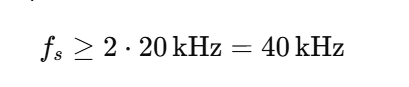
    Sample Rate≥2×Maximum Frequency\text{Sample Rate} \ge 2 \times \text{Maximum Frequency}Sample Rate≥2×Maximum Frequency

    • Example: Human hearing range is 20 Hz to 20,000 Hz (20 kHz).
    • So, to digitize all sounds humans can hear:

    Sample Rate≥2×20,000=40,000 Hz\text{Sample Rate} \ge 2 \times 20,000 = 40,000 \text{ Hz}Sample Rate≥2×20,000=40,000 Hz

    • That’s why 44,100 Hz is commonly used in CDs—it safely captures the full human hearing range.

    Quick Summary

    • Sample rate = number of samples per second.
    • Too low sample rate → aliasing (distorted sound).
    • Follow Shannon-Nyquist → sample rate ≥ 2 × max frequency.
    • Human hearing range = 20 Hz to 20 kHz → use ~44 kHz sample rate.

    4. What is a Sample Value?

    • When we convert sound into digital form, each sample is a number that represents the amplitude (loudness) of the sound at that moment.
    • The amplitude shows how strong the sound is.

    Example:

    • If amplitude = 1.0 → the wave goes from -1.0 to 1.0.
    • 0 means no sound, +1.0 means maximum positive vibration, -1.0 means maximum negative vibration.

    5. What is Sample Size (Resolution)?

    • The sample size tells us how many different numbers we can use to represent each sample.
    • It’s measured in bits.

    Example of bits and resolution:

    • 8-bit sample → 2⁸ = 256 possible values → low quality.
    • 16-bit sample → 2¹⁶ = 65,536 possible values → standard CD quality.
    • 24-bit sample → 2²⁴ ≈ 16.7 million values → high-quality audio.
    • 32-bit sample → used for special purposes, like precise calculations in audio processing.

    6. Why Bit Depth Matters

    • More bits = more precision = smoother and more accurate sound.
    • Fewer bits → sound may be distorted or “grainy”.
    • That’s why 8-bit audio is rare today, while 16-bit and 24-bit are common.

    Quick Summary

    ConceptExplanationExample
    Sample valueNumber representing amplitude at a moment-1.0 to 1.0
    Sample size (bits)How many different values each sample can have16-bit = 65,536 levels
    QualityMore bits = better sound quality8-bit = low, 24-bit = high

    Analog Audio

    • Continuous voltage
    • Noise-prone
    • Example: microphone output

    Digital Audio

    • Discrete samples
    • Binary data
    • Example: PCM buffer in RAM

    Conversion happens using:

    • ADC (Analog → Digital)
    • DAC (Digital → Analog)

    These are almost always inside an audio codec IC.

    PCM (Pulse Code Modulation) is raw, uncompressed audio data.

    PCM = Samples taken at fixed intervals

    Example:

    • Sample rate: 48 kHz
    • Bit depth: 16-bit
    • Channels: 2 (stereo)

    Each sample:

    Left sample | Right sample

    In memory:

    L0 R0 L1 R1 L2 R2 ...

    PCM (Pulse Code Modulation) is a method to digitally represent analog audio signals. In simpler terms, it’s a way to take a continuous sound wave (like someone talking or music) and turn it into numbers that a computer or microcontroller can store, process, or transmit.

    How PCM Works

    1. Sampling
      • The analog signal is continuous over time.
      • PCM measures (samples) the signal at regular intervals, called the sampling rate.
      • Example: A sampling rate of 44.1 kHz (CD quality) means the audio is measured 44,100 times per second.
    2. Quantization
      • Each sampled value is assigned a discrete number.
      • The number of bits used per sample determines the bit depth.
      • Example: 16-bit audio can represent 65,536 (2¹⁶) different amplitude levels.
    3. Encoding
      • These discrete numbers are stored as binary data.
      • This sequence of numbers is your PCM audio stream.

    Characteristics of PCM Audio

    • Linear PCM (LPCM): Most common type; samples are proportional to the original waveform.
    • Sample Rate: Higher rate → more accurate reproduction. Standard rates: 44.1 kHz, 48 kHz, 96 kHz.
    • Bit Depth: Higher depth → more dynamic range. Standard: 16-bit, 24-bit, 32-bit float.
    • Channels: Mono (1 channel), Stereo (2 channels), Surround (5.1, 7.1 channels).

    Why PCM?

    • Lossless representation of audio (no compression artifacts).
    • Standard for audio CDs, professional audio recording, and many embedded audio applications.
    • Easy to manipulate digitally (filtering, effects, mixing, etc.).

    Example in Embedded Systems

    Suppose you have a BeagleBone or STM32 and you want to play a recorded sound:

    1. You store the audio in PCM format in memory (like an array of integers).
    2. You send these samples to a DAC (Digital-to-Analog Converter) at the correct sample rate.
    3. The DAC reconstructs the analog signal → goes to a speaker.

    1. Sample Rate

    Definition:
    The sample rate (or sampling frequency) is how many times per second the analog audio signal is measured (sampled) to convert it into digital form.

    Unit: Hertz (Hz) → samples per second.

    Example:

    • 44.1 kHz → 44,100 samples per second (standard for audio CDs)
    • 48 kHz → common in professional video and recording
    • 96 kHz → high-resolution audio

    Effect:

    • Higher sample rate → more accurate reproduction of the original waveform.
    • Lower sample rate → may lose high-frequency details (can cause aliasing if below Nyquist limit).

    Embedded Example:
    If your microcontroller outputs 44,100 PCM samples per second to a DAC, it will reproduce the audio faithfully up to ~22 kHz (Nyquist theorem).

    2. Bit Depth

    Definition:
    Bit depth determines how many discrete levels are used to represent each audio sample.

    Unit: Bits per sample.

    Example:

    • 8-bit PCM: 2⁸ = 256 possible levels
    • 16-bit PCM: 2¹⁶ = 65,536 levels (CD quality)
    • 24-bit PCM: 16,777,216 levels (professional audio)

    Effect:

    • Higher bit depth → more dynamic range (difference between softest and loudest sound)
    • Lower bit depth → more quantization noise

    Embedded Example:
    If your STM32 DAC uses 12-bit resolution, each PCM sample must be mapped to 0–4095 levels.

    3. Channels

    Definition:
    Channels refer to the number of separate audio tracks in the PCM data.

    Types:

    • Mono: 1 channel (same audio for all speakers)
    • Stereo: 2 channels (Left and Right)
    • Surround: 5.1, 7.1 channels → for multi-speaker systems

    Effect:

    • More channels → more complex and immersive sound
    • Each channel has its own sample stream

    Embedded Example:
    For stereo PCM audio on a microcontroller:

    • Left channel samples: [L1, L2, L3 …]
    • Right channel samples: [R1, R2, R3 …]
    • DAC outputs both channels to separate speakers simultaneously.

    Summary Table

    FeatureDefinitionEffectExample
    Sample RateHow many times per second audio is sampledAccuracy of waveform44.1 kHz
    Bit DepthNumber of levels per sampleDynamic range, quantization noise16-bit
    ChannelsNumber of separate audio tracksMono, stereo, surroundStereo (Left + Right)

    Shannon-Nyquist Theorem (Sampling Theorem)

    Definition:
    The Shannon-Nyquist theorem states:

    To digitally represent an analog signal without losing information, it must be sampled at a rate at least twice the highest frequency present in the signal.

    To turn a real sound into digital data without losing any information, you need to “take enough snapshots” of the sound every second.
    The rule is: take at least 2 snapshots for every cycle of the fastest sound you want to capture.

    Step by Step

    1. Sound is a wave
      • Sound moves in waves (like ocean waves).
      • Each wave has a frequency: how fast it goes up and down per second.
      • Example: A piano note might be 440 Hz → 440 waves per second.
    2. Digital can’t see continuous waves
      • Computers store numbers, not continuous waves.
      • So we “sample” the wave: take snapshots of its height at regular intervals.
    3. How often should we take snapshots?
      • Shannon-Nyquist says: take at least twice as many snapshots as the highest frequency you want to capture.
      • Example: If the fastest sound is 20,000 Hz (human hearing limit), take at least 40,000 samples per second.
    4. Why 2×?
      • If you take fewer samples, the wave can look like a completely different wave when you try to play it back.
      • This mistake is called aliasing.
      • Taking at least 2× ensures the original wave can be accurately recreated.

    Super Simple Example

    • Imagine a bouncing ball going up and down 5 times per second.
    • If you take 2 photos per second → you might miss the motion → the ball looks weird.
    • If you take 10 photos per second → you see the motion clearly.
    • That’s basically Shannon-Nyquist for sound waves.

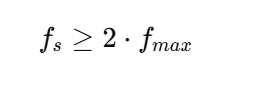
    Formula:

    Where:

    • (f_s) = sampling rate (samples per second)
    • (f_{max}) = maximum frequency in the analog signal

    Why it matters

    • If you sample too slowly, higher frequencies in the signal will be misrepresented.
    • This misrepresentation is called aliasing.

    Example:

    • Human hearing range: 20 Hz – 20 kHz
    • That’s why CDs use 44.1 kHz.
    • To capture all audible frequencies:

    Aliasing Explained

    If the sampling rate is below 2 *fmax

    • High-frequency components “fold back” into lower frequencies
    • The reconstructed audio sounds distorted

    Visual: Imagine trying to sample a fast-moving wave slowly → it appears as a slower wave.

    Embedded Systems Example

    Suppose you have a microcontroller with a DAC:

    • You want to play a sound with frequency content up to 8 kHz
    • Minimum sample rate according to Shannon-Nyquist: (f_s \ge 16\text{kHz})
    • Using 16 kHz will reconstruct the waveform correctly
    • Using 10 kHz → aliasing will occur, audio will be distorted

    Definition:
    Sound digitization is the process of converting an analog sound wave (continuous) into a digital format (numbers) that a computer can store, process, or play back.

    Step 1: Sampling the Sound

    • The analog sound wave is measured at regular intervals.
    • Each measurement is called a sample.
    • Example:
      • A sound is recorded at 44.1 kHz → 44,100 samples per second.
      • Each sample captures the amplitude (height) of the wave at that instant.

    Step 2: Quantization

    • Each sample is rounded to the nearest value that can be represented digitally.
    • This depends on bit depth.
      • 16-bit → 65,536 possible levels
      • 8-bit → 256 levels
    • Effect: Higher bit depth → more precise representation of the wave.

    Step 3: Storing as WAV

    WAV (Waveform Audio File Format) is a digital audio file format used to store audio in uncompressed PCM (Pulse Code Modulation) format.

    • Developed by Microsoft and IBM.
    • Stores raw audio data plus some metadata (like sample rate, bit depth, and number of channels).
    • Very common for high-quality audio in Windows and embedded projects.
    • WAV file is a common container for PCM audio.
    • Stores raw PCM data, along with metadata like:
      • Sample rate (e.g., 44,100 Hz)
      • Bit depth (e.g., 16-bit)
      • Number of channels (mono/stereo)

    Structure of a WAV file (simplified):

    [Header]       → info about sample rate, bit depth, channels
    [Data Chunk]   → sequence of PCM samples

    Understanding WAV Files: Beginner’s Guide to Digital Audio

    Digital audio has become an integral part of technology, from music streaming and video production to embedded systems and microcontroller projects. Among various audio formats, WAV (Waveform Audio File Format) stands out for its simplicity, high quality, and ease of use. This article explains WAV files in a beginner-friendly way, covering their structure, usage, and technical details.

    What Is a WAV File?

    A WAV file is a digital audio file format that stores sound in an uncompressed PCM (Pulse Code Modulation) format. Unlike compressed formats such as MP3 or AAC, WAV preserves every detail of the original audio. This makes it ideal for high-quality audio playback, recording, and professional applications.

    WAV files can store:

    • Mono or stereo audio
    • Different bit depths (8-bit, 16-bit, 24-bit, 32-bit)
    • Various sample rates (8 kHz, 44.1 kHz, 48 kHz, 96 kHz, etc.)

    Structure of a WAV File

    A WAV file has two main parts:

    1. Header – Contains metadata about the audio
    2. Data Chunk – Contains the actual audio samples

    1. WAV Header

    The header usually takes 44 bytes and helps software or embedded systems understand how to read the audio data. Key components include:

    • RIFF Identifier (Bytes 0–3): Marks the file as a RIFF format file.
    • File Size (Bytes 4–7): Total size of the file minus 8 bytes.
    • WAVE Identifier (Bytes 8–11): Confirms the file is a WAV audio file.
    • Format Chunk “fmt ” (Bytes 12–15): Starts the section describing the audio format.

    Format Details in Header:

    • Format Chunk Size (Bytes 16–19): Usually 16 for PCM audio.
    • Audio Format (Bytes 20–21): 1 for PCM (uncompressed audio).
    • Number of Channels (Bytes 22–23): 1 for mono, 2 for stereo.
    • Sample Rate (Bytes 24–27): How many samples per second, e.g., 44,100 Hz.
    • Byte Rate (Bytes 28–31): Number of bytes per second of audio.
    • Block Align (Bytes 32–33): Size of a single sample frame in bytes.
    • Bits Per Sample (Bytes 34–35): Audio precision (8-bit, 16-bit, etc.).

    2. Data Chunk

    After the header comes the data chunk, which stores raw PCM audio samples.

    • Data Identifier (Bytes 36–39): Always labeled as “data”.
    • Data Size (Bytes 40–43): Number of bytes of audio data.
    • Audio Samples (Bytes 44+): The actual sound data, stored according to sample rate, bit depth, and channels.

    In stereo audio, samples alternate between left and right channels:

    Left1, Right1, Left2, Right2, ...

    Key WAV Features

    • Uncompressed Audio: No loss in quality.
    • High Compatibility: Supported on Windows, Linux, macOS, and embedded systems.
    • Flexible Channels: Mono, stereo, or multiple channels for professional audio.
    • Adjustable Sample Rate & Bit Depth: Allows balancing quality and memory usage.

    WAV Files in Embedded Systems

    WAV files are widely used in embedded projects because they are simple to process:

    1. Store PCM audio samples in memory (arrays).
    2. Send samples to a DAC at the correct sample rate.
    3. Play back sound through a speaker or audio output device.

    Example in C for 16-bit stereo PCM data:

    uint16_t audio_samples[] = {32768, 40000, 30000, 32768}; // interleaved left and right
    
    • Send each sample frame to the DAC to reproduce the audio waveform.

    Common Sample Rates for WAV

    Sample RateTypical Use
    8 kHzVoice, telephony
    16 kHzWideband voice, low-quality audio
    44.1 kHzMusic, CD-quality audio
    48 kHzVideo, multimedia applications
    96 kHzHigh-resolution audio, professional recording

    Example

    Imagine a very short audio snippet:

    • Mono audio, 8-bit, 4 samples per second (super simplified for example):
    • Analog wave (simplified values): 0.1, 0.5, -0.3, 0.0
    • Quantized to 8-bit integers (0–255): 128, 191, 87, 128
    • Stored in WAV: [128, 191, 87, 128]
    • When played back → approximates the original sound wave.

    Key Points

    • Sampling Rate: How often we take measurements → affects frequency accuracy
    • Bit Depth: How precisely we store each measurement → affects volume/dynamics accuracy
    • Channels: Mono/stereo → affects spatial perception

    WAV is just a container for PCM audio. Other formats like MP3 or AAC compress PCM data.

    Embedded Systems Perspective:

    • On a microcontroller, you can store PCM samples in an array:
    uint16_t audio_samples[] = {32768, 40000, 30000, 32768}; // 16-bit PCM
    
    • Send them to a DAC at the correct sample rate to play the sound.
    Sample RateFrequency CapturedUse / Typical Application
    8 kHzUp to 4 kHzTelephony (phone calls), VoIP
    16 kHzUp to 8 kHzWideband voice, some low-quality audio
    22.05 kHzUp to 11 kHzLow-quality music, older audio formats
    32 kHzUp to 16 kHzFM radio, some lower-quality recordings
    44.1 kHzUp to 22 kHzCD audio (standard for music), general-purpose audio
    48 kHzUp to 24 kHzVideo production, DVDs, broadcast audio
    88.2 kHzUp to 44.1 kHzHigh-resolution audio, some studio recordings
    96 kHzUp to 48 kHzProfessional audio, film production, high-quality recording
    192 kHzUp to 96 kHzAudiophile / ultra-high-resolution recordings

    Guidelines for Choosing Sample Rate

    1. Voice / telephony:
      • Use 8 kHz or 16 kHz → only needs human speech range (~300–3400 Hz).
    2. Music / general audio:
      • Use 44.1 kHz → covers full human hearing (~20 Hz – 20 kHz).
    3. Video / film:
      • Use 48 kHz → industry standard for audio/video sync.
    4. High-quality / studio recording:
      • Use 96 kHz or 192 kHz → captures more details for professional mixing/mastering.

    Embedded Systems Perspective

    • Microcontrollers with DACs often use 8 kHz–48 kHz.
    • Higher sample rates → better quality, but more memory and higher CPU load.
    • Example:
      • Playing music on a small MCU → 44.1 kHz, 16-bit stereo PCM
      • Voice alerts or notifications → 8 kHz, 8-bit mono PCM

    Quick rule of thumb:

    • 8–16 kHz: voice only
    • 44.1 kHz: music / general audio
    • 48 kHz: video / multimedia
    • 96 kHz+: high-res studio recordings

    WAV Is Uncompressed (PCM)

    • WAV stores audio in raw PCM format—the exact waveform is preserved.
    • MP3, AAC, or MP4 are compressed formats (lossy or container formats), which remove some audio information to save space.
    • For testing audio in embedded systems or audio applications, you want the original waveform without any distortion from compression.

    Example: If you are testing a DAC or audio pipeline, WAV ensures the numbers you send to hardware match the original waveform perfectly.

    Simple Structure

    • WAV files have a simple, predictable header and straightforward data chunk.
    • You can read the samples directly into memory and send them to a DAC.
    • MP4 or MP3 files need decoding first (using codecs), which complicates testing.

    In embedded systems, simplicity is key—WAV lets you focus on the hardware or playback pipeline without worrying about decoding software.

    No Loss of Quality

    • Compression can introduce artifacts (unwanted noise or distortion).
    • Using WAV ensures that all audio details are preserved, which is crucial when testing:
      • DAC linearity
      • Speaker output quality
      • Signal processing algorithms

    Predictable Timing

    • WAV files have a fixed sample rate and bit depth, so the timing of samples is predictable.
    • MP3/MP4 often use variable bit rates, which can make playback timing less precise—not ideal for testing embedded audio systems.

    Industry Standard for Testing

    • Audio engineers and embedded developers almost always use WAV for test tones, audio calibration, and hardware verification.
    • Common test signals include:
      • Sine waves (to check frequency response)
      • Square waves (for DAC linearity)
      • White/pink noise (for speaker testing)

    FAQs: What is Audio

    1. What is audio?
    Audio is the representation of sound, either as a physical wave in air or as a digital signal. It can be captured, processed, stored, and played back in devices like computers, smartphones, and embedded systems.

    2. How is audio captured from a microphone?
    A microphone converts sound waves into an analog electrical signal. This analog signal can then be converted into digital audio using an ADC (Analog-to-Digital Converter) and stored in formats like WAV or PCM.

    3. What is PCM audio?
    PCM (Pulse Code Modulation) is a method of converting analog sound into digital form by sampling the amplitude of the sound wave at regular intervals and storing it as numbers.

    4. What is the difference between WAV and MP3?
    WAV is an uncompressed audio format, preserving the original sound quality, making it ideal for testing and professional applications. MP3 is a compressed format that reduces file size but loses some audio details.

    5. What is sample rate in audio?
    Sample rate is the number of times per second the analog signal is measured during digitization. Common sample rates are 44.1 kHz (CD quality) and 48 kHz (video/audio production).

    6. What is bit depth in audio?
    Bit depth defines how accurately each audio sample is represented. Higher bit depth (like 16-bit or 24-bit) allows for greater dynamic range and more precise sound reproduction.

    7. Why is WAV used for audio testing?
    WAV files store raw PCM audio without compression, ensuring exact waveform reproduction. This makes them perfect for testing audio hardware or embedded systems, where accuracy is crucial.

    8. Can all captured audio be saved as WAV?
    Yes. Audio captured from a microphone or ADC can be saved as a WAV file by adding a header to the raw PCM data. Other formats like MP3 or AAC require compression and encoding.

    9. What are the common audio channels?
    Audio can have one channel (mono), two channels (stereo), or more for surround sound setups (5.1, 7.1). Channels determine how sound is distributed across speakers.

    10. How is audio used in embedded systems?
    Embedded systems use digital audio for alerts, notifications, music playback, and voice recognition. PCM data from WAV files is typically sent to a DAC to produce sound through speakers.

    Recommended Resource: Expand Your ESP32 Knowledge

    If you’re enjoying this project and want to explore more powerful sensor integrations, make sure to check out my detailed guide on using the ESP32 with the DS18B20 temperature sensor. It’s a beginner-friendly, real-world tutorial that shows how to measure temperature with high accuracy and integrate the data into IoT dashboards, automation systems, or cloud servers. You can read the full step-by-step guide here: ESP with DS18b20

    This resource pairs perfectly with your ESP32 with RFID setup—together, you can build advanced smart home systems, environmental monitoring tools, or complete multi-sensor IoT projects.

    Read More: Embedded Audio Interview Questions & Answers | Set 1
    Read More: Embedded Audio Interview Questions & Answers | Set 2
    Read More : Top Embedded Audio Questions You Must Master Before Any Interview
    Read More : Digital Audio Interface Hardware
    Read More : Advanced Linux Sound Architecture for Audio and MIDI on Linux
    Read More : What is QNX Audio
    Read more : Complete guide of ALSA
    Read More : 50 Proven ALSA Interview Questions