
Windows Snipping Tool is more than a rectangle screenshot button. Microsoft documents video snips, and on eligible Copilot+ PCs the app also offers Perfect Screenshot and a color picker. The important catch: those AI-powered options require Copilot+ PC hardware; they are not hidden toggles that every Windows 11 laptop can enable.
Try the eligible screenshot tools
Open Snipping Tool from Start and choose a capture mode. On a Copilot+ PC, Microsoft says Perfect Screenshot can automatically tighten a selected capture around prominent on-screen content, leaving crop handles for adjustment. The color picker can capture exact color values from a chosen point on the screen.
If the AI features do not appear, check your PC’s hardware eligibility and update Windows and Snipping Tool. You can still use ordinary rectangular, freeform, window or full-screen captures on supported Windows devices.
Do a privacy check before sharing
Review a screenshot for browser tabs, account names, notifications and personal information before sending it. A clean crop is not a privacy filter: it may still include sensitive text. Use a normal image editor to blur or remove details when needed, and make sure the redaction is truly opaque before sharing.
Best use: capture a software setting, crop it neatly, then check the image at full size before publishing instructions. If you need motion, Snipping Tool can also record a rectangular video snip; use that instead of stringing together screenshots.
Official guide
Microsoft: Use Snipping Tool to capture screenshots
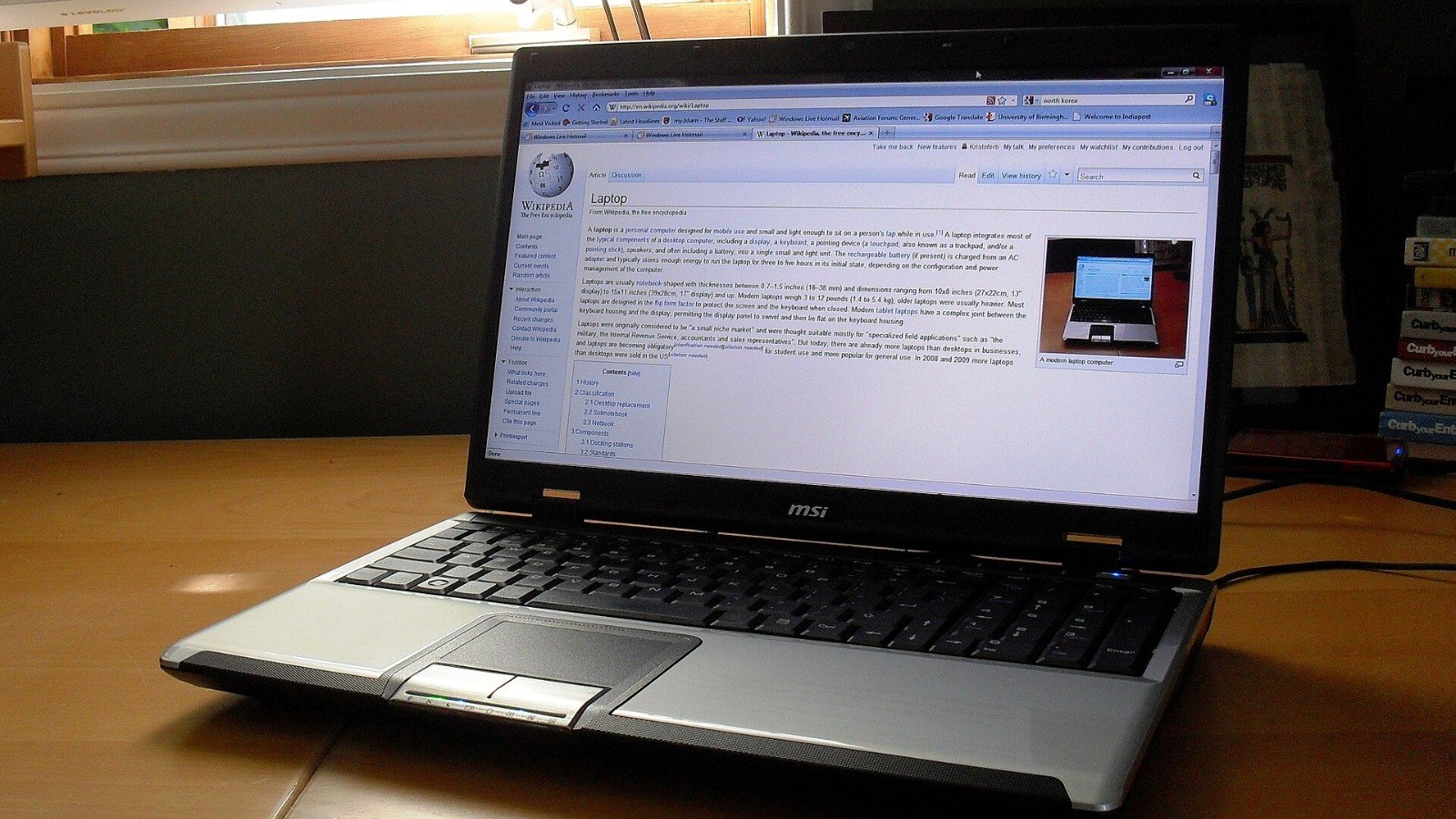
Featured image: Kristoferb at English Wikipedia via Wikimedia Commons, CC BY-SA 4.0. Image source and license.
Leave a Reply