
Tag: Embedded Systems Audio

  • Master Embedded Audio Interview Questions & Answers | Set 2

    Prepare for Embedded Audio Interview Question with real-world questions on PCM, noise vs distortion, clipping, gain, loudness, latency, and ALSA fundamentals.

    Embedded audio interviews are not just about definitions — they test how deeply you understand real-world audio behavior inside embedded systems.
    Master Embedded Audio Interview Questions & Answers | Set 2 is carefully designed for engineers preparing for product-based companies, automotive audio roles, and RTOS/Linux/QNX audio positions.

    This set focuses on practical audio fundamentals that interviewers frequently ask but candidates often struggle to explain clearly.

    What You’ll Learn in This Set

    This module dives into the core building blocks of audio systems, explained with clarity, real-life examples, and interview-ready logic:

    • Difference between noise, distortion, and clipping — with real debugging insight
    • How amplitude, loudness, and gain differ (a very common interview trap)
    • What causes pop and click sounds in embedded audio systems
    • How fade-in and fade-out prevent audio artifacts
    • Understanding dynamic range and its relation to bit depth
    • How to detect audio issues using oscilloscope waveforms and logs
    • Real explanations aligned with ALSA, PCM, ADC/DAC, and RTOS audio pipelines

    Each concept is explained the way senior engineers expect you to explain it in interviews, not like textbook theory.

    Why This Set Is Important for Interviews

    Most candidates can say definitions — very few can explain cause, effect, and solution.

    Interviewers often ask:

    • “Why do pops occur when audio starts?”
    • “Is clipping noise or distortion?”
    • “Why does low gain increase noise?”
    • “How do you detect clipping in logs?”

    This set prepares you to answer confidently, clearly, and technically, even under pressure.

    Who Should Use This Set?

    • Embedded Software Engineers
    • Audio / Multimedia Engineers
    • Linux & QNX Developers
    • Automotive Infotainment Engineers
    • Freshers preparing for embedded interviews
    • Professionals revising audio fundamentals

    Whether you’re targeting Qualcomm, Bosch, KPIT, Harman, Continental, or automotive OEMs, these questions are directly aligned with real interview expectations.

    One-Line Interview Answer

    Jitter is the variation or instability in the timing of audio sample playback or capture, causing irregularities in the signal.

    Step-by-Step Explanation

    Timing Matters

    • In digital audio, samples must be played or captured at precise intervals.
    • Example: 48 kHz → 1 frame every 20.83 µs.

    If this timing is not exact, audio gets distorted.

    What is Jitter

    • Jitter = small deviations in timing
    • Occurs in:
      • ADC (Analog-to-Digital Converter)
      • DAC (Digital-to-Analog Converter)
      • Clock signals
      • DMA transfers

    Effect:

    • Audio may have clicks, pops, or slight pitch fluctuation
    • Low-frequency jitter → subtle distortion
    • High-frequency jitter → noise

    Real-Life Analogy

    Think of a metronome:

    • Perfect beat → steady music
    • Irregular beat → jitter → music feels off

    In audio systems, jitter is like irregular beat intervals in digital playback.

    Types of Jitter

    TypeDescription
    Random jitterUnpredictable, caused by noise, clock instability
    Deterministic jitterPredictable pattern, caused by systematic issues like periodic interrupts

    Why Jitter Matters in Embedded / ALSA

    • Audio in real-time systems is very sensitive
    • Jitter causes:
      • Undesired clicks or pops
      • Phase errors in multi-channel audio
      • Reduced audio quality

    Example:

    • Stereo I²S playback with variable clock → channels go out of sync → distortion

    How to Reduce Jitter

    1. Use stable clock sources
    2. Buffering → absorbs small timing variations
    3. DMA transfers → reduce CPU-dependent timing errors
    4. High-quality PLL or crystal oscillators in audio ICs

    Relation to Latency

    • Latency = fixed delay between input and output
    • Jitter = variation around that delay

    Low latency system can still have high jitter if timing is unstable.

    Interview Trap

    1.“Does increasing buffer size reduce jitter?”
    Yes, larger buffers can absorb small timing variations, but increase latency.

    2.“Is jitter same as latency?”
    No — jitter is variation in timing, latency is average delay.

    ALSA / Embedded Example

    Sample rate = 48 kHz
    Expected frame interval = 20.83 µs
    Actual frame intervals = 20.83 µs ± 2 µs
    → 2 µs deviation = jitter
    

    Interview Summary

    Jitter is the irregularity in the timing of audio sample capture or playback, causing noise or distortion. It’s different from latency, which is the fixed delay in the audio path.

    Jitter vs Latency Comparison Table

    FeatureLatencyJitter
    DefinitionFixed delay between audio input/capture and output/playbackVariation or instability in timing of audio sample capture/playback
    NatureDeterministicNon-deterministic (can be random or systematic)
    UnitTime (ms)Time variation (µs or ms)
    Effect on audioDelay in hearing soundClicks, pops, distortion, pitch fluctuation
    MeasurementBuffer size / sample rateFrame interval variation (deviation from expected)
    CauseBuffer size, processing time, DMA transfer timeClock instability, CPU interrupts, jittery DMA, PLL errors
    MitigationReduce buffer, optimize processing, increase sample rateStable clock, proper buffering, DMA, low-noise oscillator
    RelationLatency can be constantJitter is deviation around latency

    Key Interview Tip:

    “Latency is the average delay; jitter is the variation around that delay.”

    Step 1: Understand the Expected Timing

    • Determine frame interval based on sample rate and channel countSample rate = 48 kHz → Frame interval = 1 / 48000 ≈ 20.83 µs

    Step 2: Capture Actual Timestamps

    • Use high-resolution timers in your embedded system
    • Record when each frame is processed or played
    • Example in QNX / Linux:
    struct timespec ts;
    clock_gettime(CLOCK_MONOTONIC, &ts);
    // store ts for each frame processed
    

    Step 3: Compute Frame Interval Differences

    • Calculate delta between consecutive frames:
    delta = ts[n] - ts[n-1]
    
    • Compare to expected frame interval
    Expected = 20.83 µs
    Actual = delta
    Jitter = Actual - Expected
    

    Step 4: Analyze Statistics

    • Max jitter = worst-case deviation
    • RMS jitter = root-mean-square deviation for typical behavior
    • Histogram → shows distribution of timing deviations

    Step 5: Optional: Use Oscilloscope / Logic Analyzer

    • For I²S, TDM, or PDM audio lines
    • Measure clock edges and data transitions
    • Compare actual spacing with expected timing → hardware jitter

    Embedded / ALSA Example

    • ALSA driver callback provides period completion timestamps
    • Measure variation between expected period intervals → jitter
    • Formula:
    Jitter (µs) = period_actual_time - period_expected_time
    

    Interview Summary

    Latency is the fixed delay in audio playback, while jitter is the small timing variations around that delay. In embedded systems, jitter is measured by comparing actual frame/period timing against the expected intervals, using high-resolution timers or hardware measurement.

    Optimize Buffer Size

    • Latency depends on buffer size:
    Latency ≈ Buffer Size / Sample Rate
    
    • Reduce buffer size → lower latency
      Example: 2–4 periods instead of 8
    • Trade-off: Too small → risk of underrun → pops/clicks → increases perceived jitter
    • Rule of Thumb:
      • Real-time audio: 10–20 ms total latency
      • Playback: 50–150 ms acceptable

    Reduce Period Size

    • Period = number of frames before interrupt / callback
    • Smaller period → more frequent processing → lower latency
    • Larger period → fewer interrupts → reduces CPU load but adds delay
    • ALSA Example:
    aplay -D hw:0,0 --period-size=256 --buffer-size=1024 file.wav
    
    • Period = 256 frames → faster callbacks → lower latency

    Use High-Quality, Stable Clocks

    • Jitter is mostly caused by clock instability
    • Use:
      • High-precision crystal oscillator
      • Stable PLL for I²S/TDM interfaces
      • Dedicated audio clocks if possible
    • Avoid CPU software-based clocks for timing-sensitive audio

    Use DMA for Audio Transfers

    • CPU-driven audio → irregular timing → jitter
    • DMA (Direct Memory Access) → transfer frames to DAC/ADC without CPU delay
    • ALSA/QNX supports DMA-based drivers → very low jitter
    • Example: I²S playback via DMA → period callback occurs precisely

    Choose Appropriate Sample Rate

    • Higher sample rate → shorter frame duration → reduces per-frame latency
    • Typical choices:
      • 48 kHz → embedded / video
      • 96 kHz → professional DSP (more headroom, less aliasing)

    Optimize CPU & IRQ Handling

    • Audio interrupts must have high priority
    • Avoid long ISR or blocking code
    • QNX supports real-time thread priorities:
    struct sched_param sp;
    sp.sched_priority = 99; // highest
    pthread_setschedparam(pthread_self(), SCHED_RR, &sp);
    
    • Keeps period callbacks precise → reduces jitter

    Use Interleaved vs Non-Interleaved Wisely

    LayoutImpact on Latency/Jitter
    InterleavedSimple DMA transfer, lower jitter
    Non-InterleavedMultiple buffers → potential DMA overhead → slightly higher jitter

    Embedded systems usually use interleaved for efficiency

    Use Proper ALSA Parameters

    • Configure ALSA driver with:
      • snd_pcm_hw_params_set_buffer_size_near()
      • snd_pcm_hw_params_set_period_size_near()
    • Choose power-of-2 sizes → DMA alignment → less jitter

    Minimize Processing Overhead

    • Heavy DSP in real-time thread → increases latency
    • Offload to:
      • Dedicated DSP cores
      • Secondary threads with lower priority
    • Keep main audio thread lightweight

    Monitor and Tune in Real Time

    • Check XRUNs (buffer underrun/overrun) → indicates latency/jitter issues
    • Use ALSA API:
    snd_pcm_avail_update(pcm_handle); // Frames available in buffer
    
    • Measure timestamp deviations → detect jitter

    Practical Embedded Example (QNX / ALSA)

    // Set buffer and period
    snd_pcm_hw_params_set_buffer_size_near(pcm_handle, &buffer_size); // e.g., 1024 frames
    snd_pcm_hw_params_set_period_size_near(pcm_handle, &period_size); // e.g., 256 frames
    
    // Set real-time priority
    struct sched_param sp;
    sp.sched_priority = 99;
    pthread_setschedparam(pthread_self(), SCHED_RR, &sp);
    
    • With stable clock + DMA + optimized buffer → latency ~10 ms, jitter < 1 µs

    Summary Statement

    To reduce jitter and latency in embedded ALSA/QNX systems: use small buffers and periods, stable clocks, DMA for transfers, interleaved audio format, real-time thread priority, and optimized DSP processing. Proper tuning avoids underruns and keeps audio precise and responsive.

    One-Line Interview Answer

    Clipping occurs when the amplitude of an audio signal exceeds the maximum level that a system (ADC, DAC, or amplifier) can handle, resulting in distortion.

    Step-by-Step Explanation

    Why Clipping Happens

    • Every audio system has a maximum voltage range:
      • ADC/DAC: Limited by reference voltage
      • Amplifier: Limited by supply rails
    • If the audio signal exceeds this range, the peaks are “cut off” → clipped

    Example:

    ADC max = ±1V
    Input signal = ±1.2V
    → Peaks above ±1V are clipped
    

    How It Looks in a Waveform

    • Normal signal: smooth sine wave
    • Clipped signal: flat tops where the waveform exceeds the max
    Normal:   /‾\      /‾\
    Clipped:  ___      ___

    Types of Clipping

    TypeDescription
    Soft clippingPeaks are rounded slightly → mild distortion
    Hard clippingPeaks are cut flat → harsh, unpleasant distortion

    Effects on Audio

    • Adds harmonics → unpleasant sound
    • Distorts voice or music
    • Can damage speakers if extreme

    Why Clipping is Important in Embedded Audio

    • ADC / DAC in microcontrollers / SoCs has limited bit depth & voltage range
    • Overshooting → digital clipping
    • Amplifiers in embedded devices → analog clipping

    How to Prevent Clipping

    1. Reduce input signal level → avoid exceeding ADC/DAC range
    2. Use automatic gain control (AGC) → keeps signal within limits
    3. Check bit depth → higher resolution reduces chance of quantization clipping
    4. Limit amplifier output → ensure it doesn’t exceed supply rails

    Example in ALSA / PCM

    • 16-bit PCM → amplitude range = ±32767
    • Input signal > ±32767 → samples are clipped → distortion
    int16_t sample = 40000;  // exceeds 16-bit max
    sample = 32767;           // clipped
    

    Interview Trap

    1.“Does clipping increase volume?”
    No — it distorts signal, doesn’t improve quality

    2“Is clipping the same as saturation?”
    Not exactly — saturation is mild, soft clipping; clipping is usually harsh

    Interview Summary

    Clipping is distortion caused when an audio signal exceeds the maximum amplitude a system can handle, resulting in flattened peaks. It can occur in ADCs, DACs, or amplifiers and is avoided by proper signal level management.

    FeatureClippingDistortion
    DefinitionOccurs when audio amplitude exceeds system limits, flattening peaksAny alteration of the original audio waveform that changes its shape
    CauseExcessive signal amplitudeCould be gain, filtering, compression, non-linear circuits, or clipping
    Effect on waveformHard flat tops (hard clipping) or rounded peaks (soft clipping)May include harmonic changes, phase shifts, or clipping
    Intentional?Usually unwantedSometimes intentional (guitar distortion, effects)
    ExampleADC max exceeded → waveform peak flattenedGuitar amp overdrive, EQ effect, or amplifier nonlinearity

    Key Interview Tip:

    All clipping is distortion, but not all distortion is clipping.

    Digital vs Analog Clipping in Embedded Audio

    FeatureDigital ClippingAnalog Clipping
    Where it occursADC, DAC, or PCM sample exceeding bit depthAmplifier exceeds voltage rails
    Waveform appearanceHard, abrupt flat tops (quantized)Can be soft/rounded depending on circuit
    DetectionEasy — compare sample to min/max valueHard — requires oscilloscope or measurement
    RepairCannot recover lost digital samplesSometimes soft clipping can be filtered
    Embedded relevanceADC input clipping, PCM sample overflowAmplifier output in microcontroller audio boards

    Example:

    • 16-bit PCM max = ±32767 → sample 40000 → digital clipping
    • Amplifier 3.3V rail → 4V input → analog clipping

    How Clipping Relates to Bit Depth and Sample Rate

    Bit Depth

    • Defines max amplitude resolution
    • Lower bit depth → smaller max value → more likely digital clipping
    • Example: 8-bit PCM → max = 127, signal spikes above → clipped

    Sample Rate

    • Does NOT directly prevent clipping, but higher sample rate can capture peaks more accurately
    • Low sample rate may miss short transients, creating artificial peaks when interpolated → perceived clipping

    Practical Embedded Example

    • 16-bit, 48 kHz PCM audio:
      • Max sample = ±32767
      • Input signal > ±32767 → clipped
      • Lowering input gain or using AGC prevents clipping

    Summary

    • Clipping: waveform peaks exceed system limits → distortion
    • Distortion: any waveform alteration (clipping is a subset)
    • Digital vs Analog: digital = sample overflow, analog = voltage rails
    • Bit depth: higher depth → less digital clipping
    • Sample rate: higher rate → captures peaks better, but doesn’t prevent clipping

    One-Line Interview Answer

    Audio noise is caused by unwanted electrical, digital, or environmental disturbances that get added to the original audio signal.

    Main Causes of Noise (Big Picture)

    Audio noise can come from three major areas:

    1.Analog domain
    2.Digital domain
    3.System / environment

    Analog Causes of Noise (Most Common)

    Thermal Noise

    • Comes from resistors, ICs, and amplifiers
    • Increases with temperature
    • Always present (cannot be eliminated)

    Interview keyword: Johnson–Nyquist noise

    Power Supply Noise

    • Ripple or spikes on power rails
    • Poor decoupling capacitors
    • Switching regulators near audio paths

    Common in embedded boards

    Electromagnetic Interference (EMI)

    • Nearby sources:
      • Wi-Fi
      • Bluetooth
      • GSM
      • Motors
      • Switching SMPS

    Result: humming, buzzing, clicks

    Ground Loops

    • Multiple ground paths with different potentials
    • Creates hum (50/60 Hz)

    Very common in audio hardware

    Poor Analog Layout

    • Long traces
    • No ground plane
    • Audio lines near high-speed digital signals

    Digital Causes of Noise

    Quantization Noise

    • Due to limited bit depth
    • More prominent at low bit depths (8-bit)

    Higher bit depth → lower noise floor

    Clock Jitter

    • Timing variation in sampling clock
    • Causes phase noise, especially in high-frequency audio

    Common interview favorite

    Buffer Underrun / Overrun

    • CPU cannot feed audio fast enough
    • Causes pops, clicks

    Seen in ALSA / QNX systems

    Improper Sample Rate Conversion

    • Poor SRC algorithms
    • Creates artifacts and noise

    Environmental & System Causes

    Microphone Self-Noise

    • Mic electronics generate noise
    • Cheap mics = higher noise floor

    Acoustic Noise

    • Wind, vibrations
    • Mechanical noise near mic

    Software Gain Mismanagement

    • Excessive digital gain boosts noise floor
    • Wrong AGC settings

    Interview-Friendly Classification Table

    Noise TypeCause
    HissThermal, quantization noise
    HumGround loops, power ripple
    BuzzEMI interference
    Click/PopBuffer underrun, clock issues
    CrackleBad connectors, clipping

    Embedded Audio Example

    Problem:
    You hear a buzz when Wi-Fi is ON.

    Cause:
    EMI coupling into analog mic lines.

    Fix:

    • Shielding
    • Proper grounding
    • Differential inputs
    • Filtering

    One-Line Definitions

    • Noise → Unwanted random signal added to audio
    • Distortion → Change in shape of the original audio signal
    • Clipping → Signal exceeds system limits and gets cut

    All clipping is distortion, but not all distortion is clipping

    Core Difference Table (Must-Remember)

    AspectNoiseDistortionClipping
    NatureRandomDeterministicSevere, non-linear
    Added or changed?Added to signalSignal shape alteredPeaks removed
    Relation to signalIndependentDepends on signalDepends on amplitude
    Predictable?NoYesYes
    Intentional?NeverSometimesNever
    Example soundHiss, humHarsh, fuzzyCrack, harsh cut

    Noise (Unwanted Addition)

    What it is

    • Extra signal added on top of audio
    • Present even in silence

    Examples

    • Hiss
    • Hum (50/60 Hz)
    • EMI buzz

    Embedded causes

    • Thermal noise
    • Power supply ripple
    • Quantization noise
    • EMI

    Key line:

    Noise lowers SNR but doesn’t change waveform shape.

    Distortion (Waveform Change)

    What it is

    • Audio signal shape is altered
    • Creates new harmonics

    Examples

    • Amplifier non-linearity
    • EQ saturation
    • Soft clipping
    • Guitar overdrive (intentional)

    Embedded causes

    • Non-linear ADC/DAC
    • Amplifier saturation
    • Bad filtering

    Key line:

    Distortion changes the signal itself.

    Clipping (Limit Exceeded)

    What it is

    • Signal amplitude exceeds system limits
    • Peaks get cut flat

    Types

    • Digital clipping → ADC/DAC overflow
    • Analog clipping → amplifier rail limit

    Embedded example

    • 16-bit PCM max = ±32767
    • Input = 40000 → clipped

    Key line:

    Clipping is a severe form of distortion caused by overload.

    Visual Memory Trick

    Clean Signal:
        /\      /\
    
    Noise:
        /\~~~/\~~~
    
    Distortion:
        /\/\__/\/\_
    
    Clipping:
        __|‾‾|__|‾‾|__
    

    Interview Trap Questions

    1.Is noise distortion?

    No — noise is added, distortion modifies.

    2.Can clipping occur without distortion?

    No — clipping is distortion.

    3.Does higher bit depth reduce noise or distortion?

    Noise (quantization), not distortion.

    Embedded Audio Summary Table

    ProblemFix
    NoiseBetter grounding, higher bit depth
    DistortionLinear amplifiers, proper gain
    ClippingReduce gain, increase headroom

    Interview Answer

    Noise is unwanted random signal added to audio, distortion is any change in waveform shape, and clipping is distortion caused by exceeding system limits.

    Ultimate One-Liner

    Noise adds, distortion alters, clipping cuts.

    Noise

    • Oscilloscope:
      • Random small fluctuations on waveform
      • Noise visible even when input is silence
    • Logs / Software:
      • High noise floor
      • Low SNR readings

    Distortion

    • Oscilloscope:
      • Waveform shape altered (no longer clean sine)
      • Extra ripples or asymmetry
    • Logs / Software:
      • High THD (Total Harmonic Distortion)

    Clipping

    • Oscilloscope:
      • Flat tops or bottoms on waveform peaks
    • Logs / Software:
      • Samples hitting max/min values
      • Overflow or saturation warnings

    One-Line Memory Trick

    Noise = random fuzz, Distortion = shape change, Clipping = flat peaks

    Dynamic range is the difference between the quietest and loudest sound an audio system can handle without noise or distortion.

    Interview Keyword

    • Measured in decibels (dB)

    Simple Example

    • Whisper → quietest sound
    • Shout → loudest sound

    The gap between them = dynamic range

    Quick Tip

    Higher bit depth → higher dynamic range

    Gain

    Gain controls the input signal level before processing or amplification.

    • Affects signal strength
    • Too much gain → clipping/distortion
    • Used at mic, preamp, ADC input

    Volume

    Volume controls the output loudness sent to speakers or headphones.

    • Affects listening level
    • Does not change signal quality
    • Used at DAC output, amplifier

    One-Line Interview Trick

    Gain sets how much signal you capture, volume sets how loud you play it.

    Common Trap

    Low gain + high volume = noisy audio

    Increasing volume ≠ fixing low gain

    Fade-In

    Gradually increases audio amplitude from silence to normal level.

    • Prevents sudden start
    • Avoids clicks/pops at beginning

    Fade-Out

    Gradually decreases audio amplitude from normal level to silence.

    • Prevents abrupt stop
    • Sounds smooth and natural

    Why it’s used (Embedded / Audio Systems)

    • Avoids clicks & pops
    • Smooth start/stop of playback
    • Used in media players, alerts, UI sounds

    One-Line Interview Answer

    Fade-in and fade-out smoothly ramp audio amplitude to avoid abrupt transitions and artifacts.

    Main Causes

    • Sudden amplitude change
      • Start/stop audio abruptly
      • No fade-in / fade-out
    • DC offset
      • Non-zero signal when playback starts/stops
    • Buffer underrun / overrun
      • Audio data not fed in time
    • Sample rate / clock mismatch
      • Clock drift or reconfiguration during playback
    • Mute / unmute without ramp
      • Hard mute toggling
    • Power events
      • Codec or amplifier power on/off

    Detection

    • Oscilloscope: sharp spikes at transitions
    • Logs: underrun, xrun, timing warnings

    One-Line Interview Answer

    Pop and click sounds are caused by sudden signal changes, buffer underruns, DC offsets, or improper clock and power handling.

    Quick Fixes

    • Use fade-in / fade-out
    • Apply mute ramping
    • Ensure stable buffers & clocks
    • Clear DC offset before start/stop

    Loudness is how strong or loud a sound is perceived by the human ear, not just how big the signal is.

    Key Points

    • Perceptual → depends on human hearing
    • Related to amplitude, but not the same
    • Varies with frequency (ear is more sensitive to mid-frequencies)

    Units

    • Measured in LUFS (modern audio)
    • Sometimes referenced in dB SPL (physical sound pressure)

    Interview Trap

    • Amplitude ≠ Loudness
    • Same amplitude, different frequencies → different loudness

    One-Line Interview Answer

    Loudness is the perceived strength of sound as heard by humans, influenced by amplitude, frequency, and ear sensitivity.

    Amplitude is the height or strength of an audio signal that represents how much the air pressure (or electrical signal) varies from its rest position.

    Key Points

    • Represents signal strength
    • In audio, higher amplitude → potentially louder sound
    • Measured as:
      • Voltage (analog)
      • Sample value (digital PCM)

    Important Distinction

    • Amplitude is physical/electrical
    • Loudness is perceptual (human hearing)

    One-Line Interview Answer

    Amplitude is the magnitude of an audio signal, indicating how strong the sound wave is.

    Frequently Asked Questions (FAQ)

    1.What is PCM audio in embedded systems?

    Answer: PCM (Pulse Code Modulation) is the method of converting analog audio signals into digital samples so embedded systems can process, store, and transmit sound.

    2.What is the difference between amplitude and loudness?

    Answer: Amplitude is the signal strength (electrical/physical), while loudness is how humans perceive the sound. Higher amplitude usually increases loudness, but frequency also affects perception.

    3.What causes pops and clicks in embedded audio?

    Answer: Pops and clicks occur due to sudden signal changes, buffer underrun/overrun, DC offset, or clock instability during playback.

    4.What is the difference between noise, distortion, and clipping?

    Answer: Noise is unwanted random signal, distortion changes the waveform shape, and clipping is a type of distortion caused when the signal exceeds system limits.

    5.How do gain and volume differ?

    Answer: Gain controls input signal strength before processing, while volume controls output loudness to speakers or headphones.

    6.What is dynamic range in audio systems?

    Answer: Dynamic range is the difference between the quietest and loudest sound a system can handle without noise or distortion, usually measured in dB.

    7.Why are pop and click sounds prevented using fade-in/fade-out?

    Answer: Fade-in gradually increases amplitude at the start, and fade-out decreases amplitude at the end. This smooth ramp avoids abrupt transitions that cause pops and clicks.

    8.How is audio latency different from jitter?

    Answer: Latency is the fixed delay between input and output, whereas jitter is the small timing variation around that delay, which can cause clicks, pops, or phase errors.

    9.What is clipping and how can it be prevented?

    Answer: Clipping occurs when signal peaks exceed the system’s maximum level. It can be prevented by reducing input gain, increasing headroom, or using automatic gain control (AGC).

    10.How do you detect noise, distortion, or clipping in embedded audio systems?

    Answer:

    • Noise: Random fluctuations visible on oscilloscope or high noise floor in logs
    • Distortion: Altered waveform shape or high THD readings
    • Clipping: Flat peaks in waveform or samples hitting max/min values
    Read More: Embedded Audio Interview Questions & Answers | Set 1
    Read More : Top Embedded Audio Questions You Must Master Before Any Interview
    Read More : What is Audio and How Sound Works in Digital and Analog Systems
    Read More : Digital Audio Interface Hardware
    Read More : Advanced Linux Sound Architecture for Audio and MIDI on Linux
    Read More : What is QNX Audio
    Read more : Complete guide of ALSA
    Read More : 50 Proven ALSA Interview Questions
  • Digital Audio Interface Hardware: 7 Powerful Ways to Enhance Embedded Audio Performance

    An audio interface is a hardware component that allows a computer, microcontroller, or embedded system to send and receive digital audio data. It acts as a bridge between digital systems and audio hardware, such as microphones, speakers, amplifiers, and audio codecs.

    In simple terms, an audio interface defines how audio samples are transferred, synchronized, and formatted between a processor (SoC, MCU, CPU) and an audio codec or peripheral.

    Embedded audio hardware is the physical circuitry and components that:

    • Capture sound (from microphones)
    • Process sound (digitally or analog)
    • Store / transfer audio data
    • Play sound (through speakers or headphones)

    It works together with embedded software + audio drivers + audio frameworks (ALSA, I2S, etc.).

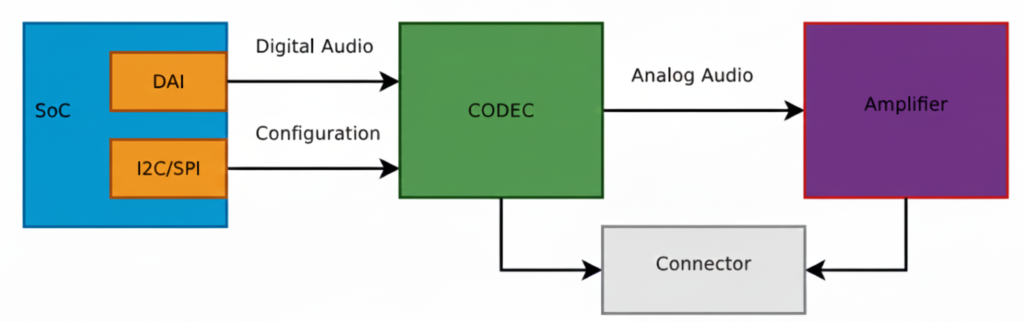
    This diagram shows a typical embedded Linux / SoC audio playback architecture exactly the kind of pipeline you deal with in ALSA, QNX audio, codec drivers, and board bring-up.
    Let’s break it block by block, signal by signal, and then connect it to real software components you use.

    SoC (System on Chip)

    The SoC is the brain of the system (Qualcomm, TI, NXP, STM32MP, etc.).

    Inside the SoC, two important blocks are shown:

    DAI (Digital Audio Interface)

    This block is responsible for sending and receiving digital audio samples.

    Typical interfaces:

    • I2S
    • TDM
    • PCM
    • DSP_A / DSP_B

    What flows here?

    • Raw PCM samples
    • Example: 16-bit / 24-bit / 32-bit audio
    • Sample rates: 44.1 kHz, 48 kHz, 96 kHz

    Signals on the wire:

    • BCLK (Bit clock)
    • LRCLK / FS (Frame sync)
    • DATA

    This is high-speed, real-time audio data

    I2C / SPI (Control Interface)

    This is NOT audio data.

    Used only for:

    • Configuring the codec
    • Setting volume
    • Power control
    • Selecting input/output paths
    • Muting, unmuting
    • Clocking modes

    Example operations:

    • Set DAC sample rate
    • Enable headphone output
    • Set gain = +6 dB
    • Power up analog blocks

    This is low-speed control, not streaming audio.

    Digital Audio Path (SoC → CODEC)

    The arrow labeled “Digital Audio” represents:

    SoC DAI  ──(I2S/TDM/PCM)──>  CODEC
    

    ✔ Audio is still digital
    ✔ No voltage amplification
    ✔ No sound yet

    This is where:

    • ALSA PCM writes happen
    • DMA transfers audio buffers
    • Timing is critical

    In ALSA terms:

    • CPU DAI ↔ Codec DAI
    • Defined in ASoC machine driver
    • Linked using snd_soc_dai_link

    CODEC (Most Important Block)

    The CODEC (Coder–Decoder) is the heart of audio hardware.

    What the CODEC does:

    • DAC: Digital → Analog (playback)
    • ADC: Analog → Digital (capture)
    • Filtering
    • Mixing
    • Volume control
    • Clock management

    Inputs:

    • Digital audio (I2S/TDM)
    • Control commands (I2C/SPI)

    Outputs:

    • Analog audio signals (line-level)

    Important:

    The codec output is NOT strong enough to drive speakers

    That’s why the next block exists.

    Analog Audio Path (CODEC → Amplifier)

    The arrow labeled “Analog Audio” means:

    • Audio is now continuous voltage
    • Typical level: ~1 Vrms (line level)
    • Sensitive to noise, grounding, layout

    Signals here:

    • Left / Right analog outputs
    • Differential or single-ended

    Amplifier

    The Amplifier increases signal power so it can:

    • Drive speakers
    • Drive headphones
    • Overcome impedance

    Amplifier types:

    • Class D (most common in embedded)
    • Class AB
    • Headphone amps

    What it does:

    • Voltage amplification
    • Current amplification
    • Power delivery

    Example:

    • Codec output: 1V
    • Amplifier output: 5–12V swing (speaker)

    Connector (Speaker / Headphone Jack)

    The Connector is the physical output:

    • Speaker connector
    • 3.5mm headphone jack
    • Line-out
    • Automotive speaker terminals

    Why shown separately?
    Because:

    • Board routing matters
    • ESD protection is added
    • Jack detection may exist
    • Multiple outputs can be routed

    Full Signal Flow (End-to-End)

    Playback path:

    Application (aplay / media app)
            ↓
    ALSA PCM
            ↓
    CPU DAI (SoC)
            ↓  [Digital Audio: I2S/TDM]
    CODEC (DAC)
            ↓  [Analog Audio]
    Amplifier
            ↓
    Speaker / Headphones
    

    Software Mapping (Very Important)

    In Linux ALSA ASoC:

    Hardware BlockSoftware Component
    SoC DAICPU DAI driver
    CODECCodec driver
    I2C/SPIRegmap
    ConnectionsMachine driver
    User appaplay, arecord

    Why WAV is Used for Testing

    • WAV = raw PCM
    • No decoding needed
    • Direct match to DAI data
    • Perfect for testing this pipeline

    MP3/AAC would require:

    • Decoder
    • Extra CPU
    • More variables

    Big Picture Audio Hardware Block Diagram

    Microphone
       ↓
    [ Analog Front End ]
       ↓
    ADC  →  SoC / MCU  →  DAC
       ↑        ↓        ↓
     Codec   DSP / CPU  Amplifier
                             ↓
                          Speaker
    

    Let’s explain each block in detail.

    Audio Input Hardware (Sound Capture)

    Microphone

    Converts sound waves → electrical signals

    Types:

    • Electret Condenser Mic (analog output)
    • MEMS Mic
      • Analog MEMS
      • Digital MEMS (PDM / I2S output)

    Key parameters:

    • Sensitivity (dBV/Pa)
    • Signal-to-noise ratio (SNR)
    • Directionality (Omni / Uni-directional)

    Analog Front End (AFE)

    Before audio reaches the ADC, it must be conditioned.

    AFE includes:

    • Pre-amplifier (boosts weak mic signals)
    • Biasing circuit (for electret mics)
    • Low-pass filter (anti-aliasing)
    • Noise filtering

    Without AFE, captured audio will be noisy or distorted.

    Audio Codec (Heart of Audio Hardware)

    What is an Audio Codec?

    A codec = Coder + Decoder

    It usually integrates:

    • ADC (Analog → Digital)
    • DAC (Digital → Analog)
    • Mixers, volume control, mute
    • Power management

    Examples:

    • TLV320 series (TI)
    • PCM5102, PCM1808
    • WM8960
    • Realtek codecs

    Why Codec Is Important

    • MCU/SoC cannot directly handle analog audio
    • Codec ensures:
      • Correct sampling
      • Bit depth
      • Clean audio conversion

    Digital Audio Interfaces (SoC ↔ Codec)

    Audio data moves digitally between SoC and codec.

    I2S (Most Common)

    Used for PCM audio.

    Signals:

    • BCLK (Bit Clock)
    • LRCLK / WS (Left-Right clock)
    • DATA
    • MCLK (optional)
    SoC  ←→  Codec
     I2S     I2S
    

    Other Audio Interfaces

    • PCM/TDM – multi-channel audio (automotive, pro audio)
    • PDM – digital microphone interface
    • SPDIF – consumer audio
    • AC97 / HDA – PC-class audio

    Audio Processing Hardware

    MCU / SoC

    Processes audio samples.

    Responsibilities:

    • Buffer management
    • DMA handling
    • Audio routing
    • Running DSP algorithms

    Examples:

    • BeagleBone (AM335x)
    • STM32F4/F7/H7
    • ESP32
    • Qualcomm SoCs

    DSP (Optional but Powerful)

    Dedicated processor for:

    • Noise cancellation
    • Echo cancellation
    • Equalizer
    • Compression

    In many SoCs, DSP is integrated.

    Audio Output Hardware (Sound Playback)

    DAC

    Converts digital PCM samples → analog waveform

    Parameters:

    • Resolution (16-bit / 24-bit)
    • Sampling rate
    • Dynamic range

    Often integrated inside codec.

    Audio Power Amplifier

    Boosts low-level analog signal to drive speakers.

    Examples:

    • LM386 (you’ve used this)
    • TPA3116
    • Class-D amplifiers

    Why needed?

    • Codec output ≈ millivolts
    • Speaker needs watts

    Speaker / Headphones

    Final sound-producing component.

    Considerations:

    • Impedance (4Ω, 8Ω)
    • Power rating
    • Mono vs stereo

    Clocking Hardware (Very Important)

    Audio hardware needs precise clocks.

    Sources:

    • External crystal
    • SoC PLL
    • Codec internal PLL

    Clock affects:

    • Sampling accuracy
    • Audio quality
    • Jitter

    Power Management in Audio Hardware

    Audio is sensitive to power noise.

    Hardware includes:

    • Separate analog & digital power rails
    • LDOs
    • Ground separation (AGND / DGND)

    Bad power = hiss, pop, distortion.

    Real Embedded Example (BeagleBone + Codec)

    Mic → AFE → Codec ADC
                   ↓
               I2S Bus
                   ↓
            AM335x (ALSA)
                   ↓
               I2S Bus
                   ↓
               Codec DAC
                   ↓
              LM386 Amp
                   ↓
                Speaker
    

    Software controls:

    • ALSA drivers
    • Device Tree
    • Mixer settings

    Common Embedded Audio Hardware Issues

    • No sound → clock misconfiguration
    • Distorted audio → wrong gain
    • Noise → poor grounding
    • Channel swap → LRCLK mismatch
    • Crackling → buffer underrun

    Summary

    BlockPurpose
    MicrophoneCapture sound
    AFECondition analog signal
    ADCConvert to digital
    CodecAudio conversion + control
    I2S/PCMTransfer digital audio
    SoC/DSPProcess audio
    DACConvert to analog
    AmplifierBoost signal
    SpeakerPlay sound

    Codec = ADC + DAC + mixers + clocks + controls

    CODEC = COder + DECoder

    An audio codec is a single chip that can:

    • Record sound → convert analog sound into digital data
    • Play sound → convert digital data back into analog sound

    It acts as a bridge between the real (analog) world and the digital world.

    Controlled via:

    • I2C / SPI → registers
    • I2S / TDM → audio data

    Why do we need a CODEC?

    Microcontrollers / SoCs cannot understand analog voltages directly.

    • Microphone → gives analog voltage
    • Processor → understands digital numbers
    • Speaker → needs analog voltage

    So we need a translator → that’s the CODEC.

    Inside a CODEC: ADC + DAC

    A codec internally contains:

    ADC (Analog to Digital Converter)

    • Takes analog voltage (from mic/line-in)
    • Converts it into digital samples
    • Used during audio capture / recording

    DAC (Digital to Analog Converter)

    • Takes digital samples
    • Converts them into analog voltage
    • Used during audio playback

    Both ADC and DAC are inside one chip → called an Audio CODEC

    What exactly does a CODEC do?

    Recording path

    Microphone → Analog voltage → ADC → Digital samples → SoC
    

    Playback path

    SoC → Digital samples → DAC → Analog voltage → Speaker / Amplifier
    

    How does a CODEC talk to the SoC? (DAI)

    CODECs don’t send data randomly.
    They use a Digital Audio Interface (DAI).

    DAI is a synchronous serial interface (everything happens on clock edges).

    Common DAI standards:

    • I²S
    • PCM
    • TDM

    PCM / I²S Interface Basics

    The 2 Main Clocks

    Bit Clock (BCLK / BCK)

    • Ticks once per bit
    • Controls bit-by-bit transfer

    Frame Clock (LRCLK / FSCLK / WCLK)

    • Ticks once per audio sample
    • Indicates Left / Right channel
    • Its frequency = Sample Rate (Fs)

    Example:

    • Fs = 48 kHz → 48,000 samples per second

    Relationship Between Clocks

    Formula:

    BCLK = FS × Number_of_Channels × Bit_Depth
    

    Example:

    • Sample Rate (Fs) = 48 kHz
    • Channels = 2 (Stereo)
    • Bit depth = 16 bits
    BCLK = 48,000 × 2 × 16 = 1.536 MHz
    

    BCLK must run much faster than LRCLK.

    Data Lines (Audio Data)

    Along with clocks, we have data lines:

    • Carry the actual audio bits
    • Usually called: SDATA, DSDATA, ASDATA

    Important points:

    • One data line can carry two channels (Left + Right)
    • Some codecs have multiple data lines:
      • One per channel pair
      • Useful for multi-channel audio

    Multiple DAI Interfaces

    Some codecs support:

    • Separate DAI for input (ADC)
    • Separate DAI for output (DAC)

    This allows:

    • Different clocks
    • Different sample rates
    • Independent routing

    Real Example: AD1937 CODEC

    Capabilities

    • 8 DAC channels → 4 stereo output pairs
    • 4 ADC channels → 2 stereo input pairs

    Playback (DAC side)

    • Clocks:
      • ABCLK → Bit clock
      • ALRCLK → Frame clock
    • Data lines:
      • ASDATA[1–2] → 2 output data lines

    Capture (ADC side)

    • Clocks:
      • DBCLK
      • DLRCLK
    • Data lines:
      • DSDATA[1–4] → 4 input data lines

    Perfect for multi-channel professional audio systems

    Control Interface (Configuration Bus)

    Audio data ≠ configuration.

    CODECs use a separate control bus to:

    • Set volume
    • Select sample rate
    • Enable ADC/DAC
    • Configure routing

    Common control buses:

    • I²C
    • SPI

    Audio flows on DAI, configuration happens on I²C/SPI.

    What is MCLK? (Master Clock)

    MCLK = System Clock for CODEC

    • Required for internal codec operation
    • Feeds internal DSP, ADC, DAC

    How is MCLK provided?

    • By SoC clock output
    • By external crystal oscillator
    • Sometimes derived from BCLK or LRCLK

    Is MCLK Always Required?

    • Usually yes
    • Sometimes optional

    Some codecs:

    • Can run using BCLK or LRCLK
    • Useful for simple systems

    But:

    • High-quality codecs usually require MCLK

    MCLK Relationship

    MCLK is usually a multiple of Fs:

    Common values:

    • 256 × Fs
    • 384 × Fs
    • 512 × Fs

    Example:

    • Fs = 48 kHz
    • MCLK = 48k × 256 = 12.288 MHz

    Big Picture Summary

    Microphone → ADC → PCM/I²S → SoC → PCM/I²S → DAC → Speaker
                    ↑           ↑
                  MCLK        BCLK, LRCLK

    What is Left-Justified (LJ) Audio Digital Format?

    Left-Justified is a digital audio data format used to transfer audio samples between a codec and a SoC/DSP over serial audio interfaces like:

    • I²S
    • TDM
    • PCM interfaces

    It defines how audio bits are aligned with the clock signals.

    The 3 Important Audio Signals (Recap)

    In any digital audio interface, you’ll see:

    SignalMeaning
    BCLKBit Clock – clocks each bit
    LRCLK / WSLeft-Right Clock (Word Select)
    DATAActual audio sample bits

    Left-Justified format describes when DATA starts relative to LRCLK.

    Left-Justified Format – Core Idea

    The MSB (Most Significant Bit) of the audio sample appears immediately after the LRCLK transition.

    Key Rule:

    • No delay
    • MSB is aligned with the LRCLK edge
    • Data is “left-aligned” in the word frame

    Timing Diagram (Conceptual)

    LRCLK:  |____ LEFT ____|____ RIGHT ____|
                ↑                ↑
               MSB              MSB
    BCLK :  |‾|_|‾|_|‾|_|‾|_|‾|_|‾|_|
    DATA :  [MSB ........ LSB][MSB .... LSB]
    

    As soon as LRCLK changes:

    • Data starts immediately
    • First bit = MSB

    Example: 16-bit Audio Sample

    Assume:

    • Sample size = 16 bits
    • Left channel sample = 0x5A3C

    Bit Transmission (Left Channel)

    LRCLK = 0  → LEFT channel
    DATA   = 0 1 0 1 1 0 1 0 0 0 1 1 1 1 0 0
              ↑
             MSB (no delay!)
    

    Left-Justified vs I²S (Very Important Interview Point)

    FeatureLeft-JustifiedI²S
    MSB positionImmediately after LRCLK edge1 BCLK delay
    AlignmentLeft alignedDelayed
    SimplicitySimpleSlightly complex
    Codec supportOlder & simple codecsMost modern codecs

    This 1-bit delay is the ONLY difference — but it breaks audio if misconfigured.

    Why is it Called “Left-Justified”?

    Because:

    • Audio data is pushed to the left side of the word frame
    • No padding before MSB
    • Extra unused bits (if any) come after LSB

    Example (24-bit sample on 32-bit frame):

    [ MSB .... LSB ][ 0 0 0 0 0 0 0 0 ]
    

    Where is Left-Justified Used?

    Common in:

    • Audio codecs (TLV320, PCM series)
    • Simple DAC/ADC interfaces
    • Embedded SoCs during codec bring-up
    • Some QNX / ALSA hardware configs

    You’ll often see it as:

    LEFT_J
    LEFT_JUSTIFIED
    LJ
    

    ALSA / Embedded Perspective (Real World)

    In ALSA, Left-Justified is configured using:

    • DAI format flags
    • Example:
    SND_SOC_DAIFMT_LEFT_J
    

    If:

    • Codec = Left-Justified
    • SoC = I²S

    Audio will be distorted or silent

    Simple One-Line Definition (Interview Ready)

    Left-Justified audio format is a digital audio data format where the MSB of the sample appears immediately after the LRCLK transition, with no bit delay.

    What is Right-Justified (RJ) Audio Digital Format?

    Right-Justified is a digital audio data alignment format used to transfer audio samples between:

    • Codec ↔ SoC / DSP
    • Over interfaces like I²S, PCM, TDM

    It defines how audio bits are aligned with the LRCLK (Word Select) signal.

    Core Idea (Very Important)

    In Right-Justified format, the LSB (Least Significant Bit) of the audio sample is aligned with the end of the LRCLK period.

    Meaning:

    • Data is right-aligned
    • MSB position depends on sample width

    Signals Involved

    SignalRole
    BCLKClocks each bit
    LRCLK / WSSelects Left or Right channel
    DATAAudio sample bits

    Right-Justified format defines where the LSB appears relative to LRCLK.

    Timing Concept (Simple View)

    LRCLK:  |____ LEFT ____|____ RIGHT ____|
                         ↑                ↑
                        LSB              LSB
    
    BCLK :  |‾|_|‾|_|‾|_|‾|_|‾|_|‾|_|
    DATA :  [MSB .... LSB][MSB .... LSB]
    

    The last bit before LRCLK changes is always LSB.

    Example: 16-bit Audio Sample

    Assume:

    • Sample size = 16 bits
    • Frame size = 32 bits

    Left Channel Transmission

    [ 0 0 0 0 0 0 0 0 | MSB .... LSB ]
                        ↑           ↑
                      starts      aligned
    

    Padding bits come before MSB
    Sample ends exactly at LRCLK edge

    Why “Right-Justified”?

    Because:

    • Audio data is aligned to the right side of the frame
    • Extra unused bits are placed before MSB
    • LSB touches the LRCLK boundary

    Right-Justified vs Left-Justified vs I²S

    FeatureLeft-JustifiedRight-JustifiedI²S
    MSB alignmentImmediately after LRCLKVariable1 BCLK delay
    LSB alignmentVariableAt LRCLK edgeFixed
    Padding bitsAfter LSBBefore MSBAfter LSB
    Common usageSome codecsLegacy codecsMost modern systems

    Important Embedded Detail

    In Right-Justified, the SoC must know sample width:

    • 16-bit
    • 20-bit
    • 24-bit
    • If sample width mismatches:
    • Audio distortion
    • Shifted samples
    • Noise / silence

    This is why RJ is more error-prone than LJ or I²S.

    ALSA / Driver Perspective

    In ALSA SoC drivers, Right-Justified is selected using:

    SND_SOC_DAIFMT_RIGHT_J
    

    Typical usage:

    • Old DACs / ADCs
    • Simple PCM audio paths
    • Some automotive codecs

    One-Line Interview Definition

    Right-Justified audio format aligns the LSB of each audio sample with the LRCLK edge, while MSB position depends on the sample width.

    Quick Memory Trick

    • Left-Justified → MSB touches LRCLK
    • Right-Justified → LSB touches LRCLK
    • I²S → MSB delayed by 1 BCLK

    What is I2S (Inter-IC Sound)?

    I2S (Inter-IC Sound) is a digital audio communication protocol used to transfer audio data between chips such as a processor, audio codec, DAC, or ADC.

    Key Points of I2S

    • Designed specifically for digital audio
    • Transfers PCM (Pulse Code Modulation) audio data
    • Commonly used in embedded systems, SoCs, and audio boards
    • Simple and easy to implement

    I2S Signals

    I2S uses three or four lines:

    • BCLK (Bit Clock): Clocks each audio bit
    • LRCLK / WS (Word Select): Selects Left or Right audio channel
    • SD (Serial Data): Carries audio sample data
    • MCLK (Optional): Master clock for codec timing

    I2S Features

    • Supports stereo audio (Left & Right)
    • Fixed channel structure
    • Low latency
    • Ideal for headphones, speakers, microphones

    Where I2S is Used

    • Audio codecs (PCM, WM, TLV series)
    • Embedded Linux audio (ALSA)
    • Microcontrollers and DSPs
    • Music players and voice applications

    What is TDM (Time Division Multiplexing)?

    TDM (Time Division Multiplexing) is a digital audio interface that allows multiple audio channels to be transmitted over a single data line by assigning each channel a time slot.

    Key Points of TDM

    • Supports multi-channel audio
    • Uses time slots instead of separate data lines
    • Highly scalable and efficient
    • Common in professional and automotive audio systems

    TDM Signals

    TDM typically uses:

    • BCLK (Bit Clock): Drives bit transmission
    • FS / SYNC (Frame Sync): Marks start of a frame
    • SD (Serial Data): Carries data for all channels

    TDM Features

    • Supports 4, 8, 16, or more channels
    • Better bandwidth utilization
    • Reduces pin count on SoCs
    • Ideal for surround sound and voice systems

    Where TDM is Used

    • Automotive infotainment systems
    • Multi-microphone arrays
    • Professional audio mixers
    • Advanced SoC audio pipelines

    I2S vs TDM – Quick Comparison

    FeatureI2STDM
    Channels2 (Stereo)Multiple (4–16+)
    Data LinesOne per streamSingle shared
    ComplexitySimpleModerate
    Use CaseBasic audioMulti-channel audio
    ScalabilityLimitedHigh

    Summary

    • I2S is best for simple stereo audio communication
    • TDM is ideal for multi-channel, high-performance audio systems
    • Both are widely used in embedded audio, Linux ALSA, and SoC designs

    Linux (ALSA)

    User App (aplay)
       ↓
    ALSA PCM API
       ↓
    ALSA SoC Layer
       ↓
    Codec Driver
       ↓
    I2S / TDM Driver
       ↓
    Hardware

    QNX

    Audio Service
       ↓
    io-audio / devctl
       ↓
    Driver
       ↓
    Codec + Interface
    

    Unlike files or networking:

    Late data = noise
    Missing data = crack/pop
    Clock mismatch = drift

    Key challenges:

    • Buffer underrun / overrun
    • Clock synchronization
    • Interrupt latency
    • DMA tuning

    Playback

    File → PCM → DAC → Speaker

    Capture

    Mic → ADC → PCM → File / Stream

    Drivers must support both directions.

    TypeExampleUsed Where
    RawPCMDrivers, ALSA
    CompressedMP3, AACApps
    LosslessWAV, FLACStorage

    Embedded drivers almost never touch MP3/AAC.

    Audio correctness depends more on TIMING than data

    Even perfect samples are useless if late.

    In digital audio, a clock is a timing signal that synchronizes the transfer of audio data between components like a CPU, DSP, or audio codec. Without clocks, audio data could be misaligned, causing glitches, noise, or distortion.

    Types of Clocks in Audio DAI (Digital Audio Interface)

    1. Bit Clock (BCLK)
      • Drives the rate at which each audio bit is sent.
      • Think of it like the tick of a metronome, sending bits one by one.
      • Bit Clock Producer: One DAI (Digital Audio Interface) must generate this clock, called the BCLK producer (previously called “master”).
    2. Frame Clock (LRCLK / Word Select / FS)
      • Signals the start of each audio frame (Left and Right channels in stereo).
      • Ensures the receiving device knows which bits belong to the left or right channel.
      • Frame Clock Producer: One DAI generates this, called the frame producer.
    3. Master Clock (MCLK)
      • Optional but important for many CODECs.
      • Provides a high-frequency reference clock that other clocks (BCLK, LRCLK) can derive from using PLLs and dividers.
      • Helps CODECs generate precise bit and frame clocks even if the SoC provides multiple MCLK rates.

    Who Should Generate the Clock?

    • Often, it’s better to let the CODEC act as the clock producer because:
      • CODECs have built-in PLLs and dividers for accurate BCLK from MCLK.
      • Reduces jitter (timing errors) in audio.
    • Some SoCs have specialized audio PLLs, so the CPU can generate precise clocks too.

    Rule of thumb:

    • Let the device with the best PLL stability produce the clock.
    • The other device is called the bit or frame consumer, which simply follows the clock.

    In audio systems, auxiliary devices are additional hardware components that are not the main audio codec or processor, but help in modifying, routing, or amplifying audio signals. They can exist on the analog path (after digital-to-analog conversion) or sometimes on the digital path.

    These devices are essential for fine-tuning audio output, volume control, or channel selection.

    Types of Auxiliary Devices

    1. Amplifiers
      • Boost the audio signal strength before sending it to speakers or headphones.
      • Examples:
        • Headphone amplifiers in mobile phones
        • Line amplifiers in sound cards
      • They can be controlled digitally in modern systems to adjust gain or mute audio.
    2. Potentiometers (Volume Controls)
      • Analog knobs or digital controls that adjust signal amplitude.
      • They act as volume knobs or mixing controls.
      • Can be exposed in the ALSA sound card interface so software can control them.
    3. Multiplexers (MUXes)
      • Switch between multiple audio sources or paths.
      • Example: Choosing between line-in, mic, or Bluetooth input.
      • Controlled via software registers to route audio correctly.
    4. Other Analog Path Devices
      • Filters, equalizers, or attenuators
      • Ensure signal quality, reduce noise, or adjust frequency response

    Control of Auxiliary Devices

    • Many auxiliary devices are software-controllable.
    • In ALSA (Advanced Linux Sound Architecture):
      • They appear as controls of the sound card.
      • Software can adjust volume, enable/disable paths, or switch inputs.

    Example in ALSA ASoC:

    SOC_SINGLE("Headphone Gain", codec_reg, 0, 31, 0);
    SOC_ENUM("Input Source", input_mux_enum);
    
    • Headphone Gain: Controls amplifier gain
    • Input Source: Selects which audio path the multiplexer connects

    This software abstraction makes it easy to manage analog devices programmatically.

    Key Points for Beginners

    • Auxiliary devices are not the main audio codec, but they enhance or route audio.
    • They can be analog or digital controlled.
    • Exposing them as sound card controls allows software to adjust audio dynamically.
    • Common examples: Amplifiers, volume controls, multiplexers.

    Q1. What is I2S?
    Answer:
    I2S (Inter-IC Sound) is a digital audio interface used to transfer PCM audio data between chips such as processors, codecs, DACs, and ADCs.

    Q2. How many signals does I2S use?
    Answer:
    I2S typically uses 3 or 4 signals:

    • BCLK (Bit Clock) – Clocks each audio bit
    • LRCLK / WS (Word Select) – Indicates Left or Right channel
    • SD (Serial Data) – Carries audio samples
    • MCLK (Master Clock) – Optional, used for codec timing

    Q3. What audio formats does I2S support?
    Answer:
    I2S supports PCM audio, commonly 16-bit, 24-bit, or 32-bit samples, stereo only.

    Q4. Difference between Left-Justified and I2S format?
    Answer:

    • I2S format: Data starts one clock after LRCLK changes.
    • Left-Justified: Data starts exactly at the LRCLK edge.

    Q5. Where is I2S used in embedded systems?
    Answer:

    • Audio codecs (WM8731, PCM5122)
    • Microcontrollers (STM32, ESP32)
    • Audio playback/recording
    • Linux ALSA systems

    Q1. What is TDM in audio?
    Answer:
    TDM allows multiple audio channels to share a single data line by assigning each channel a time slot, used for professional multi-channel audio.

    Q2. How many channels can TDM support?
    Answer:
    It depends on the implementation; common configurations support 4, 8, 16, or more channels.

    Q3. Difference between I2S and TDM?
    Answer:

    FeatureI2STDM
    Channels2 (Stereo)Multiple (4–16+)
    Data linesOne per streamSingle shared
    ComplexitySimpleModerate
    Use caseBasic stereo audioMulti-channel audio

    Q4. What signals are used in TDM?
    Answer:

    • BCLK (Bit Clock) – Synchronizes bits
    • FS / SYNC (Frame Sync) – Marks frame start
    • SD (Serial Data) – Carries all channels sequentially

    Q5. Where is TDM commonly used?
    Answer:

    • Automotive infotainment
    • Multi-microphone voice capture
    • Surround sound systems
    • DSP audio pipelines
    1. How do you connect an I2S codec to STM32?
      • Use BCLK, WS, SD pins, enable I2S peripheral, configure sample rate & word length.
    2. How do you configure ALSA for TDM multi-channel audio?
      • Define codec and CPU DAI in ASoC machine driver, set number of slots, slot width, frame sync, and register in ALSA.
    3. Why choose TDM over I2S?
      • When you need more than 2 channels over limited pins, e.g., 8-channel microphone arrays.
    4. Explain Left-Justified vs Right-Justified format in I2S/TDM.
      • Left-Justified: Data aligned with LRCLK edge
      • Right-Justified: Data ends at LRCLK edge