Category: Cybersecurity

  • ESP32-C6 Secure Boot and Flash Encryption Solve Different Problems

    ESP32-C6 Secure Boot and Flash Encryption Solve Different Problems

    “Security enabled” is not one switch. On ESP32-C6, Secure Boot and flash encryption address different parts of the device lifecycle, and combining them does not remove the need to plan updates, recovery and key management.

    Espressif’s Secure Boot v2 guide describes signature verification for the second-stage bootloader and application images. The flash-encryption guide covers encryption of off-chip flash contents. One feature helps ensure the device boots authorized software; the other helps protect stored firmware and data against physical flash readout.

    Separate the security goals

    Secure Boot is about authenticity and execution: the boot process verifies signed code before it runs. Espressif’s guide describes RSA-PSS or ECDSA verification and notes that public keys are stored on-device while their corresponding private keys should remain protected outside the device.

    Flash encryption protects data at rest in external flash. Espressif warns that enabling it affects the options available for future updates and says production use should follow its release-mode guidance. That is a strong reason to validate the production workflow on test devices before committing a manufacturing process.

    Plan for the day a key or update must change

    A secure product needs a documented signing-key custody process, a recovery and update strategy, and a clear understanding of irreversible provisioning settings. Decide how a key rotation or compromise would be handled before deployment, and test the normal update path and recovery behavior on hardware representative of production.

    • Keep signing keys out of developer workstations and routine build jobs.
    • Document who can approve a release and how artifacts are signed.
    • Test the intended update and recovery path before manufacturing.
    • Review the ESP-IDF guide’s eFuse and production implications with the hardware team.
    • Record the security configuration for each shipped hardware revision.

    This is an architecture overview, not a step-by-step provisioning guide. Consult Espressif’s version-matched documentation before configuring a device. Secure Boot and flash encryption are powerful controls, but incorrect lifecycle planning can make legitimate maintenance difficult.

    Sources

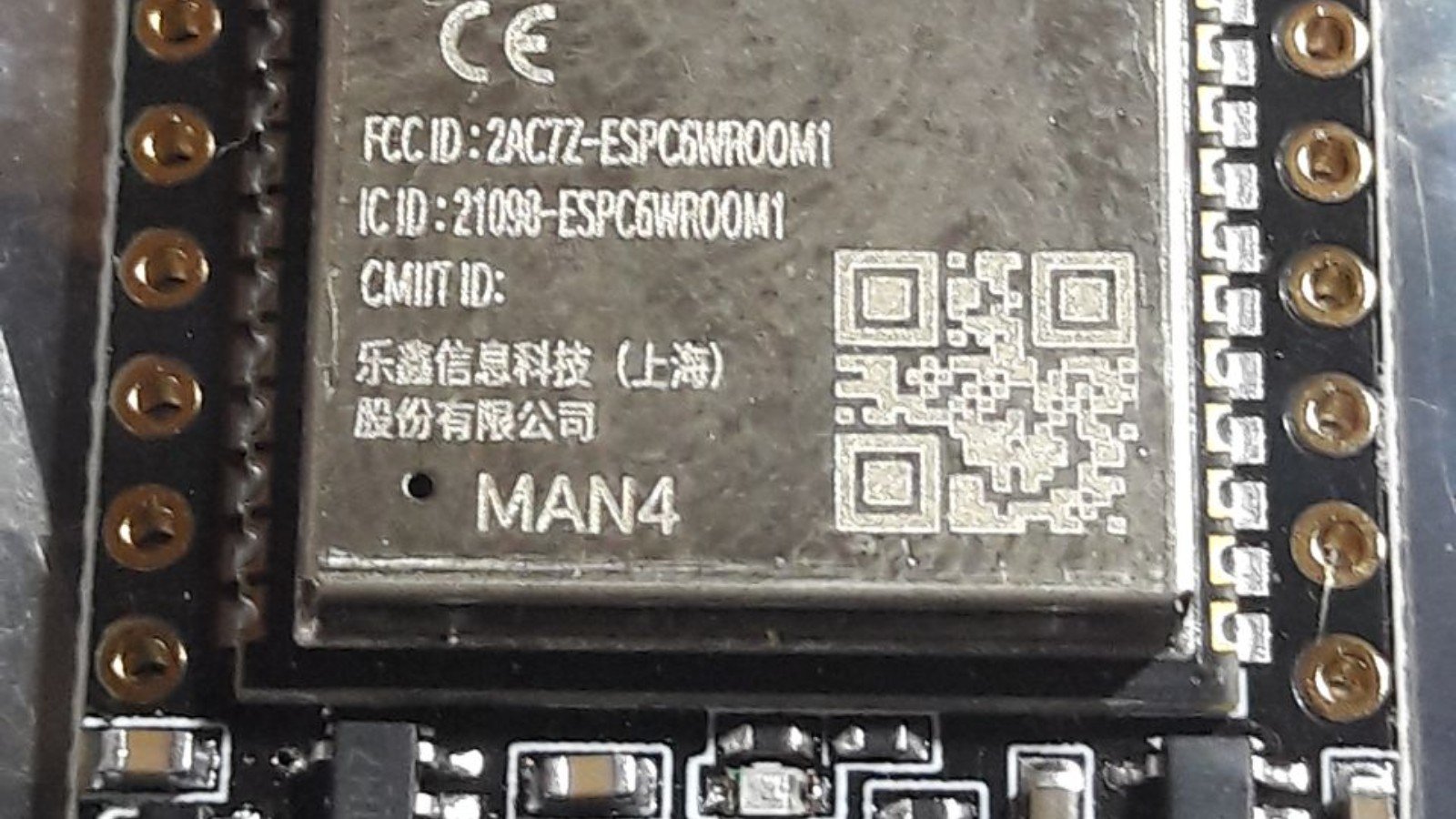
    Featured image credit: Illustrative ESP32-C6-WROOM-1 development board photo by Popolon via Wikimedia Commons, CC BY-SA 4.0. Cropped to 16:9. Source.

  • This One Wi-Fi Mistake Could Let Hackers Peek Into Your Bank App

    A single Wi-Fi mistake can compromise your bank app security. Discover how public Wi-Fi exposes your financial data and the step to protect yourself.

    You unlock your phone at an airport gate.

    • A familiar Wi-Fi name pops up.
    • You connect without thinking.
    • Your bank app quietly refreshes in the background.
    • You didn’t tap anything risky.
    • You didn’t download anything suspicious. And yet, this is the exact moment when financial data exposure often begins.

    The Wi-Fi Habit Most People Don’t Think Twice About

    The mistake is simple and incredibly common:
    connecting to open or public Wi-Fi networks without protection.

    Airports, cafés, hotels, malls, trains — these networks are everywhere. They’re convenient, free, and usually fast enough. For many people, connecting feels harmless, especially when they’re just checking messages or scrolling.

    But public Wi-Fi is shared by everyone nearby. That includes strangers you can’t see, devices you don’t recognize, and networks that may not be what they seem.

    It’s not careless behavior. It’s everyday behavior.

    Why Bank Apps Are a Prime Target on Public Wi-Fi

    Banking apps hold some of the most valuable information on your phone.

    Even when apps use strong security, public Wi-Fi creates opportunities attackers look for. On open networks, data can sometimes be intercepted as it moves between your phone and the internet. In other cases, fake Wi-Fi hotspots are set up to look legitimate — using names like “Airport Free Wi-Fi” or “Cafe Guest.”

    When users connect, their traffic may pass through someone else’s device first.

    This doesn’t mean every public network is dangerous. But it does mean the risk is higher — especially when sensitive apps are active.

    This Is How Information Gets Exposed — Even Without You Clicking Anything

    One of the biggest misconceptions about digital risk is that something bad only happens after a click.

    In reality, phones communicate constantly in the background.

    Apps sync data.
    Sessions stay active.
    Devices auto-connect to familiar networks.

    On unsecured Wi-Fi, these background actions can expose session details or metadata — even if you never open your bank app manually.

    It’s quiet.
    It’s passive.
    And most users never realize it happened.

    The One Simple Step That Dramatically Reduces the Risk

    Security experts consistently point to one habit that significantly lowers exposure on public networks: using a trusted connection layer.

    This could mean avoiding sensitive apps on public Wi-Fi altogether, or using a virtual private network (VPN) that encrypts traffic before it leaves your device.

    This isn’t about becoming “unhackable.” No tool offers that.

    It’s about reducing visibility. Making your data harder to intercept. Turning an easy target into a much less attractive one.

    Small changes, big difference.

    When It’s Especially Dangerous to Use Public Wi-Fi

    Some environments deserve extra caution because of high traffic and anonymity:

    • Airports and railway stations
    • Cafés and food courts
    • Hotels and conference venues
    • Shopping malls
    • Public transport hubs

    In these places, networks are often overloaded, loosely managed, or frequently impersonated. The more people connected, the harder it is to know who — or what — is on the same network.

    That’s when basic habits matter most.

    What Security Experts Want Everyday Users to Remember

    Most cyber incidents don’t start with advanced attacks. They start with routine moments.

    Experts emphasize awareness over fear. You don’t need to stop using public Wi-Fi forever. You just need to understand its limits.

    Public networks are best for low-risk activities: reading news, checking maps, casual browsing. They’re not ideal for banking, payments, or handling sensitive accounts unless extra precautions are in place.

    Think of public Wi-Fi like a public conversation. You wouldn’t discuss private finances out loud in a crowded room. The same logic applies digitally.

    The good news is that this risk is manageable.

    You don’t need technical skills or expensive tools. Just better habits and a little awareness.

    By knowing when public Wi-Fi is safe enough — and when it isn’t — you dramatically reduce the chances of exposure.

    In today’s connected world, small decisions often make the biggest difference.

    Frequently Asked Questions (FAQs)

    Can someone really access my bank data just by being on the same Wi-Fi?
    In some cases, yes. On unsecured or fake networks, data or active sessions can be exposed without obvious warning.

    Are bank apps themselves unsafe on public Wi-Fi?
    Most bank apps are secure, but public Wi-Fi increases risk because the network — not the app — is the weak point.

    Is public Wi-Fi always dangerous?
    No. It’s useful for low-risk activities, but it’s not ideal for banking, payments, or sensitive accounts.

    Does turning off Wi-Fi after connecting help?
    It helps reduce exposure, but the safest option is avoiding sensitive use while connected in the first place.

    Do VPNs make public Wi-Fi completely safe?
    They don’t guarantee absolute safety, but they significantly reduce the chance of data exposure.

    What’s the safest habit to remember?
    Treat public Wi-Fi like a public space — convenient, but not private.

  • Stop Connecting to Public Wi-Fi Until You Try This One Trick!

    Most laptops have a hidden weakness hackers exploit every day and you probably don’t even know it. Learn the simple trick to instantly protect your laptop, block attacks, and stay safe online. Quick, easy, and effective!

    Free Wi-Fi is everywhere—cafes, airports, hotels, libraries. It seems harmless, right? But here’s the scary truth: public Wi-Fi is a hacker’s playground.

    Every time you connect without protection, your personal data—passwords, banking info, emails, even photos—can be intercepted. Hackers don’t even need to be sophisticated. With simple tools, they can steal your sensitive info in seconds.

    If that makes you nervous, good. Awareness is the first step. But here’s the relief: you don’t have to avoid public Wi-Fi completely. There’s a simple trick that actually works to keep you safe.

    The One Trick That Actually Works

    The fastest, easiest way to protect yourself on public Wi-Fi is to use a VPN (Virtual Private Network).

    A VPN encrypts your internet connection. Think of it as sending your data through a secret tunnel. Hackers can’t see what you’re doing—even if they’re on the same network.

    The best part? You don’t need to be tech-savvy. Turn it on, and your connection is secured. Works on laptops, tablets, and smartphones.


    Step-by-Step Public Wi-Fi Safety Tips

    Here’s how to stay protected without giving up Wi-Fi completely:

    1️⃣ Always Use a VPN
    Before connecting, turn on your VPN. No excuses. Your data is only safe if the VPN is active.

    2️⃣ Forget Networks After Use
    Your device might auto-connect to unsafe networks later. Forget every public Wi-Fi network after leaving.

    3️⃣ Stick to HTTPS Websites
    Look for the padlock in your browser. HTTPS encrypts your browsing data, making it harder for hackers to steal info.

    4️⃣ Turn Off File Sharing
    Public networks are not the place to share files. Disable file sharing in your system settings to keep your data private.

    5️⃣ Use Two-Factor Authentication (2FA)
    Even if someone steals your password, 2FA adds a second layer of protection. Your accounts remain safe.

    6️⃣ Avoid Sensitive Transactions
    Shopping online or banking? Wait until you’re on a private network. Don’t risk exposing your personal info.

    7️⃣ Keep Your Software Updated
    Hackers exploit vulnerabilities in old apps and operating systems. Regular updates close these security gaps.

    8️⃣ Use Strong, Unique Passwords
    Never reuse passwords. Strong passwords + VPN + 2FA = triple-layer protection.


    Bonus Tip: Mobile Hotspot = Safer Wi-Fi

    If you’re unsure about public Wi-Fi, your phone can be your safest option. Using a mobile hotspot instead of public Wi-Fi drastically reduces the risk of hacking.

    It’s easy: turn on your hotspot, connect your laptop or tablet, and enjoy a private, encrypted connection. No hacker in sight.


    Why a VPN Works Every Time

    VPNs encrypt your internet traffic. Even if a hacker is sitting next to you in a café or hotel, all they see is scrambled data.

    • Your passwords stay safe
    • Your browsing history is hidden
    • Sensitive info like banking or shopping data is protected

    Some VPNs are free, but for maximum security and speed, paid VPNs are recommended. They are faster, more reliable, and don’t sell your data to third parties.

    Quick FAQ for Public Wi-Fi Users

    Q: Is public Wi-Fi really that dangerous?
    Yes! Hackers can steal your data in seconds if you’re unprotected.

    Q: Can free VPNs protect me?
    Free VPNs help, but paid VPNs are faster, more reliable, and safer.

    Q: Should I use a VPN at home too?
    Home networks are usually safer, but a VPN adds an extra layer of security anytime, anywhere.

    Q: What if I forget to turn on the VPN?
    Your data is at risk. Always make it a habit to turn on the VPN before connecting.

    Final Thoughts

    Public Wi-Fi is convenient but dangerous. The risk isn’t just theory—it’s real. But here’s the good news: you don’t have to quit using it.

    The secret? VPN + simple safety habits. Turn on your VPN, avoid sensitive transactions, forget networks, and stay alert.

    Your personal info is valuable. Protect it like your life depends on it—because online, it kind of does.

    Next time you see “Free Wi-Fi,” don’t just connect. Take the one simple step that keeps you safe, and browse worry-free.

  • Hackers Exploit This Laptop Weakness : Fix It Fast With This Simple Trick

    Hackers don’t break laptops they wait for this one silent mistake. If you use public Wi-Fi, this simple setting can stop it fast.

    It Happens Before You Even Open a Tab

    • You didn’t click anything.
    • You didn’t download anything.
    • You didn’t make a mistake.

    Your laptop did what it was designed to do.

    And that’s exactly how the problem starts.

    If you’ve ever used Wi-Fi at an airport, café, hotel, college campus, coworking space — anywhere — this affects you more than you think.

    The Convenience We All Trust a Little Too Much

    Laptops today are built for speed and comfort.

    They remember Wi-Fi networks.
    They reconnect automatically.
    They save you a few seconds every day.

    It feels harmless. Even smart.

    But that convenience creates a quiet opening — one hackers have learned to wait for.

    Not by breaking into your laptop.
    But by letting your laptop walk into them.

    How Normal Days Turn Into Silent Exposure

    Imagine this.

    You’re traveling. Or studying. Or working remotely.
    You open your laptop in a public place.

    Wi-Fi turns on automatically.

    Nearby, someone is broadcasting a fake network with a familiar name:

    • “Free Airport WiFi”
    • “Cafe_WiFi”
    • “Hotel Guest”
    • “Public Network”

    Your laptop recognizes the name.
    It doesn’t ask questions.
    It connects.

    Everything still looks normal.

    But from that moment, someone else may be quietly sitting between you and the internet — watching unprotected traffic, redirecting pages, or capturing login attempts.

    No alerts.
    No warnings.
    No drama.

    That’s why this works.

    The Relief Comes From One Small Change

    Here’s the good news.

    This entire class of attack collapses if you turn off Wi-Fi auto-connect and forget public networks.

    No apps.
    No tech skills.
    No constant effort.

    Just one setting.

    The Fix That Breaks the Chain

    Do this once. It takes under a minute.

    On Windows

    • Open Settings → Network & Internet → Wi-Fi
    • Go to Manage known networks
    • Remove public Wi-Fi networks you’ve used
    • Turn off “Connect automatically”

    On macOS

    • Open System Settings → Wi-Fi
    • Review saved networks
    • Remove public ones
    • Disable automatic joining

    Why this instantly helps

    Fake Wi-Fi attacks rely on silence and speed.

    When auto-connect is off:

    • Your laptop pauses
    • You see the network name
    • You choose consciously

    That single pause removes their advantage.

    The Difference You Feel Right Away

    Before

    • Laptop connects on its own
    • Fake networks blend in
    • You stay unaware

    After

    • Every connection is intentional
    • Fake Wi-Fi stops working
    • You stay in control

    Nothing complicated changed.
    Only who decides.

    One Extra Safety Net (Most People Skip This)

    Turn on your built-in firewall.

    It’s already on your laptop — just often disabled.

    • Windows: Windows Security → Firewall
    • macOS: Privacy & Security → Firewall

    This quietly blocks unexpected incoming connections, especially on public Wi-Fi.

    You don’t notice it.
    Attackers do.

    Why This Matters Everywhere — Right Now

    This isn’t a “tech person” problem.

    It affects:

    • Students on campus Wi-Fi
    • Professionals working remotely
    • Travelers moving between airports and hotels
    • Anyone using shared or public networks

    Wi-Fi names repeat across cities and countries.
    Hackers don’t need to chase victims — they wait for familiar behavior.

    Auto-connect made sense years ago.
    Today, it’s unnecessary risk.

    Take 60 Seconds While This Is Fresh

    You don’t need to overhaul your digital life.
    You don’t need to live in fear of public Wi-Fi.

    Just remove blind trust.

    Most people never touch this setting.
    That’s why the weakness still exists.

    Fix it once and you carry the protection everywhere.

    Frequently Asked Questions

    Is my laptop really at risk on public Wi-Fi?
    If it connects automatically, yes — even when nothing looks wrong.

    Do hackers need my password for this?
    No. The connection itself is often enough to see or interfere with traffic.

    Does this happen only in cafés and airports?
    Those are the most common places, but any reused Wi-Fi name can be abused.

    Is public Wi-Fi always dangerous?
    Not always — the risk comes from auto-connecting without noticing.

    Will turning this off make Wi-Fi annoying to use?
    You’ll just choose networks manually. A few seconds for much more control.

    What if I already use a VPN?
    A VPN helps, but auto-connect can expose you briefly before it turns on.

    Do phones have the same weakness?
    Yes. Phones also remember networks and auto-join unless you change it.

    Is this a rare attack?
    It’s common because it relies on normal behavior, not technical mistakes.

    What’s the one thing to remember?
    Don’t let your laptop trust networks without asking you first.