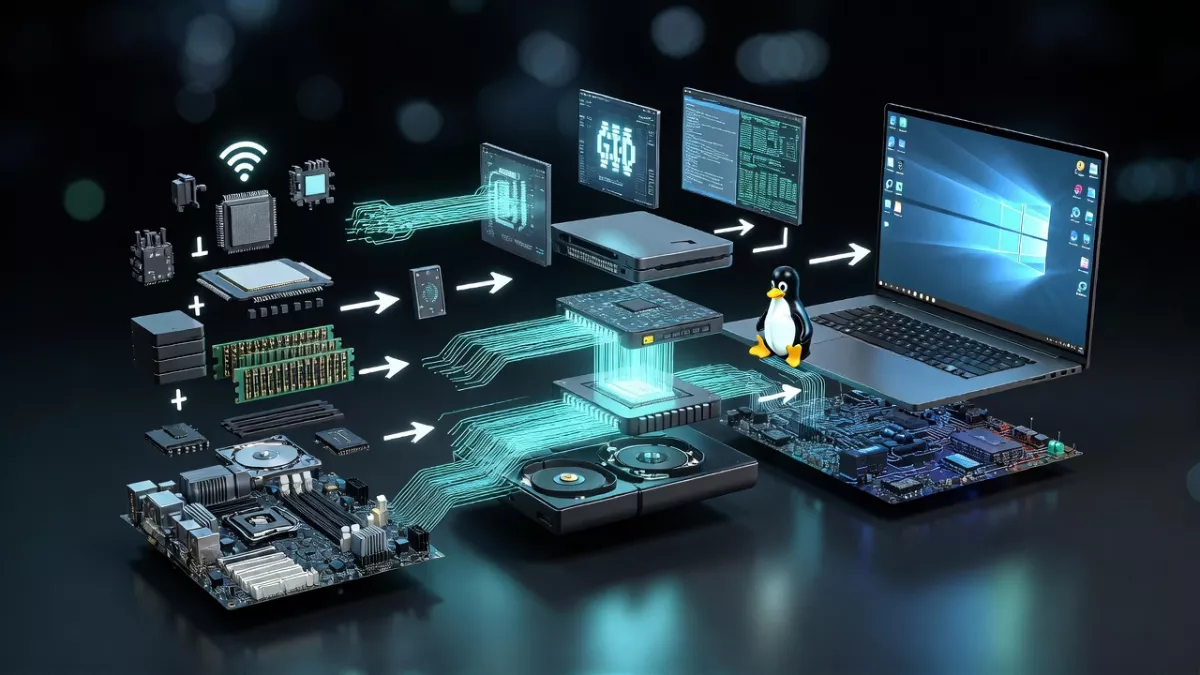
Learn How Linux Boots process step by step, from power on to login. Beginner-friendly explanation with clear stages and real examples.
If you’ve ever wondered what happens when you press the power button on a Linux machine, you’re not alone. The Linux booting process can seem mysterious at first, but once you break it down, it’s a fascinating journey from firmware to a fully running operating system. understand how Linux boots, embedded Linux booting, Arch Linux booting, and more.
What is the Linux Booting Process?
At its core, the Linux booting process is the sequence of events that happens from the moment you switch on your computer until the Linux OS is fully loaded and ready to use. It involves several stages, including BIOS initialization, loading the bootloader, starting the kernel, and launching startup applications.
Think of it like preparing for a road trip. First, you check the car (BIOS), then you start the engine (bootloader), the engine runs and powers the car (kernel), and finally, you hit the road (startup applications).
Embedded Linux Booting Process
Embedded systems, like a Raspberry Pi, IoT devices, or automotive controllers, use embedded Linux. The embedded Linux booting process is slightly different because it’s tailored for small devices with limited resources.
Here’s the simplified flow:
- Power-On Reset – The microcontroller powers up.
- Bootloader Stage – A lightweight bootloader, often U-Boot, initializes hardware.
- Kernel Loading – The Linux kernel is loaded from storage (like flash memory).
- Device Tree Setup – Hardware configuration is applied.
- Init Process – The init system starts user-space applications.
In embedded Linux, understanding the boot process is critical for debugging issues like devices not booting after installation or booting into a black screen.
Lets know How Linux Boots :
BIOS in Linux Booting Process
The first step in any Linux boot is the BIOS (Basic Input/Output System). When you power on the system, the BIOS performs POST (Power-On Self-Test), checking your hardware. It then looks for a bootable device and loads the boot block.
Some common BIOS-related questions:
- Linux boot into BIOS – Press keys like F2, F12, DEL during startup.
- Linux BIOS boot partition – This is where the BIOS expects the bootloader to reside.
- Linux boot BIOS command – BIOS doesn’t use Linux commands, but it initializes the environment so Linux can start.
Linux Boot Block
The Linux boot block is a small part of the disk that the BIOS reads first. It contains the initial bootloader code, which points to the main bootloader (like GRUB). If the boot block is corrupt, Linux won’t start.
Linux Booting Step by Step

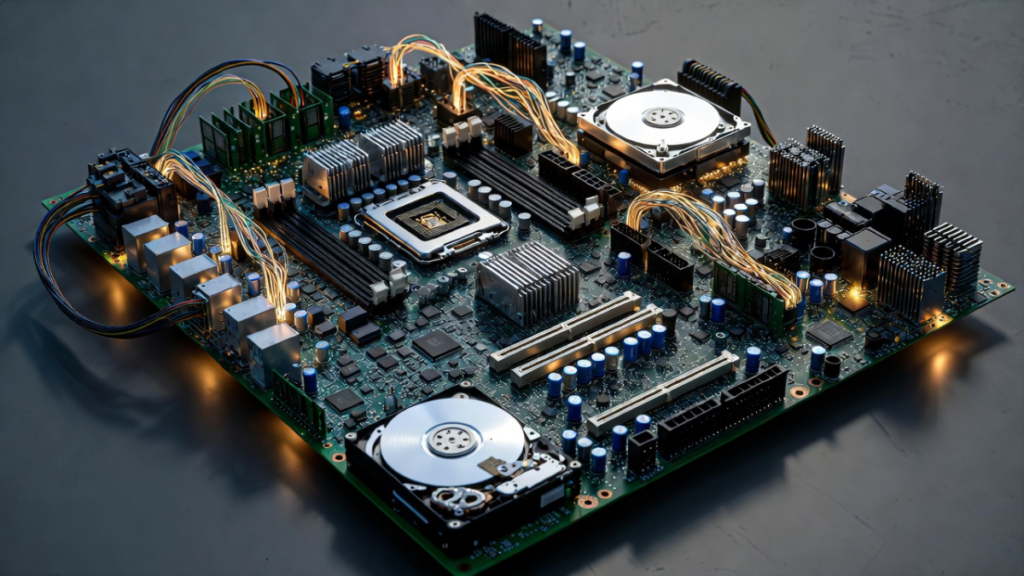
Here’s a detailed step-by-step overview of the Linux booting process:
1. BIOS Initialization
- Checks hardware integrity.
- Identifies bootable devices.
2. Bootloader Stage
- GRUB (GRand Unified Bootloader) is commonly used.
- Presents the Linux booting to GRUB prompt if configured for manual input.
- Allows selection of kernel, OS, or recovery mode.
- Handles dual booting Linux and Windows scenarios.
3. Kernel Loading
- Kernel is loaded into memory.
- Decompressing Linux booting the kernel happens here.
- Hardware drivers are initialized.
4. Init Process
- The kernel starts the first process (
init). - Modern systems use
systemdorinit=/bin/bashin troubleshooting. - Runs Linux startup applications.
5. Login Prompt
- Displays graphical login or terminal login.
- System is fully ready for user interaction.
Linux Booting to GRUB Prompt
Sometimes, your system stops at the GRUB prompt. This happens when:
- GRUB is misconfigured.
- Bootloader can’t find the kernel.
- You’re using dual booting Linux and Windows setups.
From GRUB, you can enter commands like linux /vmlinuz root=/dev/sda1 to manually boot Linux.
Linux Booting: Common Issues and Solutions
1. Linux Not Booting After Installation
- Check BIOS boot order.
- Ensure GRUB is installed correctly.
- Boot from live media to repair.
2. Arch Linux Booting to Black Screen
This is a common problem in Arch Linux booting:
- Black screen with cursor – usually graphics driver issue.
- Booting into GRUB but not the OS – kernel parameters may be incorrect.
Adding nomodeset in the GRUB command line often fixes the black screen issue.
Arch Linux Booting
Arch Linux is a rolling-release distribution, and understanding its boot process is crucial:
- Arch Linux booting to GRUB – GRUB manages kernel selection.
- Arch Linux booting to black screen with cursor – Graphics drivers need configuration.
- Troubleshooting steps:
- Boot into live environment.
- Chroot into your installation.
- Reinstall or update GRUB.
- Adjust kernel parameters.
Dual Booting Linux and Windows

Many users opt for dual booting Linux and Windows. Here’s what you should know:
- Is dual booting Linux and Windows good?
Yes, if you need both OS environments. Ensure correct partitioning and use GRUB as the main bootloader. - GRUB will detect Windows automatically in most cases.
- Avoid altering Windows bootloader directly, as it may overwrite GRUB.
Linux Boot Commands and Tips
Here are some useful Linux booting commands you might encounter:
ls /boot– lists kernel and boot files.dmesg | less– shows kernel boot messages.systemctl list-units --type=service– lists startup applications.init=/bin/bash– boot into single-user mode for troubleshooting.grub-install /dev/sda– reinstall GRUB bootloader.
Linux Startup Applications
Once the kernel and init system start, Linux startup applications launch automatically. These include:
- System services (network, logging, cron jobs)
- User-defined apps (chat clients, email, custom scripts)
- GUI components (display manager, desktop environment)
You can manage startup applications using systemctl, rc.d, or desktop-specific tools.
Decompressing Linux Booting the Kernel
The Linux kernel is often compressed to save space. During boot:
- Bootloader loads compressed kernel into memory.
- Kernel decompresses itself using
zImageorbzImage. - After decompression, kernel initializes hardware and mounts root filesystem.
This step is crucial for embedded Linux booting as well.
Linux Init=/bin/bash
Sometimes Linux won’t boot normally. Using init=/bin/bash in GRUB allows:
- Booting directly into a root shell.
- Troubleshooting filesystem issues.
- Fixing broken configurations.
Linux Boot into BIOS
If you need to change boot order or troubleshoot:
- Press
DEL,F2,F10, orESCduring startup. - Adjust boot priority for Linux or Windows.
- Ensure Linux BIOS boot partition is correctly identified.
Summary: Linux Booting Process Step by Step
Here’s a quick recap of the Linux booting process step by step:
- Power-On → BIOS POST
- BIOS finds bootable device → loads boot block
- Bootloader (GRUB) loads → shows GRUB menu
- Kernel is loaded → decompressing Linux booting the kernel
- Kernel initializes hardware → mounts root filesystem
- Init process starts → runs Linux startup applications
- Login screen or shell prompt → system ready
This sequence applies to both desktop Linux and embedded Linux booting process with slight variations.
Key Takeaways
- Understanding Linux booting is essential for troubleshooting.
- Arch Linux booting issues like black screen or GRUB prompt are common for beginners.
- Dual booting Linux and Windows is safe if done correctly.
- Using
init=/bin/bashor recovery options helps when Linux is not booting after installation. - BIOS and boot blocks are the foundation of any Linux system startup.
FAQs About Linux Booting
Q1: What is the primary function of BIOS in Linux booting?
Ans: BIOS initializes hardware and loads the bootloader from the boot block.
Q2: How do I fix Arch Linux booting to a black screen?
Ans: Use nomodeset in GRUB, update graphics drivers, or check kernel parameters.
Q3: Is dual booting Linux and Windows safe?
Ans : Yes, if you properly partition the disk and use GRUB as the bootloader
Q4: Can I boot Linux into a shell if it’s not starting?
Ans: Yes, add init=/bin/bash in the GRUB boot parameters.
Q5: What are Linux startup applications?
Ans : They are services and programs that start automatically after boot.
Conclusion
The Linux booting process may seem complex at first, but breaking it down makes it manageable. From BIOS checks to GRUB selection, kernel decompression, init processes, and startup applications, every step plays a critical role. Whether you’re troubleshooting Arch Linux booting to a black screen, exploring embedded Linux booting, or setting up dual booting Linux and Windows, understanding this flow is essential for any Linux user or enthusiast.
Remember, Linux booting isn’t just about starting the OS it’s about understanding how your system talks to your hardware and prepares your software environment. With this knowledge, you can confidently fix boot issues and optimize your system for reliability and performance.
Understanding Linux Input Drivers : Input drivers connect your devices to the Linux system, making sure every keypress, click, or swipe is recognized.
Read more: Input Drivers in Linux


Mr. Raj Kumar is a highly experienced Technical Content Engineer with 7 years of dedicated expertise in the intricate field of embedded systems. At Embedded Prep, Raj is at the forefront of creating and curating high-quality technical content designed to educate and empower aspiring and seasoned professionals in the embedded domain.
Throughout his career, Raj has honed a unique skill set that bridges the gap between deep technical understanding and effective communication. His work encompasses a wide range of educational materials, including in-depth tutorials, practical guides, course modules, and insightful articles focused on embedded hardware and software solutions. He possesses a strong grasp of embedded architectures, microcontrollers, real-time operating systems (RTOS), firmware development, and various communication protocols relevant to the embedded industry.
Raj is adept at collaborating closely with subject matter experts, engineers, and instructional designers to ensure the accuracy, completeness, and pedagogical effectiveness of the content. His meticulous attention to detail and commitment to clarity are instrumental in transforming complex embedded concepts into easily digestible and engaging learning experiences. At Embedded Prep, he plays a crucial role in building a robust knowledge base that helps learners master the complexities of embedded technologies.