Explore Device Tree in Linux: Learn about DTS, DTSI, DTB, and DTC, and understand how hardware is configured in embedded Linux systems
Imagine you’ve just moved into a brand-new city. You’re excited, but there’s a problem…
You don’t know where the hospital is, which bus goes to the school, or where the electricity office is located. You’re lost in a place full of hidden resources.
Now, someone hands you a city guidebook. It has all the important details:
- Where the roads are
- Which buildings exist
- Who to call in emergencies
- Which services are working and which are closed
Suddenly, everything makes sense. You can live in this city without confusion.
For Device Tree in Linux Imagine like this :
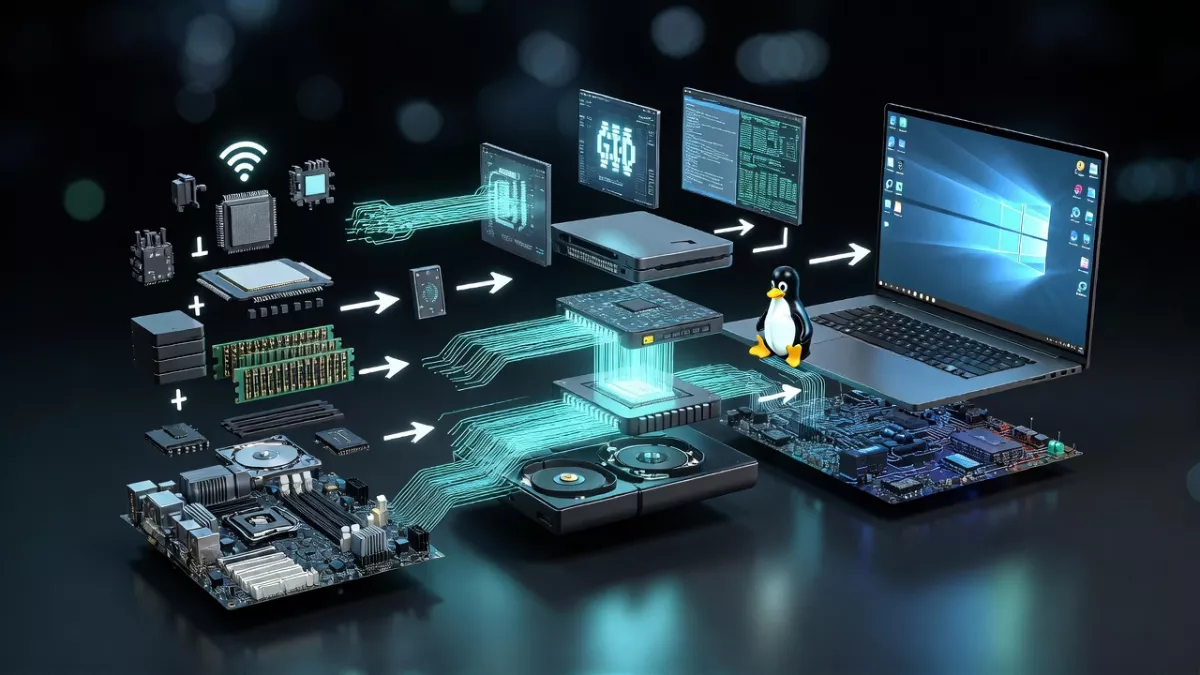
You just bought a shiny new smartphone. Inside, it’s packed with processors, memory chips, sensors, USB ports, audio codecs, and much more. But here’s the twist—your operating system doesn’t magically “know” all of these details. It needs a map to understand what hardware exists and how to talk to it.
This is exactly what happens in Linux with Device Tree.
That “map” in the Linux world is called the Device Tree.
In this guide, we’ll explore:
- What a Device Tree is
- Why it’s important in Linux
- Key terms like DTS, DTB, DTC, and DTSI
- How they all connect with each other
Let’s dive in Device Tree in Linux ……
Device Tree in Linux
Why Beginners Should Learn Device Tree in Linux
If you’re working with Embedded Linux, ARM boards, Raspberry Pi, or custom hardware, Device Tree knowledge is essential. It’s the bridge between your hardware and the Linux kernel.
Understanding DTS, DTB, DTC, and DTSI will give you the power to:
Add support for new hardware
Debug hardware issues faster
Customize Linux for your own boards
What is a Device Tree?
A Device Tree (DT) is a structured way to describe hardware to the Linux kernel.
It tells the kernel:
- What devices exist (CPU, memory, USB, UART, I2C, GPIO, etc.)
- Where they are located (addresses, registers)
- How they are connected (interrupts, buses, clocks)
- Which devices are enabled or disabled
In simple words, the Device Tree is the blueprint of your hardware that helps the kernel understand and use it properly.
Why is Device Tree in Linux Important?
In the past, hardware details were hard-coded inside the Linux kernel. That meant every time you worked with new hardware, you had to modify and rebuild the kernel.
This was slow and inflexible.
With Device Tree:
One kernel can support many boards.
Hardware changes can be handled by updating the Device Tree, not the kernel itself.
It saves time, makes Linux portable, and keeps the kernel clean.
Key Terms in Device Tree in Linux
DTS (Device Tree Source)
In Linux, hardware isn’t always detected automatically (unlike Windows). To help the kernel understand the hardware layout of a board or SoC (System on Chip), Linux uses a structure called the Device Tree.
The DTS file (Device Tree Source) is a human-readable text file that describes the hardware components, their addresses, and configuration. It acts like a map telling the kernel:
- What devices exist
- Where they are connected (memory addresses, buses)
- How they should be configured
Relationship with Other Device Tree Files
- DTS (Device Tree Source): Human-readable file written by developers.
- DTC (Device Tree Compiler): Tool that compiles DTS into binary.
- DTB (Device Tree Blob): Binary file created from DTS; loaded by the bootloader into memory for the kernel.
- DTSI (Device Tree Source Include): A shared file with common definitions (like a header file in C), included by multiple DTS files.
So, the flow looks like this:
DTS/DTSI (text source) → compiled with DTC → DTB (binary) → used by Linux kernel
Simple Analogy of Device Tree in Linux
Imagine your house blueprint:
- DTS = Architect’s written plan (easy for humans to read).
- DTC = The engineer who translates the plan into construction instructions.
- DTB = The final construction manual given to workers (binary form).
- Kernel = The actual house builders who follow the manual.
Example DTS Snippet
Here’s a very simple DTS example for an LED connected to GPIO:
/ {
    compatible = "myboard";

    leds {
        compatible = "gpio-leds";

        led1 {
            label = "status-led";
            gpios = <&gpio1 4 GPIO_ACTIVE_HIGH>;
        };
    };
};
Breakdown:
/→ root node (like root directory)compatible→ tells kernel the board typeleds→ device node for LEDsgpios→ GPIO controller, pin number, and polarity
Why DTS is Important
- Makes Linux portable across many boards without recompiling the kernel for each hardware.
- Provides a standard way to describe hardware.
- Enables developers to easily customize board configurations.
The DTS file is like the draft version of the city guide. It’s human-readable and describes hardware in text form.
Example:
uart0: serial@101f1000 {
    compatible = "arm,pl011";
    reg = <0x101f1000 0x1000>;
    interrupts = <5>;
    status = "okay";
};
This snippet says:
- There is a UART device at address
0x101f1000 - It occupies 0x1000 bytes of memory
- It uses interrupt line number 5
- It is enabled (
okay)
Location of DTS in Linux
In a typical Linux kernel source tree, the DTS/DTSI files are located under:
linux/arch/arm/boot/dts/       (for ARM 32-bit boards)
linux/arch/arm64/boot/dts/     (for ARM 64-bit boards)
linux/arch/powerpc/boot/dts/   (for PowerPC boards)
Each SoC vendor has its own folder inside:
arch/arm/boot/dts/ti/→ Texas Instruments boards (BeagleBone, AM335x, etc.)arch/arm64/boot/dts/qcom/→ Qualcomm boardsarch/arm64/boot/dts/rockchip/→ Rockchip boardsarch/arm64/boot/dts/nvidia/→ NVIDIA Jetson boards
Example: BeagleBone Black
For BeagleBone Black (AM335x SoC), DTS files are found in:
arch/arm/boot/dts/am335x-boneblack.dts
arch/arm/boot/dts/am33xx.dtsi
am335x-boneblack.dts→ board-specific DTS (tells kernel about BeagleBone Black hardware)am33xx.dtsi→ common SoC-level definitions (shared across multiple boards using AM33xx processor family)
After Compilation
When you compile the kernel, the DTS files are converted to DTB files and placed in:
arch/arm/boot/dts/*.dtb
At runtime:
- The bootloader (U-Boot) loads the appropriate
.dtbfile from/bootpartition (e.g.,/boot/am335x-boneblack.dtb) into memory. - The Linux kernel reads this DTB to understand hardware.
What is DTB (Device Tree Blob)?
The DTB is the final printed guidebook.
It’s a binary version of the DTS file that the kernel can directly understand.
At boot, the bootloader (like U-Boot) loads the DTB into memory and passes it to the kernel.
When Linux boots, the kernel needs to know what hardware is present:
- Which CPU is used
- What memory addresses are mapped
- Which peripherals (UART, I2C, SPI, GPIO, etc.) exist
The kernel itself doesn’t “magically” detect all this.
Instead, it reads a Device Tree Blob (DTB) – a binary file that describes the hardware layout.
So in short:
- DTS (Device Tree Source): Human-readable text file written by developers.
- DTC (Device Tree Compiler): Tool that converts DTS → DTB.
- DTB (Device Tree Blob): Machine-readable binary file loaded into memory for the kernel.
Where is DTB Used?
- Boot process:
- Bootloader (e.g., U-Boot) loads both the Linux kernel (
zImageorImage) and the DTB file into memory. - Kernel reads the DTB during startup to configure itself.
- Bootloader (e.g., U-Boot) loads both the Linux kernel (
- Embedded boards:
- ARM boards like Raspberry Pi, BeagleBone, Qualcomm devices, STMicroelectronics SoCs, etc. rely heavily on DTB.
- Each board usually has its own DTB file in
/boot.
Location of DTB
- In the Linux kernel source, DTBs are generated after compiling DTS files:
arch/arm/boot/dts/*.dtb
arch/arm64/boot/dts/*/*.dtb
- On a running Linux system, DTBs are usually found in
/boot, for example:
/boot/am335x-boneblack.dtb
/boot/qcom-8250.dtb
Example Flow of Device Tree in Linux
- You write or edit a DTS file, e.g.,
am335x-boneblack.dts. - Run the DTC compiler during kernel build.
- This produces
am335x-boneblack.dtb. - Bootloader loads
zImage+am335x-boneblack.dtb. - Kernel reads the DTB to configure hardware.
DTB Analogy of Device Tree in Linux
Imagine you’re traveling to a new city:
- DTS = the city map written in English (easy for humans).
- DTB = the same map but compressed into symbols (easy for GPS to read).
- Kernel = your GPS app that follows the map.
How to Inspect a DTB?
Although DTB is a binary file, you can decompile it back to human-readable DTS using dtc:
dtc -I dtb -O dts -o output.dts input.dtb
Example:
dtc -I dtb -O dts -o am335x-boneblack.dts am335x-boneblack.dtb
This lets you reverse-engineer what the kernel is actually using.
Takeaways of Device Tree in Linux
- DTB = compiled binary form of DTS
- Loaded by bootloader → passed to kernel
- Found in
/booton devices - Can be decompiled back to DTS for inspection
- Critical in embedded Linux systems for hardware description
What is DTC (Device Tree Compiler)?
The DTC is the printing press that takes your draft notes (DTS) and produces the official guidebook (DTB).
Example command:
dtc -I dts -O dtb -o myboard.dtb myboard.dts
-I dts→ Input format is DTS-O dtb→ Output format is DTB-o→ Output file name
You can also decompile DTB back to DTS:
dtc -I dtb -O dts -o myboard.dts myboard.dtb
Perfect! Let’s dive into DTC (Device Tree Compiler) in a clear, beginner-friendly way.
The Device Tree Compiler (DTC) is a tool that converts human-readable Device Tree files (DTS/DTSI) into a binary format (DTB) that the Linux kernel can understand.
- Input: DTS or DTSI files
- Output: DTB (Device Tree Blob)
Without DTC, the kernel cannot read the DTS files directly, because it only understands the binary DTB format.
Why DTC is Important
- Human-readable → Machine-readable: DTS files are text files; DTB files are binary. DTC bridges the gap.
- Validation: DTC checks for syntax errors in DTS files before creating DTB.
- Flexible builds: Supports generating DTBs for multiple boards from a single kernel source.
How DTC Works
- Developer writes DTS/DTSI files describing hardware.
- During kernel compilation, DTC is invoked automatically (or manually) to generate DTB:
dtc -I dts -O dtb -o am335x-boneblack.dtb am335x-boneblack.dts
Breakdown of the command:
-I dts→ Input format is DTS (text)-O dtb→ Output format is DTB (binary)-o am335x-boneblack.dtb→ Output file nameam335x-boneblack.dts→ Input DTS file
Reverse Compilation of Device Tree in Linux
You can also decompile DTB → DTS for inspection or modification:
dtc -I dtb -O dts -o output.dts input.dtb
This is useful when you want to see what hardware configuration the kernel is actually using.
Location in Linux
- DTC is usually available in the kernel build tools.
- You can also install it on Ubuntu/Debian:
sudo apt install device-tree-compiler
- The
dtcexecutable can then be run from the terminal.
Analogy
Think of DTC like a translator:
- DTS = a story written in English
- DTC = translates the story into binary code that the kernel (machine) understands
- DTB = the translated binary story that the kernel reads
Main Takeaways
- DTC = Device Tree Compiler
- Converts DTS/DTSI → DTB and DTB → DTS
- Checks syntax and validates Device Tree files
- Crucial for embedded Linux boards to work with a single kernel across multiple hardware
What is DTSI (Device Tree Source Include)?
Sometimes multiple cities share the same features—like all cities have electricity boards, bus stops, and hospitals. Instead of writing them again in every guide, you create a shared chapter and include it.
A DTSI file is a Device Tree “include” file. It is not a complete device tree by itself, but a shared file containing common hardware definitions that multiple DTS files can include.
That’s what DTSI files are: reusable files with common hardware descriptions.
Example:
#include "soc.dtsi"

&uart0 {
    status = "okay";
};
Here, soc.dtsi might define the processor, timers, and memory common across multiple boards.
Think of it as a header file in C programming:
- You define reusable stuff once in DTSI
- Multiple DTS files can include it
- Helps avoid duplication and keeps things organized
Why DTSI is Important in Device Tree in Linux
- Code Reusability: Common definitions (like CPU, SoC peripherals, memory maps) are written once in DTSI and reused across boards.
- Simplifies Maintenance: Changes in common hardware need to be updated in only one DTSI file.
- Cleaner Structure: Keeps board-specific DTS files smaller and easier to read.
How DTSI is Used
Inside a DTS file, you include a DTSI file using the #include directive:
#include "am33xx.dtsi"

/ {
    model = "BeagleBone Black";
    compatible = "ti,beaglebone-black", "ti,am335x";

    leds {
        compatible = "gpio-leds";
        led0 {
            label = "status-led";
            gpios = <&gpio1 21 GPIO_ACTIVE_HIGH>;
        };
    };
};
#include "am33xx.dtsi"→ includes all common definitions for the AM33xx family- The DTS file only contains board-specific configurations, like LEDs, buttons, or custom devices
Location in Linux
DTSI files are located alongside DTS files in the kernel source tree:
arch/arm/boot/dts/am33xx.dtsi      (for AM33xx SoC)
arch/arm/boot/dts/include/         (sometimes common includes)
Example:
am33xx.dtsi→ contains CPU, memory, pinmux, and common peripheralsam335x-boneblack.dts→ includesam33xx.dtsiand adds board-specific devices
Analogy of Device Tree in Linux
- DTSI = reusable blueprint templates
- DTS = specific house plan using templates
- DTC → DTB = final construction manual
Main Takeaways of Device Tree in Linux
- DTSI = Device Tree Source Include
- Contains shared/common hardware definitions
- Included in DTS files with
#include - Simplifies code reuse and maintenance
- Works together with DTS and DTC to generate DTB
Device Tree Workflow of Device Tree in Linux
Here’s the step-by-step flow:
Step 1: DTSI – Shared Definitions
- Contains common hardware definitions like CPU, memory map, clocks, buses.
- Acts like a header file in C.
- Reusable across multiple boards.
Example:
/am33xx.dtsi
    cpu { ... }
    memory { ... }
    pinmux { ... }
Step 2: DTS – Board-Specific Device Tree
- Includes DTSI for common definitions.
- Adds board-specific devices, like LEDs, buttons, sensors, custom peripherals.
Example:
#include "am33xx.dtsi"

leds {
    led0 { gpios = <&gpio1 21 GPIO_ACTIVE_HIGH>; };
};
Step 3: DTC – Device Tree Compiler
- Converts DTS + DTSI → DTB (binary blob).
- Validates syntax and generates machine-readable hardware description.
Command:
dtc -I dts -O dtb -o am335x-boneblack.dtb am335x-boneblack.dts
Step 4: DTB – Device Tree Blob
- Binary file loaded by bootloader into memory.
- Kernel reads it at startup to know what hardware is present and how to configure it.
Step 5: Kernel Boot
- Kernel uses DTB to initialize hardware drivers.
- Mounts root filesystem and starts user-space processes.
Diagram: Device Tree Workflow in Linux
            ┌─────────────┐
            │   DTSI      │
            │ (Common HW) │
            └─────┬───────┘
                  │ #include
                  ▼
            ┌─────────────┐
            │   DTS       │
            │ (Board-Specific) │
            └─────┬───────┘
                  │
                  │ dtc (Device Tree Compiler)
                  ▼
            ┌─────────────┐
            │   DTB       │
            │ (Binary Blob) │
            └─────┬───────┘
                  │ Loaded by Bootloader
                  ▼
            ┌─────────────┐
            │   Kernel    │
            │  Initializes │
            │   Hardware   │
            └─────────────┘
                  │
                  ▼
            User Space / Applications
Key Takeaways of Device Tree in Linux
- DTSI → shared/common definitions
- DTS → board-specific device tree
- DTC → compiles DTS → DTB
- DTB → binary hardware description used by kernel
- Kernel → uses DTB to initialize devices
How the Device Tree Works in Linux (Step by Step)
- Developer writes hardware description in DTS/DTSI.
- DTC compiles it into a DTB.
- The bootloader passes the DTB to the kernel at boot.
- The kernel reads the DTB to know which devices exist and how to initialize them.
A Simple Analogy of Device Tree in Linux
Think of Linux as a newcomer in a city.
- Without a guidebook (Device Tree), the newcomer is lost.
- With handwritten notes (DTS), there is some clarity, but it’s not easy to use.
- With the official printed guidebook (DTB), life becomes simple.
- The printing press (DTC) makes the conversion possible.
- Shared chapters (DTSI) ensure you don’t rewrite the same info again.
Step-by-Step Guide of Device Tree in Linux : Adding a Custom Sensor in Linux
Suppose you bought a custom I2C temperature sensor for your embedded board. Here’s how you add it.
Step 1: Identify Sensor Specifications
- Check the datasheet of the sensor:
- Communication protocol (I2C, SPI, UART, GPIO)
- Address or pins used
- Registers and data format
- Example:
- I2C address:
0x48 - 3.3V supply, SDA/SCL pins
- I2C address:
Step 2: Decide How Sensor Connects
- Choose the bus (I2C, SPI, GPIO) on your board.
- Make sure the pins are available and compatible.
- Example: I2C1 bus on your board has pins: SDA → P9_20, SCL → P9_19
Step 3: Check for Existing Kernel Driver
- Search if Linux already has a driver for your sensor.
- Example: Check under
/drivers/iio/temperature/or/drivers/i2c/in the kernel. - If a driver exists, you just need to add Device Tree entry.
- If not, you may need to write a new kernel driver.
Step 4: Modify Device Tree (DTS/DTSI)
- Add a new node for your sensor in the board’s DTS file.
- Example for an I2C sensor:
&i2c1 {
    status = "okay";

    custom_temp_sensor: temp@48 {
        compatible = "myvendor,mytempsensor";
        reg = <0x48>;
        vdd-supply = <&vdd_3v3>;
    };
};
&i2c1→ bus node in DTScustom_temp_sensor→ label for your devicecompatible→ links to the driverreg→ I2C address
If common settings like voltage are shared, you can also include a DTSI file for reuse.
Step 5: Compile DTS → DTB
- Use DTC to generate the DTB:
dtc -I dts -O dtb -o am335x-boneblack.dtb am335x-boneblack.dts
- Place DTB in
/bootor let bootloader load it.
Step 6: Kernel Driver
- If driver exists:
- Ensure
compatiblematches the driver name. - Kernel automatically binds the sensor.
- Ensure
- If driver does not exist:
- Write a custom Linux kernel driver for your sensor.
- Implement probe, read, write, and init functions.
- Bind it to your DT node using
compatible.
Step 7: Load Driver & Test
- Reboot the board or insert module:
sudo insmod custom_temp_sensor.ko
- Check if sensor is detected:
dmesg | grep temp
i2cdetect -y 1   # for I2C sensors
- Read values via sysfs or the driver interface:
cat /sys/bus/i2c/devices/1-0048/temp_input
Step 8: Verify & Debug
- Use tools like:
dmesg→ check kernel logsi2cdetect,i2cget,i2cset→ verify I2C buscat /sys/...→ read sensor values
- Ensure the data makes sense (temperature, voltage, etc.).
Quick Flow of Device Tree in Linux
- Read sensor datasheet
- Choose connection (I2C/SPI/GPIO)
- Check if Linux driver exists
- Modify DTS/DTSI (Device Tree)
- Compile DTS → DTB
- Ensure kernel driver binds (or write custom driver)
- Load driver and test
- Debug & verify sensor readings
Frequently Asked Questions (FAQ) – Device Tree in Linux
Q1: What is a Device Tree in Linux?
Ans: Device Tree in Linux is a data structure that describes the hardware of a system to the Linux kernel. It tells the kernel about CPUs, memory, buses, and peripheral devices, enabling proper hardware initialization without hardcoding configurations.
Q2: Why is Device Tree important in Linux?
Ans: Device Tree in Linux allows a single kernel build to support multiple hardware platforms. Instead of embedding hardware details in the kernel, it provides flexibility, easier maintenance, and faster hardware integration.
Q3: What is the difference between DTS, DTSI, and DTB files?
Ans:
DTS (Device Tree Source): Human-readable source file describing a specific hardware configuration.
DTSI (Device Tree Source Include): Reusable include files shared across multiple DTS files.
DTB (Device Tree Blob): Compiled binary version of DTS used by the Linux kernel at boot.
Q4: How do I compile a Device Tree in Linux?
Ans: dtc -I dts -O dtb -o output.dtb input.dts
This converts human-readable DTS files into kernel-readable DTB files.
Q5: Can Device Tree be modified at runtime in Linux?
Ans: Device Tree in Linux is primarily static. However, certain parts can be modified at runtime using overlays (Device Tree Overlays) for dynamic hardware configuration.
Q6: What is a Device Tree Overlay in Linux?
Ans: A Device Tree Overlay (DTO) allows you to add or modify hardware definitions without recompiling the entire kernel, often used for adding peripherals like sensors, displays, or custom boards.
Q7: How do I find the Device Tree used by my Linux system?
Ans: You can check the running Device Tree with:
ls /proc/device-tree
This directory contains the current hardware description used by the kernel.
Q8: Is Device Tree only used in embedded Linux?
Ans: While Device Tree is most common in embedded systems (ARM, SoCs), it is also supported on some x86 platforms, especially for flexible hardware configuration.
Q9: How do I debug Device Tree issues in Linux?
Ans: Check boot logs with dmesg.
Use dtc -I dtb -O dts -o output.dts input.dtb to decompile and inspect DTB files.
Verify node properties and compatibility strings.
Q10: Where can I learn more about Device Tree in Linux?
Ans: Documentation/devicetree
Additionally, tutorials and practical examples for DTS, DTSI, DTB, and DTC will help you master Device Tree in Linux efficiently.
You can also Visit other tutorials of Embedded Prep
- Multithreading in C++
- Multithreading Interview Questions
- Multithreading in Operating System
- Multithreading in Java
- POSIX Threads pthread Beginner’s Guide in C/C++
- Speed Up Code using Multithreading
- Limitations of Multithreading
- Common Issues in Multithreading
- Multithreading Program with One Thread for Addition and One for Multiplication
- Advantage of Multithreading
- Disadvantages of Multithreading
- Applications of Multithreading: How Multithreading Makes Modern Software Faster and Smarter”
- Master CAN Bus Interview Questions 2025
- What Does CAN Stand For in CAN Bus?
- CAN Bus Message Filtering Explained
- CAN Bus Communication Between Nodes With Different Bit Rates
- How Does CAN Bus Handle Message Collisions
- Message Priority Using Identifiers in CAN Protocol


Mr. Raj Kumar is a highly experienced Technical Content Engineer with 7 years of dedicated expertise in the intricate field of embedded systems. At Embedded Prep, Raj is at the forefront of creating and curating high-quality technical content designed to educate and empower aspiring and seasoned professionals in the embedded domain.
Throughout his career, Raj has honed a unique skill set that bridges the gap between deep technical understanding and effective communication. His work encompasses a wide range of educational materials, including in-depth tutorials, practical guides, course modules, and insightful articles focused on embedded hardware and software solutions. He possesses a strong grasp of embedded architectures, microcontrollers, real-time operating systems (RTOS), firmware development, and various communication protocols relevant to the embedded industry.
Raj is adept at collaborating closely with subject matter experts, engineers, and instructional designers to ensure the accuracy, completeness, and pedagogical effectiveness of the content. His meticulous attention to detail and commitment to clarity are instrumental in transforming complex embedded concepts into easily digestible and engaging learning experiences. At Embedded Prep, he plays a crucial role in building a robust knowledge base that helps learners master the complexities of embedded technologies.