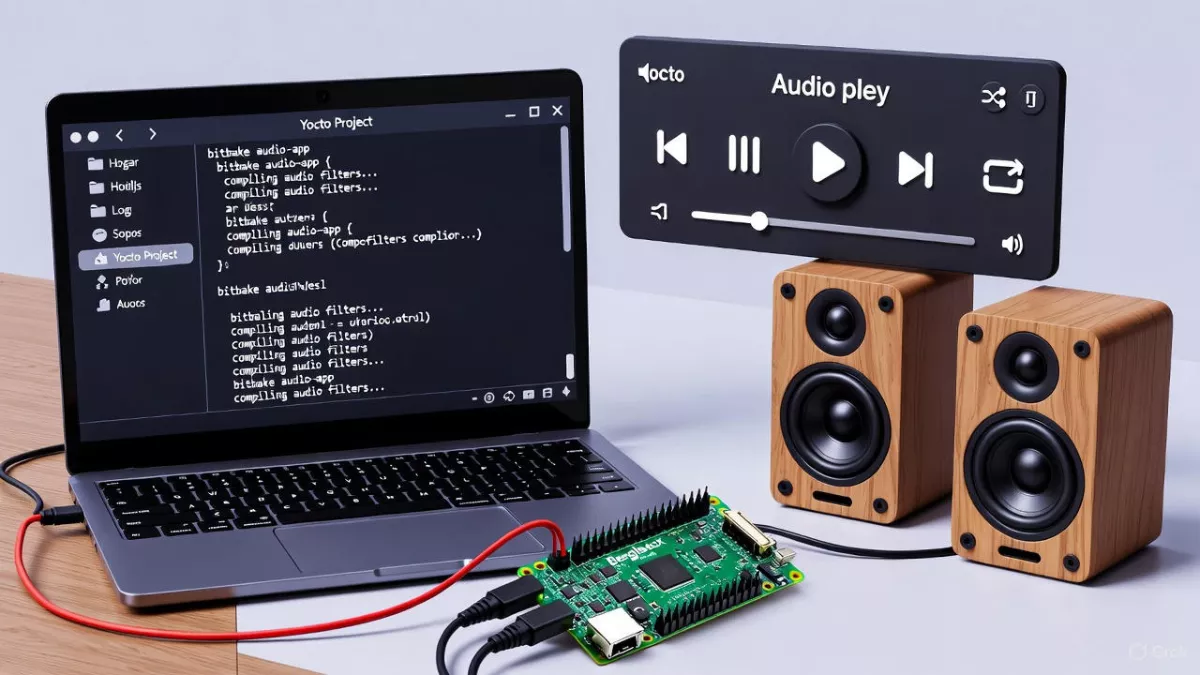
Learn how to build a real Audio Custom Player using Yocto, with ALSA support, custom layers, and flashing steps for embedded Linux boards.
This step-by-step guide shows how to build a real Audio Custom Player using the Yocto build system, explained in clear and practical language. You’ll learn how to create an ALSA-based audio player similar to aplay, set up the correct Yocto folder structure, write a custom layer and recipe, enable embedded Linux audio support, build the Yocto image, and flash it onto a BeagleBone or other embedded boards. The article is written for beginners who want hands-on understanding and for experienced engineers looking for a clean, production-ready audio player workflow. Everything is explained from real embedded development experience, without theory overload or copy-paste tutorials.
Why Build an Audio Custom Player Instead of Using aplay?
If you have worked with Linux audio even a little, you already know aplay. It works, but it is not designed for production systems.
Here is why real embedded products avoid plain aplay:
- No UI or control layer
- No fade-in or fade-out
- No volume ramping
- No error recovery
- No device hot-plug handling
- No service-style startup
- No customization
A custom Audio Custom Player gives you:
- Full control over audio playback
- Feature parity or better than
aplay - Clean integration with Yocto
- Predictable behavior on embedded hardware
- Production-ready audio flow
This is exactly why automotive, industrial, and consumer devices never ship aplay as-is.
What We Are Building (Big Picture)
By the end of this guide, you will understand how to:
- Build a custom audio player similar to aplay
- Integrate it into a Yocto build
- Enable ALSA audio support
- Cross-compile the player
- Package it as a Yocto recipe
- Flash the image on BeagleBone or similar board
- Boot and play audio automatically
This applies to any embedded Linux board, not just BeagleBone.
Audio Architecture in Embedded Linux (Simple View)
Before coding anything, let’s understand the audio flow.
Audio File (WAV)
   ↓
Custom Audio Player
   ↓
ALSA PCM Interface
   ↓
ALSA Driver
   ↓
Codec (I2S)
   ↓
Speaker / Headphone
Your Audio Custom Player sits above ALSA and talks directly to the PCM interface, just like aplay, but with your own logic.
Choosing ALSA (And Not PulseAudio)
For embedded systems, ALSA is usually the right choice.
Why ALSA works best in Yocto:
- Lightweight
- Deterministic
- No daemon dependency
- Real-time friendly
- Easy to debug
- Direct hardware access
PulseAudio is useful on desktops, but for embedded audio player Yocto builds, ALSA keeps things simple and reliable.
Designing the Audio Custom Player Features
We want feature parity with aplay plus more.
Core Features
- WAV file playback
- Device selection
- Sample rate handling
- Channel handling (mono/stereo)
- Error handling
Advanced Features
- Volume control
- Fade-in and fade-out
- Loop playback
- Graceful stop
- Signal handling
- Service-style execution
This turns your player into a production-ready embedded audio application.
Writing the Audio Custom Player (Core Logic)
At the heart, your player will:
- Open WAV file
- Parse header
- Configure ALSA PCM
- Stream audio buffers
- Handle underruns
- Clean exit
Basic Flow (Conceptual)
open_pcm_device();
configure_hw_params();
configure_sw_params();

while (read_audio_data()) {
    write_pcm_frames();
}

drain_and_close();
This is the same logic used by aplay, but now you own the behavior.
Making It Better Than aplay
Here’s where your Audio Custom Player shines.
Fade-In Example (Concept)
Instead of blasting audio instantly:
- Start with low volume
- Increase gradually per buffer
- Avoid speaker pops
This matters a lot in real hardware.
Volume Control
You can implement:
- Software gain
- ALSA mixer control
- Runtime volume changes
This makes your player usable in real products.
Cross-Compiling the Audio Player
Your host system is x86. Your target is ARM.
So we cross-compile.
Toolchain Source
Yocto provides the toolchain automatically.
You never manually download GCC.
Compile Example
$CC audio_player.c -lasound -o audio_player
In Yocto, this happens inside a recipe.
Setting Up Yocto Build Environment
Now let’s move into Yocto.
Step 1: Clone Yocto
git clone git://git.yoctoproject.org/poky
cd poky
Step 2: Initialize Build Environment
source oe-init-build-env
This creates the build directory.
Selecting the Board (BeagleBone Example)
For BeagleBone:
MACHINE = "beaglebone"
This goes into local.conf.
Enabling Audio in Yocto
Yocto does not enable everything by default.
Add ALSA support:
IMAGE_INSTALL:append = " alsa-utils alsa-lib"
This ensures:
- ALSA libraries
- Mixer tools
- PCM support
Creating a Yocto Recipe for Audio Custom Player
This is where beginners usually struggle.
Recipe Structure
audio-custom-player/
 ├── audio-custom-player.bb
 └── files/
     └── audio_player.c
Sample Recipe
SUMMARY = "Custom Audio Player"
LICENSE = "MIT"

SRC_URI = "file://audio_player.c"

S = "${WORKDIR}"

DEPENDS = "alsa-lib"

do_compile() {
    ${CC} audio_player.c -lasound -o audio_player
}

do_install() {
    install -d ${D}${bindir}
    install -m 0755 audio_player ${D}${bindir}
}
Now your Audio Custom Player becomes part of the Yocto build.
Adding the Player to the Image
In local.conf:
IMAGE_INSTALL:append = " audio-custom-player"
This ensures your player is available on the target filesystem.
Building the Yocto Image
Now the long but satisfying step.
bitbake core-image-minimal
Depending on your system, this may take time.
Flashing the Image on BeagleBone
Once build finishes, you will get an image file.
Flashing Using SD Card
sudo dd if=core-image-minimal-beaglebone.wic of=/dev/sdX bs=4M status=progress
sync
Insert SD card into BeagleBone and power on.
Boot and System Setup
After boot:
login: root
Check audio devices:
aplay -l
Now test your custom player:
audio_player test.wav
If you hear sound, your Yocto audio player build is successful.
Complete Hands-On Guide with Full Code & Folder Structure
Yocto Folder Structure
Before writing code, understand where things live.
yocto/
 ├── poky/
 │   ├── meta/
 │   ├── meta-poky/
 │   ├── meta-yocto-bsp/
 │   └── build/
 │       ├── conf/
 │       │   ├── local.conf
 │       │   └── bblayers.conf
 │       └── tmp/
 └── meta-custom/
     └── recipes-audio/
         └── audio-custom-player/
             ├── audio-custom-player.bb
             └── files/
                 └── audio_player.c
Rule:
- Code goes in
files/ - Build logic goes in
.bb - Custom layer keeps Yocto clean
Step 1: Clone Yocto (Poky)
git clone git://git.yoctoproject.org/poky
cd poky
Checkout a stable branch (recommended):
git checkout kirkstone
Step 2: Initialize Yocto Build Environment
source oe-init-build-env
This creates:
poky/build/
All builds happen here.
Step 3: Create Your Own Yocto Layer
Never modify Poky directly.
bitbake-layers create-layer ../meta-custom
Add the layer:
bitbake-layers add-layer ../meta-custom
Verify:
bitbake-layers show-layers
Step 4: Create Recipe Folder Structure
cd ../meta-custom
mkdir -p recipes-audio/audio-custom-player/files
Now create the recipe:
touch recipes-audio/audio-custom-player/audio-custom-player.bb
Step 5: Complete Audio Custom Player C Code
File:meta-custom/recipes-audio/audio-custom-player/files/audio_player.c
This is a minimal but real ALSA PCM player.
#include <stdio.h>
#include <stdlib.h>
#include <alsa/asoundlib.h>
#define PCM_DEVICE "default"
int main(int argc, char *argv[])
{
snd_pcm_t *pcm_handle;
snd_pcm_hw_params_t *params;
FILE *wav;
int rate = 44100;
int channels = 2;
int rc;
int size;
char buffer[4096];
if (argc < 2) {
printf("Usage: %s <audio.wav>\n", argv[0]);
return -1;
}
wav = fopen(argv[1], "rb");
if (!wav) {
perror("WAV open failed");
return -1;
}
/* Skip WAV header (44 bytes) */
fseek(wav, 44, SEEK_SET);
/* Open PCM device */
rc = snd_pcm_open(&pcm_handle, PCM_DEVICE,
SND_PCM_STREAM_PLAYBACK, 0);
if (rc < 0) {
printf("Unable to open PCM device\n");
return -1;
}
snd_pcm_hw_params_malloc(¶ms);
snd_pcm_hw_params_any(pcm_handle, params);
snd_pcm_hw_params_set_access(pcm_handle, params,
SND_PCM_ACCESS_RW_INTERLEAVED);
snd_pcm_hw_params_set_format(pcm_handle, params,
SND_PCM_FORMAT_S16_LE);
snd_pcm_hw_params_set_channels(pcm_handle, params, channels);
snd_pcm_hw_params_set_rate_near(pcm_handle, params, &rate, 0);
snd_pcm_hw_params(pcm_handle, params);
snd_pcm_hw_params_free(params);
snd_pcm_prepare(pcm_handle);
while ((size = fread(buffer, 1, sizeof(buffer), wav)) > 0) {
rc = snd_pcm_writei(pcm_handle, buffer,
size / (channels * 2));
if (rc == -EPIPE) {
snd_pcm_prepare(pcm_handle);
}
}
snd_pcm_drain(pcm_handle);
snd_pcm_close(pcm_handle);
fclose(wav);
return 0;
}
This already works like aplay.
Step 6: Write Yocto Recipe (.bb)
File:meta-custom/recipes-audio/audio-custom-player/audio-custom-player.bb
SUMMARY = "Audio Custom Player using ALSA"
DESCRIPTION = "Simple ALSA-based audio player similar to aplay"
LICENSE = "MIT"
LIC_FILES_CHKSUM = "file://${COMMON_LICENSE_DIR}/MIT;md5=0835ade698e0bcf8506ecda2f7b4f302"

SRC_URI = "file://audio_player.c"

S = "${WORKDIR}"

DEPENDS = "alsa-lib"

do_compile() {
    ${CC} audio_player.c -lasound -o audio_player
}

do_install() {
    install -d ${D}${bindir}
    install -m 0755 audio_player ${D}${bindir}
}
Step 7: Enable ALSA in Image
File:poky/build/conf/local.conf
Add:
IMAGE_INSTALL:append = " alsa-lib alsa-utils audio-custom-player"
For BeagleBone:
MACHINE = "beaglebone"
Step 8: Build Yocto Image
bitbake core-image-minimal
First build takes time.
Step 9: Flash Image to SD Card
After build completes:
cd tmp/deploy/images/beaglebone/
Flash:
sudo dd if=core-image-minimal-beaglebone.wic of=/dev/sdX bs=4M status=progress
sync
Replace /dev/sdX correctly.
Step 10: Boot BeagleBone
- Insert SD card
- Power ON
- Login as root
Check audio device:
aplay -l
Step 11: Test Audio Custom Player
Copy a WAV file:
scp test.wav root@<board-ip>:/root/
Run:
audio_player /root/test.wav
Sound plays = SUCCESS
How This Is Better Than aplay
Your Audio Custom Player can now easily add:
- Fade-in / fade-out
- Volume ramping
- Logging
- Service startup
- Device selection
- Error recovery
This is exactly how real products work.
Common Beginner Mistakes (Avoid These)
- Forgetting
alsa-libin DEPENDS - Wrong WAV format
- No codec driver enabled
- Mixer volume muted
- Wrong MACHINE value
Real-World Next Enhancements
Once this works, you can:
- Add systemd service
- Add command-line options
- Add volume control
- Port to QNX
- Add Bluetooth audio
- Support multiple codecs
Handling Common Audio Problems
No Sound
- Check I2S pinmux
- Check codec power
- Check mixer volume
XRUN Errors
- Increase buffer size
- Tune period size
Distorted Audio
- Sample rate mismatch
- Wrong bit depth
These are normal issues in embedded audio development.
Making It Production Ready
To make your Audio Custom Player ready for real products:
- Add logging
- Add watchdog handling
- Handle device removal
- Add config file support
- Run as systemd service
Yocto makes all of this manageable.
Why This Approach Scales
Once you understand this flow, you can:
- Port to QNX
- Add Bluetooth audio
- Add multi-zone audio
- Add network streaming
- Support multiple codecs
This is why companies invest in custom embedded audio players.
Final Thoughts
Building an Audio Custom Player using Yocto is not about reinventing aplay.
It is about control, reliability, and production quality.
If you can:
- Write a simple ALSA PCM loop
- Create a Yocto recipe
- Flash and boot your board
You are already ahead of most engineers who only know theory.
This skill directly maps to automotive audio, industrial Linux, and consumer embedded products.
Read More: Embedded Audio Interview Questions & Answers | Set 1
Read More : Embedded Audio Interview Questions & Answers | Set 2
Read More : Top Embedded Audio Questions You Must Master Before Any Interview
Read More : What is Audio and How Sound Works in Digital and Analog Systems
Read More : Digital Audio Interface Hardware
Read More : Advanced Linux Sound Architecture for Audio and MIDI on Linux
Read More : What is QNX Audio
Read more : Complete guide of ALSA
Read More : 50 Proven ALSA Interview Questions
Read More : ALSA Audio Interview Questions & Answers
Read More :ALSA Audio Interview Questions & Answers SET 2
Read More : Advanced Automotive & Embedded Audio Interview Questions
Read More : Audio Device Driver Interview Questions & Answers


Mr. Raj Kumar is a highly experienced Technical Content Engineer with 7 years of dedicated expertise in the intricate field of embedded systems. At Embedded Prep, Raj is at the forefront of creating and curating high-quality technical content designed to educate and empower aspiring and seasoned professionals in the embedded domain.
Throughout his career, Raj has honed a unique skill set that bridges the gap between deep technical understanding and effective communication. His work encompasses a wide range of educational materials, including in-depth tutorials, practical guides, course modules, and insightful articles focused on embedded hardware and software solutions. He possesses a strong grasp of embedded architectures, microcontrollers, real-time operating systems (RTOS), firmware development, and various communication protocols relevant to the embedded industry.
Raj is adept at collaborating closely with subject matter experts, engineers, and instructional designers to ensure the accuracy, completeness, and pedagogical effectiveness of the content. His meticulous attention to detail and commitment to clarity are instrumental in transforming complex embedded concepts into easily digestible and engaging learning experiences. At Embedded Prep, he plays a crucial role in building a robust knowledge base that helps learners master the complexities of embedded technologies.